
Accessing your WordPress site when locked out is a common challenge—especially when you suddenly can’t log in or your site starts behaving unexpectedly.
If you’re trying to access your WordPress site when locked out, it’s usually caused by login errors, security restrictions, or configuration issues.
Whether you’re seeing login errors, redirects, or even a setup screen, there’s always a way to fix it.
If you’re wondering how to access your WordPress site when locked out, the steps below will help you regain access quickly.
Quick Answer: How to Access WordPress When Locked Out
If you’re locked out of WordPress, try these steps:
- Reset your password using “Lost your password?”
- Disable your security plugin (very common issue)
- Clear browser cache or try incognito mode
- Disable all plugins via File Manager
- Check your wp-config.php file for changes
- Create a new admin user via phpMyAdmin
- Check your .htaccess file
- Contact your hosting provider
First: Identify the Type of Lockout
Identifying the issue correctly is the first step to access your WordPress site when locked out without unnecessary troubleshooting.
Before jumping into fixes, identify what you’re seeing:
| Situation | Likely Cause | What to Try First |
|---|---|---|
| Can’t login (wrong password) | Credential issue | Reset password |
| Login blocked after attempts | Security plugin | Disable security plugin |
| Redirecting to another site | Possible hack | Check wp-config |
| Seeing setup screen | Database disconnected | Check DB details |
| “Error establishing database connection” | DB issue | Verify credentials |
Identifying the issue first can save you a lot of time.
How to Access Your WordPress Site When Locked Out (Step-by-Step Fixes)
Now that you’ve identified the type of lockout, let’s go through the most effective ways to regain access to your WordPress site.
Start with the simplest fixes first, then move to advanced solutions only if needed. In most cases, you’ll be able to fix the issue within the first few steps.
Fix 1: Reset Your Password (Easiest Method)
Go to your login page:
yourwebsite.com/wp-admin
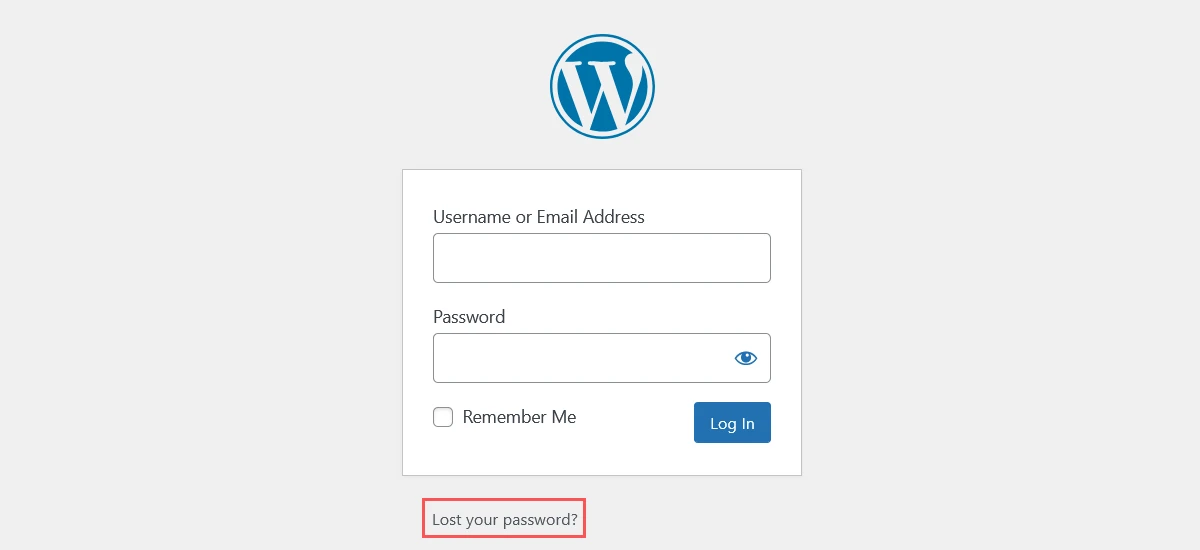
Click Lost your password? and reset it via email.
Fix 2: Disable Security Plugin (Most Common Cause)
Security plugins like Wordfence or iThemes Security can block your IP after multiple login attempts.
How to fix:
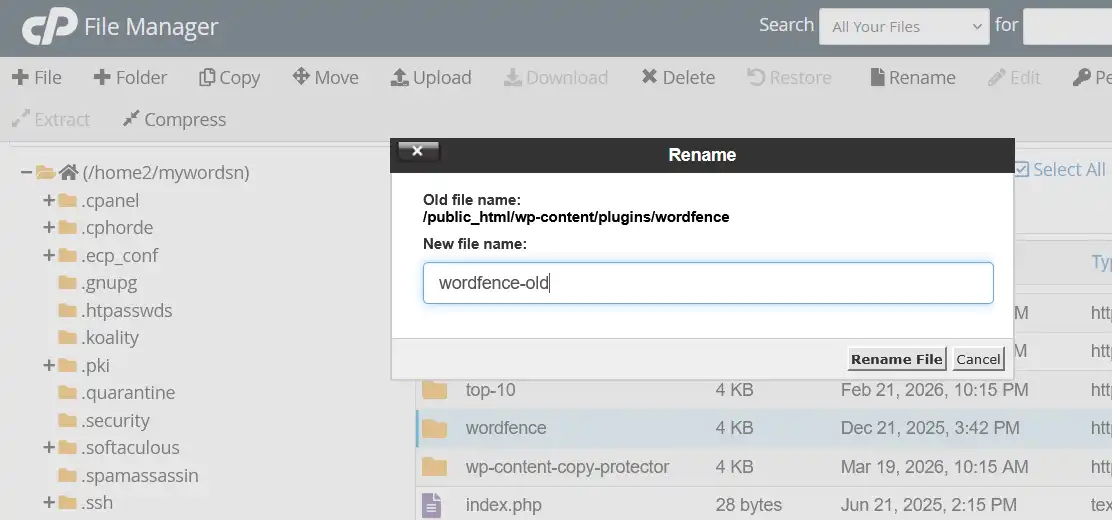
- Open your hosting panel → File Manager
- Go to /wp-content/plugins/
- Find your security plugin folder (e.g., wordfence)
- Rename it (e.g., wordfence-old)
Now try logging in again.
This is one of the most common reasons users are unable to access their WordPress site when locked out. If this works, your IP was blocked—not a password issue.
If your wp-config.php file has been altered, it’s important to secure it properly to prevent future issues. You can follow this guide: How to Secure wp-config.php in WordPress.
To better understand how WordPress handles security, you can also refer to the official guide.
Fix 3: Clear Cache and Try Again
Sometimes login issues are caused by cached sessions.
- Clear browser cache
- Try incognito/private mode
- Disable browser extensions
Fix 4: Disable All Plugins (WordPress Plugin Conflict Fix)
If you’re still locked out, a plugin conflict may be the cause.
Steps:
- Go to File Manager
- Open /wp-content/
- Rename plugins → plugins-old
Try logging in again.
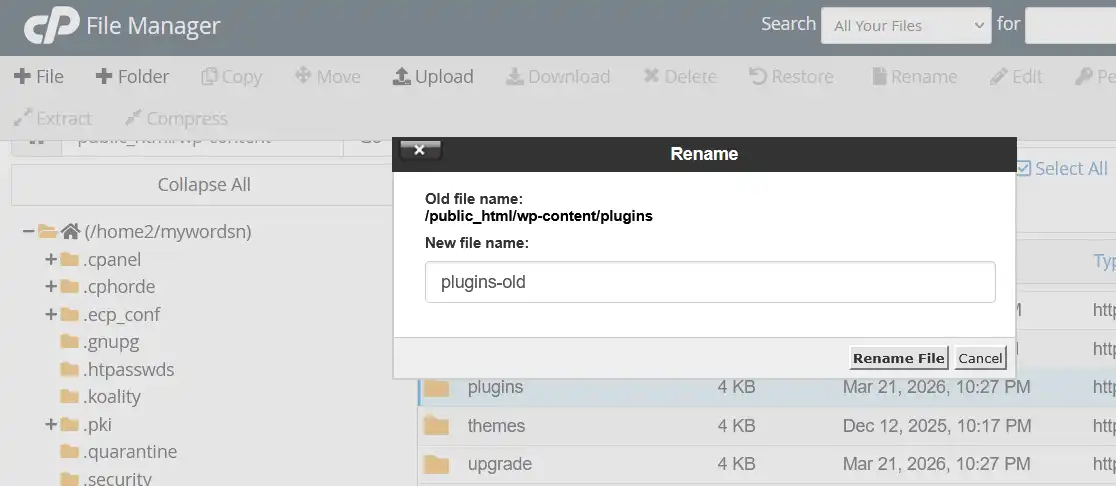
This is one of the quickest ways to access your WordPress site when locked out, especially if a plugin is blocking your login. If this works, reactivate plugins one by one to find the issue.
Fix 5: Check wp-config.php (Fix Hacked WordPress Site Access Issues)
If your site is:
- Redirecting to another website
- Showing WordPress setup screen
- Showing database errors
Your wp-config.php file may be altered.
What to check:
- Open File Manager
- Locate wp-config.php
- Verify these values:
- DB_NAME
- DB_USER
- DB_PASSWORD
- DB_HOST
In some cases, attackers modify these values, which can completely break access or redirect your site.
Fixing incorrect configuration details can quickly help you access your WordPress site when locked out, especially in hacked or broken setups.
Fix 6: Create a New Admin User via phpMyAdmin
If you cannot log in at all, you can manually create a new admin user.
Step 1: Add User
- Open phpMyAdmin
- Select your database
- Open wp_users
- Click Insert
- Add:
- user_login
- user_pass → select MD5
- user_email
Step 2: Assign Admin Role
- Open wp_usermeta
- Add:
- meta_key: wp_capabilities
- meta_value: a:1:{s:13:”administrator”;b:1;}
- Add another:
- meta_key: wp_user_level
- meta_value: 10
You can now log in using this new admin account.
Important: Check Table Prefix
If this doesn’t work:
- Check $table_prefix in wp-config.php
- Make sure it matches your database tables
Fix 7: Check .htaccess File
A corrupted .htaccess file can block access.
Steps:
- Go to your root folder
- Find .htaccess
- Rename it to .htaccess-old
Try logging in again.
After login, regenerate it via
Settings → Permalinks → Save
Fix 8: Error Establishing Database Connection
If you see:
“Error establishing a database connection”
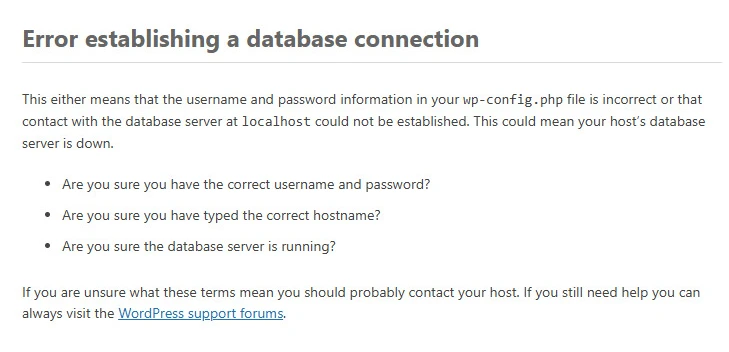
This usually means your website is unable to connect to the database.
Common causes include:
- Incorrect database credentials in wp-config.php
- Corrupted database
- Database server issues
- Hosting-related problems
This is one of the most common WordPress issues, but it’s usually easy to fix once you identify the cause.
In many cases, this issue is related to incorrect database details in your configuration file. If everything looks correct and the issue still persists, it may be a server-level problem.
If your site recently showed a setup screen or stopped connecting to the database, this is likely the cause.
How to Fix Error Establishing Database Connection in WordPress
Fix 9: Contact Hosting Support
If none of the above works:
- Your hosting may have blocked access
- Firewall restrictions
- Server-level issues
Good hosting support can usually fix this quickly.
What Causes WordPress Lockouts?
- Incorrect login attempts
- Security plugin restrictions
- Plugin conflicts
- Corrupted files
- Hacked site or modified configuration
- Hosting/server issues
How to Prevent Getting Locked Out Again
- Use a password manager
- Limit login attempts carefully
- Keep plugins and themes updated
- Avoid installing unnecessary plugins
- Enable regular backups
If you’re tracking your website performance, it’s also important to understand unusual traffic patterns. Learn more in this guide: Why Does My Website Have So Much Direct Traffic in GA4?
How to Regain Access to Your WordPress Site
Getting locked out of your WordPress site is frustrating—but in most cases, it’s completely fixable.
Start with simple solutions like password reset or disabling security plugins, then move to advanced fixes like checking your configuration file or database.
By following these steps, you can easily access your WordPress site when locked out without needing advanced technical help.
Still locked out of your WordPress site?
Sometimes the issue can be more complex, especially in hacked or server-level cases.
If you’re unable to access your WordPress site when locked out even after trying these steps, it may require deeper troubleshooting.
FAQs: WordPress Locked Out Issues
Why am I locked out of my WordPress site?
This is usually caused by incorrect login attempts, security plugins blocking access, plugin conflicts, or database issues.
How do I unlock my WordPress admin login?
You can reset your password, disable security plugins, or create a new admin user via phpMyAdmin.
Can a plugin lock me out of WordPress?
Yes, especially security plugins that block IP addresses after multiple login attempts.
What should I do if my site is hacked and I’m locked out?
Check your wp-config.php file, verify database details, and create a new admin user if needed.
