
If your website suddenly shows a 502 server error in WordPress, it can be frustrating. The page may display messages like “502 Bad Gateway”, “Server Error 502”, or simply a blank screen.
This error usually means the server received an invalid response from another server while processing your request. In simpler terms, something in the communication between servers failed.
Server errors like 502 Bad Gateway, 500 Internal Server Error, or website downtime can prevent visitors from accessing your site and also affect SEO performance. The good news is that the 502 bad gateway error in WordPress is usually temporary and fixable with a few troubleshooting steps.
In this guide, I’ll explain what causes a 502 server error in WordPress and how to fix it step by step.
What the 502 Error Looks Like
Depending on your server or browser, the 502 Bad Gateway error in WordPress may appear in different forms such as:
502 Bad Gateway

HTTP Error 502

502 Server Error

Bad Gateway
Quick Fix for 502 Server Error in WordPress
If you are seeing a 502 server error, try these quick fixes first:
- Refresh the page
- Clear browser and website cache
- Disable all plugins
- Switch to a default theme
- Check CDN or firewall settings
- Contact your hosting provider
What Is a 502 Server Error?
If you’re wondering why you are getting a 502 bad gateway error in WordPress, it usually means the server failed to receive a valid response from another server while processing the request.
A 502 server error (502 Bad Gateway) happens when one server acting as a gateway or proxy receives an invalid response from the upstream server.
For WordPress websites, this typically occurs when:
- The hosting server is overloaded
- A plugin or theme causes a conflict
- PHP processes crash or time out
- CDN or firewall services fail to communicate with the server
When this happens, the server cannot properly deliver the page to the visitor.
Common Causes of 502 Server Error in WordPress
Before fixing the issue, it helps to understand the most common causes.
- Server Overload – If your hosting server receives too many requests at once, it may fail to respond properly, resulting in a 502 bad gateway error.
- Plugin Conflicts – Poorly coded or incompatible plugins can interrupt server communication and trigger a 502 error in WordPress.
- Theme Issues – Sometimes themes contain code that conflicts with server configurations or plugins.
- CDN or Firewall Problems – Services like Cloudflare or other CDNs act as intermediaries between users and your server. Misconfigurations can cause a 502 gateway error.
- PHP Timeout Errors – If a PHP script takes too long to run, the server may terminate the process, leading to a 502 server error.
How to Fix 502 Server Error in WordPress
Follow these troubleshooting steps to fix the 502 server error in WordPress.
1. Refresh the Page
Sometimes a 502 bad gateway error in WordPress is temporary and may resolve itself after a few minutes, especially during brief server overloads or maintenance.
Press Ctrl + F5 (or refresh the page) to reload the website. If the server was temporarily overloaded, the site may start working again.
2. Clear Browser Cache
Your browser may still be loading a cached version of the error page.
Try these steps:
- Clear browser cache
- Open the website in incognito mode
- Try accessing it from another device or network
If the site loads normally, the issue was likely related to caching.
3. Temporarily Disable All Plugins
Plugins are a common cause of 502 bad gateway errors in WordPress. If you recently installed or updated SEO plugins, conflicts may also occur. You can read our comparison of Rank Math vs All in One SEO to understand how these plugins work and how to configure them properly.
If you can access the dashboard:
- Go to Plugins → Installed Plugins
- Select all plugins
- Click Deactivate
If the site starts working again, reactivate plugins one by one to identify the problematic plugin.
If you cannot access the dashboard, disable plugins via FTP:
- Connect via FTP or File Manager
- Navigate to /wp-content/
- Rename the plugins folder
Example:
plugins → plugins-deactivate
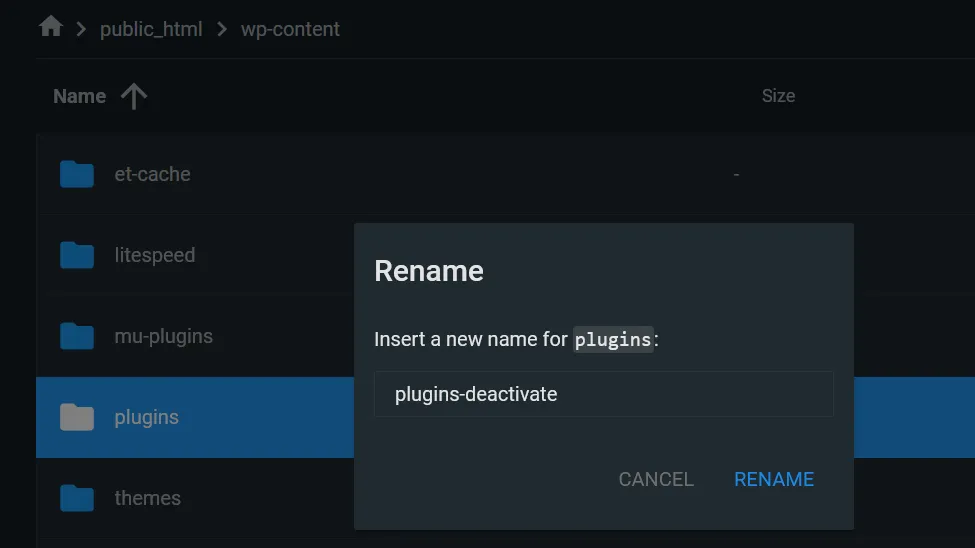
Renaming the plugins folder to temporarily disable all WordPress plugins.
WordPress will automatically deactivate all plugins.
4. Switch to a Default Theme
A theme conflict can also cause a 502 server error in WordPress.
To test this:
Access your site via FTP or File Manager
Go to:
/wp-content/themes/
Rename the active theme folder.
WordPress will automatically revert to a default theme like Twenty Twenty-Four.
If the site works after switching themes, the issue lies in the original theme.
5. Check Your CDN or Firewall
If you use a CDN like Cloudflare, the 502 error may occur between the CDN and your hosting server.
Try:
- Temporarily disabling the CDN
- Purging CDN cache
- Checking CDN status
If the site works after disabling it, review CDN configuration settings.
6. Increase PHP Execution Time
Some WordPress processes may exceed the server’s execution limit.
You can increase the PHP time limit by editing wp-config.php:
set_time_limit(300);
Or ask your hosting provider to increase the PHP execution limit.
7. Restart PHP or Contact Your Hosting Provider
If the issue is server-related, restarting PHP processes can resolve it.
Your hosting provider can:
- Restart PHP services
- Check server logs
- Identify server resource issues
This is often the fastest way to resolve persistent 502 gateway errors.
How to Prevent 502 Errors in WordPress
Once you fix the issue, you can reduce the chances of it happening again.
- Keep Plugins Updated
- Outdated plugins frequently cause server conflicts.
- Use Reliable Hosting
- Cheap or overloaded shared hosting environments often trigger server errors.
- Limit Heavy Plugins
- Too many resource-intensive plugins can overload the server.
- Monitor Website Performance
Regular monitoring helps identify problems before they escalate.
Performing regular technical checks can help prevent many WordPress issues. You can follow a technical SEO audit checklist for WordPress to keep your site optimized and stable.
Check Error Logs for Advanced Troubleshooting
If the steps above do not fix the issue, the problem may require deeper investigation.
In many cases, temporary server errors resolve themselves after a few minutes, especially if the issue was caused by server overload or a brief communication failure between servers.
However, if the 502 server error persists, you may need to check the server error logs to identify the exact cause.
Most hosting providers allow you to view error logs through the hosting control panel.
Error logs can help identify issues such as:
- Plugin conflicts
- PHP errors
- Theme-related problems
- Server configuration issues
Enable WordPress Debug Mode
Another way to diagnose the issue is by enabling WordPress debug mode.
You can enable debugging by editing the wp-config.php file and adding the following line:
define('WP_DEBUG', true);
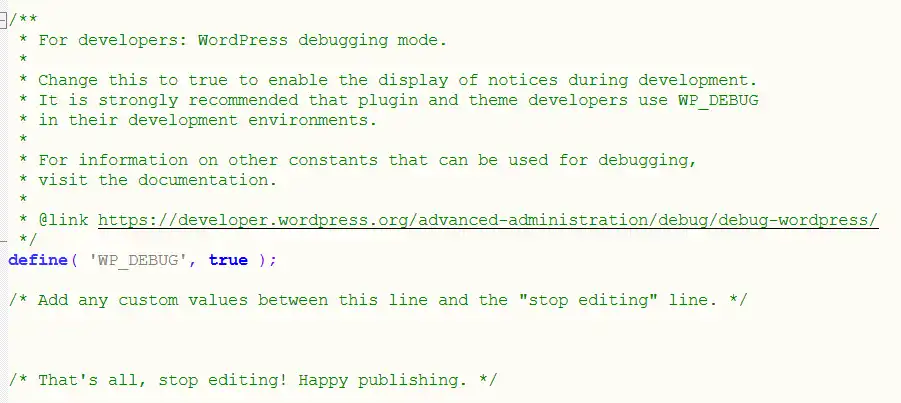
This will display PHP errors and warnings that may reveal which plugin, theme, or function is causing the problem.
Once the issue is identified, you can disable debug mode again to prevent error messages from appearing on your website.
When Should You Contact Your Hosting Provider?
If none of the above steps fix the issue, the problem is likely server-side.
Contact your hosting provider if:
- The error affects multiple pages
- You see repeated 502 errors
- Server logs show gateway failures
- The site remains inaccessible
Most hosting providers can quickly identify and resolve server-level issues.
Related WordPress Errors You May Encounter
While troubleshooting your website, you may also encounter other common WordPress server errors:
| Error Code / Issue | Meaning |
|---|---|
| 502 Bad Gateway | Server received an invalid response |
| 500 Internal Server Error | General server configuration issue |
| 403 Forbidden | Server is blocking access |
| 504 Gateway Timeout | Server response timed out |
| Error Establishing Database Connection | WordPress cannot connect to the database |
| White Screen of Death | Website loads a blank page due to PHP errors or memory issues |
Understanding how these errors occur can help you diagnose website issues faster.
Final Thoughts
A 502 server error in WordPress may look serious, but it is usually caused by temporary server issues, plugin conflicts, or misconfigurations.
By following the troubleshooting steps above — refreshing the page, disabling plugins, checking themes, and reviewing server settings — you can usually fix the 502 bad gateway error quickly.
Regular maintenance, reliable hosting, and optimized plugins can also help prevent these errors in the future.
Frequently Asked Questions
What does 502 Bad Gateway mean in WordPress?
A 502 Bad Gateway error in WordPress means that one server on the internet received an invalid response from another server. This usually happens due to server overload, plugin conflicts, CDN issues, or PHP execution problems.
Is a 502 error caused by my hosting provider?
Sometimes, yes. If the server is overloaded, misconfigured, or experiencing downtime, it can trigger a 502 server error. In such cases, contacting your hosting provider is the fastest way to diagnose the issue.
Can a plugin cause a 502 error in WordPress?
Yes. A poorly coded or incompatible plugin can interrupt server processes and cause a 502 bad gateway error in WordPress. Disabling plugins temporarily is one of the quickest ways to identify the issue.
Is a 502 error temporary?
In many cases, a 502 server error is temporary and may resolve itself after refreshing the page or waiting a few minutes. However, if the issue persists, further troubleshooting may be required.
