
Building your first website doesn’t have to be complicated — with the right steps, you can launch a fully functional WordPress site even if you’ve never built one before. WordPress powers over 40% of websites worldwide, making it the most popular content management system (CMS).
Whether you want to start a blog, showcase your portfolio, or launch an online business, WordPress gives you all the tools you need — without requiring any coding knowledge. Before launching, it’s also helpful to decide whether you want a multi-page site or start with a single-page website, depending on your goals.
In this beginner-friendly guide, I’ll show you how to create a WordPress website step by step, so you can launch it with confidence.
Why Choose WordPress?
WordPress is popular for a reason. Here’s why it’s a great choice for beginners:
- Free & Open Source – WordPress itself is free to use.
- Flexible – Build anything from a simple blog to a full e-commerce store.
- Highly Customizable – Thousands of themes and plugins let you tailor your site.
- Strong Community Support – Tutorials, forums, and experts are everywhere.
- SEO-Friendly – With the right setup, WordPress websites can rank well on search engines.
How to Launch a WordPress Website Step by Step
Launching a WordPress website is much easier when you break the process into clear steps. From choosing the right domain and hosting to installing WordPress and setting up your site, each step builds on the previous one. If you’re just getting started and unsure about selecting a domain name or hosting provider, I’ve covered that in detail in my guide on best WordPress hosting and domain for beginners, which will help you make the right choice before moving on to the next steps.
What You’ll Need to Launch Your WordPress Website
Before you begin, it helps to have a few basic things ready. You don’t need any technical background or coding skills — just these essentials to make the setup smooth and stress-free.
- A domain name (your website’s address)
- A WordPress hosting account
- A laptop or desktop computer with internet access
- About 30–60 minutes of uninterrupted time
- Basic familiarity with using a browser (Chrome, Firefox, etc.)
Step 1: Getting Started: Domain & Hosting
Before you install WordPress, you need two things:
- Domain Name: This is your website’s address (for example,
yourname.com). When choosing a domain name, make sure it is easy to remember, relevant to your brand or niche, and simple to spell. - Hosting Provider: Hosting is where your website lives online. When choosing a hosting provider, look for one that offers one-click WordPress installation, provides good customer support, and ensures reliable uptime with fast performance.
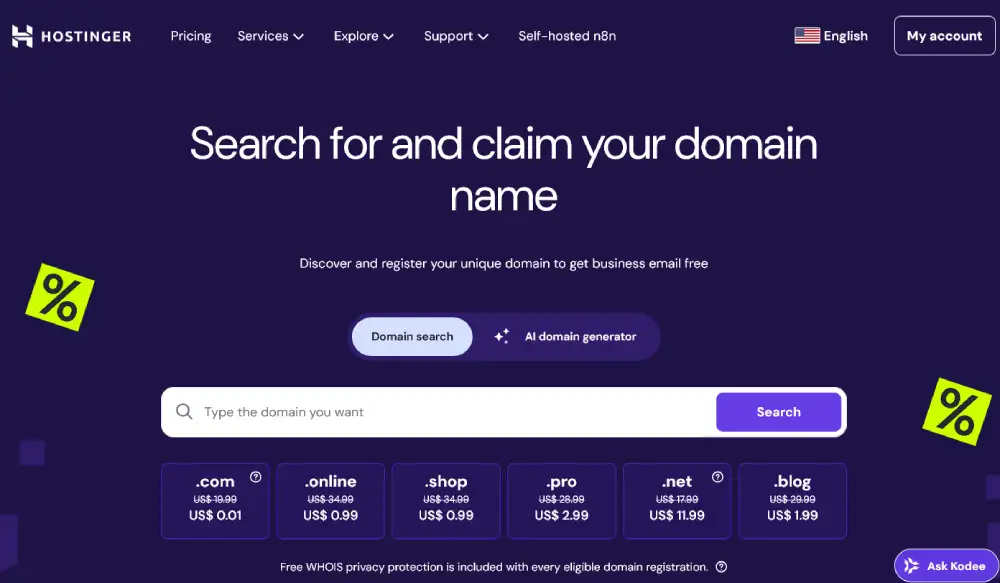
Popular beginner-friendly hosting providers include SiteGround, Bluehost, Hostinger, and WPX Hosting.
Step 2: Install WordPress
Most hosting providers now offer one-click WordPress installation, making it easy for beginners to get their website live in just a few minutes.
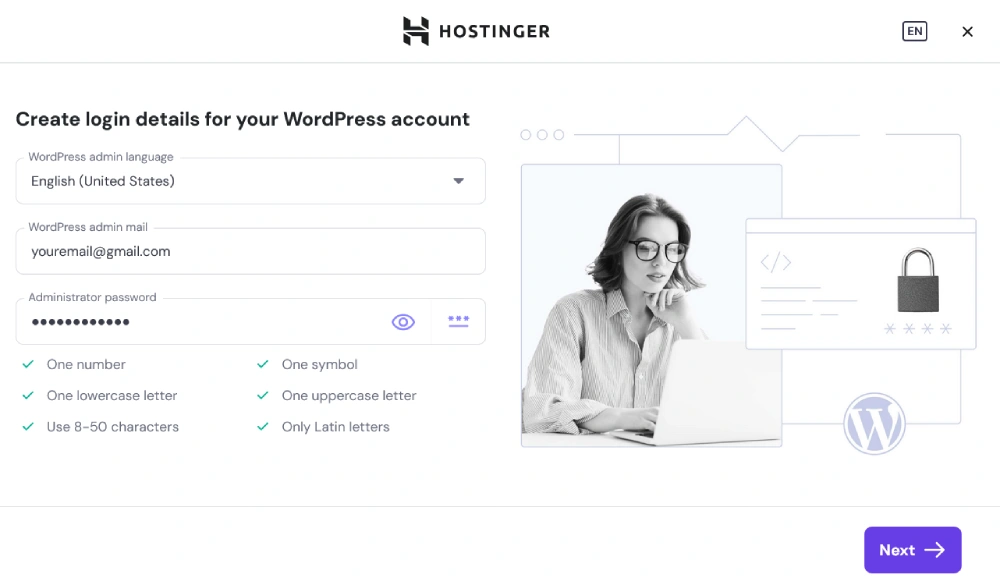
Once installed, you’ll receive your login details for the WordPress dashboard: (yourwebsite.com/wp-admin).
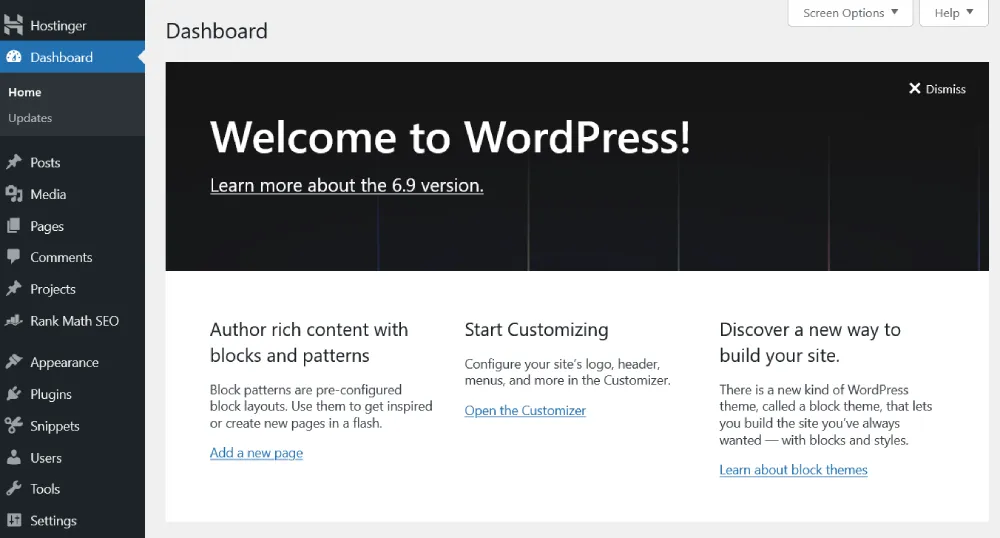
This dashboard is where you’ll manage everything — creating pages, writing posts, installing plugins, and customizing your site.
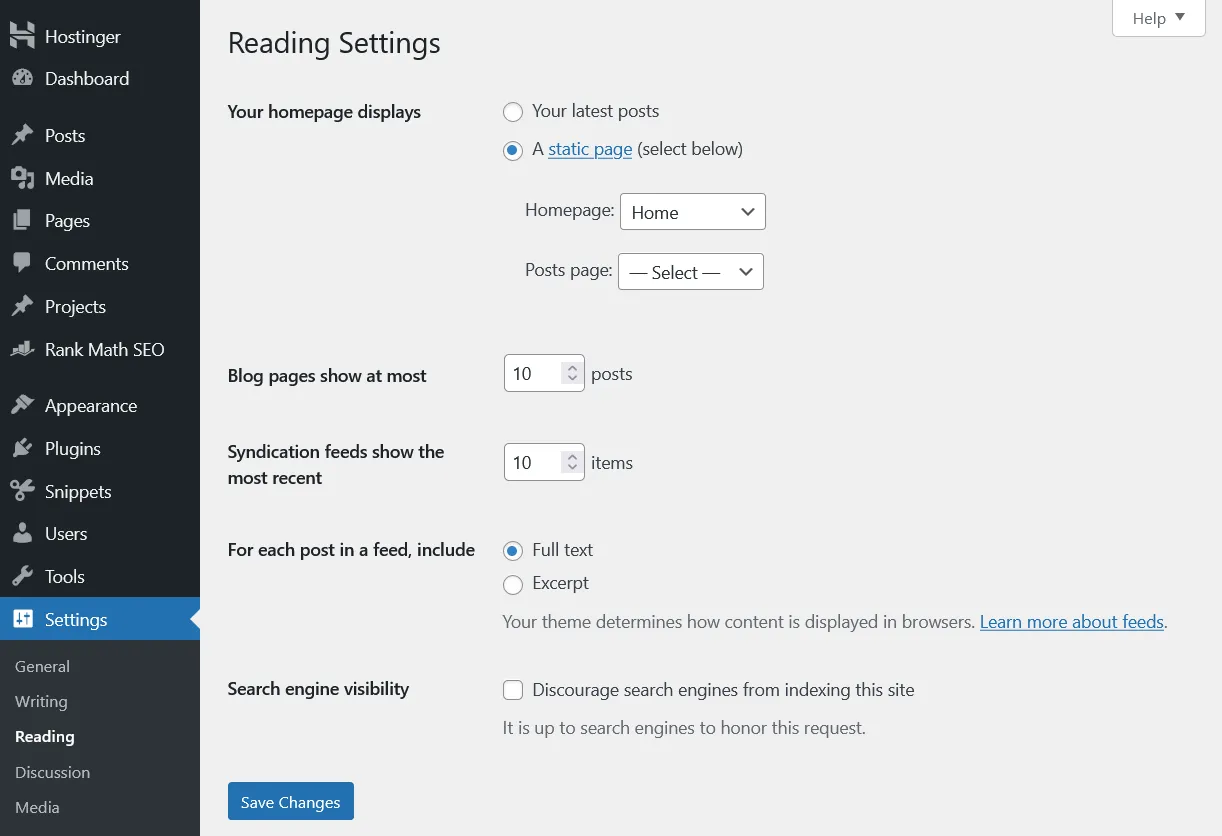
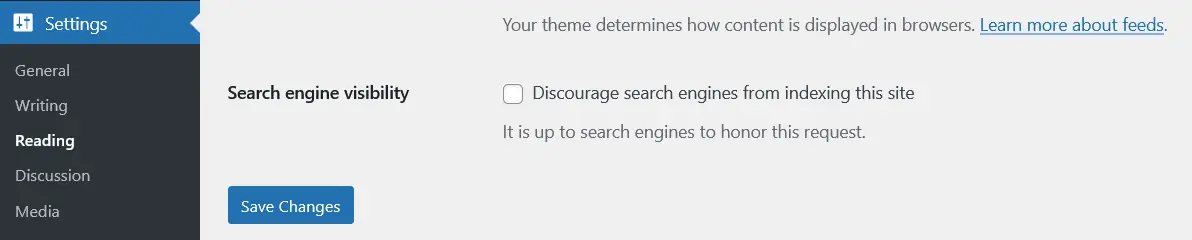
While setting up your site, you can temporarily enable “Discourage search engines from indexing this site” under Settings → Reading until your content and design are ready.
Manual WordPress Installation
Most beginners can install WordPress easily using their hosting provider’s one-click installer. However, in some cases, you may need to install WordPress manually — for example:
- Your hosting provider doesn’t offer one-click installation
- You’re setting up WordPress on a custom server
- You want more control over the setup process
- Manual installation typically involves:
- Creating a database
- Uploading WordPress files via FTP
- Configuring the wp-config.php file
- Running the WordPress installation script
If you’re just starting out, you can safely skip this step and use the one-click installer. I’ll cover manual WordPress installation in detail in a separate guide.
Step 3: Review Essential WordPress Settings
Before adding content or design, it’s important to review a few basic WordPress settings:
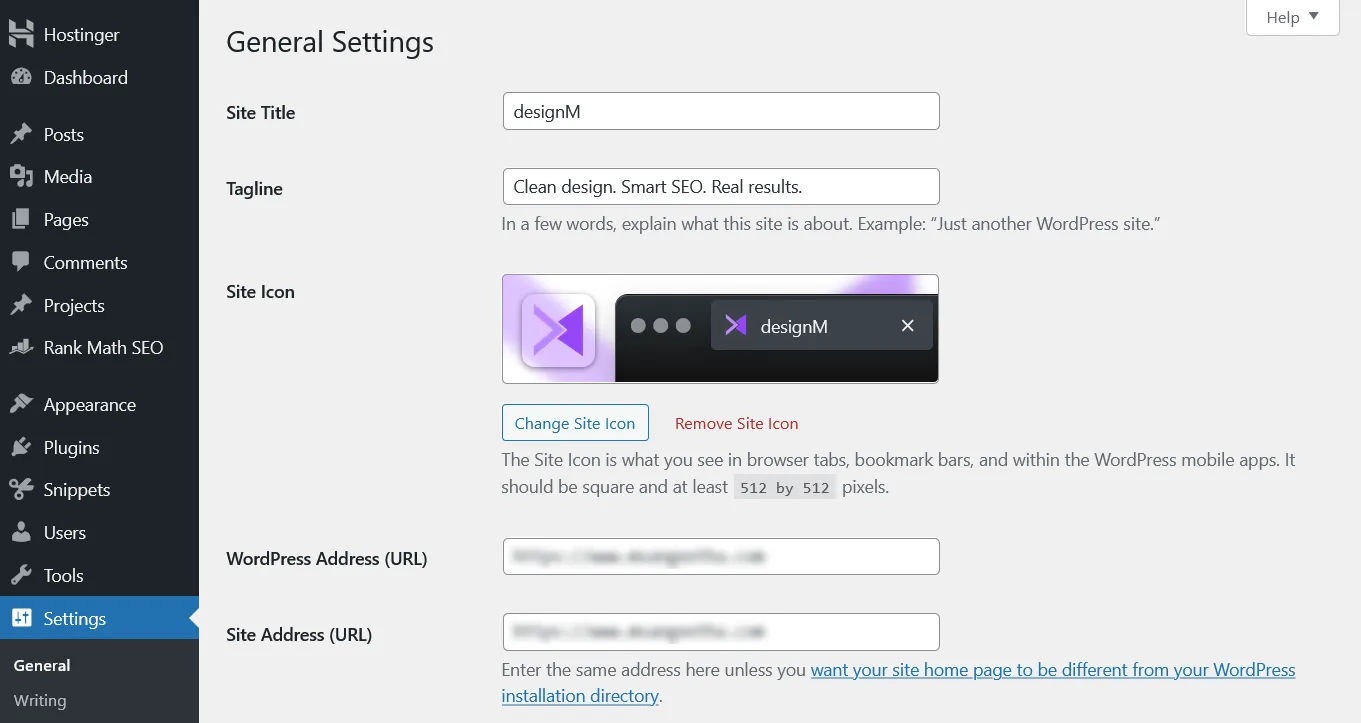
General (Settings → General)
Set your site title, tagline, timezone, and admin email address.
Reading (Settings → Reading)
Choose whether your homepage shows your latest posts or a static page, and control search engine visibility while setting up your site.
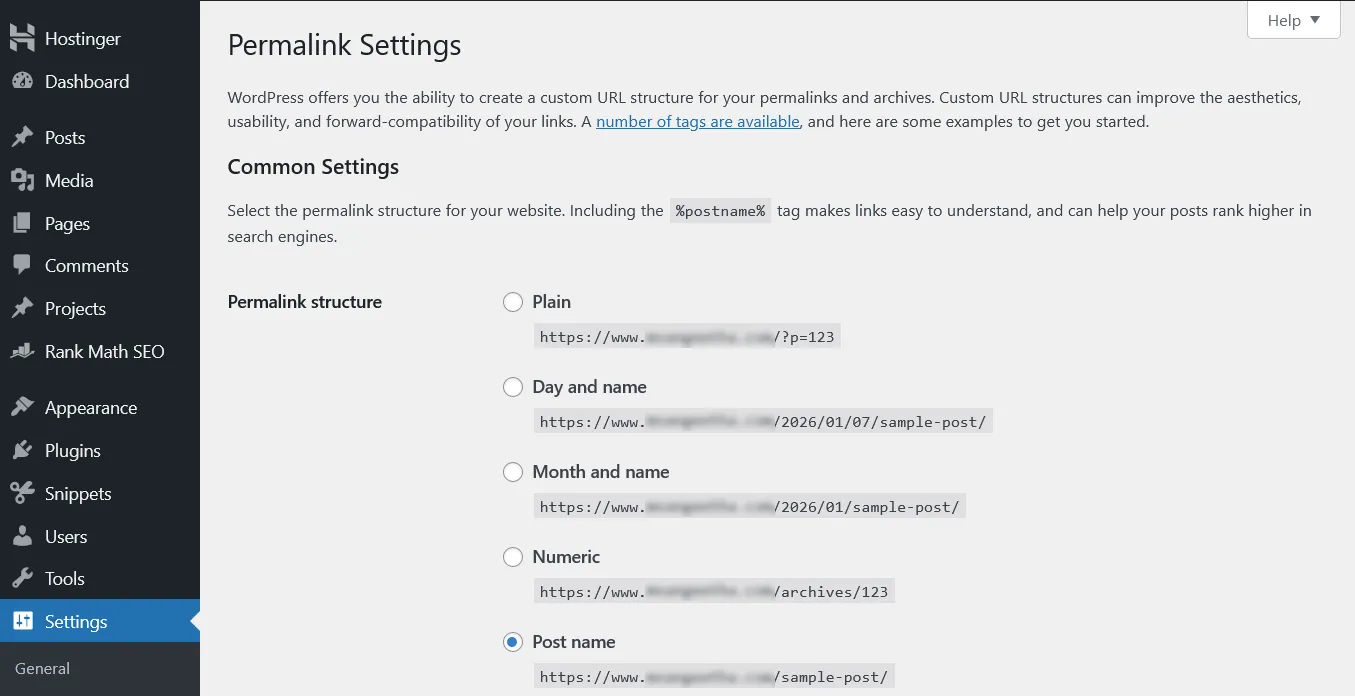
Permalinks (Settings → Permalinks)
Select a clean URL structure such as Post name for better readability and SEO.
You don’t need to change everything right away — just these basic settings will help your site start off correctly.
Step 4: Pick a WordPress Theme
A theme controls the design and layout of your website.
- Go to Appearance → Themes → Add New to explore free themes.
- Consider premium themes for advanced customization.
- Look for mobile-friendly and fast-loading themes.
- Check reviews and update frequency
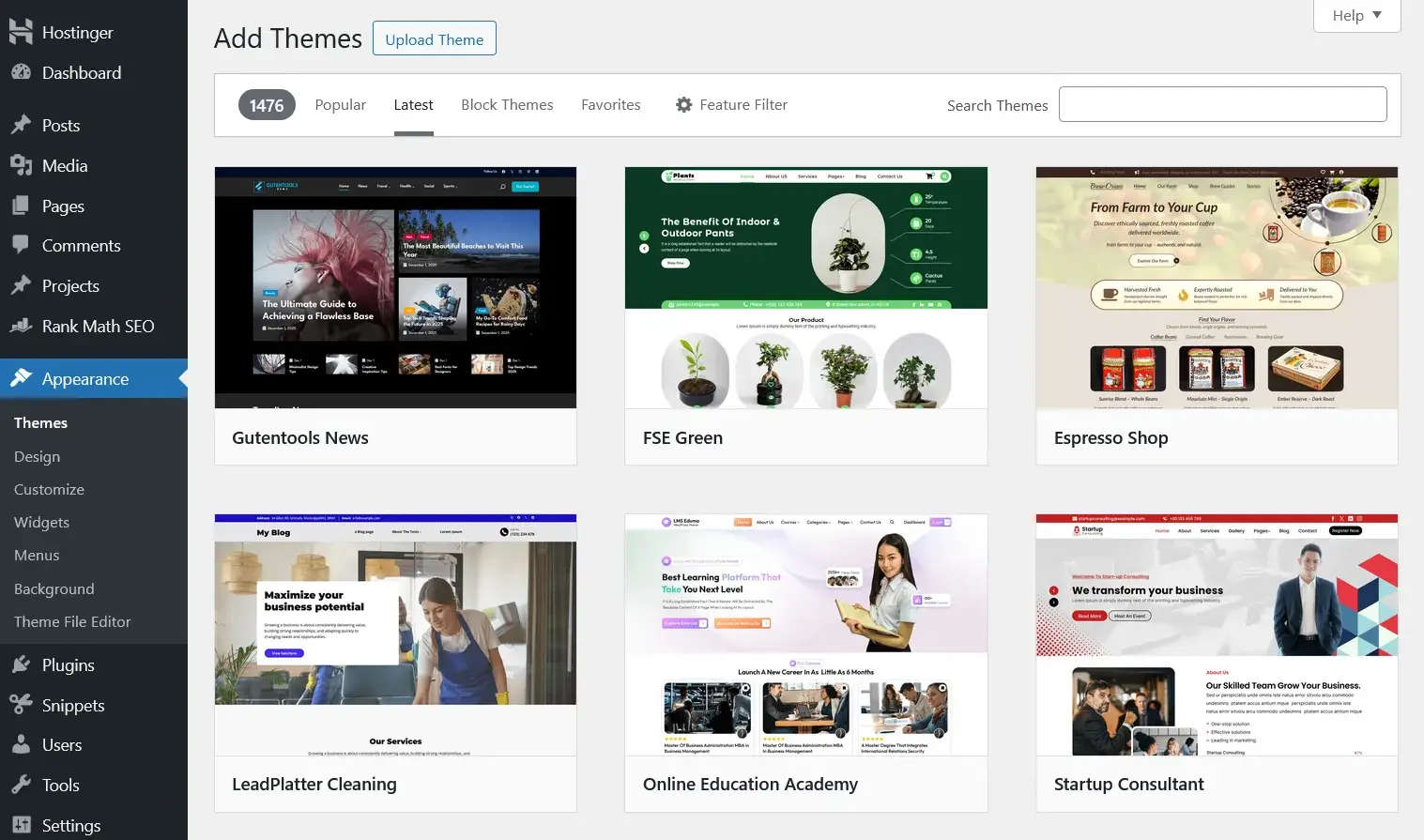
Pro tip: Lightweight themes like Astra, GeneratePress, or Kadence are great for speed and flexibility. WordPress.org recommends choosing a lightweight theme for better performance.
Step 5: Install Essential Plugins
Plugins add extra features and functionality to your WordPress site.
Recommended plugins for beginners:
- Yoast SEO or Rank Math – Optimize for Google search
- WPForms – Create contact forms easily
- UpdraftPlus – Schedule automatic backups
- Wordfence – Protect your site from security threats
- Smush or Imagify – Compress images for faster loading
- Gutenberg (Free, built-in), Elementor (Free & Pro), or Divi Builder (Premium) – Visual page building
- WP Fastest Cache (Free & Pro), LiteSpeed Cache (Free), or WP Rocket (Premium) – Improve site speed
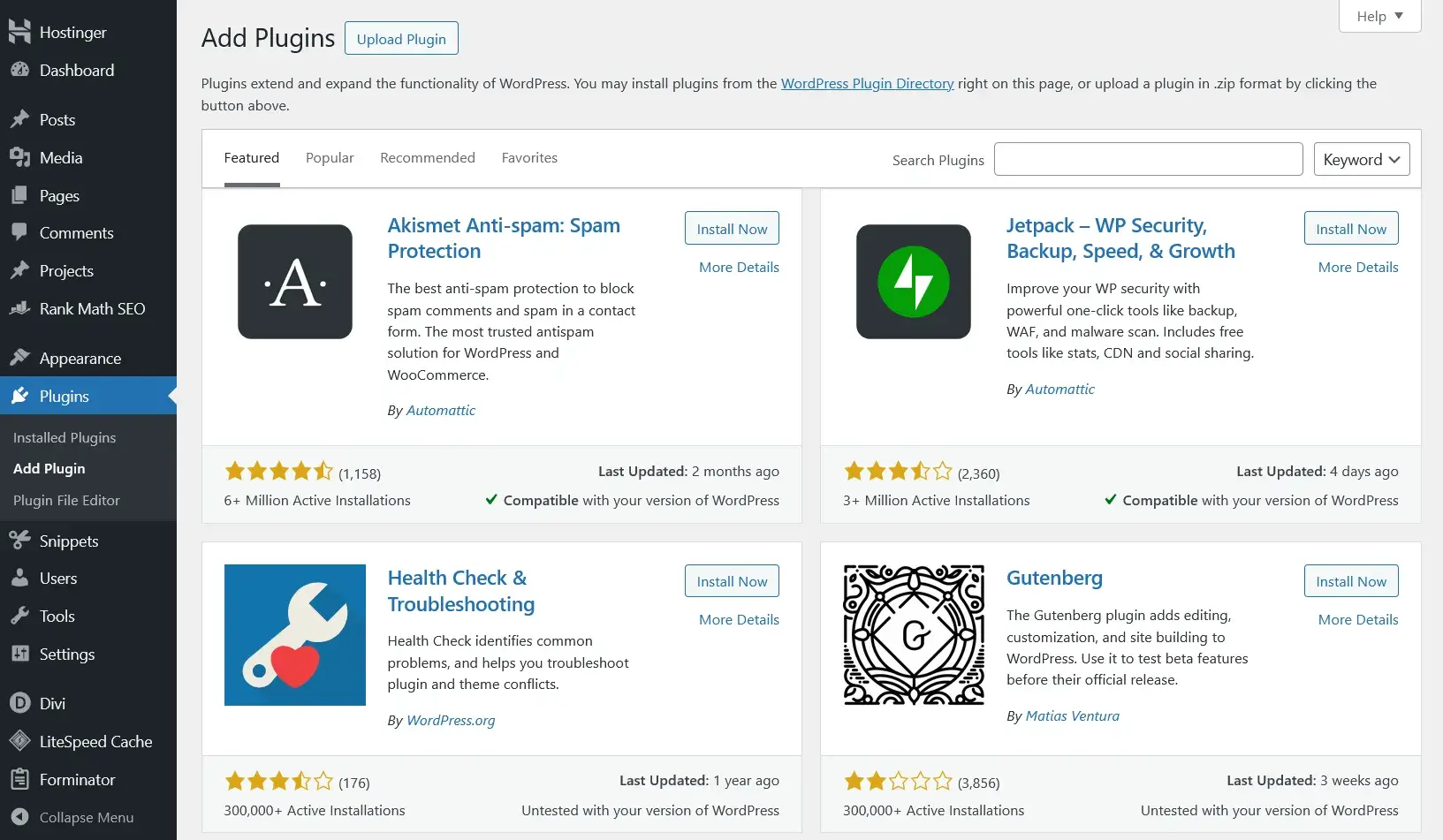
Tip: Install only the plugins you actually need. Too many plugins can slow down your website.
Step 6: Customize Your Website
Now it’s time to make your website your own:
- Upload your logo and set your site title under Settings → General
- Create essential pages like Home, About, Blog, and Contact
- Set up your navigation menu: Go to Appearance → Menus, create a new menu, add your pages (Home, About, Blog, Contact), and assign it to the primary menu location so it appears in your site header. Menu locations may vary slightly depending on your theme.
- Use the WordPress Customizer or a page builder for layout and design
- Preview your site on mobile and desktop to ensure consistency
- Publish your first blog post to get started
Step 7: Maintain and Grow Your Site
To keep your website secure and running smoothly:
- Regularly update WordPress, themes, and plugins
- Schedule backups using a backup plugin
- Monitor site speed, performance, and security
Launch Checklist
Before making your site live, double-check the following:
- Website loads properly on mobile and desktop
- Pages are linked correctly
- SEO basics are set (titles and meta descriptions)
- Google Analytics and Search Console are connected
- Backup plugin is active
- Contact form is working
Once everything looks good, make sure Search Engine Visibility is enabled under Settings → Reading, and start sharing your website with the world.
Final Thoughts
Starting your first WordPress website becomes simple when broken into clear steps:
- Get a domain and hosting
- Install WordPress
- Choose a theme
- Add essential plugins
- Customize your site
- Keep it updated
With WordPress, you’re in full control of your online presence — and the possibilities are endless.
So don’t wait. Launch your first website today and start building your digital footprint.
After launching your WordPress website, the next step is creating the essential pages that every site needs to look complete and trustworthy.
Frequently Asked Questions (FAQs)
Is WordPress free to use?
Yes, WordPress itself is free and open-source. However, you’ll need to pay for hosting and a domain name to make your website accessible on the internet.
Do I need coding knowledge to create a WordPress website?
No. WordPress is beginner-friendly and does not require any coding knowledge. You can build and customize your website using themes and plugins with simple settings.
How long does it take to launch a WordPress website?
If you follow a step-by-step guide, you can launch a basic WordPress website in about 30–60 minutes. Customization and content creation may take additional time.
What is the difference between WordPress.org and WordPress.com?
WordPress.org is a self-hosted platform that gives you full control over your website. WordPress.com is a hosted service with limitations unless you upgrade to a paid plan. This guide focuses on WordPress.org.
Can I change my theme or plugins later?
Yes. You can change your theme, install new plugins, or remove existing ones at any time without affecting your website content.
