
A step-by-step technical SEO audit guide to help you identify and fix hidden WordPress issues before they impact your rankings.
You can publish great content, use the right keywords, and still struggle to rank if your technical SEO foundation is weak. Running a technical SEO audit helps uncover hidden issues that may be limiting your website’s visibility in search results.
Technical SEO forms the foundation of your website. It works best when combined with proper keyword research and content optimization. It enables search engines to crawl, understand, and trust your site before deciding where it should appear in search results. If that foundation is weak, even well-written articles may struggle to reach Google’s first page.
The good news? You don’t need to be a developer to perform a technical SEO audit — especially on WordPress.
In this guide, I’ll walk you through a complete technical SEO audit checklist for WordPress, explained in simple language and supported with practical examples. This checklist is designed for beginners while still covering the essential checks professionals perform during audits.
By the end of this guide, you’ll understand:
- What to check
- Why it matters
- What needs fixing first (and what can wait)
What Is Technical SEO?
Technical SEO refers to the behind-the-scenes aspects of your website that help search engines crawl, index, and render your pages correctly. It ensures that your site’s technical foundation is strong enough for your content to be discovered, understood, and ranked in search results.
Unlike on-page SEO (content, headings, keywords) or off-page SEO (backlinks), technical SEO focuses on things like:
- Site structure
- Page speed
- Mobile usability
- Security
- Indexing signals
Think of technical SEO like a building inspection. Your content is the interior design — but technical SEO ensures the doors open, the lights work, and visitors can actually enter the building.
Without proper technical SEO, search engines may skip important pages, index the wrong versions of your URLs, or interpret your site as low quality. Even strong content can struggle to rank if the technical foundation is weak.
Before You Start the Audit
Before checking anything, make sure you have access to the right tools. A proper technical SEO audit requires data, not guesswork, so having these tools ready will help you identify real issues instead of making assumptions. You don’t need paid software for this audit.
Essential tools:
- Google Search Console – to check indexing, coverage, and errors
- Google Analytics – to understand traffic and user behavior
- PageSpeed Insights – for performance metrics
- Screaming Frog (free version) – to crawl your site
- WordPress admin access
Once these are ready, you can begin the audit.
Prefer a printable version? You can download the complete checklist at the end of this guide.
Technical SEO Audit for WordPress: A Complete Step-by-Step Guide
A technical SEO audit ensures that your WordPress website is accessible, crawlable, fast, secure, and properly indexed by search engines. Even high-quality content cannot rank if search engines struggle to understand or access your site.
Over time, WordPress websites naturally accumulate technical issues — plugin conflicts, outdated themes, accidental noindex settings, broken redirects, or bloated archive pages. I’ve personally audited sites that had strong content but poor visibility simply because of hidden technical problems.
Let’s break this down into structured phases so you know exactly what to check and why it matters.
Phase 1: Crawlability & Indexation
Indexing and crawlability determine whether search engines can find, access, and store your pages in their index. If a page isn’t crawlable or indexed, it cannot rank — no matter how good the content is. This is always the first step in any technical SEO audit.
Check these items to ensure Google can properly discover your WordPress site:
1. Robots.txt & Basic Crawl Configuration
Your robots.txt file is one of the first places search engine bots check when visiting your WordPress site. It controls which areas they are allowed to crawl and which areas are restricted. Even a small misconfiguration can unintentionally block important pages from being discovered.
During a technical SEO audit, this file should always be reviewed carefully. Blocking a page in robots.txt prevents search engines from crawling it — but it does not automatically remove that page from the index if it has already been discovered through other signals. This distinction is important, as incorrect usage can create unexpected indexing issues.
Before proceeding further, verify that:
- Your robots.txt file exists and loads correctly
- No important directories or pages are accidentally disallowed
- Your XML sitemap is referenced inside the file
In some situations, you may choose to restrict crawling of low-value or system-generated directories to improve crawl efficiency.
In WordPress, also check:
Settings → Reading → “Discourage search engines from indexing this site”
I’ve seen situations where this option remained enabled after a site migration from staging to live — completely blocking indexing. It’s a small setting, but it can have a significant impact on visibility.
2. XML Sitemap Optimization
An XML sitemap helps search engines discover and prioritize your most important pages. While WordPress generates sitemaps automatically (via core or SEO plugins), automatic does not always mean optimized.
Over time, sitemaps may start including redirected URLs, thin archive pages, or content that should not be indexed. Reviewing your sitemap during a technical SEO audit ensures only valuable, indexable URLs are submitted to search engines.
A good sitemap should:
- Include only indexable, high-value pages
- Exclude noindex, redirected, or 404 URLs
- Avoid including thin tag or archive pages unnecessarily
- Be submitted and monitored in Google Search Console
Most modern WordPress SEO plugins generate a sitemap index that separates posts, pages, and other content types, and they include image data within post and page sitemaps by default. Separate image sitemaps are usually not required. If you publish original video content, however, a dedicated video sitemap can improve discoverability.
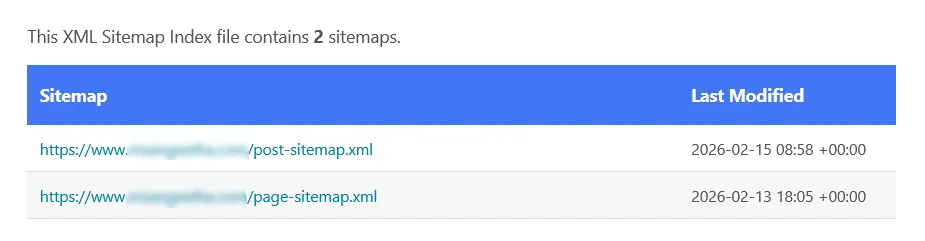
Think of your sitemap as a clean roadmap — not a dump of every URL your CMS creates.
3. Index Coverage & Crawl Errors
Google Search Console’s Indexing → Pages report shows how Google is crawling and storing your URLs. Reviewing this report is essential during a WordPress technical SEO audit because it reveals whether pages are being properly indexed or excluded.
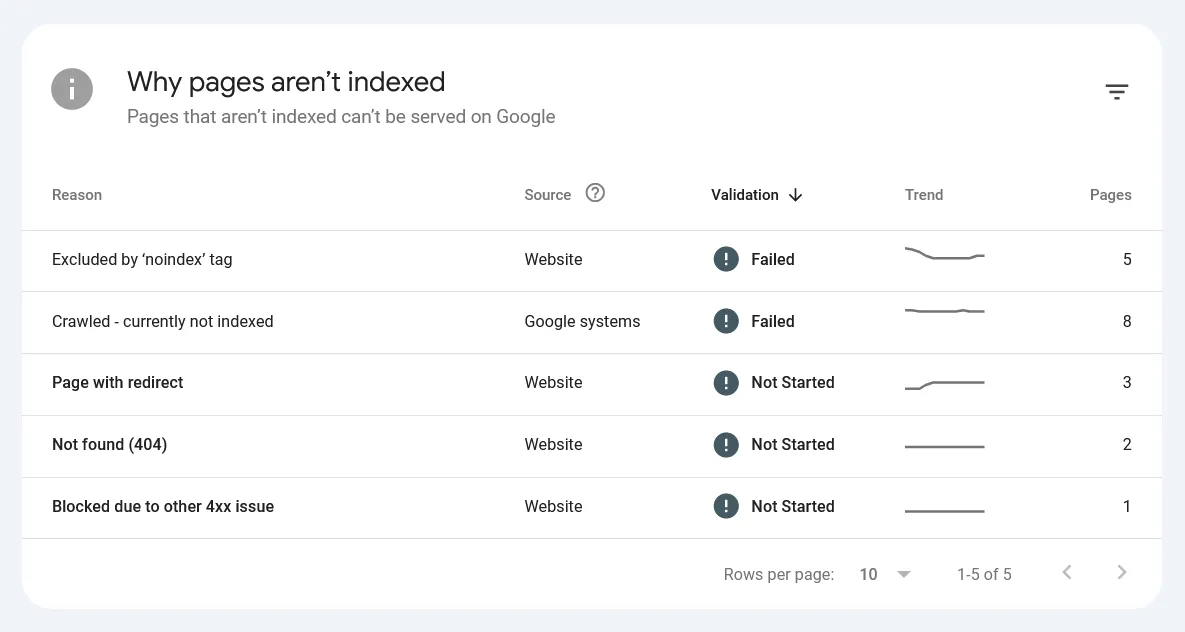
You may encounter pages that are not indexed, marked as soft 404, crawled but not indexed, excluded due to duplicate content without canonical tags, or blocked by robots.txt. Not every exclusion is a problem — some pages may be intentionally set to noindex or expected duplicates.
The key is to identify patterns, especially when important blog posts or service pages fail to index. Plugin updates, permalink changes, or site modifications can gradually introduce crawl errors or indexing inconsistencies.
Prioritize resolving issues affecting important pages first, as unresolved crawl errors can quietly limit your WordPress site’s visibility.
4. Internal Linking & Orphan Pages
Internal linking plays a crucial role in helping search engines understand the structure, hierarchy, and topical relationships within your WordPress website. It distributes authority across pages and signals which content is most important. A well-connected internal structure improves crawlability and strengthens ranking potential.
However, WordPress sites often develop orphan pages — pages that exist but have no internal links pointing to them. These pages are difficult for search engines to discover and rarely perform well.
Review your site structure and check:
- Important blog posts that aren’t linked from other posts
- Service pages not linked from navigation
- Old posts buried deep in archives
These gaps can reduce search visibility even if the content itself is strong.
Internal linking should be intentional, not accidental. Important pages should be supported through contextual links from relevant content, clear navigation paths, and logical hierarchy.
In my experience, strengthening internal linking alone has improved rankings for mid-performing articles without creating new content. Often, better distribution of authority and clearer topical signals make a measurable difference.
5. Index Bloat & Thin Content
WordPress automatically generates additional archive and system pages that may not always provide meaningful value to users. Over time, this can lead to index bloat — a situation where too many low-quality, thin, or redundant pages are stored in Google’s index.
While conducting a technical SEO audit for your WordPress site, identifying index bloat is important because excessive low-value URLs can dilute ranking signals and waste crawl budget. Instead of focusing on your most important content, search engines may spend time crawling pages that contribute little to overall visibility.
Common sources of index bloat in WordPress include:
- Tag archives
- Author archives
- Attachment pages
- Internal search result pages
- Filtered or parameter-based URLs
While some of these pages may serve a navigational purpose, they often contain minimal unique content. If they do not provide standalone value or target distinct search intent, they should be set to noindex using your SEO plugin settings.
A practical way to identify potential index bloat is to use the site:yourdomain.com search operator in Google and review what types of pages are appearing. If you notice thin archives or unnecessary parameter URLs ranking, it may indicate the need for cleanup.
A lean, high-quality index is usually stronger than a large, diluted one. Reducing index bloat improves crawl efficiency, strengthens topical focus, and supports better overall site quality signals.
Phase 2: Performance & User Experience
Search engines increasingly prioritize user experience signals when determining rankings. Even if your site is technically crawlable and indexed, slow loading speeds or poor mobile usability can negatively impact both visibility and engagement. Performance issues often develop gradually as plugins, scripts, and media files accumulate over time.
This phase focuses on optimizing speed, Core Web Vitals, mobile responsiveness, and security — ensuring that your WordPress site not only gets discovered but also delivers a smooth experience to users and search engines alike.
6. Page Speed & Core Web Vitals
Page speed is no longer just about loading time — it’s about measurable user experience. Google now evaluates performance using Core Web Vitals metrics. Page speed affects both rankings and user experience, especially on mobile devices. Slow-loading pages increase bounce rates and reduce engagement, which can indirectly impact SEO performance. Google measures this using Core Web Vitals.
Focus on:
- Largest Contentful Paint (LCP)
- Cumulative Layout Shift (CLS)
- Interaction to Next Paint (INP)
Use tools such as PageSpeed Insights and the Core Web Vitals report inside Search Console.
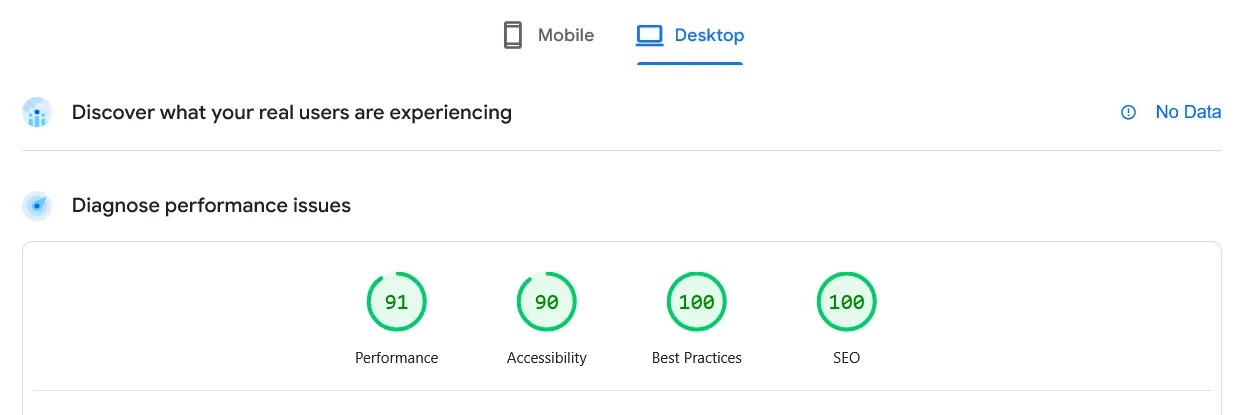
Common WordPress improvements include:
- Compressing and resizing images
- Enabling caching (via WordPress caching plugins, server-level caching, or a CDN)
- Reducing heavy plugins
- Minifying CSS and JavaScript
- Using a lightweight theme
In WordPress, performance improvements often come from a combination of caching plugins, optimized hosting, and CDN integration — not just theme changes alone.
Many slow sites I’ve worked with were overloaded with unnecessary plugins. Simplifying the stack often produced dramatic improvements.
7. Mobile-Friendliness
Google uses mobile-first indexing, which means the mobile version of your website is the primary version evaluated. If your site performs poorly on mobile, rankings will suffer even if desktop looks fine. Mobile usability is no longer optional.
A technically sound desktop layout is not enough. You must ensure:
- Responsive design across devices
- Readable font sizes
- Readable font sizes and spacing
- Proper tap target spacing
- Layout stability while loading
- No hidden or blocked content on mobile
Audit your site’s mobile experience by checking Mobile Usability report in Google Search Console. Always test your pages on real devices in addition to automated tools. Page builders sometimes render layouts differently on smaller screens.
8. HTTPS & Website Security
Security directly impacts trust and rankings. Your website must run securely over HTTPS.
HTTPS protects user data and signals trust and credibility to search engines. Google treats HTTPS as a ranking signal, and browsers actively warn users about insecure sites. Security issues can damage both SEO and user confidence.
Make sure your WordPress site follows basic security standards:
- SSL is active and valid
- All HTTP versions redirect properly to HTTPS
- There are no mixed content warnings
- WordPress core, themes, and plugins are updated
- Unused plugins are removed
Additionally, review the Manual Actions and Security Issues sections in Search Console. A security warning can drastically reduce visibility and user trust.
Phase 3: Technical Structure & Optimization
Beyond crawlability and performance, search engines evaluate how clearly your website is structured and organized. Technical structure helps search engines understand relationships between pages, prevent duplicate content issues, and interpret content context correctly.
In this phase, we examine canonical tags, redirects, pagination, structured data, and other structural elements that influence how search engines interpret and prioritize your content. Small misconfigurations here can dilute ranking signals or create indexing confusion over time.
9. Duplicate Content & Canonical Tags
WordPress can unintentionally create duplicate content through archives, tags, and pagination. While duplicate content doesn’t always cause penalties, it confuses search engines and dilutes ranking signals.
Canonical tags help search engines understand which version of a page should be treated as the primary one.
Check and fix duplication using these steps:
- Identify duplicate URLs for the same content
- Each page has a correct canonical URL
- Canonicals point to indexable pages
- Noindex low-value pages like tag or author archives if needed
- Avoid multiple URLs competing for the same keyword
- HTTP and HTTPS versions don’t conflict
- Parameter URLs don’t create duplicates
Improper canonical configuration can dilute rankings across multiple versions of the same content.
10. Broken Links & Redirects
Broken links affect both user experience and crawl efficiency. When users land on a 404 page unexpectedly, it reduces trust. From a technical SEO perspective, excessive broken URLs waste crawl budget and signal poor site maintenance.
Over time, WordPress sites naturally accumulate broken links — especially when blog posts are updated, URLs are changed, products are removed, or content is deleted. During audits, I often find old posts linking to outdated resources or internal pages that no longer exist.
A healthy website should regularly monitor and manage broken links and redirects intentionally.
During your audit, review the following:
- Find broken internal links
- Identify broken outbound (external) links
- Replace or remove outdated external references
- Redirect deleted pages using proper 301 redirects
- Avoid redirect chains (URL A → B → C)
- Avoid redirect loops
- Never redirect all 404 pages to the homepage
Redirects should always be relevant and purposeful. For example, if a blog post is removed, redirect it to the most closely related article — not just the homepage.
A clean redirect structure improves crawl efficiency and maintains link equity from older URLs.
11. Pagination & Faceted Navigation
Category pages and filters can generate multiple URL variations. If not managed correctly, this can create excessive duplicate pages and dilute ranking signals across similar URLs.
Pagination and faceted navigation are common in WordPress themes, especially on blog archives and eCommerce sites. While these structures help users browse content, they can also create crawl inefficiencies if search engines index every filtered variation.
Review how your site handles:
- Category pagination
- Filtered URLs
- Parameter-based navigation
Ensure important pages remain crawlable while unnecessary variations are controlled using canonical tags or noindex where appropriate. This prevents duplicate content issues and protects your primary pages from ranking dilution.
This is especially important for content-heavy or eCommerce WordPress sites.
12. Structured Data & Schema Markup
Schema markup helps search engines understand the context of your content. While schema does not directly improve rankings, it can enhance visibility through rich results. For WordPress sites, basic schema is usually sufficient.
During a technical SEO audit, structured data should be reviewed to ensure it is properly implemented and free of errors. Even small schema issues can prevent eligibility for rich results. WordPress SEO plugins typically handle basic schema automatically, but manual verification is still recommended.
Check whether your site includes:
- Article schema for blog posts
- Breadcrumb schema for navigation
- FAQ schema (if applicable)
- Organization schema for brand identity
After implementation, validate your structured data using Google’s Rich Results Test and monitor the Enhancements report in Search Console.
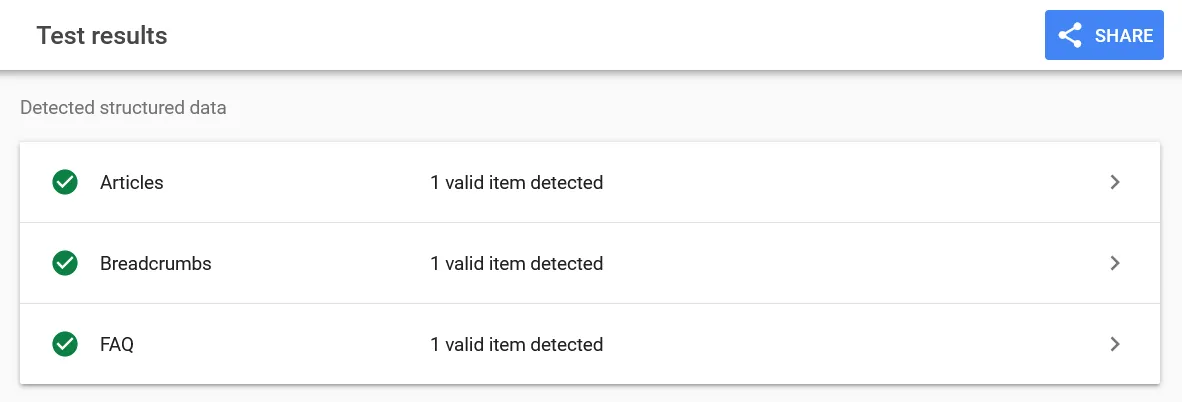
Schema should accurately reflect visible content. Overusing or misusing it can cause errors.
Phase 4: Advanced Technical Checks
Once the foundational elements are in place, advanced technical checks help ensure long-term scalability and efficiency. While not every WordPress site requires deep technical analysis, growing websites benefit from monitoring crawl behavior, rendering issues, and international configurations.
This phase covers advanced areas such as JavaScript rendering, crawl budget optimization, and multilingual settings — helping you future-proof your technical SEO as your website expands.
13. JavaScript Rendering & Lazy Loading
Modern WordPress themes often rely on JavaScript to load content dynamically. If critical content loads only after scripts execute, search engines may struggle to render it properly. Many performance plugins and CDNs also optimize JavaScript, CSS, and images using features like minification, defer loading, or lazy loading. While these improvements enhance speed, it’s important to verify that essential text, links, and images remain visible and crawlable in the fully rendered version of the page.
Use the URL Inspection tool in Search Console to:
- View rendered HTML
- Confirm important content is visible
- Ensure lazy-loaded images are properly indexed
If search engines cannot see your primary content, rankings may be affected regardless of content quality.
14. Crawl Budget & Log File Analysis
For smaller websites, crawl budget is rarely an issue. However, as your WordPress site grows, inefficient crawling can limit how often search engines revisit and update important pages. If bots spend excessive time crawling low-value URLs, critical content may be revisited less frequently.
Review:
- Crawl Stats report in Search Console
- Frequency of crawling on key pages
- Excess crawling of low-value URLs
Pay special attention to unnecessary crawling of tag archives, date archives, or author archives — especially if these pages do not provide standalone value. If you are not actively using certain archive types, consider disabling them or applying noindex tags through your SEO plugin to prevent wasted crawl activity.
Monitoring crawl behavior helps identify patterns, such as bots repeatedly accessing parameter URLs or thin archive pages. Advanced users can analyze server log files to better understand how search engine bots interact with their site and prioritize improvements accordingly.
While not necessary for every small business website, crawl budget optimization becomes increasingly important as content volume and site complexity expand.
15. International & Language Settings (If Applicable)
International SEO settings help search engines deliver the correct version of your website to users based on language or region. While this does not apply to every WordPress site, it becomes important for multilingual or multi-country websites.
Incorrect international configuration can lead to wrong language pages ranking in the wrong country, duplicate content across language versions, conflicting canonical and hreflang signals, and overall indexing confusion.
If your site targets multiple languages or regions, check the following carefully:
- Correct HTML language attributes (lang=””)
- Proper hreflang implementation
- Consistency between canonical tags and hreflang tags
- No automatic IP-based forced redirects
- Clear and crawlable language-switching structure
One common mistake I’ve seen is automatic redirection based on user IP. While it may seem helpful, it can prevent search engines from accessing all versions of your site properly. If you’re running a multilingual WordPress site using plugins like WPML or Polylang, double-check that hreflang tags are correctly generated and validated.
If your site is single-language and targets only one country, you can safely skip this step.
What Should You Fix First?
Not all technical SEO issues require immediate attention. Some problems block visibility entirely, while others are incremental improvements. Prioritizing fixes helps you get results faster without overwhelm.
- Indexing blocks (noindex, robots.txt errors)
- Crawl errors and coverage issues
- Security and HTTPS problems
- Performance and Core Web Vitals
- Duplicate content and canonical conflicts
- Index bloat
- Advanced optimizations
Addressing foundational issues first prevents wasted effort on secondary improvements. But technical fixes alone won’t solve everything. Sometimes the deeper issue is structural — especially when your website gets traffic but no leads.
How Often Should You Run a Technical SEO Audit?
Technical SEO is not a one-time task. Websites constantly change — new content is added, plugins are updated, themes are modified, and technical issues can appear over time. Running regular audits ensures your site stays healthy and search-engine friendly.
- New websites: after launch and major updates
- Growing blogs: every 3–6 months
- Established sites: quarterly or after redesigns
Technical SEO requires continuous monitoring and improvement to maintain stable rankings and organic growth.
Technical SEO Checklist Summary
Quick Technical SEO Audit Recap:
- Site is indexed correctly
- XML sitemap submitted
- Clean URL structure
- Fast loading pages
- Mobile-friendly design
- HTTPS enabled
- No major duplicate content
- Broken links fixed
- Basic schema implemented
Download the Printable Technical SEO Audit Checklist
Want a clean, printable version of this entire audit process?
Download the Technical SEO Audit Checklist for WordPress (PDF) and follow it step-by-step during your audit.
- Structured by phases
- Priority order included
- Print-friendly format
- Beginner-friendly and practical
Final Thoughts
Technical SEO doesn’t have to be complicated or technical-heavy. Most WordPress-related technical issues are common, repeatable, and fixable without touching code. Once you understand what to check and why it matters, maintaining your website becomes much more manageable.
When your technical foundation is solid, your on-page SEO and content efforts become far more effective. Search engines can crawl your pages efficiently, interpret your content correctly, and assign value without technical barriers getting in the way.
Bookmark this checklist, revisit it regularly, and treat technical SEO as ongoing website maintenance rather than a one-time fix. Small, consistent improvements over time will protect your rankings and support sustainable organic growth.
Frequently Asked Questions (FAQ)
1. Do I need a developer to perform a technical SEO audit on WordPress?
No, most basic technical SEO checks can be done without coding knowledge. WordPress makes it easier to manage settings like permalinks, indexing visibility, and sitemaps through plugins and built-in options. However, complex issues such as server errors or advanced structured data implementation may require developer support.
2. How long does a technical SEO audit take?
For small to medium WordPress websites, a basic technical audit can take 1–3 hours depending on site size and complexity. Larger sites with hundreds of pages may require more time, especially when reviewing crawl reports and fixing redirect chains. The goal is not speed, but accuracy.
3. Can technical SEO alone improve rankings?
Technical SEO creates the foundation for rankings, but it does not replace content quality or backlinks. A technically sound website ensures that search engines can properly evaluate your pages. However, strong content and relevance are still essential for ranking improvements.
4. What are the most common technical SEO mistakes in WordPress?
Some of the most common issues include blocking search engines accidentally, slow page speed due to heavy themes or plugins, duplicate archive pages, broken internal links, and missing XML sitemaps. These problems are often unintentional but can significantly affect search visibility.

