
If you’ve checked your analytics recently and noticed a large percentage of direct traffic, you’re not alone.
Many website owners see numbers like this in their reports:
- 25% direct traffic
- 40% direct traffic
sometimes even more than half of all traffic
At first glance, this might feel reassuring. It could seem like many visitors already know your brand and are typing your URL directly into their browser.
But in most cases, that is not what is happening.
In Google Analytics 4, a large portion of what gets labelled as direct traffic simply means GA4 could not figure out where the visitor came from. The source is unknown, not necessarily direct. If you’re facing this issue, you may also want to understand why your website is not getting traffic, as both problems are often connected to tracking gaps or misattributed sources.
In This Guide
- What Direct Traffic in GA4 Actually Means
- What the (direct) / (none) Label Means
- 14 Real Reasons Your Direct Traffic Is So High
- How to Find Direct Traffic in GA4
- Practical Steps to Reduce and Fix Attribution Issues
What Direct Traffic Means in GA4
Direct traffic in Google Analytics refers to sessions where the traffic source cannot be identified. It is GA4’s fallback category when no referral data, UTM parameters, or ad tracking information is available.
Normally, analytics tools identify the source of a visitor through information such as:
- referral links
- campaign parameters (UTM tags)
- advertising tracking data
- browser referrer information
If none of this data is available, GA4 categorizes the session as:
Direct / None
This notation means the session channel was direct and the medium was none, meaning GA4 found no medium information at all. It is not a positive signal — it is essentially a placeholder for “we do not know.”
In simple terms, direct traffic often means “unknown source.”
Some of these visits may truly be direct users who:
- typed your URL manually
- opened a bookmark
- already know your brand
But many other visits classified as direct traffic actually originate from other sources that GA4 cannot track correctly.
Here’s a real example from GA4 showing how direct traffic can appear high while engagement remains extremely low.
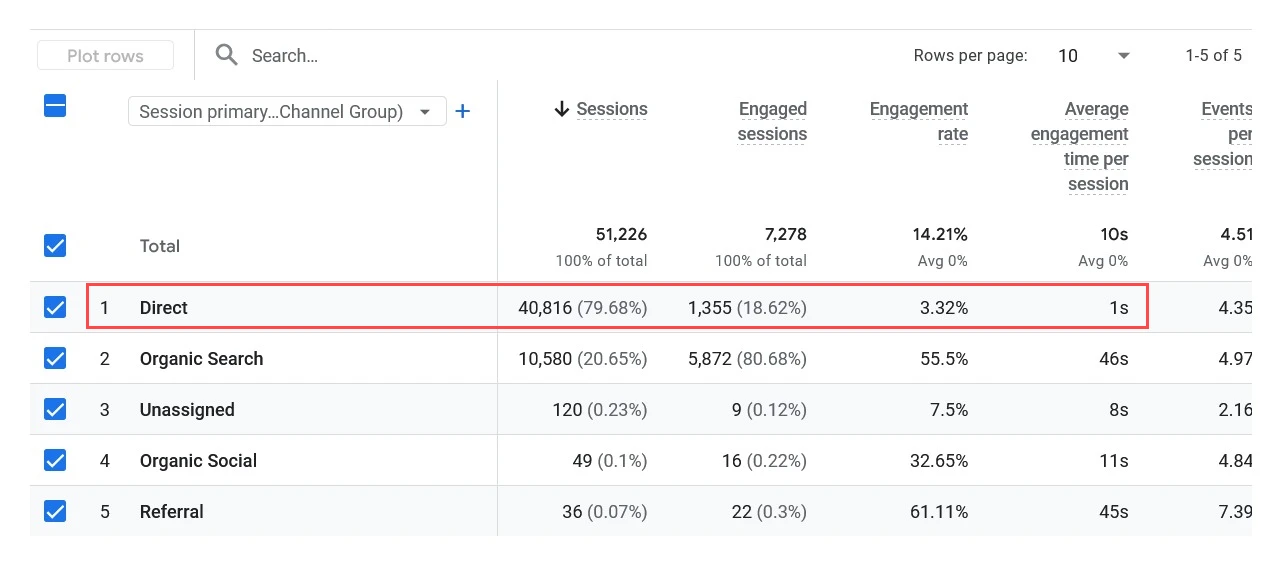
GA4 Traffic Acquisition report showing direct traffic at 79.68% with only 1 second engagement time, while Organic Search shows 46 seconds — a strong indication of low-quality or misattributed traffic.
Why Is My Direct Traffic So High in GA4? 14 Real Reasons
Let’s look at the most common reasons websites show large amounts of direct traffic.
Understanding these causes will help you determine whether your analytics data is accurate.
1. Users Typing the Website Address
This is the most obvious type of direct traffic.
Visitors may type your website URL directly in their browser, for example:
https://yourwebsite.com
This typically happens when users:
- already know your brand
- bookmarked your site
- visit frequently
However, this type of traffic usually lands on the homepage, not deep pages.
If direct traffic is landing on long blog URLs, it likely came from somewhere else.
2. Missing GA4 Tag on Some Pages
This is one of the most overlooked causes of inflated direct traffic in GA4, and it is surprisingly common.
If your GA4 tracking tag is missing from certain pages, such as a checkout page, a landing page built on a separate system, or a thank you page after a form submission, something breaks silently.
Here is what happens:
- a user arrives on your website through organic search and lands on Page A, which has the GA4 tag
- they navigate to Page B, which is missing the tag
- then they move to Page C, which has the tag again
When GA4 picks up the user on Page C, it has lost the session context. It treats this as a brand new session with no source, and classifies it as direct traffic.
This is especially common on websites that use third-party tools, external checkout systems, or page builders that are not properly integrated with GA4.
3. Caching Plugins Not Configured Correctly
This one is particularly common on WordPress websites, but it applies to any site that uses server-side or plugin-based caching.
Caching plugins work by saving a static version of your pages so they load faster. The problem is that if your GA4 tracking script is not excluded from caching correctly, the cached version of the page may serve an outdated or broken version of the tag.
Here is how this leads to direct traffic in GA4:
- a visitor arrives on a cached page where the GA4 tag is not firing properly
- GA4 either misses the session entirely or records it without source data
- the visit gets attributed as direct traffic, or is lost from reports altogether
Common caching plugins where this issue can appear include WP Rocket, W3 Total Cache, WP Super Cache, LiteSpeed Cache, and similar tools. Most of them have an option to exclude certain scripts from being cached — your GA4 tag or Google Tag Manager container script should always be on that exclusion list.
The same issue can occur if you use a CDN like Cloudflare with aggressive caching rules on HTML pages. If your tag manager script is being cached at the CDN level and not loading the latest version, attribution can break silently.
4. Dark Social Traffic
Dark social is one of the biggest hidden contributors to high direct traffic in GA4, and most website owners have never heard of it.
Dark social refers to links being shared through private or closed communication channels. When someone clicks a link from these channels, the browser often does not send referrer data, so GA4 records the visit as direct traffic.
Examples include links shared through:
- Facebook Messenger
- Telegram
- Slack and Microsoft Teams
- Instagram direct messages
- Private email forwarding
A significant amount of everyday content sharing happens through these private channels. When someone shares your blog post in a WhatsApp group and ten people click it, all ten sessions can appear as direct traffic in GA4.
There is no perfect fix for dark social, but using UTM parameters on links you share publicly at least reduces misattribution from the channels you do control.
5. Email Links Without Tracking Parameters
Email traffic is another frequent reason for high direct traffic in GA4.
When you send an email newsletter or transactional email that contains links without UTM tracking parameters, GA4 has no way of knowing the visitor came from an email. It records the session as direct.
An untagged link looks like this:
https://yourwebsite.com/blog/article
A properly tagged email link looks like this:
https://yourwebsite.com/blog/article?utm_source=newsletter&utm_medium=email&utm_campaign=march2026
If your email platform does not automatically add UTM tags, this should be the first thing you fix to reduce direct traffic in GA4.
6. Mobile App Traffic
Most mobile apps do not send a referrer header when a user taps a link and opens it in their browser. This means traffic coming from apps is frequently misattributed as direct traffic in GA4.
This applies to:
- news aggregator apps like Flipboard or Apple News
- social apps like Instagram, TikTok, LinkedIn, and Twitter
- email apps on mobile devices
- any in-app browser that strips referral data
If your content is being shared or featured inside apps, you may be receiving far more social or referral traffic than your GA4 report suggests. It is just being recorded as direct.
7. Apple ITP (Intelligent Tracking Prevention)
Apple’s Intelligent Tracking Prevention, commonly known as ITP, is a privacy feature built into Safari on iPhones, iPads, and Mac computers. It is one of the newer but increasingly significant causes of attribution problems in GA4.
Here is why it matters for direct traffic in GA4:
ITP can shorten or remove first-party cookies much faster than normal. A user might click a paid ad, browse your website, and leave. When they come back a few days later, their cookie may have already expired. GA4 now sees them as a completely new user visiting directly, even though their original session came from a paid campaign.
With Safari’s share of browser usage continuing to grow, especially on mobile, this attribution gap is something every website owner should be aware of.
8. Cross-Device Behaviour
User journeys rarely happen on a single device anymore. Someone might discover your brand through a Google search on their phone, browse your site, and close the tab. A few days later, they remember your website and type the URL into their desktop browser.
GA4 sees the desktop visit as direct traffic, even though the original discovery came from organic search. Without a logged-in Google account that allows cross-device tracking, there is no way for GA4 to connect these sessions automatically.
This is a structural limitation of how session attribution works, not a bug. But it is worth keeping in mind when evaluating how much of your direct traffic in GA4 might represent returning users who originally found you through other channels.
9. Links Inside Documents and Downloadable Files
Links placed inside offline or downloadable files do not carry referral information. When someone clicks a link embedded in any of the following, GA4 will almost always record it as direct:
- PDF reports and whitepapers
- Word and PowerPoint files
- Downloadable guides or templates
- Printed QR codes (though these can be tagged)
If you distribute content in document format and it contains links back to your website, adding UTM parameters to those links is an easy way to identify this traffic correctly.
10. Privacy Browsers and Ad Blockers
Browsers like Safari, Brave, and Firefox with strict privacy settings often block or strip referral information before it reaches your website. Users who install ad blocking extensions can also prevent GA4 from collecting session data at all.
When this happens, either the visit is not tracked, or it is recorded with no source information and classified as direct traffic in GA4. As privacy-focused browsing becomes more common, this category of unattributed traffic is likely to keep growing.
11. Cookie Consent Rejection
Cookie consent banners are now a standard part of most websites, particularly in Europe. But they come with a trade-off.
When a visitor declines analytics cookies, GA4 may not be able to store session or attribution data properly. Depending on how your consent management platform is configured, some of these rejected sessions may still appear in GA4 with no source, contributing to your direct traffic numbers.
12. Cross-Domain Tracking Issues
If your website spans multiple domains or subdomains, and cross-domain tracking is not configured correctly in GA4, you will likely see inflated direct traffic.
For example:
- yourwebsite.com — main site
- checkout.yourwebsite.com — payment flow
- app.yourwebsite.com — customer portal
When a user moves from one of these domains to another, GA4 can treat it as a new session. The second session loses the original source data and gets attributed as direct.
This is a configuration issue that can be fixed inside GA4’s data stream settings by defining the domains that should be treated as part of the same session.
13. Redirect Chains That Strip Referrer Data
Long redirect chains can cause attribution data to be lost before the user reaches your final page.
The sequence looks like this:
Original link → Redirect 1 → Redirect 2 → Final page
Each redirect can strip away the referrer header. By the time the user lands on your final destination, GA4 may have no record of where they came from, recording the session as direct instead.
14. Bot Traffic and Automated Crawlers
Not every session in your GA4 report represents a real human visitor. Bots, crawlers, and automated tools can trigger your analytics tag and show up as direct traffic in GA4.
Common sources of bot traffic include:
- SEO audit tools
- Uptime and performance monitoring services
- Security scanners and vulnerability testers
- Headless browsers used for automated tasks
- Spam bots that crawl the web indiscriminately
These visits tend to share certain patterns that make them recognisable, which we will cover in the next section.
How to Find Direct Traffic in GA4
Before you can investigate or reduce direct traffic in GA4, you need to know where to look.
Here is how to find it:
- Open GA4 and go to Reports in the left navigation
- Click Acquisition, then select Traffic Acquisition
- In the Session default channel group column, look for the Direct row
- Click on Direct to filter the report and see only those sessions
Once you are viewing direct traffic in GA4, pay close attention to two things:
- The landing pages these sessions are hitting
- The engagement metrics for these sessions
If direct traffic is consistently landing on very specific or long URLs, it is not coming from people typing those addresses. Something else is going on, and the sections above can help you narrow down the cause.
Identifying where your traffic is coming from is just one part of the process. To ensure your pages are properly optimized and attracting the right audience, it’s equally important to follow best practices outlined in this on-page SEO for beginners guide.
How to Identify Bot Traffic in GA4
One of the most practical ways to spot suspicious direct traffic in GA4 is by examining engagement metrics. Real users behave differently from automated scripts.
Look for sessions with:
- 0 seconds engagement time
- only one page viewed per session
- no scroll events recorded
- no button clicks or interactions
A high volume of direct sessions with zero engagement time is a strong signal that bots or crawlers are inflating your numbers.
Also check which landing pages the direct traffic is hitting. If it is landing on highly specific deep URLs that no real user would type by hand, that is another red flag.
True Direct Traffic vs. Misattributed Direct Traffic
| True Direct Traffic | Likely Misattributed |
|---|---|
| Lands on homepage or main category pages | Lands on long blog URLs or deep pages |
| High engagement time | Zero or near-zero engagement time |
| Known brand with offline presence | New or niche site with little brand awareness |
| Bookmarks or typed URLs from loyal users | Traffic from docs, emails, or dark social |
| Reasonable session count for brand size | Sudden unexplained spikes in volume |
How to Reduce Direct Traffic in Google Analytics
You cannot eliminate direct traffic in GA4 completely — and you should not try to. Some of it is genuinely from loyal users who know your brand. But you can significantly improve attribution accuracy.
Here are a few practical steps.
1. Use UTM Tracking for Campaigns
Always use UTM parameters for links shared through:
- email campaigns
- social media posts
- advertisements
- QR codes
This allows GA4 to correctly identify the traffic source.
2. Fix Your GA4 Tag Coverage
Use Google Tag Assistant or GA4’s DebugView to verify that your tracking tag is firing on every page of your website, including checkout pages, landing pages, and any pages built with third-party tools.
3. Configure Cross-Domain Tracking
If your website uses multiple domains or subdomains, set up cross-domain tracking inside GA4. This tells GA4 to treat sessions across those domains as continuous, preventing the source from being lost when users move between them.
4. Filter Internal Traffic
Visits from your own team, developers, and testing environments can inflate your direct traffic numbers. Define your internal IP addresses in GA4’s admin settings and create a filter to exclude them from reports.
5. Enable Bot Filtering
GA4 filters many known bots automatically, but not all of them. Make a habit of checking engagement metrics for your direct traffic on a monthly basis. Unusual spikes combined with zero engagement time should prompt further investigation.
6. Focus on Engaged Sessions
Rather than looking at raw session counts, use engaged sessions, engagement rate, and average engagement time as your primary indicators of real user activity. These metrics give you a much more honest picture than total sessions alone.
For the complete walkthrough of every fix with exact steps, see our detailed guide on how to fix direct traffic in GA4.
Real Example: Reducing Bot Traffic Using Cloudflare
Sometimes, the cause of high direct traffic in GA4 is not a tracking configuration issue at all. It is automated bot traffic inflating the numbers.
Here is a real case that illustrates this well.
A website was recording 2,000 to 3,000 visits per day in GA4. On the surface, this looked healthy. But the AdSense revenue was extremely low relative to that traffic volume, which raised a red flag.
After reviewing the analytics data, several unusual patterns appeared:
- an unusually high proportion of direct traffic
- many sessions with 0 seconds engagement time
- a large number of visits coming from China
These were classic signs of automated bot activity. The bots were triggering the analytics tag, inflating session counts, and appearing as direct traffic in GA4 because they provided no referral information.
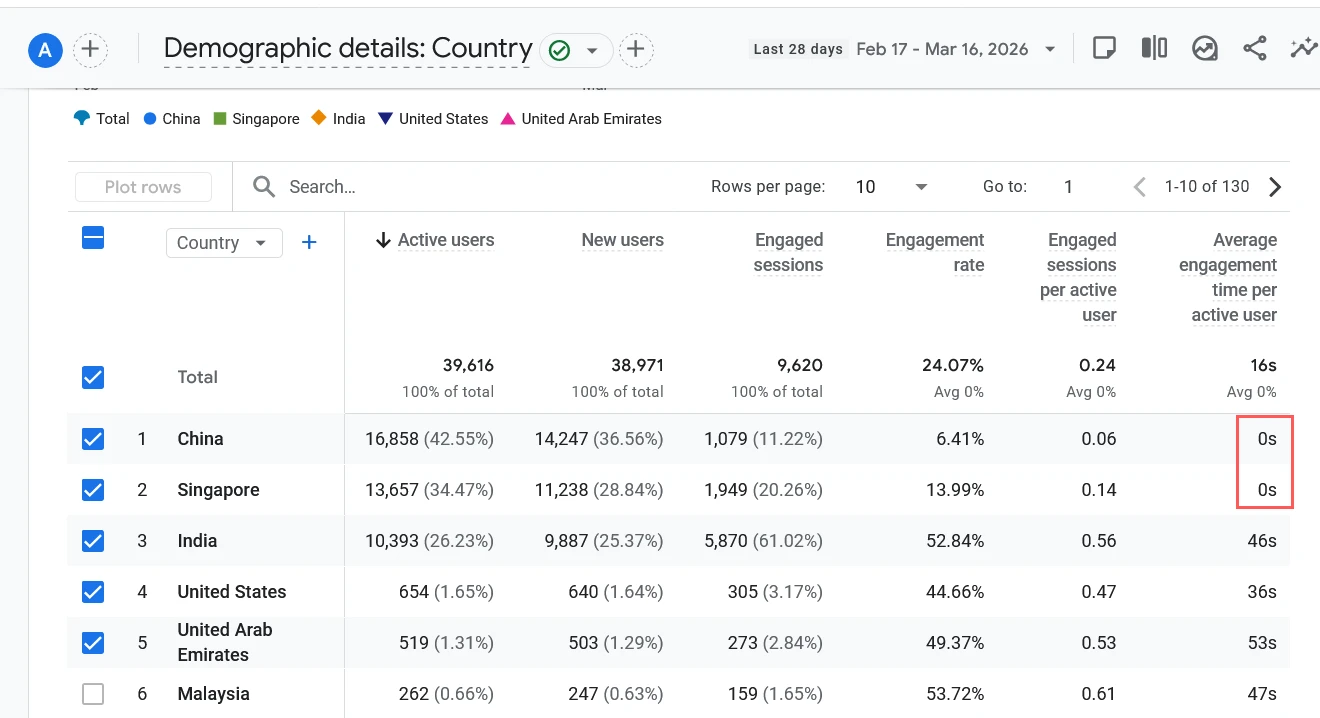
GA4 Demographic report showing China (42.55%) and Singapore (34.47%) as top traffic sources with 0 seconds average engagement time — a strong indicator of non-human or automated traffic patterns.
In this example, traffic from some regions shows almost no interaction, while traffic from others behaves like real users, making it easier to identify suspicious traffic patterns.
To address this, the website was connected to Cloudflare, which provides bot protection and traffic filtering at the network level. After enabling bot protection and restricting traffic from regions generating abnormal activity, the picture changed significantly:
- Daily visits settled at around 1,200 genuine sessions
- Direct traffic dropped to a more realistic proportion
- AdSense revenue aligned much more closely with actual visitor numbers
The volume of traffic looked smaller on paper, but the data became far more trustworthy. For any website where ad revenue or conversion data is not matching your traffic volume, investigating bot traffic is a worthwhile step.
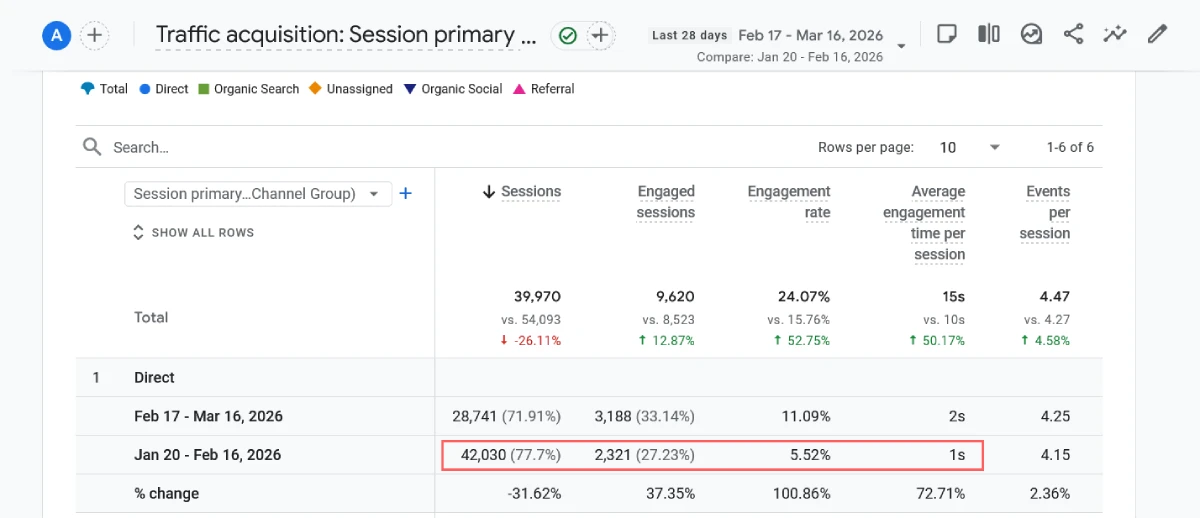
GA4 Traffic Acquisition report comparing two periods — after enabling Cloudflare bot protection, direct sessions dropped by 31.62%, while engagement rate improved by over 100% and average engagement time increased by 72.71%, indicating a shift toward more genuine user traffic.
How Much Direct Traffic Is Normal in GA4?
A reasonable rule of thumb is that up to around 20 to 25 percent of sessions being classified as direct traffic in GA4 is not unusual for most websites. Established brands with strong offline presence or loyal returning audiences may see slightly higher numbers and that is fine.
Direct traffic becomes concerning only when:
- it suddenly spikes without any obvious explanation
- engagement time for direct sessions is consistently zero or near zero
- it is landing on deep pages or highly specific URLs that no one would type manually
- it makes up more than 40 to 50 percent of your total traffic
In those situations, the likely causes are attribution issues, missing tags, bot traffic, or some combination of all three.
Is Some of Your Organic Traffic Hiding Inside Direct?
This is an important question that most GA4 guides skip over.
A useful way to sanity-check your direct traffic in GA4 is to cross-reference it with Google Search Console data. If GA4 is showing far fewer organic search sessions than Search Console shows for the same pages and time period, there is a good chance some of that organic traffic is being misclassified as direct.
This can happen when:
- The GA4 tag fires before the referrer header is fully passed
- Users arrive through HTTPS-to-HTTP redirects that strip the referrer
- Browser privacy settings prevent referral data from reaching GA4
If you find a significant gap between Search Console clicks and GA4 organic sessions, improving tag configuration and eliminating redirect chains are the two most likely fixes.
Making Sense of Your Direct Traffic Data
Direct traffic in GA4 is one of the most misunderstood metrics in web analytics. While some of it genuinely reflects users who know and return to your website, a large portion represents sessions where the original source was lost somewhere along the way.
Understanding the real causes — from dark social and missing tags to Apple ITP, cross-device behaviour, and bot traffic — helps you interpret your data more accurately and prioritise the fixes that will have the most impact.
Start by checking your tag coverage across all pages, adding UTM parameters to your email and social campaigns, and reviewing engagement metrics for your direct sessions. These three steps alone will give you a much clearer picture of what is actually driving traffic to your website.
FAQ
What does (direct) / (none) mean in GA4?
This notation means GA4 could not identify the traffic source or medium for that session. The word ‘direct’ refers to the default channel, and ‘none’ means no medium data was found. It is GA4’s fallback label for unattributed sessions.
Why does GA4 show so much direct traffic?
High direct traffic in GA4 is usually caused by missing UTM parameters, missing tracking tags on some pages, dark social sharing, email links without tracking, mobile app traffic, or bot activity. It rarely means that all those users typed your URL manually.
How do I find direct traffic in GA4?
Go to Reports > Acquisition > Traffic Acquisition. Look for Direct in the Session default channel group column. Click on it to filter the view and analyse landing pages and engagement metrics for those sessions.
Is direct traffic bad for SEO?
Direct traffic itself does not affect SEO. However, if you are seeing very high direct traffic because of attribution issues, it means you are likely misreading the true performance of your organic, social, or email channels, which can lead to poor marketing decisions.
Can bots create direct traffic in GA4?
Yes. Bots and automated crawlers that trigger your GA4 tag without passing referral data will appear as direct traffic. They are typically identifiable by zero engagement time and single-page sessions.
What is a normal percentage of direct traffic in GA4?
For most websites, up to 20 to 25 percent direct traffic is within a normal range. If you are consistently seeing 40 percent or more, it is worth investigating your tracking setup, tag coverage, and campaign UTM usage.
