
The wp-config.php file is the most sensitive file in your WordPress website. It stores critical information such as database credentials, security keys, and core configuration settings that allow your site to function properly.
If this file is exposed or accessed by attackers, your entire website can be compromised within minutes. Hackers specifically target this file because it gives them direct access to your database and control over your site.
That’s why learning how to secure wp-config.php in WordPress is one of the most important steps you can take to protect your website.
In this guide, you’ll learn practical, beginner-friendly methods to secure this file and reduce security risks.
What Is wp-config.php in WordPress?
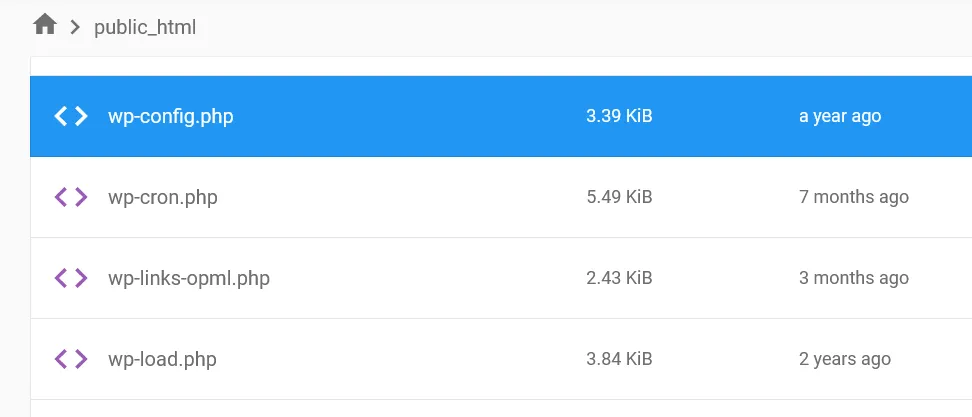
The wp-config.php file is the main configuration file of your WordPress installation. It connects your website to the database and defines important settings required for your site to run.
This file typically contains:
- Database name, username, password, and host
- Security keys and salts
- Table prefix
- Debug and environment settings
- Custom configurations
Without this file, WordPress cannot function, which makes it a high-value target for attackers. Since this file controls your database connection, even a small mistake can cause errors. If your site stops connecting, check our guide on fixing the error establishing a database connection in WordPress.
Why You Must Secure wp-config.php
Hackers often target wp-config.php because it contains sensitive information that can give them complete control over your website. If they gain access, they can steal your database credentials, inject malicious scripts, modify your content, or even delete your entire website.
For example, if your database credentials are exposed, an attacker can log in directly to your database and manipulate your data without needing WordPress access.
This is why securing wp-config.php is not optional—it is a critical part of WordPress security.
1. Move wp-config.php Outside the Root Directory
One of the simplest and most effective ways to secure wp-config.php in WordPress is to move it outside the public root directory. By default, this file is located in the public_html folder, which is accessible via the web.
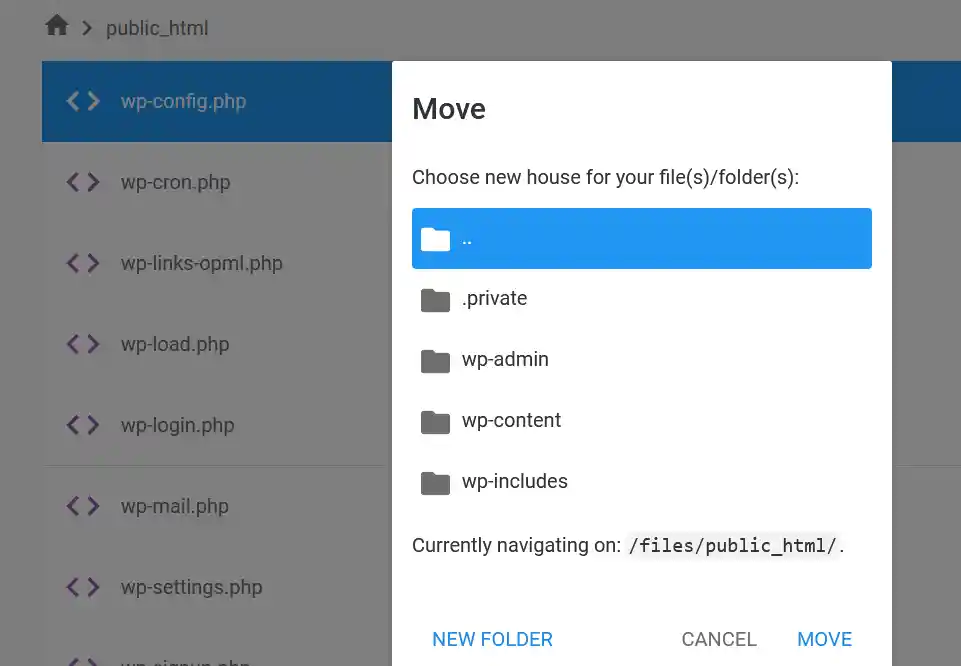
When you move it one level above, WordPress can still access the file, but it becomes much harder for attackers to reach it through a browser.
To do this, open your hosting File Manager or FTP client, locate the wp-config.php file, and move it to the parent directory.
2. Restrict Access Using .htaccess
You can add an extra layer of protection by restricting access to wp-config.php using the .htaccess file. This prevents anyone from directly accessing the file through a browser.
Add the following code to your .htaccess file:
<files wp-config.php>

order allow,deny

deny from all

</files>
This rule blocks all external access attempts and ensures that only the server can read the file.
If you make a mistake while editing the .htaccess file, it can break your website. In that case, follow this guide to fix the 502 internal server error in WordPress and restore your site quickly.
3. Set Proper File Permissions
File permissions play a crucial role in securing your WordPress files. If permissions are too open, attackers may gain access or modify sensitive files.
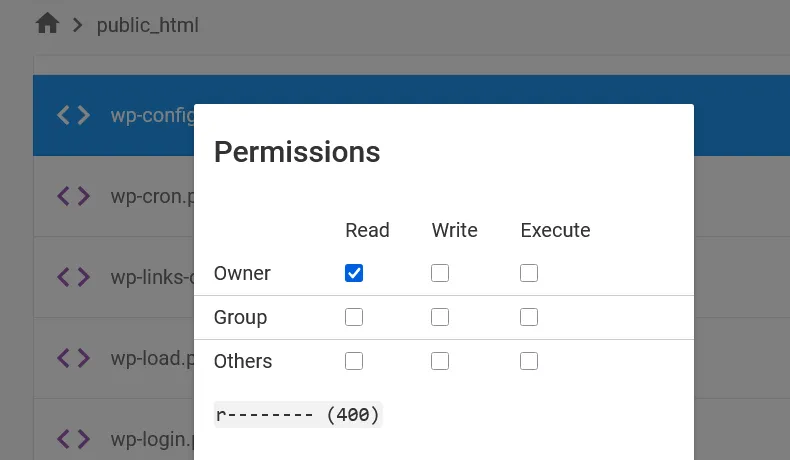
For wp-config.php, it is recommended to set permissions to 400 or 440, which allows only the file owner (and optionally the server) to read the file.
You can change permissions through your hosting control panel or FTP client by right-clicking the file and selecting “Permissions.”
If you’re not sure how WordPress file permissions work, read our detailed guide on WordPress file permissions explained to understand the correct settings and avoid common mistakes.
4. Disable File Editing from Dashboard
By default, WordPress allows administrators to edit theme and plugin files directly from the dashboard. While this can be convenient, it also creates a security risk if unauthorized access is gained.
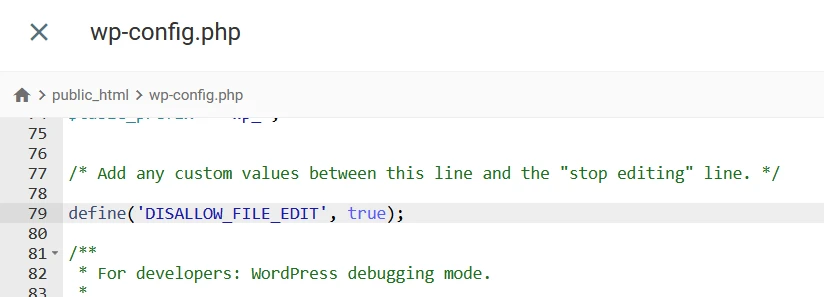
To disable this feature, add the following line to your wp-config.php file:
define('DISALLOW_FILE_EDIT', true);
This prevents any file modifications from within the WordPress dashboard, reducing the risk of malicious code injection.
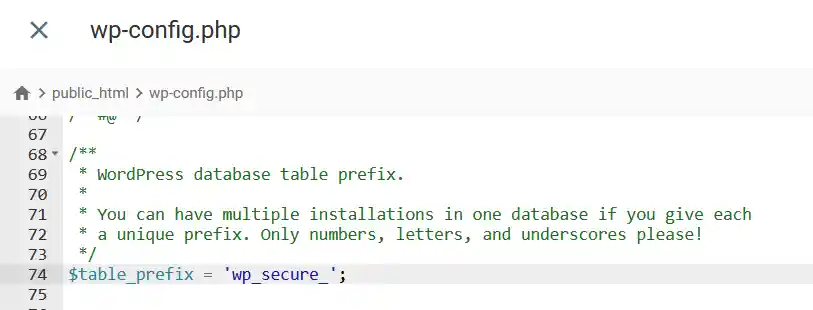
5. Change the Default Database Table Prefix
WordPress uses wp_ as the default database table prefix, which makes it predictable and easier for attackers to target your database tables.
Changing the prefix adds an extra layer of security by making it harder to guess table names.
Open your wp-config.php file and locate:
$table_prefix = 'wp_';
Change it to something unique, such as:
$table_prefix = 'wp_secure_';
If your site is already live, changing the prefix requires updating database tables carefully, so proceed with caution.
6. Disable PHP Error Display
Error messages can reveal sensitive information such as file paths, server structure, and configuration details. This information can be used by attackers to exploit vulnerabilities.
To prevent this, disable error display in your wp-config.php file:
define('WP_DEBUG', false);

define('WP_DEBUG_DISPLAY', false);
This ensures that errors are not visible to users while still allowing you to log them if needed.

7. Block Direct Access to wp-config.php
Even if your file is properly configured, you should always verify that it cannot be accessed directly via a browser.
Try visiting:
yourwebsite.com/wp-config.php
If your setup is secure, you should see a “403 Forbidden” or blank page. If the file content is visible, your site is vulnerable and needs immediate attention.
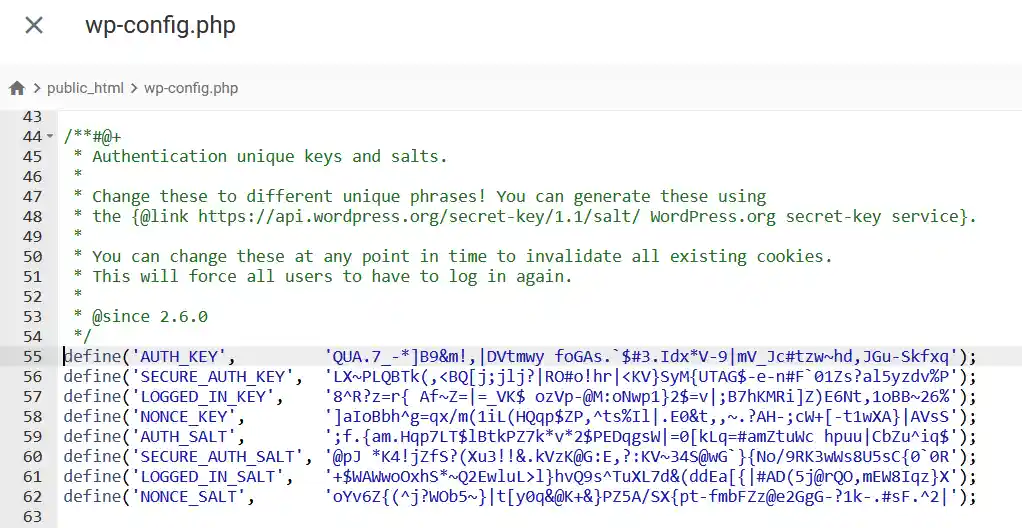
8. Secure Authentication Keys and Salts
The wp-config.php file contains authentication keys and salts that secure user sessions and cookies. These keys help prevent session hijacking and unauthorized access.
You should ensure that these keys are unique and randomly generated. If your website has been compromised or you suspect a security issue, regenerate these keys immediately.
You can generate new keys using the official WordPress salt generator and replace them in your wp-config.php file.
9. Disable Database Repair Access
WordPress includes a database repair feature that can be enabled through wp-config.php. While useful for troubleshooting, it can be exploited if left enabled.
If you have used this feature, make sure to remove or disable it:
define('WP_ALLOW_REPAIR', true);
Leaving this active can allow unauthorized users to access your database repair page.
10. Use a WordPress Security Plugin
While manual methods are essential, using a security plugin adds an extra layer of protection. These plugins can monitor file changes, block suspicious activity, and automatically secure sensitive files.
Popular security plugins can also alert you if wp-config.php is modified, helping you respond quickly to threats.
11. Backup wp-config.php Before Making Changes
Before editing wp-config.php, always create a backup. Even a small mistake in this file can break your entire website.
Download a copy of the file and store it safely. This ensures that you can quickly restore your site if something goes wrong.
Common Mistakes to Avoid
Many users unknowingly leave their site vulnerable by making simple mistakes. Editing wp-config.php without a backup, setting incorrect file permissions, or leaving debug mode enabled can expose sensitive information.
Another common mistake is keeping the file in the public directory without any protection. Always combine multiple security measures for better protection.
Quick Checklist to Secure wp-config.php
- Move the file outside the root directory
- Restrict access using .htaccess
- Set file permissions to 400 or 440
- Disable file editing in WordPress
- Change the default database prefix
- Disable error display
- Secure authentication keys
- Remove database repair access
- Use a security plugin
- Keep regular backups
Final Thoughts on Securing wp-config.php in WordPress
Securing your wp-config.php file is one of the most effective ways to protect your WordPress website. Since this file contains critical configuration and database information, even a small vulnerability can lead to serious security issues.
By following the steps in this guide, you can significantly reduce the risk of unauthorized access and keep your website safe. Implementing these practices not only improves security but also gives you peace of mind as your site grows.
Frequently Asked Questions
Is it safe to edit wp-config.php in WordPress?
Yes, it is safe to edit the wp-config.php file if you follow the correct steps. However, you should always take a backup before making any changes, as even a small error in this file can break your website.
What happens if wp-config.php is exposed?
If wp-config.php is exposed, attackers can access your database credentials, security keys, and configuration settings. This can allow them to take full control of your website, inject malware, or delete your data.
Where is wp-config.php located?
The wp-config.php file is usually located in the root directory of your WordPress installation, such as the public_html folder. For better security, you can move it one level above the root directory.
What file permissions should wp-config.php have?
The recommended file permissions for wp-config.php are 400 or 440. These settings ensure that only the file owner (and optionally the server) can read the file, preventing unauthorized access.
Can I delete wp-config.php?
No, you cannot delete wp-config.php. This file is essential for connecting your WordPress site to the database, and removing it will break your website.
How often should I update WordPress security keys?
You should update your WordPress security keys if your site is compromised or if you suspect unauthorized access. Regular updates can also improve session security and protect user data.
