
If you’re searching because your WordPress site is hacked, you’re probably dealing with panic right now. Maybe your website is redirecting to spam pages, showing a “This site may be hacked” warning in Google, or you’re locked out of your WordPress admin dashboard. A hacked WordPress site can affect your traffic, SEO rankings, user trust, and even your hosting account.
The good news? Most WordPress malware infections can be cleaned and fully recovered — if you take the right steps immediately.
In this guide, I’ll walk you through exactly what to do first when your WordPress site is hacked, how to fix it safely, and how to prevent it from happening again.
What to Do First When Your WordPress Site Is Hacked
If your WordPress site is hacked, following a structured step-by-step recovery process reduces further damage and prevents reinfection. Instead of randomly deleting files or reinstalling plugins, work through the following actions in order to safely clean and secure your website.
1. Confirm That Your WordPress Site Is Actually Hacked
Before jumping into malware removal, you need to verify whether your WordPress site is truly compromised. Sometimes plugin conflicts or hosting errors can mimic hacking symptoms. A proper diagnosis prevents unnecessary damage.
Here are common signs of a hacked WordPress site:
- Your website redirects to spam or casino/pharma pages
- Google shows “This site may be hacked” or security warnings
- New admin users appear in your dashboard
- Unknown plugins or themes are installed
- Website loads slowly due to injected malicious scripts
- Hosting provider suspends your account due to malware detection
You can also:
- Check Google Search Console → Security Issues
- Scan your site using a security plugin
- Review recent file changes in cPanel or via FTP
If multiple signs are present, your WordPress site is likely infected with malware.
2. Do NOT Panic — Secure Access First
When your WordPress site is hacked, the first priority is containment — not cleanup. Many site owners immediately try to delete suspicious files, but acting too quickly without securing access can make the situation worse. If attackers still have access, cleaning files won’t help because reinfection can happen within minutes.
Immediately:
- Change your WordPress admin password
- Change hosting (cPanel) password
- Update FTP/SFTP credentials
- Reset your database password
- Enable two-factor authentication (if available)
If you’re locked out of WordPress:
- Access via hosting file manager
- Rename the plugins folder to disable all plugins
- Reset password directly via phpMyAdmin
Securing access prevents further malicious injections during recovery.
3. Take a Full Backup Before Cleaning
Even if your WordPress site is hacked, always take a full backup before removing malware. This helps if something breaks during cleanup. Without a proper backup, you risk permanent data loss while trying to fix a hacked WordPress site.
Back up:
- All WordPress files (public_html)
- wp-config.php
- Database (export via phpMyAdmin)
Why this matters:
- Some malware hides inside core files
- Manual deletion can break theme functionality
- You may need to compare infected vs clean files
A backup gives you a safety net during WordPress malware removal.
4. Scan and Identify the Malware Infection
Now that your WordPress site is hacked, secured, and backed up, you can begin identifying infected files. Properly scanning your website is one of the most important steps in WordPress malware removal because hidden malicious code can remain unnoticed if you only delete visible spam files. A thorough scan helps you locate the exact source of the infection before you attempt to clean a hacked WordPress site.
Malware commonly hides in:
- wp-content/uploads
- wp-includes
- Theme files
- Obscure PHP files with random names
- Injected JavaScript inside header.php or footer.php
Use:
- Security scanning plugins
- Hosting malware scanner
- Manual inspection of recently modified files
Look for:
- base64_decode
- eval()
- Obfuscated PHP code
- Suspicious external script references
This step is critical before you attempt to clean a hacked WordPress site.

Even if only a few files are flagged, it’s important to investigate thoroughly. Malware often spreads silently across themes, plugins, or database entries.
5. Clean the Hacked WordPress Site Properly
When your WordPress site is hacked, partial cleanup often leads to reinfection. Many website owners delete visible malicious files but miss hidden backdoors or database injections. The goal is complete WordPress malware removal — not just removing spam redirects temporarily.
Best approach:
- Delete all WordPress core files (except wp-config.php and wp-content)
- Reinstall fresh WordPress core files
- Remove unused themes and plugins
- Reinstall plugins from official sources
- Manually inspect wp-content folder
- Clean infected database entries
Check database tables for:
- Spam links in posts
- Hidden admin users
- Suspicious wp_options entries
If the infection is severe, consider professional WordPress malware removal services.
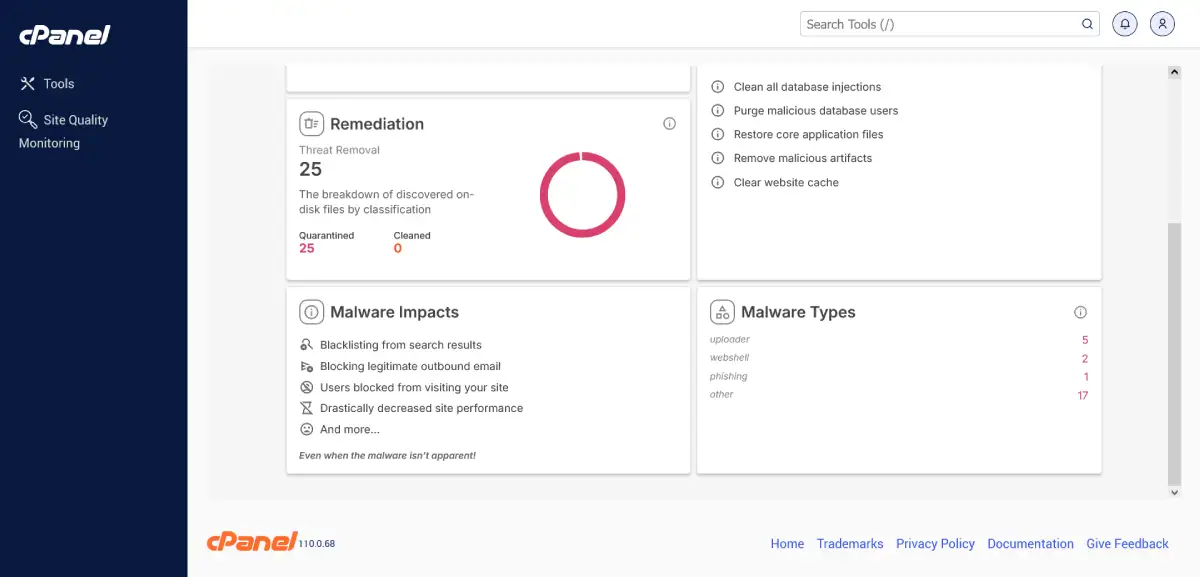
Hosting-level malware scan identifying webshell and uploader-based infections.
If you need to reinstall WordPress core files safely, here’s a beginner-friendly WordPress installation guide.
6. Remove Google “This Site May Be Hacked” Warning
If Google flagged your WordPress site hacked, traffic can drop significantly and user trust may decline immediately. When Google displays the “This site may be hacked” warning in search results, it signals potential malware or security issues detected on your website.
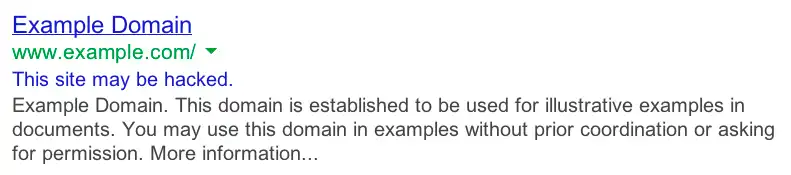
Cleaning the hacked WordPress site alone is not enough — you must also request a security review to remove the Google warning.
After cleaning:
- Go to Google Search Console
- Navigate to Security Issues
- Request a review
- Submit a clear explanation of the actions taken (malware removed, passwords reset, security hardened)
Google usually re-evaluates within a few days, but timelines can vary depending on the severity of the infection.
Until the warning is removed, rankings, impressions, and click-through rates may remain affected.
After cleaning the infection, it’s important to perform a complete site review to ensure no hidden technical issues remain. You can follow a structured process using this Technical SEO Audit Checklist for WordPress.
7. Strengthen WordPress Security After Recovery
Once your WordPress site was hacked and cleaned, prevention becomes critical. Many website owners successfully remove malware but fail to harden security, which leads to reinfection within weeks. Most WordPress security breaches happen due to outdated plugins, weak passwords, vulnerable themes, or insecure hosting environments.
To secure your WordPress site:
- Keep WordPress core updated
- Update plugins and themes regularly
- Install a reliable WordPress security plugin
- Enable firewall protection (WAF)
- Disable file editing in wp-config.php
- Use secure WordPress hosting
- Schedule regular malware scans
- Remove unused themes and plugins
Security hardening ensures your hacked WordPress site does not get reinfected, especially when critical files like wp-config.php are properly secured.
8. When to Hire a WordPress Malware Removal Expert
Not all infections are simple. When your WordPress site is hacked, some malware variants create hidden backdoors, reinfect core files, or inject spam pages deep inside the database. If the cleanup process feels overwhelming or the infection keeps returning, professional WordPress malware removal may be necessary.
You should consider hiring an expert if:
- Malware keeps returning after cleanup
- Your hosting provider repeatedly suspends your account
- Traffic and rankings have significantly dropped
- SEO spam pages are indexed in Google
- You cannot identify the source of the infection
Persistent malware can damage your SEO performance, domain reputation, and customer trust. In such cases, a structured recovery process is safer than repeated partial fixes.
In a recent WordPress website recovery case study, I handled a severe malware infection that caused spam redirects and indexing issues. The site was fully cleaned, secured, and restored without data loss.
You can read the full breakdown here: WordPress Website Recovery – Malware Case Study
Final Thoughts
If your WordPress site is hacked, acting quickly and methodically makes all the difference. Instead of panicking, follow a structured recovery process to minimize damage and restore your website safely.
Remember:
- Confirm the hack
- Secure access
- Back up everything
- Scan and identify the infection
- Clean the hacked WordPress site properly
- Request a Google security review
- Strengthen WordPress security
A hacked WordPress site can feel overwhelming — especially if traffic drops or Google shows security warnings. But with the right steps, proper WordPress malware removal, and strong security hardening, full recovery is absolutely possible.
Beyond malware cleanup, long-term stability also depends on choosing the right hosting environment, keeping plugins optimized, and maintaining regular backups. A weak hosting setup can often amplify performance and security issues.
Frequently Asked Questions
1. What should I do first if my WordPress site is hacked?
If your WordPress site is hacked, first secure access by changing all passwords (WordPress admin, hosting, FTP, and database). Then take a full backup before attempting WordPress malware removal. Securing access prevents reinfection during cleanup.
2. How do I know if my WordPress site is hacked?
Common signs include spam redirects, unknown admin users, injected links, Google showing “This site may be hacked,” or sudden traffic drops. You can confirm by scanning your website with a security plugin or checking the Security Issues report in Google Search Console.
3. Can I clean a hacked WordPress site myself?
Yes, minor infections can be cleaned manually if you are comfortable accessing cPanel, FTP, and your database. However, if malware keeps returning or spam pages are indexed in Google, professional WordPress malware removal may be safer.
4. How long does it take to remove the Google “This site may be hacked” warning?
After cleaning your hacked WordPress site, you must request a review in Google Search Console. Google typically re-evaluates within a few days, but it can take longer depending on the severity of the security issue.
5. Will a hacked WordPress site affect SEO rankings?
Yes. A WordPress site hacked with malware can lose rankings, impressions, and click-through rates. If spam pages are indexed or Google flags your domain, SEO performance may drop significantly until the issue is resolved.
6. How can I prevent my WordPress site from getting hacked again?
To prevent future attacks:
- Keep WordPress core updated
- Update plugins and themes regularly
- Use strong passwords and two-factor authentication
- Install a security plugin and firewall
- Use secure hosting
- Schedule regular malware scans
Proper security hardening reduces the risk of reinfection.

