
WordPress Login Page Keeps Redirecting? Here’s What’s Happening
You type your username and password, click Log In, and instead of reaching your WordPress dashboard — you’re back at the login page again. No error message. No explanation. Just the login form, staring back at you.
You try again. Same thing. You clear your browser history, try a different browser, double-check your password. Still looping.
That’s the WordPress login redirect loop, and it’s one of the most disorienting errors you can encounter precisely because it gives you so little to work with. You’re not seeing a server error. Your site is loading. Everything looks normal — except you can’t get in.
I’ve fixed this on client sites more times than I can count, and the good news is it almost always comes down to one of a handful of causes — all of which are fixable without professional help. This guide walks you through how to diagnose your specific situation first, then fix it properly, rather than working through a random checklist hoping something sticks.
Quick Fix:
Most WordPress login redirect loops are caused by cookies, caching, or URL mismatch. Try this first:
- Clear browser cookies or use incognito mode
- Disable all plugins via FTP
- Check WordPress URL settings (siteurl & home)
- Fix HTTPS/SSL configuration
How WordPress Login Actually Works (And Why It Breaks)
Understanding the login process makes the fixes much clearer, so bear with me for 30 seconds.
When you submit your WordPress login credentials, WordPress validates them and then sets an authentication cookie in your browser. This cookie is what proves to WordPress that you’re logged in. WordPress then redirects you to the dashboard — and when you arrive, it checks for that cookie.
If the cookie isn’t there, isn’t readable, or has been invalidated, WordPress has no proof you’re logged in. So it sends you back to the login page. Which you fill in again. Which sets the cookie. Which WordPress checks for. Which it can’t find. And the loop continues.
Every single cause of the WordPress login redirect loop comes back to this same core problem: something is preventing the authentication cookie from being set correctly, read correctly, or accepted by WordPress.
Once you understand that, the fixes make intuitive sense.
Login Redirect Loop vs Login Refresh — What’s the Difference?
Before jumping into fixes, it’s worth identifying exactly what you’re seeing, because the symptoms aren’t always identical and they point to slightly different causes.
True redirect loop: You submit credentials and the URL visibly changes — you’re redirected to the dashboard URL — and then immediately redirected back to the login page. The browser’s URL bar flashes wp-admin briefly before returning to wp-login.php. This is almost always a cookie or URL mismatch issue.
Silent login refresh: You submit credentials, the page simply refreshes back to the login form with no error message and no visible redirect. The URL doesn’t change. This usually means WordPress processed the login but couldn’t set or verify the authentication cookie.
Login with error message: You see “ERROR: Cookies are blocked or not supported by your browser” — this is WordPress telling you directly that it can’t set cookies. This is a browser-side or HTTPS configuration issue.
Knowing which of these three you’re experiencing immediately narrows down the cause.
Before You Start: Note When It Started
This single question will often point you directly to the cause before you touch a single file.
- Did it start after updating a plugin? → Plugin conflict is the likely cause. Start with Fix 3.
- Did it start after moving to HTTPS or installing an SSL certificate? → HTTPS/cookie configuration issue. Start with Fix 5.
- Did it start after a site migration or domain change? → Wrong siteurl/home values. Start with Fix 4.
- Did it start after your host upgraded PHP (especially to PHP 8.x)? → Secret keys issue. Start with Fix 6.
- Did it start after changing Cloudflare settings or enabling Cloudflare? → Cloudflare WAF challenge. Start with Fix 7.
- Did it start with no obvious trigger? → Start from Fix 1 and work through in order.
Also Check: Is It Affecting Everyone or Just You?
This is worth confirming before you start changing site files.
Ask someone else to try logging in, or try from a completely different device on a different network. If they can log in fine and you can’t, the issue is browser or device-specific — start with Fix 1 (clear cookies and cache). If nobody can log in, the issue is site-wide and you’ll need to work through the fixes that involve FTP or your hosting panel.
Similarly — does the loop affect all user accounts, or just one specific user? If only one user account is looping, the issue may be with that user’s role or account data in the database rather than a site-wide configuration problem.
How to Fix the WordPress Login Redirect Loop
Work through these in order unless the timing clues above pointed you to a specific fix. The first few are simple and take under two minutes each.
Fix 1: Clear Browser Cookies and Cache
This is the most common cause for a login loop that affects you but not other users. Your browser has a corrupted or outdated WordPress authentication cookie, and it’s interfering with the new one WordPress is trying to set.
In Chrome: Press Ctrl+Shift+Delete (Windows) or Cmd+Shift+Delete (Mac). Set the time range to “All time.” Check “Cookies and other site data” and “Cached images and files.” Click “Clear data.”
In Firefox: Press Ctrl+Shift+Delete. Select “Everything” from the time range. Check Cookies and Cache. Click OK.
After clearing, close the browser completely, reopen it, and try logging in again.
Even faster test: Open an incognito/private browsing window right now and try logging in there. Incognito windows start with a completely clean cookie state. If you can log in through incognito, your browser’s stored cookies are the problem and clearing them (as above) will fix it permanently.
Fix 2: Clear Your WordPress Caching Plugin and Server Cache
This is the most commonly overlooked cause of WordPress login loops, and it’s particularly common on managed WordPress hosting with aggressive server-level caching.
WordPress caching plugins — LiteSpeed Cache, WP Rocket, W3 Total Cache — and hosting-level caches are supposed to exclude the login page from caching. But sometimes this exclusion rule gets misconfigured or stops working. When that happens, your browser receives a cached version of the login page that can’t process live authentication properly.
If you can still access wp-admin (even partially):
Go to your caching plugin and purge all caches. In LiteSpeed Cache, go to LiteSpeed Cache → Purge → Purge All. In WP Rocket, go to WP Rocket → Dashboard → Clear Cache. In W3 Total Cache, go to Performance → Purge All Caches.
If you can’t access wp-admin at all:
Log into your hosting control panel (cPanel, Plesk, or your host’s dashboard) and clear the server-level cache from there. On Hostinger, go to hPanel → WordPress → Cache. Most managed WordPress hosts have a cache flush option in their dashboard.
If you use Cloudflare: Go to your Cloudflare dashboard → Caching → Purge Cache → Purge Everything. Cloudflare sometimes caches login-related pages when page rules are misconfigured.
Also add these exclusions to your caching plugin settings if they’re not already there — wp-login.php and wp-admin should never be cached:
wp-login.php
wp-admin
wp-admin/*
Fix 3: Disable All Plugins via FTP
A plugin conflict is one of the most common causes of login redirect loops, particularly security plugins (Wordfence, iThemes Security, All In One WP Security), login customisation plugins, and caching plugins. If the loop started immediately after a plugin update, this is almost certainly the cause.
Connect to your site via FTP (FileZilla is the most common free client) or use your hosting control panel’s File Manager.
Navigate to /wp-content/ and rename the plugins folder to plugins_disabled. WordPress will automatically deactivate all plugins because it can no longer find the folder.
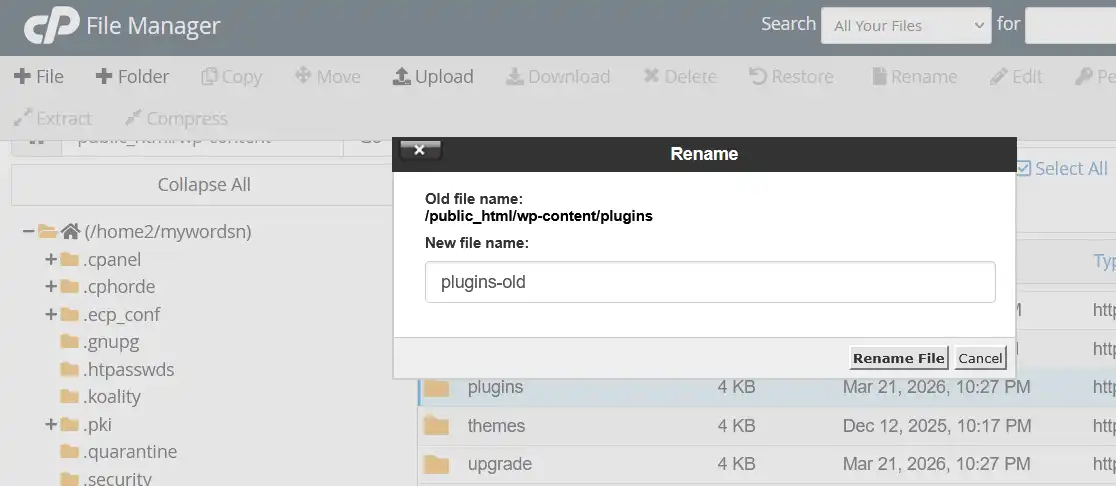
Try logging in. If it works, you’ve confirmed a plugin is responsible. Rename the folder back to plugins, then go to your Plugins page in WordPress and reactivate them one at a time — logging out and back in after each one — until the loop returns. The plugin you just reactivated when the loop came back is the culprit.
Common plugin culprits for login loops:
- Security plugins that add login rate limiting or IP blocking — Wordfence, iThemes Security, All In One WP Security
- Login redirect plugins — Peter’s Login Redirect, LoginWP, or any plugin that customises where users go after logging in
- Caching plugins that aren’t properly excluding wp-login.php
- SSL plugins like Really Simple SSL, especially if recently installed or updated
- Membership plugins that add custom role-based redirects
Fix 4: Check and Fix WordPress URL Settings
If your WordPress Address (URL) or Site Address (URL) doesn’t exactly match the URL you’re using to access the site — including whether it has www, whether it uses http or https, and whether there are any trailing slashes — WordPress will redirect your login to the wrong address, creating a loop.
This is extremely common after:
- Migrating a site to a new domain or server
- Changing from http to https
- Adding or removing www from the domain
- Changing hosting providers
If you can access wp-admin:
Go to Settings → General and check WordPress Address (URL) and Site Address (URL). Both should exactly match the URL you use to access your site, including https:// if you have SSL.
If you can’t access wp-admin:
You need to fix this in the database via phpMyAdmin.
Log into your hosting control panel and open phpMyAdmin. Select your WordPress database from the left sidebar. Click on the wp_options table (your table prefix may be different, for example abc_options if you changed the default prefix).
Look for two rows: one where option_name is siteurl and one where it is home. Click Edit on each one and update the option_value to your correct site URL — make sure it matches exactly including https:// and whether you use www.
Alternatively, you can force WordPress to use specific URLs by adding these two lines to wp-config.php — add them just above the line that says “That’s all, stop editing”:
define('WP_HOME', 'https://yourdomain.com');
define('WP_SITEURL', 'https://yourdomain.com');
Replace https://yourdomain.com with your actual site URL. Save the file and try logging in. Once logged in, go to Settings → General, confirm the URLs are correct there, then remove these two lines from wp-config.php (they’re only needed as a temporary fix since hardcoding URLs in wp-config.php overrides the database values permanently).
Fix 5: Fix HTTPS and SSL Cookie Issues
If your site recently moved to HTTPS, or if you’re seeing “ERROR: Cookies are blocked or not supported by your browser” specifically, an SSL or cookie configuration issue is likely the cause.
WordPress authentication cookies require the connection to be HTTPS when the site is configured for HTTPS. If there’s any HTTP/HTTPS mismatch — your site URL says https:// but cookies are being set without the Secure flag — browsers will reject those cookies.
Add HTTPS force to wp-config.php:
Open wp-config.php and add this line above the “stop editing” comment:
define('FORCE_SSL_ADMIN', true);
If you’re behind a proxy, load balancer, or Cloudflare:
WordPress may not be detecting that the connection is HTTPS because the proxy handles SSL termination before the request reaches your server. Add these lines to wp-config.php above the “stop editing” comment:
$_SERVER['HTTPS'] = 'on';
define('FORCE_SSL_ADMIN', true);
Check for mixed HTTP/HTTPS content:
Go to Settings → General and confirm both WordPress Address and Site Address start with https://. If either shows http://, update them. If you recently moved to HTTPS and haven’t updated old http:// links in your database, the Really Simple SSL plugin can handle this quickly — it updates database references to http:// URLs automatically.
Check your COOKIE_DOMAIN setting:
Open wp-config.php and search for COOKIE_DOMAIN. If you find a line defining it, check whether the value matches your current domain exactly. A mismatch — for example, defining it with www when your site doesn’t use www — will cause browsers to reject the cookie. If you’re not sure, the safest fix is to delete that line entirely and let WordPress handle cookie domain automatically.
Fix 6: Regenerate WordPress Secret Keys and Salts
WordPress uses eight secret keys and salts stored in wp-config.php to sign and verify authentication cookies. On PHP 8.0 and above, certain special characters in these keys can cause silent cookie verification failures — WordPress throws an internal warning and sends you back to the login page without any visible error.
This is particularly common after:
- Upgrading to PHP 8.0, 8.1, 8.2, or 8.3
- Migrating a site from an older server
- Restoring a database backup with old keys
The fix is to generate a fresh set of keys.
Go to https://api.wordpress.org/secret-key/1.1/salt/ in your browser. You’ll see eight freshly generated lines of code.
Open wp-config.php via FTP or your hosting File Manager. Find the section that starts with:
define('AUTH_KEY',
And ends with:
define('NONCE_SALT',
Select and delete all eight lines in that section. Paste the new lines you copied from the WordPress salt generator in their place. Save the file.
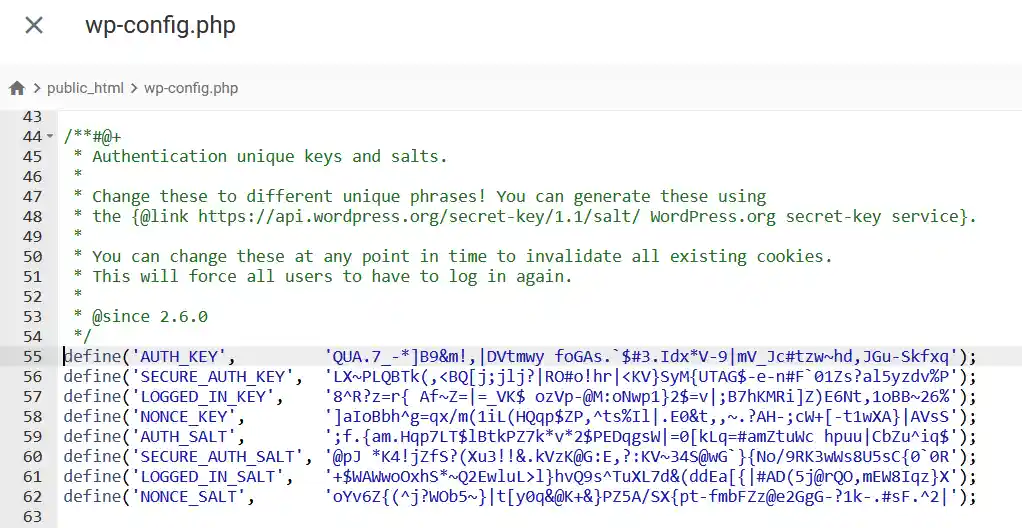
Important: regenerating secret keys invalidates all existing login sessions for every user on the site. Everyone will be logged out and will need to log back in. This is expected and harmless — it’s not a sign of a security breach.
Try logging in. The loop should now be resolved.
Fix 7: Fix Cloudflare WAF Rules Blocking the Login
If your site is behind Cloudflare and you’re using WAF (Web Application Firewall) rules, Bot Fight Mode, or high security level settings, Cloudflare may be presenting a security challenge on the login page that interrupts the cookie flow. You might see “Verifying you are human” or a CAPTCHA on or immediately after the login page — this is Cloudflare blocking the login process before WordPress can set the authentication cookie.
Log into your Cloudflare dashboard and go to your domain → Security → WAF → Custom Rules.
Check whether any rule applies to the URI path /wp-login.php. If you have a rule applying a challenge or block to this path, either disable it or create a bypass rule specifically for wp-login.php.
To create a bypass rule:
- Go to Security → WAF → Custom Rules → Create Rule
- Set the condition: URI Path equals /wp-login.php
- Set the action: Skip — Skip all remaining custom rules AND Skip managed challenges
- Save the rule and move it to position 1 so it runs first
A better long-term approach is to replace any challenge rule on the login page with a rate limiting rule instead — for example, block IPs that make more than 5 login requests in 10 seconds. This protects against brute force bots without interfering with legitimate logins.
Also check your Cloudflare Security Level — if it’s set to “I’m Under Attack” mode, it applies a challenge to all requests including login attempts. Set it to “High” or “Medium” for normal operation.
Fix 8: Regenerate the .htaccess File
A corrupted .htaccess file can interfere with WordPress’s login redirect logic, particularly if someone edited it manually and introduced a syntax error, or if a plugin wrote conflicting rewrite rules to it.
Connect via FTP or File Manager and navigate to your WordPress root directory (usually /public_html/). Look for the .htaccess file — it’s a hidden file, so make sure hidden files are visible in your FTP client. In FileZilla, go to Server → Force showing hidden files.
Rename .htaccess to .htaccess_old. This disables it without deleting it, so you can restore it if needed.
Now log into wp-admin (the login loop should clear), go to Settings → Permalinks, and click Save Changes without changing anything. WordPress will generate a fresh .htaccess file with the correct default rules.
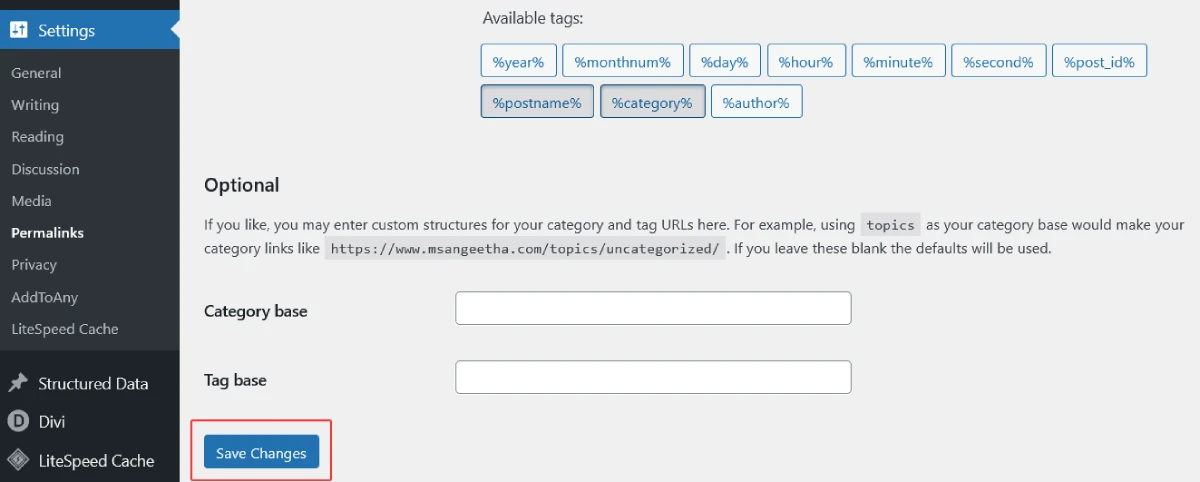
If the login loop clears after renaming .htaccess, the file was corrupted. Keep the newly generated one and delete .htaccess_old.
Fix 9: Check the wp-login.php File Itself
If none of the above has worked, the wp-login.php file in your WordPress root may be corrupted or, in more serious cases, modified by malware. A corrupted login file can cause redirect behaviour that doesn’t respond to any of the standard fixes.
Download a fresh copy of WordPress from wordpress.org/download and extract it on your local computer. Upload only the wp-login.php file from the extracted folder to your WordPress root, overwriting the existing one.
If malware is a concern — particularly if the loop started suddenly with no obvious trigger and none of the above fixes helped — run a malware scan using Wordfence or Sucuri before and after replacing the file. A compromised wp-login.php is a known malware vector. For a full guide to cleaning a hacked WordPress site, read the WordPress hacked site recovery guide.
Fix 10: Check User Role and Capabilities (Loop for One User Only)
If the login redirect loop affects only one specific user account while others can log in fine, the issue is with that user’s data in the database rather than a site-wide configuration problem.
Log into phpMyAdmin, select your WordPress database, and open the wp_users table. Find the affected user and note their user ID.
Open the wp_usermeta table and filter by that user ID. Look for the wp_capabilities row (your table prefix may differ). Click Edit and check the value — it should look something like:
a:1:{s:13:"administrator";b:1;}
If the value is empty, corrupted, or shows an invalid role, that’s why the user can’t log in — WordPress can’t determine where to redirect them after login because their role is unreadable.
Fix it by updating the value to the correct capabilities string for the role you want to assign. For an administrator:
a:1:{s:13:"administrator";b:1;}
For an editor:
a:1:{s:6:"editor";b:1;}
Save the change and try logging in again with that user’s credentials.
WordPress Login Loop on Multisite
If you’re running a WordPress Multisite installation, login redirect loops have two additional causes worth checking.
Cookie path mismatch between network sites: In a Multisite network, each subsite or subdomain needs to share cookie settings with the main site. If COOKIEPATH or SITECOOKIEPATH are incorrectly set in wp-config.php, logins on subsites will loop. Check and remove any COOKIEPATH or SITECOOKIEPATH definitions in wp-config.php and let WordPress determine these automatically.
Domain mapping issues: If you use a domain mapping plugin to map custom domains to subsites, a mismatch between the mapped domain and the WordPress cookie domain can cause login loops on mapped sites. Temporarily disable domain mapping and test whether the loop clears — if it does, the mapping plugin configuration needs to be corrected.
Still Looping? Advanced Diagnostics
If you’ve worked through all the fixes above and the login loop persists, here’s how to get more specific information about what’s happening.
Enable WordPress debug mode:
Add these lines to wp-config.php above the “stop editing” comment:
define('WP_DEBUG', true);
define('WP_DEBUG_LOG', true);
define('WP_DEBUG_DISPLAY', false);

Try logging in again, then check /wp-content/debug.log for PHP errors. A silent PHP warning — particularly anything referencing pluggable.php or wp-includes/functions.php — often explains exactly why cookie verification is failing.
Check your browser’s developer tools:
Open Chrome or Firefox, press F12 to open developer tools, and go to the Network tab. Try logging in while watching the network requests. Look for the request to wp-login.php — specifically check the response headers for Set-Cookie. If WordPress is trying to set cookies but the browser is rejecting them, you’ll see the Set-Cookie header in the response but no corresponding cookie in subsequent requests. This confirms a browser-level cookie rejection issue, usually caused by HTTPS misconfiguration.
Check your server error logs:
Log into your hosting control panel and check the PHP error logs. Any fatal error or warning happening during the login process will appear here — particularly PHP 8.x warnings about array key handling in pluggable.php, which indicate the secret keys issue.
Quick Reference: Login Loop Causes and Fixes
| What You’re Seeing | Most Likely Cause | Start With |
|---|---|---|
| Loop affects you only, others can log in | Browser cookies or cache | Fix 1 — Clear browser cookies |
| Loop started after plugin update | Plugin conflict | Fix 3 — Disable all plugins |
| Loop started after moving to HTTPS | SSL/cookie configuration | Fix 5 — HTTPS and SSL fix |
| Loop started after migration or domain change | Wrong siteurl/home | Fix 4 — Fix URL settings |
| Loop started after PHP upgrade to 8.x | Secret keys incompatibility | Fix 6 — Regenerate secret keys |
| “Verifying you are human” before login | Cloudflare WAF challenge | Fix 7 — Cloudflare WAF rules |
| “Cookies are blocked” error message | Browser rejecting cookies | Fix 1, then Fix 5 |
| Loop affects one user only | User role/capabilities corrupted | Fix 10 — Check user role |
| No obvious trigger, nothing works | Corrupted wp-login.php or malware | Fix 9 — Replace wp-login.php |
How to Prevent the WordPress Login Redirect Loop
Most login redirect loops are either triggered by updates or caused by configurations that have been quietly wrong for a while. These habits significantly reduce the chances of encountering the loop in the first place.
Keep WordPress, plugins, and themes updated. Most plugin-caused login loops come from outdated plugins that haven’t been tested against the current version of WordPress or PHP. Regular updates reduce this risk. Update one plugin at a time and test login after each one so you can pinpoint the cause immediately if something breaks.
Keep PHP updated and test compatibility. PHP 8.x introduced stricter behaviour that breaks older code. Before upgrading PHP on your hosting account, check the compatibility of your plugins and theme with the new version — most plugin authors document this in their changelog. After any PHP upgrade, always test login immediately.
Configure your caching plugin to exclude the login page. Most caching plugins do this by default, but it’s worth checking. Open your caching plugin settings and confirm that wp-login.php and /wp-admin/ are in the exclusion list.
Use consistent URLs everywhere. Your WordPress Address, Site Address, and the URL in your browser should all be identical — same protocol (https://), same www or no-www. Inconsistency here is the root cause of many login loops, especially after migrations.
Set up automated backups. If a login loop ever locks you out completely and the standard fixes don’t work quickly, a backup lets you restore to a working state without losing content.
Test login after every significant change. After updating a plugin, installing SSL, changing hosting, or modifying wp-config.php — log out and back in immediately to confirm login still works before closing your browser session.
Frequently Asked Questions
Why does my WordPress login page keep refreshing?
Your WordPress login page keeps refreshing because something is preventing the authentication cookie from being set or read correctly. WordPress sets a cookie when you log in to prove your identity. If the cookie fails — due to browser issues, caching, an SSL misconfiguration, wrong URL settings, or a plugin conflict — WordPress sends you back to the login page. The most common fix is clearing your browser cookies and cache, which resolves the issue when it’s browser-specific.
What causes the WordPress login redirect loop?
The most common causes are browser cookie corruption, WordPress caching interfering with the login page, incorrect siteurl or home values in the database, HTTPS or SSL misconfiguration, plugin conflicts especially with security or login plugins, and PHP 8.x incompatibility with WordPress secret keys. The timing of when the loop started usually points directly to the cause — for example a loop that started after a PHP upgrade is almost always the secret keys issue.
How do I fix the WordPress login loop without FTP access?
Your hosting control panel’s File Manager gives you the same capabilities as FTP — you can rename the plugins folder, edit wp-config.php, and access .htaccess through File Manager without needing a separate FTP client. If you have neither, your hosting provider‘s support team can access and edit files on your behalf. phpMyAdmin, also available through your hosting panel, can fix URL-related causes without any file access.
Can a hacked WordPress site cause a login redirect loop?
Yes. Malware injected into wp-login.php or other WordPress core files can produce redirect behaviour that doesn’t respond to standard fixes. If you’ve worked through all the fixes in this guide and nothing resolves the loop — especially if it started suddenly with no obvious trigger — run a malware scan. A compromised wp-login.php is a known attack vector. The full guide to recovering a hacked WordPress site covers the cleanup process in detail.
Does clearing cookies log me out of other sites?
Only if you clear all cookies for all sites. Most browsers let you clear cookies for a specific domain — search for “clear cookies for specific site” in your browser settings. In Chrome, go to Settings → Privacy → Cookies and other site data → See all site data and permissions → search for your domain → Delete. This removes only your WordPress site’s cookies without affecting any other sites you’re logged into.
Why can I log in from incognito but not my normal browser?
Incognito mode starts with no cookies, which means there’s no corrupted authentication cookie interfering with the new one WordPress is trying to set. If incognito works but your normal browser doesn’t, the solution is to clear your browser’s cookies for your WordPress domain — not your entire browsing history, just the cookies for that specific site.
Is the login redirect loop the same as being locked out of WordPress?
They’re closely related but not identical. The login redirect loop specifically means the login process cycles back to itself — you can see and access the login page, you just can’t get past it. Being locked out of WordPress is broader — it includes scenarios where you can’t even reach the login page, where your admin account has been deleted, or where a security plugin has blocked your IP. If you’re dealing with a more complete lockout, the guide to accessing WordPress when locked out covers the additional scenarios.
Every Login Loop Has a Cause — Find Yours and Fix It
The WordPress login redirect loop feels like a black box. You’re doing everything right and the site just won’t let you in. But every instance of this error has a specific, identifiable cause — and the timing of when it started almost always tells you exactly where to look.
Start with the simplest fix: clear your browser cookies and try incognito mode. Work through the fixes in order. If a specific trigger pointed you to a particular fix, start there. Most login loops are resolved within the first three or four fixes.
If you’ve worked through the entire guide and the loop persists, check your debug.log for PHP errors and your hosting error logs for server-level issues. The answer is in there — it just needs to be surfaced.
And once you’re back in — check your caching plugin exclusions, update your plugins one at a time, and confirm your URL settings are consistent everywhere. A few minutes of prevention now saves a much more stressful troubleshooting session later.
Part of the Common WordPress Errors and How to Fix Them troubleshooting series.
Dealing with a login loop you can’t resolve?

