
If you manage a WordPress site long enough, errors are inevitable. A blank white screen after a plugin update. A “Page Not Found” message on a page you know exists. A database connection error that locks every visitor out of your site. A hacked site redirecting to spam pages you’ve never seen before.
These moments are stressful — especially when you don’t know what caused them or where to even start looking.
The good news is that most WordPress errors follow predictable patterns. Once you understand what each error means, what typically causes it, and what the fastest fix looks like, troubleshooting becomes far less intimidating. You stop guessing and start solving.
Common WordPress errors include issues like the White Screen of Death, database connection errors, 500 server errors, 404 page errors, and plugin conflicts. Most errors are caused by PHP issues, server limitations, incorrect configurations, or plugin/theme incompatibility.
This guide covers the most common WordPress errors — what they are, why they happen, how severe they are, and where to go for the step-by-step fix.
Common WordPress Errors and Fixes Covered in This Guide
Jump directly to the error you’re facing:
- White Screen of Death (WSOD)
- Error Establishing a Database Connection
- WordPress 500 Internal Server Error
- 502 Bad Gateway Error
- 404 Page Not Found Error
- Locked Out of Admin Dashboard
- Site Stuck in Maintenance Mode
- WordPress Site Is Hacked
- File Permission Errors
- WordPress Not Sending Emails
- Login Page Keeps Redirecting
- Redirect Issues (Wrong or Broken Redirects)
- wp-config.php Security Issues
- Images Not Uploading
- Mixed Content Warning (HTTP/HTTPS Issues)
Before You Start: The Golden Rules of WordPress Troubleshooting
Before diving into specific errors, there are four habits that apply to almost every WordPress problem. If you learn nothing else from this guide, learn these.
Always back up before you touch anything. Even a broken WordPress site should be backed up before you start fixing it. Some cleanup steps — deleting files, editing the database, reinstalling core — can make things worse if something goes wrong mid-fix. A backup gives you a safety net.
Enable WordPress debug mode to see what’s actually happening. WordPress hides PHP errors from visitors by default, which means you’re often troubleshooting blind. Add this to your wp-config.php file to expose what’s really going wrong:
define('WP_DEBUG', true);
define('WP_DEBUG_LOG', true);
define('WP_DEBUG_DISPLAY', false);
This writes errors to a debug.log file inside /wp-content/ without showing them to site visitors. Always turn it off again once you’ve fixed the issue.
Disable plugins as your first diagnostic step. Plugins cause the majority of WordPress errors — from blank screens to server errors to broken admin pages. Disabling all plugins at once via FTP (by renaming the /wp-content/plugins/ folder) is the fastest way to confirm whether a plugin is responsible.
Check your hosting error logs. Your hosting control panel (cPanel, Plesk, or your host’s dashboard) stores server-level error logs that often reveal exactly which file or function is failing. This is especially useful for 500 errors and database issues that don’t show any message on the front end.
How WordPress Errors Are Categorised
Not all WordPress errors are equal. Understanding the type of error you’re dealing with helps you know where to look first.
Server errors (5xx codes) — These mean something failed on the server side. Common examples are the 500 Internal Server Error, 502 Bad Gateway, 503 Service Unavailable, and 504 Gateway Timeout. They’re usually caused by plugin conflicts, PHP exhaustion, server overload, or hosting-side issues.
Client errors (4xx codes) — These mean the request itself had a problem. The 404 Not Found and 403 Forbidden errors fall here. Usually caused by missing pages, broken permalinks, or access restrictions.
WordPress-specific errors — These are errors that WordPress generates itself, not the server. The White Screen of Death, Error Establishing a Database Connection, and the Maintenance Mode loop are good examples. They’re triggered by PHP failures, database problems, or interrupted WordPress processes.
Security errors — These aren’t traditional “error messages” but they behave like errors — spam redirects, unknown admin users, Google’s “This site may be hacked” warning, or a suspended hosting account. All signs that your site has been compromised.
The Most Common WordPress Errors and How to Fix Them
1. White Screen of Death (WSOD)
What it looks like: A completely blank white page. No error message, no WordPress admin, nothing. Just white.
Severity: Critical — Your site is completely inaccessible.
The White Screen of Death is one of the most searched WordPress problems because it gives you absolutely nothing to work with. No error message, no clue. Just silence.
It almost always comes down to one of two things: a PHP fatal error that WordPress is hiding, or a PHP memory limit that’s been exhausted. Plugin and theme conflicts are the most frequent triggers — a bad update, an incompatible combination, or a corrupted theme file can all produce a WSOD instantly.
Most common causes:
- PHP memory limit exhausted
- Plugin conflict or a bad plugin update
- Theme conflict or corrupted theme files
- PHP syntax error in functions.php or another theme file
- Incompatible PHP version after a hosting upgrade
Quick fix checklist:
- Enable WP_DEBUG (as described above) to expose the actual PHP error
- Disable all plugins via FTP — rename
/wp-content/plugins/to/wp-content/plugins-disabled/ - If the white screen clears, reactivate plugins one by one until the WSOD returns — that’s your culprit
- Switch to a default WordPress theme (Twenty Twenty-Four or Twenty Twenty-Five) via FTP if plugin disabling doesn’t help
- Increase PHP memory limit by adding this to
wp-config.php:define('WP_MEMORY_LIMIT', '256M'); - Check with your hosting provider that your PHP version is compatible with your active theme and plugins
Read the full fix guide: How to Fix the WordPress White Screen of Death
2. Error Establishing a Database Connection
What it looks like: A white page with the message “Error establishing a database connection.” Sometimes the WordPress admin login page still loads, but the front end is completely down.
Severity: Critical — Your entire site is inaccessible to all visitors.
WordPress stores everything — your posts, pages, settings, user accounts — in a MySQL database. When WordPress can’t connect to that database, it can’t display anything. This error typically appears suddenly, often after a host migration, a credentials change, or a server-side database crash.
Most common causes:
- Incorrect database credentials in
wp-config.php(wrong username, password, host, or database name) - MySQL database server is down or overloaded
- Corrupted database tables
- Exceeded hosting plan’s database connection limit (common on shared hosting during traffic spikes)
- Site migration without updating database credentials
Quick fix checklist:
- Open
wp-config.phpand verify thatDB_NAME,DB_USER,DB_PASSWORD, andDB_HOSTexactly match what your hosting panel shows - Try running the WordPress database repair tool by adding
define('WP_ALLOW_REPAIR', true);towp-config.php, then visitingyoursite.com/wp-admin/maint/repair.php - Check your hosting dashboard to confirm the MySQL service is running — if it’s down, contact your host
- Try logging into phpMyAdmin to see if the database is accessible at all
- If the database is accessible but tables are corrupted, run a repair from phpMyAdmin
Read the full fix guide: How to Fix Error Establishing a Database Connection in WordPress
3. WordPress 500 Internal Server Error
What it looks like: A generic “500 Internal Server Error” message, or sometimes just “There has been a critical error on your website.”
Severity: High — Your site or specific pages are inaccessible.
The 500 error is frustrating because it tells you almost nothing. It’s a catch-all server response meaning “something went wrong, but I’m not going to tell you what.” In WordPress, it’s most commonly caused by a corrupted .htaccess file, a PHP memory issue, or a plugin/theme conflict producing a fatal PHP error.
Most common causes:
- Corrupted or incorrectly edited
.htaccessfile - PHP memory exhaustion
- Plugin conflict producing a fatal error
- Incompatible PHP version
- Corrupted WordPress core files
- Incorrect file permissions
Quick fix checklist:
- Rename your
.htaccessfile to.htaccess_oldvia FTP, then go to Settings → Permalinks → Save Changes to generate a fresh one — this fixes the majority of 500 errors - Enable WP_DEBUG to expose the exact PHP error
- Disable all plugins via FTP and test — reactivate one by one to find the conflict
- Increase PHP memory limit in
wp-config.php - Verify file permissions: folders should be 755, files should be 644
- Reinstall WordPress core files if the above steps don’t work — download a fresh copy from WordPress.org, delete everything except
wp-config.phpandwp-content/, then upload the fresh files
Read the full fix guide: How to Fix the 500 Internal Server Error in WordPress
4. 502 Bad Gateway Error
What it looks like: “502 Bad Gateway” — sometimes with a generic server or browser error page. Can also appear as “HTTP Error 502” or “Bad Gateway.”
Severity: High — Your site is down for all visitors.
A 502 error means one server received an invalid response from another server while processing a request. In WordPress terms, this usually means your hosting server is overloaded, a PHP process timed out before completing, or a CDN or firewall (like Cloudflare) is having trouble communicating with your origin server.
Unlike a 500 error which is almost always application-level, a 502 often points to infrastructure — your hosting environment, CDN configuration, or PHP execution limits.
Most common causes:
- Server overload or insufficient resources on shared hosting
- PHP execution timeout — a script took too long to run
- CDN or firewall misconfiguration (common with Cloudflare)
- Plugin conflict consuming excessive server resources
- PHP-FPM or FastCGI process crashing
Quick fix checklist:
- Refresh the page — 502 errors are sometimes temporary and resolve in seconds
- Clear browser cache and try in incognito mode
- Temporarily disable your CDN (e.g., pause Cloudflare) and test direct access to your server
- Disable all plugins via FTP and test
- Increase PHP execution time by adding
set_time_limit(300);towp-config.php, or ask your host to increase it - Contact your hosting provider — if it’s a server resource or PHP-FPM issue, they can diagnose and fix it at the server level
Read the full fix guide: How to Fix 502 Bad Gateway Error in WordPress
5. WordPress 404 Page Not Found Error
What it looks like: “404 Not Found,” “The page you’re looking for doesn’t exist,” or “Oops! That page can’t be found.” Can affect a single page, a category of pages, or your entire site (except the homepage).
Severity: Medium to High — Depends on how widespread the 404s are and whether important pages are affected.
A 404 error means the server is working fine, but the specific page being requested can’t be found. On WordPress sites, the most common cause is a broken permalink structure — WordPress’s rewrite rules get flushed or corrupted, and URLs that used to work suddenly return 404. This happens frequently after plugin updates, host migrations, or .htaccess edits.
The SEO impact of widespread 404 errors is significant. They waste crawl budget, signal quality issues to Google, and cause you to lose link equity on any pages that have backlinks.
Most common causes:
- Broken or flushed permalink structure
- Corrupted or missing
.htaccessfile - Deleted pages or changed URL slugs without redirects
- Site migration without updating database URLs
- Plugin or theme conflict affecting URL routing
Quick fix checklist:
- Go to Settings → Permalinks → Save Changes — this single step fixes the majority of WordPress 404 errors and takes under 10 seconds
- If that doesn’t work, check and regenerate your
.htaccessfile via FTP - Set up 301 redirects for any deleted or moved pages using the Redirection plugin or your SEO plugin
- After a site migration, verify that Settings → General shows the correct WordPress Address and Site Address
Read the full fix guide: WordPress 404 Errors: What They Are and How to Fix Them
6. WordPress Locked Out of Admin Dashboard
What it looks like: You can’t log into yoursite.com/wp-admin. The login page may load but reject your credentials, redirect you back to itself in a loop, or not load at all.
Severity: High — You’ve lost access to manage your own site.
Being locked out of your WordPress admin is one of the most panic-inducing situations for site owners. But there are always ways back in — WordPress stores everything in the database, and with FTP and phpMyAdmin access, you can reset passwords, restore user roles, and disable plugins without ever touching the WordPress login page.
Most common causes:
- Forgotten or changed password
- Security plugin blocking your IP address (very common with Wordfence or iThemes Security)
- Login page redirect loop caused by a cookie issue, wrong
siteurl/homeurlin the database, or caching - Plugin conflict breaking the admin dashboard
- Lost admin user role due to a database issue or hack
Quick fix checklist:
- Use the “Lost your password?” link on the login page — this is always the first step
- If that email doesn’t arrive, reset your password directly via phpMyAdmin in the
wp_userstable - If a security plugin is blocking your IP, disable it by renaming its folder via FTP
- For a login redirect loop, clear all caches (browser, plugin, hosting), and check that
siteurlandhomevalues inwp_optionstable match your actual domain - Disable all plugins via FTP to eliminate a plugin-caused admin conflict
Read the full fix guide: How to Access Your WordPress Site When Locked Out
7. WordPress Site Stuck in Maintenance Mode
What it looks like: Every page of your site shows: “Briefly unavailable for scheduled maintenance. Check back in a minute.” It’s been more than a minute. Much more.
Severity: Medium — Your site is down for all visitors, but the fix is one of the simplest in this entire guide.
WordPress puts itself into maintenance mode during updates — core, plugin, or theme. When an update completes successfully, it removes the .maintenance file it created and your site comes back. But if an update gets interrupted — by a browser timeout, a network drop, or a server error — that .maintenance file stays put, and your site stays down indefinitely.
Most common causes:
- Update interrupted mid-way (network timeout, server error, closing the browser tab during update)
- Running multiple simultaneous updates that conflict
- Hosting server timing out during a large plugin update
Quick fix: Connect to your site via FTP or your hosting File Manager. Navigate to your WordPress root directory (/public_html/ or wherever WordPress is installed). Look for a file simply named .maintenance — it’s a hidden file, so make sure hidden files are visible in your FTP client. Delete it. Your site comes back instantly.
That’s it. This is genuinely the simplest fix in WordPress troubleshooting.
Prevention: Always update plugins and themes one at a time rather than bulk-updating everything simultaneously. If you use a staging environment, test major updates there first.
Read the full fix guide: WordPress Stuck in Maintenance Mode? Here’s How to Fix It in 2 Minutes
8. WordPress Site Is Hacked
What it looks like: Your site redirects to spam, casino, or pharma pages. Google shows a “This site may be hacked” or “Deceptive site ahead” warning. New unknown admin users appear in your dashboard. Your hosting account gets suspended for malware.
Severity: Critical — Your site, SEO rankings, and user trust are all at risk.
A hacked WordPress site is the most serious error on this list because it’s not a bug — it’s a breach. The damage isn’t just technical. A hacked site can lose significant search rankings if Google flags it, destroy user trust if visitors see malware warnings, and remain vulnerable to reinfection if you only do a partial cleanup.
The most important thing to understand: panicking and randomly deleting files is dangerous. A structured, methodical approach is what actually works.
Most common causes:
- Outdated plugins or themes with known security vulnerabilities
- Weak or reused admin passwords
- Nulled or pirated themes and plugins containing hidden backdoors
- Insecure hosting environment
- No two-factor authentication on the admin account
- Incorrect file permissions exposing sensitive files
Quick fix checklist:
- Confirm the hack — check Google Search Console Security Issues, scan with a security plugin, and look for unknown admin users
- Immediately secure all access — change WordPress admin, cPanel, FTP, and database passwords
- Take a full backup before cleaning anything
- Run a malware scan using Wordfence or Sucuri
- Remove infected files, reinstall WordPress core, and remove all unfamiliar plugins and themes
- Clean any malicious entries from the database (spam links in posts, hidden admin users, suspicious
wp_optionsentries) - Request a Google security review via Search Console once the site is clean
Read the full fix guide: WordPress Site Is Hacked — What to Do First
9. WordPress File Permission Errors
What it looks like: You can’t upload images. Plugin and theme installations fail. You see “Unable to create directory” or “Could not fully remove” errors. Or the opposite — you’re getting 403 Forbidden errors because permissions are too open and your server is blocking access for security.
Severity: Medium — Specific functions break but your site usually stays online.
File permissions control who can read, write, and execute files on your server. WordPress needs specific permission levels to work correctly — too restrictive and it can’t write files or install plugins; too open and your server’s security rules may block access, or worse, leave your site vulnerable to attackers.
The correct permissions for a WordPress site are: 755 for folders and 644 for files. Your wp-config.php should be set to 600 or 640 for maximum security.
Most common causes:
- Hosting migration changing ownership of files
- Security plugin or server configuration resetting permissions
- Manual file edits via FTP with incorrect permission settings
- Improperly configured server environment
Quick fix: Connect via FTP or cPanel File Manager and recursively set your WordPress root to 755 for directories and 644 for files. Most FTP clients (like FileZilla) have a “Apply to subdirectories” option that makes this fast.
For wp-config.php specifically — never leave it at 644. Set it to 600.
Read the full fix guide: WordPress File Permissions Explained: Fix Errors and Secure Your Site
10. WordPress Not Sending Emails
What it looks like: Password reset emails never arrive. Contact form submissions disappear. WooCommerce order confirmation emails aren’t being sent. Users report never receiving registration emails.
Severity: Medium to High — Depending on whether you run a shop or rely on forms for leads, this can directly cost you business.
WordPress uses PHP’s built-in mail() function to send emails by default. Most modern hosting providers either block or heavily restrict this function because it’s frequently abused by spammers. The result: your emails get silently dropped before they ever reach anyone’s inbox.
This is an extremely common problem that affects nearly every WordPress site at some point — and it’s one of the most underdiagnosed because failures happen silently.
Most common causes:
- Hosting provider blocking PHP
mail()function - No SPF, DKIM, or DMARC records configured for your domain (emails flagged as spam)
- No SMTP plugin configured — relying on default PHP mail
- Wrong email address in Settings → General
- Plugin conflict with a form plugin’s email settings
Quick fix: Install the WP Mail SMTP plugin (free version is sufficient for most sites) and configure it to send emails through a proper SMTP service — Gmail, SendGrid, Mailgun, or your hosting provider’s SMTP server. This bypasses PHP mail() entirely and sends email through an authenticated server, which dramatically improves deliverability.
After configuring, use WP Mail SMTP’s built-in email test tool to confirm emails are going out correctly.
Read the full fix guide: WordPress Not Sending Emails: Complete Troubleshooting Guide
11. WordPress Login Page Keeps Redirecting
What it looks like: You enter your username and password on the WordPress login page and instead of logging in, the page refreshes back to itself. The login never completes. No error message, just an endless loop.
Severity: High — You can’t access your admin dashboard at all.
This is closely related to the locked out scenario above, but the cause is different. A login redirect loop almost always comes down to one of three things: a WordPress cookie issue (cookies aren’t being set correctly during login), wrong siteurl or home values in the database, or an aggressive caching layer serving a cached version of the login page.
Most common causes:
- Caching plugin or server-level cache serving a cached login page
siteurlandhomevalues in the database don’t match the actual domain (common after migration or URL change)- WordPress cookie path issue — happens when WordPress is installed in a subdirectory but the site URL doesn’t reflect that
- Security plugin misconfiguration
Quick fix checklist:
- Clear all caches — browser cache, WordPress caching plugin, CDN cache, and hosting-level cache
- Try logging in via incognito mode to rule out a browser cookie issue
- Check
siteurlandhomein yourwp_optionstable via phpMyAdmin — they must exactly match your site’s current URL includinghttps:// - If the loop started after a domain change or migration, use the Better Search Replace plugin to update all instances of the old URL in the database
Read the full fix guide: WordPress Login Redirect Loop (wp-admin Keeps Redirecting): How to Fix It
12. WordPress Redirect Issues (Wrong or Broken Redirects)
What it looks like: Old URLs aren’t redirecting to new ones. Pages redirect to the wrong destination. Redirect chains are slowing your site. Or you need to set up redirects after changing a URL but don’t know how.
Severity: Low to Medium — Primarily an SEO and user experience issue unless key pages are affected.
Redirects are a normal, healthy part of managing a WordPress site. Every time you delete a page, change a URL slug, move to a new domain, or restructure your site, you need redirects to preserve SEO value and prevent 404 errors. Done wrong, they create redirect chains (A→B→C→D) that slow your site and dilute link equity. Done right, they’re invisible to users and seamless for search engines.
Most common redirect scenarios in WordPress:
- Changing a post’s URL slug after publishing
- Deleting a page that has backlinks or internal links pointing to it
- Moving your site from HTTP to HTTPS
- Migrating to a new domain
- Restructuring your URL categories
Quick setup: The easiest approach for most site owners is using your SEO plugin’s built-in redirect manager. Both Rank Math and AIOSEO include redirect management — you can set up, manage, and monitor all your redirects without a separate plugin. Always use 301 redirects for permanent changes (deleted pages, changed slugs, domain moves) and 302 redirects only for temporary situations.
Read the full fix guide: How to Redirect a URL in WordPress
13. wp-config.php Security Issues
What it looks like: This one doesn’t announce itself with an error message — by the time it does, you’ve likely already been breached. wp-config.php is the most sensitive file in your entire WordPress installation. It contains your database name, username, password, and secret authentication keys. If it’s exposed or improperly protected, it’s an open door for attackers.
Severity: Critical (as a security risk) — Exposure doesn’t immediately break your site, but it enables the most serious breaches.
By default, wp-config.php lives in your WordPress root directory and is world-readable if file permissions aren’t set correctly. A server misconfiguration, a vulnerability in another file, or an exposed directory listing can give attackers direct access to your database credentials.
What you should check and fix:
- File permissions should be 600 or 640 — not 644
- Move
wp-config.phpone directory above your WordPress root (WordPress will find it automatically) - Add
.htaccessrules to block all HTTP access towp-config.phpdirectly - Disable file editing from the WordPress dashboard by adding
define('DISALLOW_FILE_EDIT', true);towp-config.php - Change your database table prefix from the default
wp_to something unique - Regenerate your WordPress security keys and salts
Read the full fix guide: How to Secure wp-config.php in WordPress
14. WordPress Images Not Uploading
What it looks like: You try to upload an image in the media library and get an HTTP error, “Unable to create directory,” “Upload: Failed to Write File to Disk,” or the upload progress bar completes but nothing appears.
Severity: Medium — Your site stays online but content creation is blocked.
Image upload errors in WordPress almost always come down to one of two things: incorrect file permissions on the wp-content/uploads/ folder, or server-side limits (PHP max upload size or max post size) being too small for the file you’re uploading.
Most common causes:
- Incorrect permissions on the
/wp-content/uploads/folder (should be 755) - PHP upload size limit too small (default is often 2MB or 8MB)
- PHP post max size too small
- Missing or incorrect GD Library or Imagick on the server
- Not enough disk space on the hosting account
Quick fix checklist:
- Check and set
/wp-content/uploads/to permission 755 via FTP or File Manager - Increase PHP upload limits — add these to
wp-config.php:@ini_set('upload_max_size', '64M');@ini_set('post_max_size', '64M');@ini_set('max_execution_time', '300'); - Or ask your hosting provider to increase PHP upload limits at the server level
- Check your hosting account’s disk space — a full disk silently kills uploads
Read the full fix guide: WordPress Images Not Uploading: How to Fix It (Step-by-Step)
15. Mixed Content Warning (HTTP/HTTPS Issues)
What it looks like: Your browser shows “Not Secure” in the address bar even though you have an SSL certificate installed. Or you see a padlock with a warning triangle. In some browsers, certain images, scripts, or stylesheets may fail to load.
Severity: Low to Medium — Your site loads, but the security indicator is broken and some elements may not display correctly.
After migrating to HTTPS, many WordPress sites develop mixed content warnings because some resources — images, scripts, stylesheets — are still being referenced with http:// URLs instead of https://. Browsers flag this as a security issue even if your SSL certificate is valid and installed correctly.
Most common causes:
- Hardcoded
http://URLs in theme files, page builder content, or the WordPress database - A plugin injecting HTTP resources
- External embeds (videos, maps, widgets) served over HTTP
- WordPress Site URL and Home URL not updated to
https://after SSL installation
Quick fix checklist:
- Go to Settings → General and make sure both WordPress Address and Site Address start with
https:// - Install the Really Simple SSL plugin — it automatically fixes the most common mixed content issues including updating database URLs
- For remaining hardcoded HTTP references in the database, use the Better Search Replace plugin to find and replace
http://yourdomain.comwithhttps://yourdomain.comacross all tables - Use your browser’s developer tools (F12 → Console) to identify which specific resources are loading over HTTP
Read the full fix guide: WordPress Mixed Content Warning: What It Is and How to Fix It
WordPress Error Quick Reference Table
Use this table when you need to identify an error fast and find the right fix guide.
| Error | Severity | Most Common Cause | Fix Guide |
|---|---|---|---|
| White Screen of Death | 🔴 Critical | PHP memory limit / plugin conflict | Fix guide |
| Error Establishing Database Connection | 🔴 Critical | Wrong credentials in wp-config.php | Fix guide |
| WordPress Site Hacked | 🔴 Critical | Outdated plugins / weak passwords | Fix guide |
| wp-config.php Exposed | 🔴 Critical | Wrong file permissions / no .htaccess protection | Fix guide |
| 500 Internal Server Error | 🟠 High | Corrupted .htaccess / PHP error | Fix guide |
| 502 Bad Gateway | 🟠 High | Server overload / PHP timeout / CDN | Fix guide |
| Locked Out of Admin | 🟠 High | Wrong password / security plugin / redirect loop | Fix guide |
| Login Page Redirect Loop | 🟠 High | Cache / wrong siteurl / cookie issue | Fix guide |
| Not Sending Emails | 🟠 Medium-High | PHP mail() blocked / no SMTP | Fix guide |
| 404 Page Not Found | 🟡 Medium | Broken permalinks / missing .htaccess | Fix guide |
| File Permission Errors | 🟡 Medium | Wrong CHMOD settings | Fix guide |
| Images Not Uploading | 🟡 Medium | Upload folder permissions / PHP limits | Fix guide |
| Stuck in Maintenance Mode | 🟡 Medium | Interrupted update | Fix guide |
| Mixed Content Warning | 🟢 Low-Medium | Hardcoded http:// URLs after SSL install | Fix guide |
| Redirect Issues | 🟢 Low-Medium | Missing or misconfigured 301 redirects | Fix guide |
WordPress Troubleshooting: First Steps for Any Error
Regardless of the specific error you’re seeing, this diagnostic sequence works for almost every situation. Work through these in order before diving into error-specific fixes.
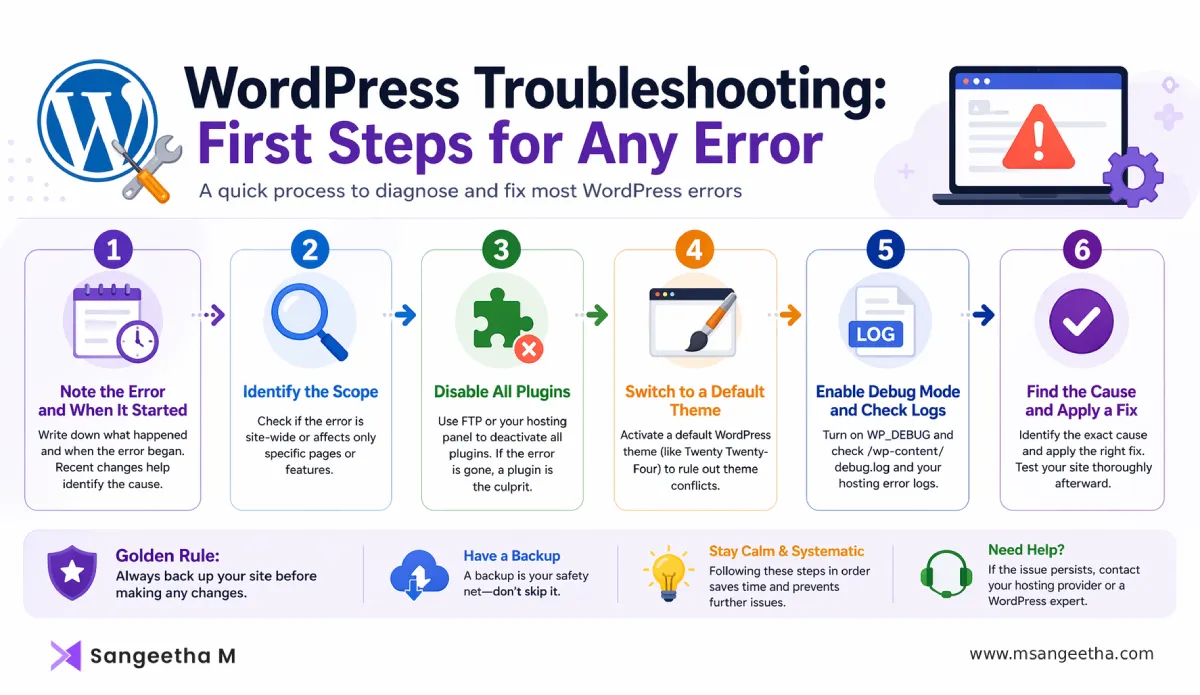
Step 1: Read the error message carefully
“Error Establishing a Database Connection” is a very specific clue. “There has been a critical error on your website” is less specific but still points to PHP. “403 Forbidden” means access restriction. The message usually tells you which category of fix to pursue.
Step 2: Note when it started
Did it happen immediately after updating a plugin? After your host upgraded PHP? After you edited a file? The timing almost always points to the cause.
Step 3: Check if it’s site-wide or page-specific
If your homepage works but blog posts don’t, it’s a different problem than if your entire site is down. A page-specific error usually means a plugin, theme template, or URL routing issue. A site-wide error usually means a server, database, or PHP problem.
Step 4: Check Google Search Console
The Security Issues report, the Page Indexing report, and the Coverage report often reveal problems — including hacks and 404 errors — before you notice them yourself.
Step 5: Disable plugins
If the site is accessible at all, deactivate all plugins. If the error disappears, reactivate them one by one until it returns. This single step resolves a surprisingly large percentage of WordPress errors.
Step 6: Switch to a default theme
If disabling plugins didn’t fix it, switch to Twenty Twenty-Four or Twenty Twenty-Five via FTP. If the error clears, your theme is the culprit.
Step 7: Check your error logs
Your hosting control panel’s error logs — and the debug.log file if you’ve enabled WP_DEBUG — usually tell you exactly what failed and on which line of which file.
Step 8: Contact your hosting provider
If none of the above works, the issue may be server-side — a crashed database service, an overloaded server, a PHP version change, or a security rule blocking legitimate requests. Your host can access server-level logs that you can’t.
How to Prevent WordPress Errors Before They Happen
The best approach to WordPress troubleshooting is not needing it. These habits significantly reduce how often errors occur — and reduce their severity when they do.
- Keep everything updated.
The majority of WordPress security breaches and many plugin conflicts come from running outdated versions. Update WordPress core, plugins, and themes regularly. Use a staging environment to test updates before pushing them live if your site is business-critical. - Use reliable, well-supported plugins.
Every plugin you install adds code that runs on every page load. Poorly coded plugins are the single biggest source of WordPress errors. Stick to plugins with strong ratings, active development, and large install bases. Remove any plugins you’re not actively using. - Schedule regular backups.
A backup doesn’t prevent errors, but it transforms a catastrophic situation into a recoverable one. Use an automated backup plugin (UpdraftPlus is the most popular free option) and store backups off-site — in Google Drive, Dropbox, or Amazon S3 — not just on your hosting server. - Use quality hosting.
Cheap shared hosting with poor PHP configurations, low memory limits, and overloaded servers is a direct cause of many WordPress errors — especially 500 and 502 errors. Choosing a hosting environment built for WordPress makes a significant difference in stability. - Harden your WordPress security.
Most WordPress hacks are preventable with basic security hygiene — strong unique passwords, two-factor authentication on the admin account, a firewall plugin, and keeping everything updated. Securingwp-config.phpand setting correct file permissions are also foundational steps. - Monitor your site.
You can’t fix errors you don’t know about. Set up Google Search Console and check it monthly for crawl errors, security issues, and indexing problems. A simple uptime monitor (many hosting providers include one) alerts you the moment your site goes down.
Frequently Asked Questions
Why does my WordPress site keep breaking after updates?
Updates break sites when there are compatibility issues between the new version of a plugin or theme and other code on your site. The fix is to identify which update caused the problem (check the timing), deactivate that plugin or theme, and either roll it back to the previous version or contact the developer. Testing updates on a staging site before applying them to production eliminates this risk entirely.
How do I know if my WordPress site has been hacked?
Common signs include your site redirecting to unfamiliar pages, Google showing a security warning in search results, unknown admin users appearing in your dashboard, your hosting provider suspending your account for malware, or a sudden sharp drop in search traffic. Check your Google Search Console Security Issues report — it’s the most reliable early warning system for hacked WordPress sites.
Can I fix WordPress errors without technical knowledge?
Most common WordPress errors — 404s, maintenance mode, plugin conflicts, email issues — can be resolved without touching code. You need access to your hosting File Manager or FTP, and your hosting control panel. For more serious issues like database corruption, malware cleanup, or PHP errors, some technical knowledge helps, but there are also professional services and your hosting provider’s support team available to assist.
How do I enable WordPress debug mode?
Add these three lines to your wp-config.php file, just above the line that says /* That's all, stop editing! */:
define('WP_DEBUG', true);
define('WP_DEBUG_LOG', true);
define('WP_DEBUG_DISPLAY', false);
This writes PHP errors to /wp-content/debug.log without displaying them to visitors. Always disable debug mode again after diagnosing the issue.
What’s the fastest way to troubleshoot any WordPress error?
Note when the error started, check if it’s site-wide or page-specific, disable all plugins via FTP, and switch to a default theme. This sequence resolves the majority of WordPress errors in under 15 minutes. If the error persists after these steps, enable WP_DEBUG and check your hosting error logs to identify the exact cause.
How do I stop WordPress errors from happening repeatedly?
Keep WordPress core, plugins, and themes updated. Use a quality hosting provider with PHP 8.1 or higher and adequate memory limits. Schedule daily automated backups. Install a security plugin with a firewall. Run a monthly technical audit using Google Search Console and your SEO plugin’s built-in tools. The goal is to catch small problems before they become critical errors.
Every WordPress Error Has a Fix — Start Here
WordPress errors are part of managing a WordPress site — even experienced developers and technical SEO specialists encounter them regularly. What separates a stressful situation from a manageable one isn’t avoiding errors entirely. It’s knowing how to read them, where to look, and what to try first.
This guide will grow as new fixes are added to this troubleshooting series. The “coming soon” entries in the table above each have dedicated step-by-step guides in progress — covering the White Screen of Death, 500 Internal Server Error, login redirect loop, maintenance mode, email issues, image uploads, and mixed content warnings.
If you’re dealing with a WordPress error right now and need help identifying what you’re looking at — drop a message and I’ll point you in the right direction.
Bookmark this page. The next time something breaks, you’ll know exactly where to start.
Having trouble with a specific WordPress error? I’ll help you figure it out.

