
One of the most useful Divi features I still see developers underuse is global sections and rows. If you’ve ever updated a footer on one page and then had to manually repeat that same edit across thirty other pages, this is the fix.
What “Global” Actually Means in Divi
A global section (or row, or module) is a saved element that exists once but can be placed on multiple pages. The key difference is that editing the global instance on any page automatically updates every other instance across your site. This is different from a regular saved library item, which creates an independent copy each time you insert it — edit one and the others don’t change.
Global elements are the right tool specifically when you want true synchronization: a header, a footer, a repeated CTA banner, or a promotional bar that should always say the same thing everywhere it appears.
Step-by-Step: Making a Section Global
- Build the section, row, or module as you normally would.
- Right-click the element and choose Save to Library.
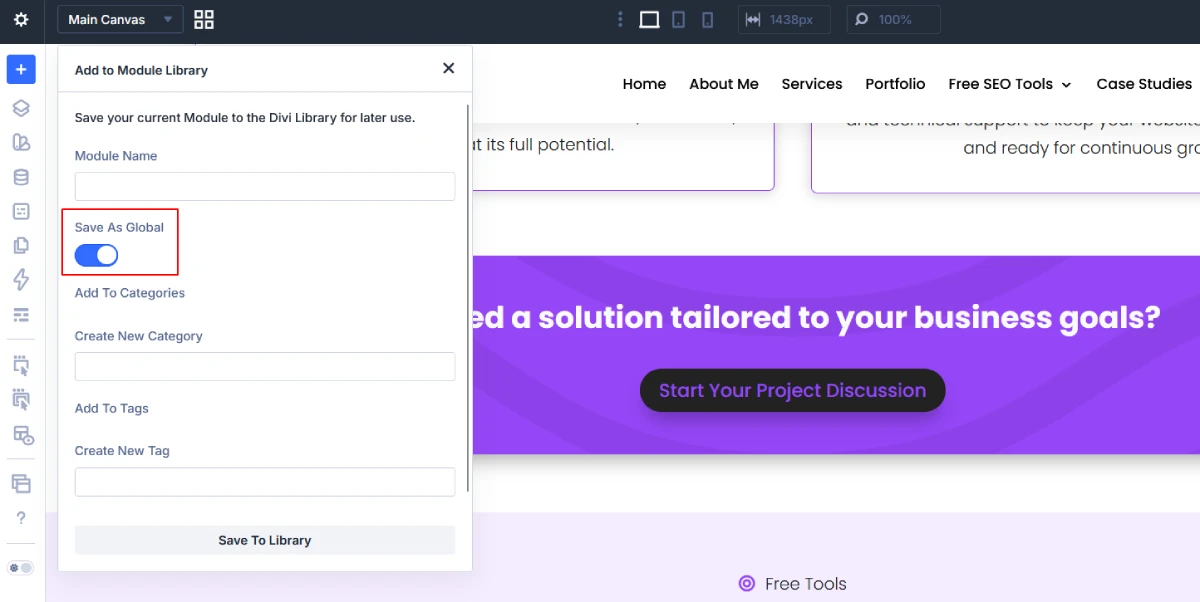
- Enter a descriptive name, such as Site Footer or Blog CTA Banner.
- Enable the Save As Global option.
- Click Save To Library.
Divi stores the element in the Divi Library as a global item. When you insert that global item on other pages, editing any instance automatically updates every other instance across your site.
Tip: Global items appear with a green outline in the Visual Builder, making them easy to distinguish from regular sections, rows, and modules.
Adding a Global Section to Other Pages
From any other page’s Divi Builder, click the “+” to add a new section, then choose “Add From Library” instead of building from scratch. Filter by Global Items, select your saved section, and it drops in already linked to the original. Edit it on this page, and the change appears everywhere else it’s placed — including on the page where you first created it.
Tip: Global items can also be exported from the Divi Library and imported into another Divi website, making them useful for reusable layouts across multiple projects.
Where Edits Propagate (and Where They Don’t)
This is the part that trips people up. Content and style changes made directly to a global element propagate everywhere. But if you go into a specific instance and change something at a level Divi treats as local rather than global — like row-level visibility settings on responsive breakpoints in some Divi versions — that change may only apply to that one instance. If you need a global element to look identical everywhere, avoid making page-specific tweaks to it; if you need slight per-page variation, a global element is the wrong tool entirely (see the Presets section below).
Practical Use Cases
- Sticky header/footer: Build once, mark global, place across every page. Any branding or navigation update touches one element instead of every page.
- Repeated CTA banners: A “Get a Free SEO Audit” banner repeated across blog posts — update the offer once, it updates everywhere.
- Legal/compliance notices: A cookie disclosure or affiliate disclaimer section that must stay word-for-word identical sitewide.
Global Sections vs. Presets: Which One Do You Actually Need
This is worth being precise about, because they solve different problems. A global section keeps content and structure synchronized across every page it appears on — the same header, the same footer, the same words. A Preset saves a styling configuration (colors, spacing, fonts) that you can apply to new, independent modules — it doesn’t link them together, and editing one styled module later won’t affect the others.
Use a global section when the content itself needs to be identical everywhere. Use a Preset when you want consistent styling but every instance needs its own independent content — for example, a row of testimonial modules that should all look the same but each contain different text.
Does Using Global Sections Slow Down Page Speed?
Not meaningfully on its own. A global section renders the same way a regular section does — Divi isn’t loading anything extra to keep it synchronized. Where I have seen performance issues is when a global header or footer accumulates too much unnecessary JavaScript over time (sliders, animations, embedded scripts) simply because it’s easy to keep adding to a single element used everywhere. Treat a global section the same way you’d treat any heavily-used page element: keep it lean, and if you’re chasing Core Web Vitals scores, audit it the same way you would any other section.
Frequently Asked Questions
Can I make part of a global section non-global?
Not within the same element — a global section is global as a whole. If you need one part to vary by page, restructure it: keep the truly shared content (like a header’s logo and nav) as the global section, and place any page-specific content (like a page-specific subheading) as a separate, non-global element next to it.
If I delete a global section from one page, is it deleted everywhere?
No. Deleting an instance only removes it from that page. The global item remains in the Divi Library and continues to work everywhere else it has been placed unless you delete it from the library itself.
What’s the difference between a global section and a Preset?
A global section synchronizes content and structure across every page it’s placed on. A Preset only saves a styling configuration you can apply to new, independent modules — those modules don’t stay linked, so editing one later doesn’t affect the others.