
If you have ever seen errors like “Permission Denied,” “403 Forbidden,” or failed plugin installations, incorrect WordPress file permissions may be the reason.
Every WordPress website runs on a server where files and folders must have the correct access rules. These rules are called file permissions. When permissions are set correctly, WordPress can run smoothly, update plugins, and upload files without errors. If they are incorrect, your website may break or become vulnerable to security risks.
The most common WordPress file permissions are 755 for folders and 644 for files, which provide the right balance between functionality and security. These permission numbers control how files can be read, modified, or executed on the server. Understanding server permissions is an important part of WordPress troubleshooting and website maintenance.
In this guide, we will explain WordPress file permissions in simple terms, including the correct permission settings, how to check them, and how to fix common problems safely.
What Are File Permissions in WordPress?
WordPress file permissions control who can read, write, or execute files on your server.
Every file and folder on your hosting server has a permission level that determines how it can be accessed.
There are three main permission types:
| Permission | Meaning |
|---|---|
| Read | Allows viewing the file contents |
| Write | Allows modifying or editing the file |
| Execute | Allows the file to run as a program |
These permissions are assigned to three different user groups.
| User Type | Description |
|---|---|
| Owner | The user who owns the file |
| Group | Other users in the same group |
| Public | Everyone else on the server |
Permissions are usually represented by three numbers, such as 755 or 644.
For example:
755
First number → Owner permissions
Second number → Group permissions
Third number → Public permissions
Understanding these numbers helps you maintain the correct WordPress file permissions without breaking your website.
Recommended WordPress File Permissions
For most websites, WordPress works safely with the following settings.
| File Type | Recommended Permission |
|---|---|
| WordPress folders | 755 |
| WordPress files | 644 |
| wp-config.php | 600 or 640 |
| .htaccess | 644 |
| wp-content/uploads | 755 or 775 (depending on host) |
These WordPress permission numbers (755 and 644) allow WordPress to function properly while keeping your website secure.
The .htaccess file should usually have 644 permissions, which allows the server to read the file while preventing unauthorized users from modifying it. Some administrators temporarily set .htaccess to 444 (read-only) for additional security after configuration changes.
The following infographic shows the most common WordPress file permission numbers and when they are typically used.
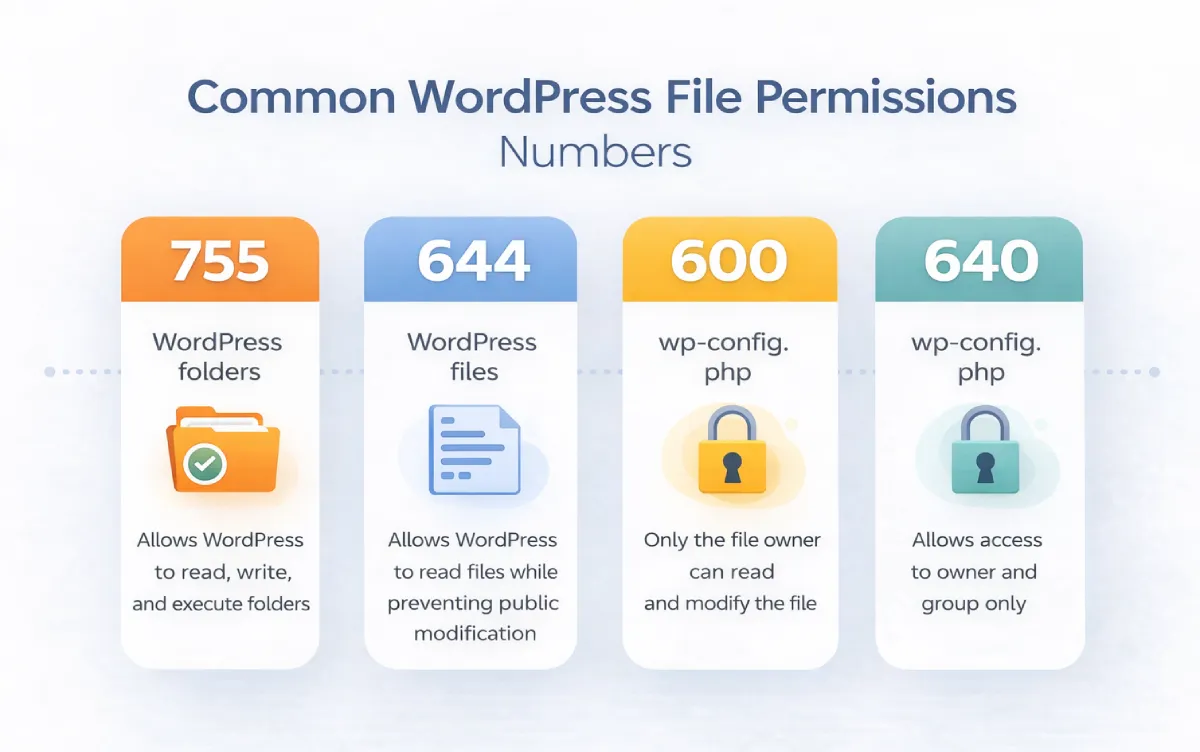
Understanding WordPress Permission Numbers (755, 644, 600, 640)
WordPress file permissions are usually represented by three numbers, such as 755, 644, 600, or 640. Each number defines the level of access given to the owner, group, and public users on the server. These numbers are calculated using permission values for read, write, and execute, which together determine how files and folders can be accessed or modified.
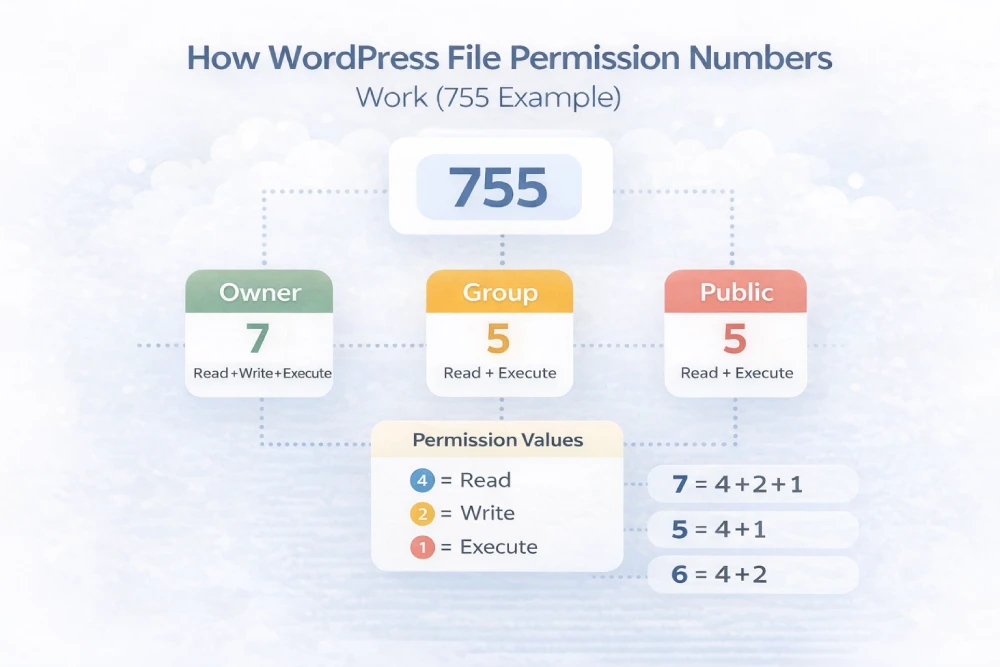
Example diagram showing how WordPress file permission numbers like 755 are calculated using read, write, and execute values.
755 for folders
- Allows WordPress to access and run directories
- Prevents unauthorized editing
755 allows the owner to read, write, and execute, while others can only read and execute.
644 for files
- Allows WordPress to read files
- Prevents public users from modifying them
644 allows the owner to read and write, while others can only read.
600 or 640 for wp-config.php
- Protects sensitive database credentials
These are considered the correct WordPress file permissions for most hosting environments. Using these settings helps prevent WordPress permission denied errors and improves your website security.
Understanding the WordPress Folder Structure
Your WordPress installation contains several important folders. Each should have proper permissions to ensure the website functions correctly.
wp-admin
This folder contains files required for the WordPress dashboard and admin panel.
wp-includes
This folder contains core WordPress functions and libraries.
wp-content
This is where most of your site’s custom content lives, including:
- Themes
- Plugins
- Media uploads
The wp-content folder must allow WordPress to write files so that plugins, themes, and media uploads work correctly.
Inside this directory, the uploads folder is especially important.
/wp-content/uploads
This folder stores all images and media uploaded to your site. If permissions are incorrect, you may see errors when uploading images.
How to Check WordPress File Permissions
You can check WordPress file permissions using your hosting control panel or an FTP client.
Method 1: Using cPanel File Manager
Most hosting providers offer a File Manager inside cPanel.
Steps:
- Log in to your hosting account
- Open cPanel
- Click File Manager
- Navigate to your WordPress installation folder
- Right-click a file or folder
- Select Permissions or Change Permissions
You will see the current permission numbers such as 755 or 644.
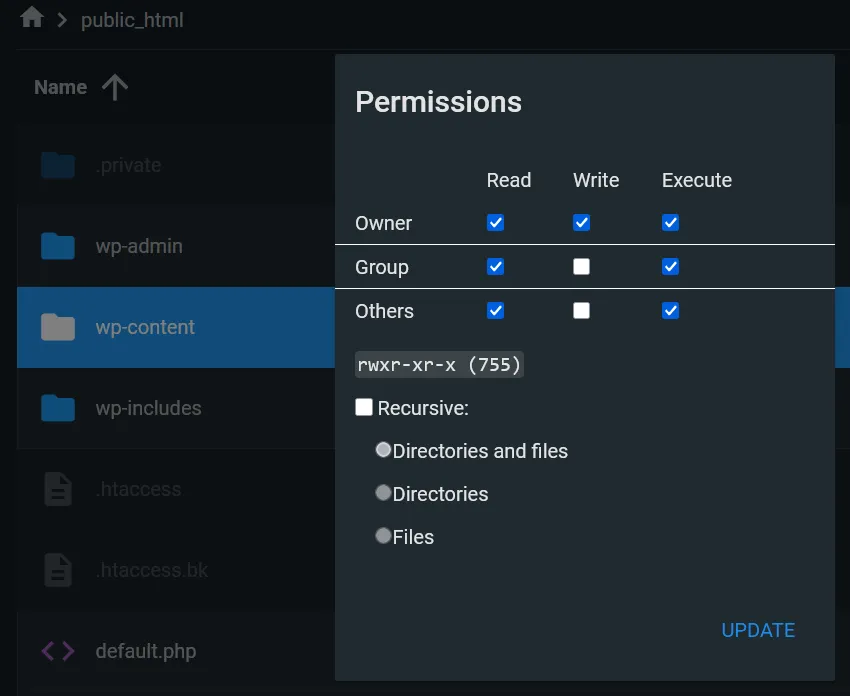
Example of checking WordPress file permissions using the cPanel File Manager.
Method 2: Using an FTP Client
You can also check permissions using FTP tools such as FileZilla.
Steps:
- Connect to your website using FTP
- Locate your WordPress installation directory
- Right-click the file or folder
- Select File Permissions
This method is commonly used by developers when troubleshooting WordPress permission errors.
How to Change WordPress File Permissions
If your permissions are incorrect, you can easily fix them.
Changing Permissions in cPanel
- Open File Manager
- Right-click the folder or file
- Select Change Permissions
- Enter the correct number
Example:
- Set folders to 755
- Set files to 644
Be careful when applying changes recursively to avoid breaking your site.
Changing Permissions Using FTP
In FileZilla:
- Right-click the file or folder
- Choose File Permissions
- Enter the correct permission number
- Apply changes
This method is useful when troubleshooting WordPress permission denied errors.
Common Problems Caused by Incorrect Permissions
Incorrect WordPress file permissions can cause several common website issues.
Some examples include:
- Unable to upload images
- Plugins failing to install
- WordPress theme update errors
- Permission denied messages
- 403 Forbidden errors
- White screen or blank pages
Many server-related errors are often connected to incorrect permissions. For example, server misconfiguration can also lead to issues like the 502 Bad Gateway error in WordPress, which we discussed in another troubleshooting guide.
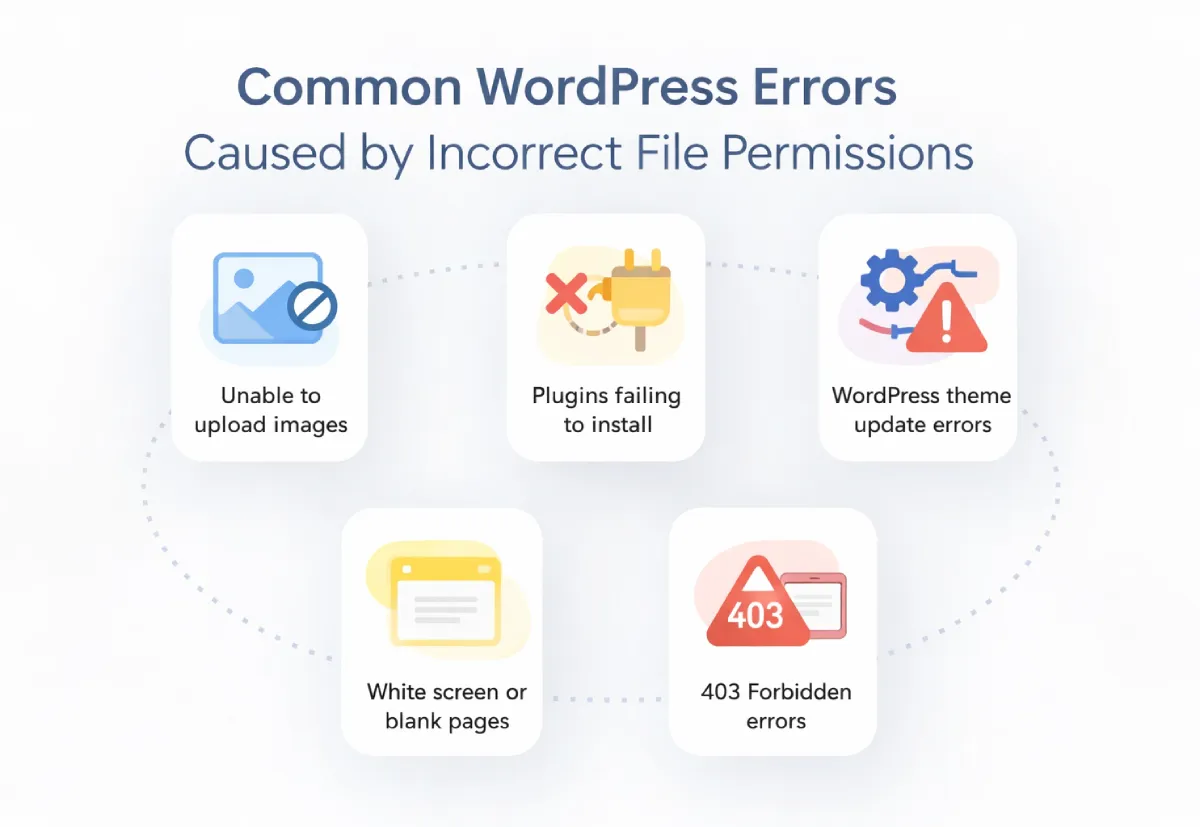
Incorrect file permissions can lead to several WordPress issues, including plugin installation failures and 403 errors. Fixing permissions often resolves these problems quickly.
Security Risks of Incorrect Permissions
Setting permissions incorrectly can also create serious security risks.
One common mistake is setting folders or files to 777.
This permission allows any user on the server to read, write, and execute the file.
Risks include:
- Hackers modifying files
- Malware injections
- Unauthorized uploads
- Website defacement
For security reasons, 777 permissions should never be used permanently on a WordPress website.
Using the correct WordPress file permissions (755 and 644) helps keep your website secure.
If WordPress cannot access your database due to incorrect server configuration or permission issues, you may also encounter the Error Establishing a Database Connection problem.
Quick WordPress File Permission Checklist
Use this quick checklist to verify your site permissions.
- WordPress folders → 755
- WordPress files → 644
- wp-config.php → 600 or 640
- Avoid using 777
- Ensure the uploads folder is writable
Following these guidelines helps maintain both site security and stability.
When You Should Check WordPress File Permissions
It is a good idea to verify file permissions in these situations:
- After migrating your website
- After restoring backups
- After manually uploading files
- If WordPress updates fail
- If plugins cannot install
- When you see permission-related errors
Checking permissions regularly can help prevent many common WordPress issues.
Final Thoughts
Understanding WordPress file permissions is an important part of maintaining a secure and stable website.
By using the correct settings—755 for folders and 644 for files—you allow WordPress to function properly while protecting your site from security vulnerabilities.
If you encounter errors like permission denied, upload failures, or plugin installation issues, checking file permissions should be one of the first troubleshooting steps.
With the correct configuration, your WordPress website will run more reliably and remain secure.
FAQ
What are the correct WordPress file permissions?
The recommended permissions are 755 for folders and 644 for files. Sensitive files like wp-config.php should use 600 or 640 for additional security.
Is 777 permission safe for WordPress?
No. Using 777 permissions allows anyone on the server to modify files, which creates major security risks.
How do I change file permissions in WordPress?
You can change permissions using cPanel File Manager or an FTP client like FileZilla by editing the permission numbers for files and folders.
Why can’t I upload images in WordPress?
This usually happens when the wp-content/uploads folder permissions are incorrect, preventing WordPress from writing new files.
What permission should wp-config.php have?
For better security, wp-config.php should be set to 600 or 640, depending on your hosting environment.

