
There’s nothing more frustrating than clicking a link on your own WordPress site and landing on a “Page Not Found” screen.
Whether it hits your homepage, a blog post, or a product page, a WordPress 404 error can silently cost you traffic, rankings, and revenue — often before you even notice.
The good news? Most WordPress 404 errors are surprisingly easy to fix once you know what’s causing them. This guide walks you through everything: what 404 errors actually are, why they happen in WordPress specifically, how they hurt your SEO, and — most importantly — step-by-step fixes for every scenario.
Quick Fix:
Go to WordPress Dashboard → Settings → Permalinks → click Save Changes (without changing anything).
This resolves many common WordPress 404 errors in seconds
What Is a WordPress 404 Error?
A WordPress 404 error occurs when a page cannot be found, even though the server is working correctly.
404 error — officially known as “404 Not Found” — is an HTTP status code that means the server received the request just fine, but couldn’t locate the page being asked for. In simple terms: the URL exists, but what it’s supposed to point to doesn’t.
When this happens on a WordPress site, visitors see a message like:
- “404 Not Found”
- “The page you’re looking for doesn’t exist.”
- “Oops! That page can’t be found.” (default WordPress message)
- “404. That’s an error.” (in Chrome)
Hard 404 vs. Soft 404 — What’s the Difference?
Most people are familiar with a hard 404 — the server returns a proper 404 status code and the page is genuinely missing. But WordPress sites also suffer from soft 404s, which are trickier.
A soft 404 occurs when a page loads successfully (returning a 200 OK status) but contains little or no useful content — like an empty category archive or a search results page for a term that returns nothing. Google sees the empty content and treats it like a 404 even though the server reported success. Soft 404s are a silent SEO killer and often go unnoticed for months.
Why Do WordPress 404 Errors Happen?
Understanding what triggers a WordPress 404 not found error is key to fixing it fast. Here are the most common causes:
- Broken or changed permalink structure — This is the #1 cause. WordPress relies on rewrite rules stored in your ‘.htaccess’ file to map URLs to the right content. If those rules get flushed or corrupted, pages that exist in your database suddenly return a 404.
- Deleted or moved pages and posts — When you delete a post or change its URL slug without setting up a redirect, every old link pointing to it — from Google, other websites, or your own navigation — becomes a dead end.
- Changed URL slug — Updating the slug of a post from ‘/old-title/’ to ‘/new-title/’ instantly breaks all existing inbound links. This is one of the most common causes of WordPress broken links.
- Misconfigured or corrupted ‘.htaccess’ file — WordPress uses ‘.htaccess’ to handle URL routing. A missing, corrupted, or wrongly edited ‘.htaccess’ file will cause widespread WordPress 404 errors across your entire site.
- Plugin or theme conflicts — Plugins that create custom post types, custom taxonomies, or modify URL structures (like WooCommerce, membership plugins, or event managers) can interfere with WordPress’s permalink routing and cause 404 errors on specific page types.
- Site migration issues — Moving your site to a new domain or host without correctly updating the database URLs is a very common source of broken links and 404 errors.
- Mistyped URLs — Simple human error in internal links or imported content.
This blog is a part of the Common WordPress Errors and How to Fix Them troubleshooting series.
Why WordPress 404 Errors Are Bad for Your Site
You might think a few missing pages are no big deal. They’re not — until they are.
Here’s why you should treat every WordPress 404 error as urgent:
- User experience suffers immediately — Visitors who hit a 404 page almost always leave. That spikes your bounce rate and signals to Google that your site isn’t delivering on its promises. Tracking your traffic accurately matters — learn how to analyze direct traffic in GA4 to spot these issues early.
- Your SEO rankings take a hit — Google allocates a limited “crawl budget” to every site — the number of pages it will crawl in a given period. When crawlers waste that budget on broken URLs, they may miss your new and important content. Over time, frequent 404 errors can dilute your domain’s perceived quality and lower your rankings.
- You lose link equity — If other websites have linked to a page that now returns a 404, all that SEO value — the backlink authority — evaporates. A properly placed 301 redirect WordPress fix rescues that link equity and points it to the right page.
- It can hurt conversions — A broken product page or a missing landing page can mean lost sales or leads, often without you ever knowing.
404 errors are just one part of a larger audit—here’s a complete technical SEO checklist for WordPress you can follow to keep your site healthy.
How to Find 404 Errors on Your WordPress Site
Before you can fix WordPress 404 errors, you need to find them. Here are the best tools:
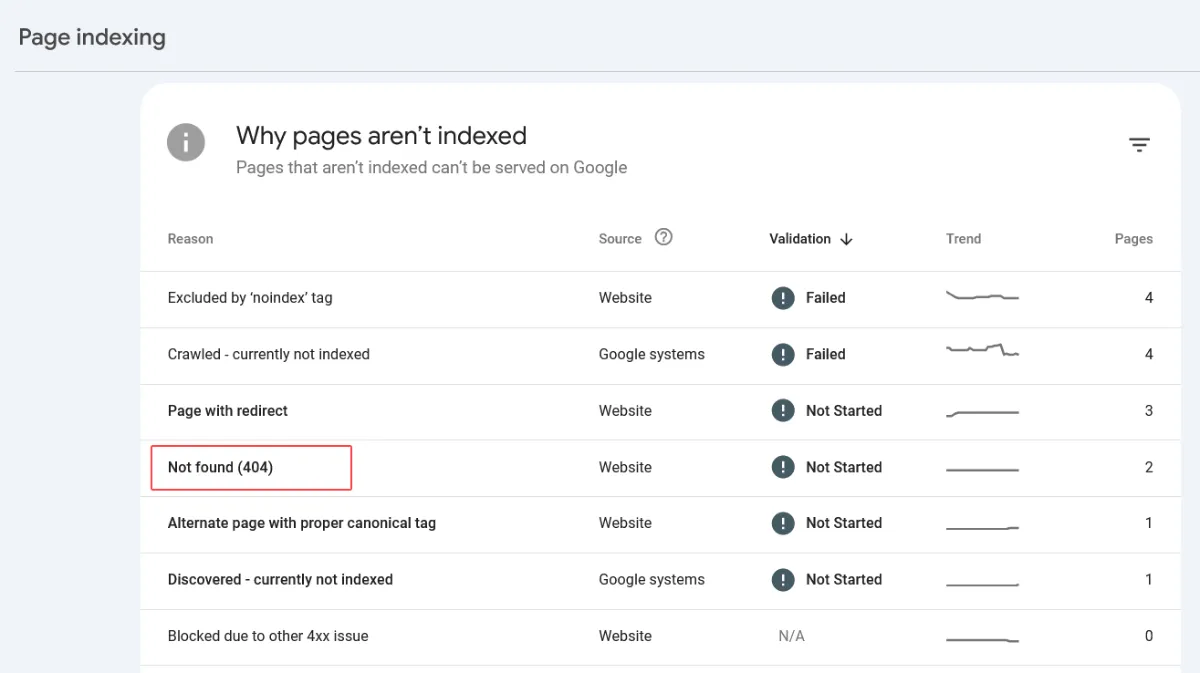
- Google Search Console — Go to Coverage → Excluded or check the Page Indexing report — broken URLs flagged as 404 will appear there. It’s free and pulls real data from Google’s crawl of your site.
- Your SEO plugin — If you use AIOSEO or Rank Math, both include built-in 404 monitoring and redirect management. You can catch and fix broken URLs right inside WordPress without needing a separate tool.
- Broken Link Checker plugin — This free WordPress plugin scans your entire site for internal broken links and flags them in your dashboard.
- Screaming Frog SEO Spider — For a deep technical crawl, Screaming Frog is the industry standard. The free version crawls up to 500 URLs and shows you every 404 response code on your site.
How to Fix WordPress 404 Errors (Step-by-Step)
Fix 1: Reset Your Permalink Settings (Start Here — Fixes 90% of Cases)
This is almost always the right first move. WordPress generates rewrite rules from your permalink settings and stores them in ‘.htaccess’. Simply re-saving your permalink settings flushes and rebuilds those rules without changing anything.
How to do it:
- Log in to your WordPress Dashboard
- Go to Settings → Permalinks
- Click Save Changes — don’t change anything, just click the button
- Visit your site and test
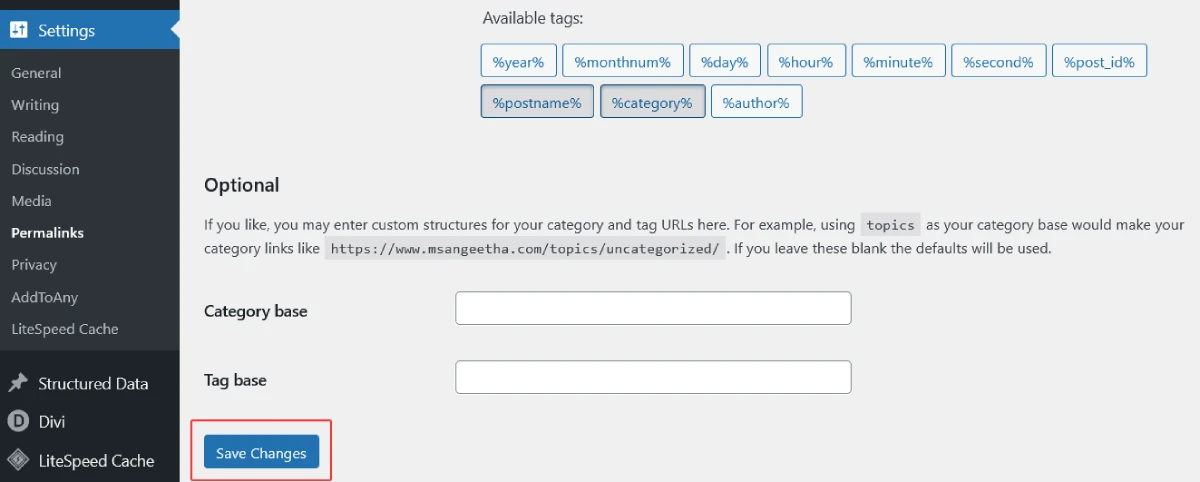
If that doesn’t work, try switching to Plain permalink structure, saving, then switching back to your preferred structure (e.g., Post name) and saving again. This forces a full rebuild.
Fix 2: Check and Regenerate Your .htaccess File
If resetting permalinks didn’t solve the WordPress 404 not found error, the ‘.htaccess’ file itself may be corrupted or missing. This file lives in your WordPress root directory and controls URL routing.
How to regenerate it:
- Connect to your site via FTP (e.g., FileZilla) or your hosting file manager in cPanel
- Navigate to your WordPress root folder
- Make sure hidden files are visible — ‘.htaccess’ is hidden by default
- Rename the existing ‘.htaccess’ to ‘.htaccess_old’ (to back it up)
- Go to Settings → Permalinks in your WordPress dashboard and click Save Changes — WordPress will generate a fresh ‘.htaccess’ file
The default WordPress ‘.htaccess’ content should look like this:
---

# BEGIN WordPress
RewriteEngine On
RewriteBase /
RewriteRule ^index\.php$ - [L]
RewriteCond %{REQUEST_FILENAME} !-f
RewriteCond %{REQUEST_FILENAME} !-d
RewriteRule . /index.php [L]
# END WordPress
---
Note: Always back up your site before editing any server files.
Fix 3: Set Up 301 Redirects for Deleted or Moved Pages
If you’ve deleted a page, changed a slug, or restructured your URLs, the right fix is a 301 redirect in WordPress — this permanently points the old broken URL to a new, valid destination and preserves your SEO value.
The easiest way is with the free Redirection plugin:
- Install and activate Redirection from the WordPress plugin directory
- Go to Tools → Redirection
- In the Add new redirection section, enter the old URL in the Source URL field
- Enter the correct new URL in the Target URL field
- Click Add Redirect
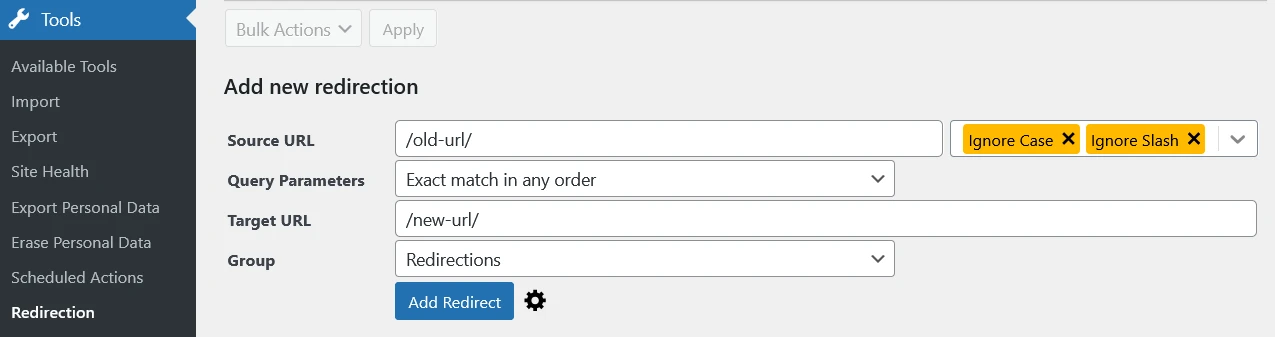
Always use a 301 redirect (not 302) for deleted or permanently moved content. A 301 transfers the full SEO value — backlinks, ranking signals — to the new URL. A 302 does not.
If you’re planning a redesign, make sure you handle URL changes properly—this guide on WordPress Website Redesign Without Losing SEO walks you through it step by step.
Fix 4: Fix Plugin or Theme Conflicts
If your WordPress 404 error only affects certain page types (like WooCommerce product pages, event pages, or membership areas), a plugin or theme conflict is the likely cause.
How to diagnose it:
- Deactivate all plugins except the core WordPress plugins
- Test the pages that were returning 404 errors
- If they now load correctly, reactivate your plugins one at a time — testing after each — until the 404 returns. That’s your culprit.
- For themes: switch to a default WordPress theme (e.g., Twenty Twenty-Five) via Appearance → Themes. If the 404s disappear, your theme was modifying permalink behavior.
After identifying the conflict, go to Settings → Permalinks → Save Changes to reset rewrite rules.
Fix 5: Fix Custom Post Type 404 Errors
If 404 errors are showing on custom post type pages specifically, you likely have a slug conflict. Two posts or pages sharing the same title or slug can cause WordPress to lose track of which content to serve.
- Check all posts of that custom post type for duplicate titles and slugs
- Rename any duplicates to unique values — update both the title AND the slug
- Go to Settings → Permalinks → Save Changes to regenerate rewrite rules
Fix 6: Fix 404 Errors After Site Migration
Migrating WordPress to a new host or domain without updating URLs in the database is a very common cause of widespread WordPress broken links. If your homepage works but most other pages return 404, this is likely the issue.
Quick fix:
- Go to Settings → General and verify that both the WordPress Address (URL) and Site Address (URL) match your current domain exactly
- Use a plugin like Better Search Replace to safely update old URLs in the database to the new domain
- Flush your permalink settings after
Fix 7: Fix Local Server 404 Errors (WAMP / XAMPP / MAMP)
If you’re developing locally and getting WordPress 404 not found errors on all pages except the home page, the Apache ‘mod_rewrite’ module is probably disabled.
On WAMP:
- Left-click the WAMP icon in your taskbar
- Go to Apache → Apache Modules
- Find rewrite_module and click it to enable it (it should show a checkmark)
- Restart all services
- Go to Settings → Permalinks → Save Changes
How to Handle Soft 404 Errors in WordPress
Soft 404s don’t show up as broken pages, but they quietly damage your SEO by wasting crawl budget and sending quality signals. Common sources of soft 404 errors on WordPress sites include:
- Empty category or tag archives — A category with no published posts still has a URL. Google visits it, finds nothing, and marks it as a soft 404.
- Runaway pagination — If your blog has 10 pages of posts but a bot requests ‘/category/news/page/57/’, WordPress often serves the last valid page with a 200 status — even though page 57 doesn’t exist.
- Empty search result pages — When someone searches for a random string on your site, WordPress returns a “no results” page with a 200 OK status. Google flags it as a soft 404.
Fixes for soft 404s:
- Noindex empty archives and search pages using your SEO plugin (Yoast, Rank Math, or AIOSEO all support this)
- Add content to empty category pages — a short intro paragraph turns a thin page into a useful one
- Use canonical tags on paginated pages
- Check your Google Search Console Page Indexing report regularly for soft 404 warnings
How to Build a Better Custom 404 Page in WordPress
Fixing broken links is priority one, but not every 404 is preventable — especially from external sites linking to old URLs. A well-designed custom 404 page turns a dead end into a second chance to keep the visitor on your site.
What a great 404 page includes:
- A clear, friendly message that tells the visitor the page wasn’t found
- A search bar so they can find what they were looking for
- Links to your most popular posts or pages
- A link back to your homepage
- Consistent branding — your logo, colors, and navigation menu
How to customize it:
Most WordPress themes include a ‘404.php’ template file. You can edit it directly or use a plugin like 404page or Custom 404 Pro to set any existing WordPress page as your 404 page — no coding required.
Best Plugins to Manage WordPress 404 Errors
| Plugin | Best For | Free? |
| Redirection | Manual 301 redirects, redirect logs | ✅ Yes |
| 404 Solution | Auto-redirects broken URLs to similar content | ✅ Yes |
| AIOSEO | Built-in 404 monitoring + redirects + full SEO | Freemium |
| Broken Link Checker | Finding broken internal links | ✅ Yes |
| 404page | Creating a custom 404 page easily | ✅ Yes |
Redirection is the most popular and reliable choice for managing 404 redirects in WordPress. It logs every 404 hit on your site with the referrer URL, so you can prioritize which broken links to fix first.
404 Solution goes further — it uses an intelligent 7-engine matching pipeline (slug matching, typo correction, content keywords, and more) to automatically redirect visitors to the most likely page they were looking for, even when the URL has a typo.
How to Prevent WordPress 404 Errors Going Forward
Prevention is far easier than fixing. Here are the habits that keep WordPress 404 not found errors from building up:
- Set up redirects the moment you change a URL. Any time you update a post slug, immediately create a 301 redirect from the old URL to the new one. Make this a non-negotiable part of your content editing workflow.
- Don’t change slugs unnecessarily. Every slug change creates a new broken link risk. Only change URLs when there’s a strong reason — and always redirect when you do.
- Run a monthly site audit. Use Google Search Console, Screaming Frog, or AIOSEO’s built-in monitoring to check for new 404 errors before they accumulate.
- Back up before major changes. Before updating plugins, switching themes, or migrating your site, take a full backup.
- Update internal links after restructuring. If you reorganize your site’s URL structure, use the Better Search Replace plugin to bulk-update old internal links in the database.
Quick Workflow to Fix 404 Errors
Find → Analyze → Fix → Monitor
- Find errors (GSC / plugins)
- Analyze importance (traffic/backlinks)
- Fix (redirect, restore, update links)
- Monitor regularly
Frequently Asked Questions
Does a WordPress 404 error hurt SEO?
Yes. Frequent 404 errors increase bounce rates, waste crawl budget, and can signal to Google that your site has quality issues. Fixing them promptly — especially with 301 redirects — is important for maintaining strong SEO performance.
What’s the fastest way to fix a WordPress 404 error?
Go to Settings → Permalinks → Save Changes in your WordPress dashboard. This single step resolves the majority of WordPress 404 errors in under 60 seconds.
Should I redirect all 404 pages?
No. Only redirect pages that have value (traffic or backlinks). Otherwise, let them return a 404 or 410.
Should I use a 301 or 302 redirect for a missing page?
Always use a 301 redirect for permanently deleted or moved content. A 301 transfers full SEO link equity to the new URL. A 302 tells search engines the move is temporary and does not pass link value.
What is a soft 404 in WordPress?
A soft 404 is when WordPress returns a 200 OK status for a page that has no useful content (like an empty category archive or a “no results” search page). Google treats it like a real 404 but it’s harder to detect because there’s no visible error message.
How do I find 404 errors on my WordPress site?
Use Google Search Console’s Page Indexing report, the Broken Link Checker plugin, or an SEO plugin like AIOSEO or Rank Math with built-in 404 monitoring.
What is the difference between 404 and 410?
- 404 → Page not found (may come back)
- 410 → Page permanently gone
Your 404-Free WordPress Site Starts Now
A WordPress 404 error is one of the most common — and most fixable — issues on any WordPress site. Start with the permalink reset (it takes 10 seconds and works most of the time), then work your way through the .htaccess fix, redirect setup, and plugin conflict checks as needed.
Don’t let 404 errors sit unnoticed. Every broken page means lost traffic, lost SEO value, and a poor user experience.
Fix them early, monitor regularly, and your site will stay clean, crawlable, and optimized for growth.
Can’t Fix Your WordPress 404 Error?
Share the details and I’ll point you in the right direction.

