
You open your website and there it is — a completely blank white page. No error message. No clue. Just white.
That’s the WordPress White Screen of Death, and if you’re reading this right now, chances are you’re already in full panic mode.
I understand that feeling. A blank screen with zero explanation is one of the most disorienting errors you can face as a WordPress site owner. Unlike a 404 error or a database error that at least tells you something went wrong, the white screen of death gives you absolutely nothing to work with. Your visitors see nothing. Your admin may or may not load. And you have no idea where to even start.
The good news is this: the WordPress White Screen of Death is almost always fixable without professional help. I’ve worked through this error on client sites more times than I can count, and in the vast majority of cases, it comes down to a handful of root causes — all of which have clear, step-by-step fixes.
This guide walks you through everything — what the WSOD actually is, why it happens, how to diagnose it properly before touching anything, and how to fix it depending on your exact situation.
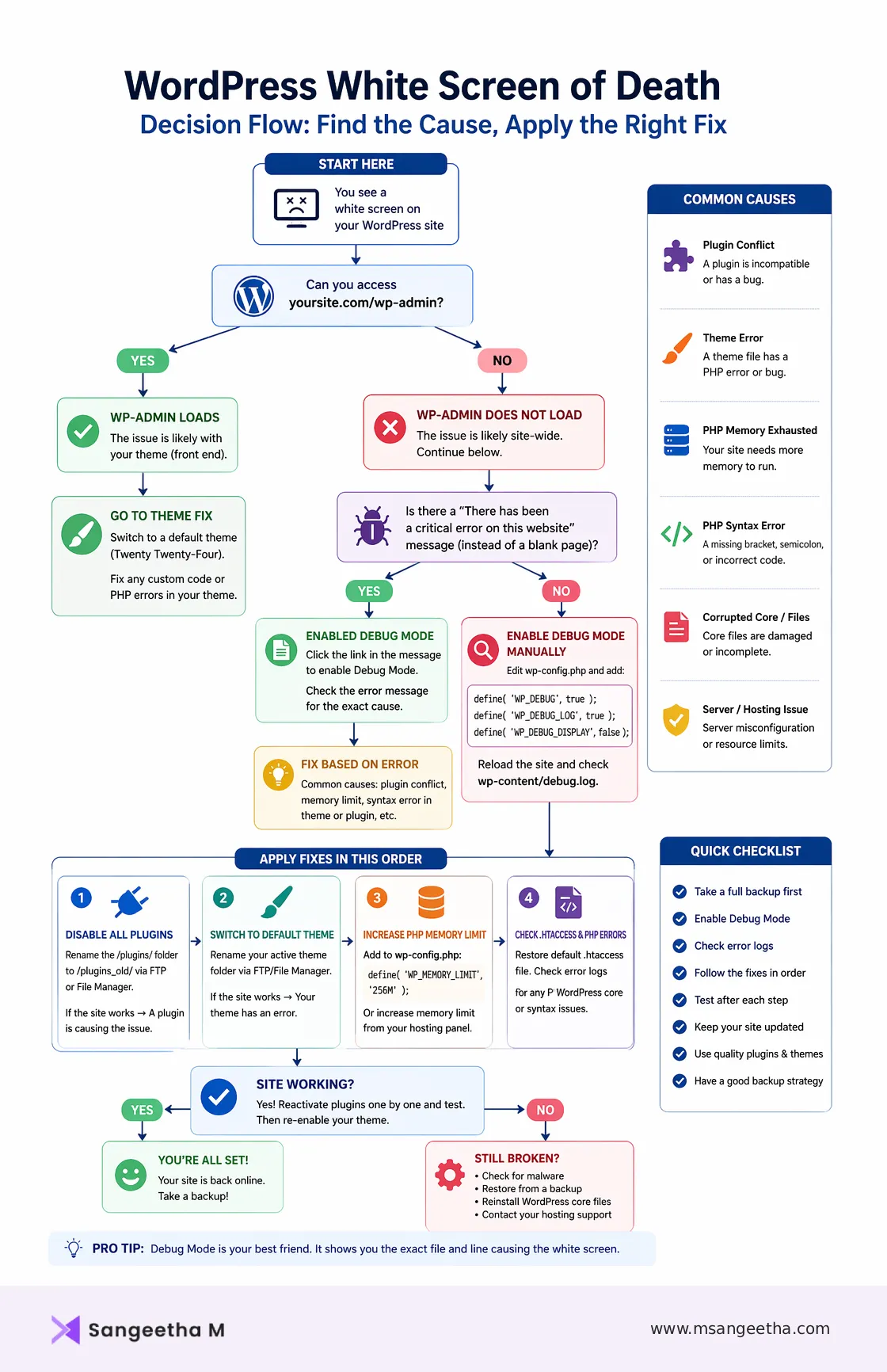
Quick Fix (If You Just Want It Working Fast)
- Enable debug mode
- Disable all plugins
- Switch to default theme
- Increase PHP memory limit
What Is the WordPress White Screen of Death?
The WordPress White Screen of Death (WSOD) is a blank browser page — sometimes completely white, sometimes showing a vague message like “This page isn’t working” — that appears when PHP encounters a fatal error and stops executing before WordPress can render any content.
WordPress runs on PHP. When PHP hits a fatal error — a missing file, a memory shortage, a syntax mistake in a plugin or theme — it stops immediately. On live sites, error messages are hidden from visitors for security reasons. So instead of seeing a helpful message, your browser receives nothing. No HTML, no content, just a blank response that the browser renders as a white page.
Newer versions of WordPress (5.2 and later) sometimes replace the pure white screen with a “There has been a critical error on this website” message instead. The underlying cause is identical — PHP died before WordPress could load.
If you’re facing other issues too, check our complete guide on Common WordPress Errors and How to Fix Them for a structured approach.
WSOD vs. Other Blank Screen Issues
Not every blank page in WordPress is technically a White Screen of Death. Here’s how to tell the difference:
- True WSOD — A completely blank response. No HTML in the page source. PHP crashed before outputting anything.
- “Critical error” message — WordPress 5.2+ caught the PHP error and displayed its own recovery message instead of a blank page.
- White page with content in the source — CSS failed to load or a JavaScript error is hiding content. Different problem, different fix.
- Black screen of death — Usually a theme-specific rendering issue, not a PHP crash.
If you right-click your blank page and click “View Page Source” and see nothing at all, you’re dealing with a true WSOD.
The First Thing to Check Before Anything Else
Before you touch a single file or disable a single plugin, answer this question: is the white screen affecting your entire site, just the front end, or just the WordPress admin?
Open a new browser tab and visit yoursite.com/wp-admin.
This one check tells you a great deal about what’s going on:
- Front end is white, wp-admin loads fine — The problem is almost certainly your active theme. A PHP error in your theme’s files is crashing the front end while the admin (which uses its own theme) loads normally.
- Both front end and wp-admin are white — More serious. Usually a plugin conflict, a PHP memory issue, a corrupted wp-config.php, or a server-level error.
- wp-admin loads but shows a critical error notice — WordPress caught the error. Click the link in the notice to enable debug mode — WordPress will usually tell you exactly which plugin or theme file caused it.
- wp-admin is white but front end partially loads — Rare, but usually points to an admin-specific plugin conflict.
Also think about when the white screen appeared:
- Did it happen immediately after updating a plugin or theme? Start with the plugin/theme fix.
- Did it happen after you added code to functions.php? Start with the PHP error fix.
- Did it happen after a hosting migration or PHP version upgrade? Start with memory and PHP compatibility.
- Did it happen seemingly out of nowhere with no recent changes? Start with debug mode to find out what PHP is actually complaining about.
Back Up Before You Do Anything
I know it feels counterintuitive to back up a broken site, but please do this before you start troubleshooting.
Even a broken WordPress site has value in its current state — your database, your uploads, your theme files. Some of the fixes below involve editing or deleting files, and one wrong move can compound the problem. A backup means you can always start fresh without data loss.
If you can still access your hosting control panel (cPanel, Plesk, or your host’s dashboard), take a full backup from there. If you use a backup plugin like UpdraftPlus, check whether a recent automatic backup exists. Download at minimum these three files to your local computer before you start:
- wp-config.php
- .htaccess
- Your active theme’s functions.php
How to Fix the WordPress White Screen of Death
Work through these fixes in order. The earlier fixes resolve the majority of WSOD cases. Only move to the next step if the previous one didn’t work.
Fix 1: Enable WordPress Debug Mode (Do This First)
This is the single most important step in this entire guide. Debug mode replaces the blank white screen with an actual error message that tells you exactly which file, which line, and which function caused the crash.
Without enabling debug mode, you’re troubleshooting blind. With it, you’ll usually know the cause within 60 seconds.
Connect to your site via FTP or your hosting File Manager and open wp-config.php from your WordPress root directory. Find the line that says:
/* That's all, stop editing! Happy publishing. */
Add these three lines directly above it:
define( 'WP_DEBUG', true );

define( 'WP_DEBUG_LOG', true );

define( 'WP_DEBUG_DISPLAY', false );
Save the file and reload your site. The white screen may still appear, but the error is now being written silently to a log file at /wp-content/debug.log. Open that file via FTP or File Manager and read the error.
If you’d rather see the error directly on screen (only do this while no visitors are present), temporarily change WP_DEBUG_DISPLAY to true. The white screen will be replaced by a PHP error message showing you exactly what broke and where.
The debug log typically shows something like:
Fatal error: Allowed memory size of 67108864 bytes exhausted in /wp-content/plugins/plugin-name/file.php on line 247
Or:
Parse error: syntax error, unexpected '}' in /wp-content/themes/your-theme/functions.php on line 84
That error message tells you everything — which plugin, which theme, or which function is causing the crash. From there, the fix is obvious.
Important: Always turn debug mode off again after you’ve fixed the issue. Leaving WP_DEBUG_DISPLAY set to true on a live site exposes PHP error messages to your visitors, which is a security risk.
Fix 2: Check Your Hosting Error Logs
If you couldn’t access wp-config.php to enable debug mode, your hosting control panel has its own error logs that often contain the same information.
In cPanel, go to Errors under the Metrics section. In Plesk, go to Websites & Domains → Logs. Most managed WordPress hosts have a dedicated log viewer in their dashboard.
These server-level logs record PHP fatal errors even when WordPress debug mode is off. Look for entries timestamped around when the white screen first appeared — they’ll point you directly to the problematic file.
This step is particularly useful when the WSOD is caused by something at the server level rather than inside WordPress itself — a PHP version mismatch, a server resource limit, or a memory cap set by the hosting environment.
Fix 3: Disable All Plugins
Plugin conflicts cause the majority of WordPress White Screen of Death errors — particularly after automatic updates run overnight without your knowledge.
If you can access wp-admin:
Go to Plugins → Installed Plugins, select all plugins using the checkbox at the top, choose Deactivate from the Bulk Actions dropdown, and click Apply. Check your site. If the white screen clears, a plugin was responsible.
Now reactivate your plugins one at a time, checking your site after each one. When the white screen returns, the plugin you just activated is the culprit. Deactivate it and contact the plugin developer or find an alternative.
If you cannot access wp-admin:
Connect via FTP or File Manager and navigate to /wp-content/. Rename the plugins folder to plugins_disabled. WordPress will automatically deactivate all plugins because it can no longer find the folder.
Check your site. If the white screen clears, rename the folder back to plugins, then go into the folder and rename individual plugin folders one at a time — adding a suffix like _disabled — until you find which one causes the WSOD when renamed back to its original name.
Fix 4: Switch to a Default WordPress Theme
If disabling plugins didn’t fix the white screen — or if the WSOD affects only your front end while wp-admin works fine — your active theme is the likely cause. A PHP syntax error in functions.php, an incompatible function, or a corrupted theme file can all produce a WSOD on the front end.
If you can access wp-admin:
Go to Appearance → Themes and activate a default WordPress theme — Twenty Twenty-Four or Twenty Twenty-Five. Check your front end. If it loads, your original theme caused the problem.
If you cannot access wp-admin:
Connect via FTP or File Manager and navigate to /wp-content/themes/. Rename your active theme’s folder — for example, rename divi to divi_disabled. WordPress will fall back to the next available theme. If no other theme is installed, download a default theme from WordPress.org and upload it to the themes folder via FTP.
Check your site. If it loads, the issue is in your original theme. The most common cause is a syntax error introduced by a recent edit to functions.php — check that file carefully for missing semicolons, unclosed brackets, or code that was pasted in incorrectly.
Page builder users (Divi, Elementor, WPBakery): If you use a page builder and recently updated it, this is a particularly common WSOD cause. Page builders hook deeply into WordPress and their updates occasionally introduce fatal PHP errors. Renaming the page builder plugin folder is worth trying before switching themes.
Fix 5: Increase the PHP Memory Limit
“Allowed memory size exhausted” is one of the most common error messages you’ll see once you enable debug mode. WordPress requires a minimum of 64MB of PHP memory, but sites running multiple plugins, a page builder, WooCommerce, or membership functionality can easily exhaust 128MB or even 256MB.
When PHP runs out of memory mid-execution, it stops immediately — producing a white screen with no other visible indication of what happened.
There are three places you can increase the PHP memory limit. You only need one to work:
Option 1 — wp-config.php (most reliable):
Add this line to wp-config.php above the “stop editing” comment:
define( 'WP_MEMORY_LIMIT', '256M' );
Option 2 — .htaccess (Apache servers only):
Add this to the top of your .htaccess file in the WordPress root:
php_value memory_limit 256M
Option 3 — php.ini (if your host allows it):
If your host gives you access to a php.ini file, add or update:
memory_limit = 256M
After making the change, reload your site. If the white screen clears, the memory limit was the issue. If you find yourself needing to raise it beyond 512MB regularly, that’s a sign a plugin or theme has a memory leak — worth investigating which one.
If your hosting plan has a hard cap on PHP memory that you can’t override through these methods, contact your host directly. Many shared hosting plans limit PHP memory in ways that require server-level changes.
Fix 6: Fix a PHP Syntax Error in functions.php or a Plugin File
If the debug log showed a “Parse error: syntax error” message pointing to a specific file and line number, a PHP syntax error is the cause. This happens most often when code is manually pasted into functions.php — a missing semicolon, an extra character, or an incorrectly formatted snippet can crash the entire site.
Connect via FTP or File Manager, navigate to the file mentioned in the error log, and open it. Go to the line number mentioned in the error. Look for:
- A missing semicolon at the end of a line
- An unmatched opening or closing bracket
- A missing closing quote on a string
- Code that was accidentally duplicated during a paste
If you recently added a code snippet and that’s what caused the WSOD, the fastest fix is simply to delete what you added and restore the original file from your backup.
If you’re not comfortable editing PHP directly, use your backup to restore the original version of the file.
Fix 7: Regenerate the .htaccess File
A corrupted .htaccess file can produce a white screen or an HTTP 500 error, particularly if someone edited it manually and introduced a syntax error.
Connect via FTP or File Manager, navigate to your WordPress root directory, and rename .htaccess to .htaccess_old. Note that .htaccess is a hidden file — make sure your FTP client is set to show hidden files (in FileZilla, go to Server → Force showing hidden files).
Once renamed, go to your WordPress dashboard → Settings → Permalinks → Save Changes. WordPress will generate a fresh .htaccess file automatically.
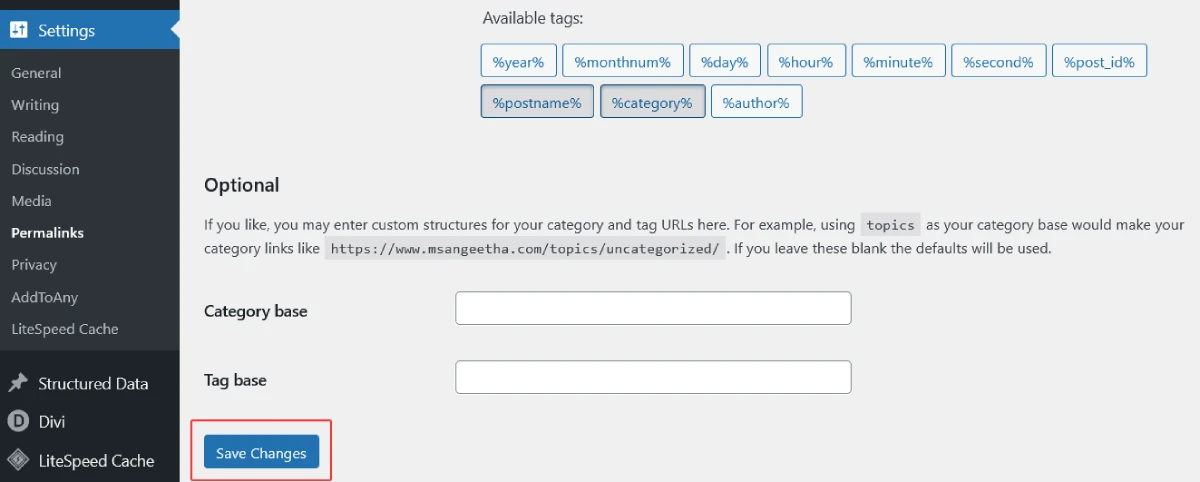
If the white screen clears after this, the original .htaccess was corrupted. Keep the new generated version and delete the old .htaccess_old backup file once you’ve confirmed the site is working.
Fix 8: Check PHP Version Compatibility
If the white screen appeared after your hosting provider upgraded the server’s PHP version — or after you manually changed it in your hosting dashboard — a PHP compatibility issue may be the cause.
Some older plugins and themes are not compatible with newer PHP versions (particularly PHP 8.0, 8.1, and 8.2). Deprecated functions that worked in PHP 7.4 can throw fatal errors in PHP 8.x.
Log into your hosting control panel and check the current PHP version your site is running. If it was recently changed, try rolling it back to the previous version and see if the white screen clears. Your host’s support team can usually tell you what PHP version the site was on before.
If rolling back PHP version fixes the WSOD, the long-term solution is to update your plugins and themes to versions compatible with the newer PHP. Running an outdated PHP version is a security risk and should only be a temporary measure.
Fix 9: Reinstall WordPress Core Files
If none of the above steps resolved the white screen, a corrupted WordPress core file may be the cause — particularly if the WSOD appeared after a failed automatic update.
This fix involves replacing all WordPress core files with fresh copies. It does not affect your content, settings, plugins, or themes — because those live in the /wp-content/ folder and the database, which this process does not touch.
Download the latest version of WordPress from wordpress.org/download. Extract the zip file on your local computer. Delete the wp-admin and wp-includes folders from the extracted files (you’ll replace them, not your custom content). Also delete wp-config.php from the extracted files — you never want to overwrite your live wp-config.php.
Connect via FTP and upload all the remaining extracted files to your WordPress root directory, overwriting everything with the fresh copies.
Once uploaded, check your site. If a corrupted core file was causing the white screen, it should now be resolved.
Fix 10: Restore From a Backup
If you’ve worked through every fix above and the white screen of death persists, restoring from a backup is the most reliable path to getting your site back online quickly.
A full restore brings your site back to the last known working state — before whatever change triggered the WSOD. Yes, you may lose some recent content or settings, but you’ll have a working site to start from.
If you use UpdraftPlus, BackWPup, or another backup plugin, restore from your most recent backup before the issue started. If your host provides automated backups (most managed WordPress hosts do), ask their support team to restore from the last clean backup.
After restoring, identify what changed between the restore point and when the WSOD appeared — a plugin update, a code addition, a PHP version change — so you don’t repeat the same problem.
WSOD Affecting Only Specific Pages or Long Posts?
There’s a lesser-known variation of the WordPress White Screen of Death that affects only certain pages rather than the entire site — typically very long posts, posts with many shortcodes, or pages built with resource-heavy page builders.
This is almost always a PHP memory or execution time issue. The page in question requires more memory or processing time to render than PHP is currently allowed. The fixes are:
- Increase PHP memory limit to 256M or higher (Fix 5 above)
- Increase PHP max execution time — add set_time_limit(300); to wp-config.php
- Optimise the page content — reduce the number of shortcodes, simplify page builder rows, compress large images on the page
- Check whether a specific plugin adding output to that page type is the cause — shortcode plugins and custom widget plugins are frequent culprits
If you’re using Divi or another page builder and certain layouts trigger the white screen, this is almost always a memory issue combined with a complex layout. Increasing the memory limit to 512M and asking your host about increasing PHP max execution time usually resolves it.
What If the White Screen Keeps Coming Back?
If you fix the WSOD but it returns after a few days or after every update, the issue isn’t fully resolved — you’re treating the symptom rather than the cause. Here’s how to approach recurring white screen issues:
Recurring after plugin updates: A specific plugin is consistently producing fatal errors after its updates. Check the plugin’s changelog and support forum — you’re likely not the only one affected. Either wait for a stable update or replace the plugin with an alternative.
Recurring memory exhaustion: Your current hosting plan’s PHP memory limit is too low for your site’s needs. Either upgrade your hosting plan, switch to a host with higher limits, or audit your plugins and remove resource-heavy ones you don’t need.
Recurring after theme updates: Your theme has ongoing compatibility issues. Check whether your child theme (if you use one) is the source of the recurring error. For Divi users — always update Divi through the Elegant Themes dashboard rather than the WordPress update screen, as this reduces the chance of update-related errors.
Recurring with no apparent trigger: This can indicate a security issue — malware injecting bad code that periodically causes PHP crashes. Run a malware scan using Wordfence or Sucuri, and check for any unfamiliar files in your WordPress root directory or wp-content folder.
How to Prevent the WordPress White Screen of Death
Most WSOD incidents are preventable. These habits significantly reduce the chances of a blank white screen ever disrupting your site.
Test updates on staging before applying to live. This is the single most effective prevention measure. A staging environment lets you test plugin and theme updates in isolation without touching your live site. Most managed WordPress hosts include one-click staging. If yours doesn’t, plugins like WP Staging create a local clone.
Update one plugin at a time. Bulk-updating all your plugins simultaneously is fast but risky. If something goes wrong, you won’t know which update caused the problem. Update plugins individually, check your site after each one, and you’ll isolate issues immediately.
Set up automated backups with off-site storage. A backup doesn’t prevent the white screen, but it makes recovery fast and stress-free. Use UpdraftPlus or your host’s backup system, schedule daily backups, and store them off-site — in Google Drive, Dropbox, or Amazon S3.
Keep PHP memory at a healthy level. Don’t run your site at the default 64MB memory limit. Set it to at least 256M in wp-config.php proactively — before a memory exhaustion error ever happens.
Remove plugins you don’t actively use. Every installed plugin — even deactivated ones — represents a potential conflict point. Delete plugins you’re not using rather than just deactivating them.
Use a child theme. If you customise your theme’s files directly and the parent theme updates, your edits get overwritten — sometimes introducing syntax errors in the process. A child theme keeps your customisations safe through theme updates.
Monitor your site with uptime alerts. You can’t fix a white screen you don’t know about. A basic uptime monitor pings your site every few minutes and sends you an alert the moment it goes down. Many hosting providers include this, and free tools like UptimeRobot also work well.
WordPress White Screen of Death — Quick Reference
| Symptom | Most Likely Cause | Start With |
|---|---|---|
| Front end white, wp-admin works | Theme PHP error | Switch to default theme (Fix 4) |
| Both front end and wp-admin white | Plugin conflict or memory issue | Enable debug mode (Fix 1), then disable plugins (Fix 3) |
| WSOD after plugin update | Plugin conflict or fatal error | Disable all plugins (Fix 3) |
| WSOD after editing functions.php | PHP syntax error | Fix syntax error or restore backup (Fix 6) |
| WSOD after PHP version upgrade | PHP compatibility issue | Roll back PHP version (Fix 8) |
| WSOD on specific long pages only | Memory exhaustion on heavy pages | Increase PHP memory limit (Fix 5) |
| WSOD after failed WordPress update | Corrupted core files | Reinstall WordPress core (Fix 9) |
| WSOD keeps recurring | Recurring plugin issue or malware | Identify pattern, scan for malware |
Frequently Asked Questions
What does the WordPress White Screen of Death mean?
The WordPress White Screen of Death means PHP encountered a fatal error and stopped executing before WordPress could render any content. Because live sites hide PHP errors for security, your browser receives an empty response — which it displays as a blank white page. The cause is almost always a plugin conflict, PHP memory exhaustion, a theme error, or a syntax error in a PHP file.
How do I fix the WordPress White Screen of Death without FTP access?
If you don’t have FTP access, use your hosting control panel’s File Manager — it’s available in cPanel, Plesk, and most managed WordPress dashboards. File Manager gives you the same ability to rename plugin folders, edit wp-config.php, and access error logs. If you have neither FTP nor File Manager access, contact your hosting support team — they can access the files on your behalf.
Is the WordPress White Screen of Death the same as the 500 Internal Server Error?
They’re closely related but not identical. The White Screen of Death is a blank response with no HTTP status code from WordPress’s perspective — PHP died before sending anything. A 500 Internal Server Error is the server’s own error response. In practice, Chrome often displays “HTTP 500” alongside a WSOD because it interprets the empty response as a server error. The fixes overlap significantly — both usually involve PHP errors, memory issues, or plugin conflicts.
Why is my WordPress site showing a white screen after an update?
Updates are the most common trigger for the WordPress White Screen of Death. A plugin or theme update introduced a PHP error — either a bug in the new code, a conflict with another plugin, or an incompatibility with your current PHP version. Disable the plugin or theme that was updated (Fix 3 or Fix 4) and the white screen should clear immediately.
Can a hacked WordPress site cause the White Screen of Death?
Yes. Malware injected into WordPress core files, theme files, or plugin files can introduce PHP syntax errors or corrupt file contents in ways that produce a WSOD. If you’ve worked through all the standard fixes and the white screen persists — especially if it keeps returning after fixes — run a malware scan with Wordfence or Sucuri and check for unfamiliar files in your WordPress installation. A full guide to recovering a hacked WordPress site covers this in more detail.
How long does it take to fix the WordPress White Screen of Death?
In most cases, under 30 minutes. Enabling debug mode reveals the cause within a minute or two. Disabling all plugins and reactivating them one at a time takes 10–20 minutes depending on how many you have. Increasing the memory limit takes under two minutes. The only scenario where it takes longer is if you need to reinstall core files or restore from a backup — both of which take 20–40 minutes but are straightforward processes.
Every WordPress White Screen of Death Has a Cause — Find It, Fix It
The WordPress White Screen of Death looks catastrophic. An entirely blank website with no explanation is the kind of thing that makes your heart sink immediately.
But every single WSOD has a specific, identifiable cause. It’s not random. It’s not mysterious. It’s PHP telling you something specific went wrong — and once you know how to listen (by enabling debug mode), the path from blank screen to working site is usually measured in minutes, not hours.
Start with debug mode. Check your error logs. Disable your plugins. Switch your theme. Increase your memory limit. Work through the steps in order and you’ll find the cause.
If you’ve worked through this entire guide and the white screen is still there, feel free to drop me a message with what your debug log is showing and I’ll help you figure out the next step.
And once your site is back — please set up those automated backups if you haven’t already. The next time something breaks, you’ll thank yourself for it.
Part of the Common WordPress Errors and How to Fix Them troubleshooting series.
Need help recovering your WordPress site?
I offer WordPress troubleshooting and recovery services.

