
If you run a WordPress site that doesn’t need reader discussions — a business site, a portfolio, or a blog where you’d rather not moderate spam all day — disabling comments is one of the easiest changes you can make. I disable comments on most client sites I manage, and I’ve done it enough times to know exactly where people get stuck.
In this guide, I’ll walk you through disabling comments on future posts, bulk-disabling them on everything you’ve already published, and cleaning up the leftover template elements that some themes and page builders leave behind. I’ll also cover something most tutorials skip entirely: why disabling comments through Settings alone doesn’t always stop spam, and what to check if you’re still seeing spam submissions after you’ve turned comments off. If that’s what brought you here, I covered the diagnostic side of this exact problem in my post on receiving spam comments despite disabled comments — this post is the fix that goes with it.
Why Disable Comments in WordPress
Comments made sense when blogs were built around reader discussion. On a lot of modern WordPress sites, they’ve become more liability than feature:
- Spam volume on an unmoderated comment form can get out of hand fast, even with Akismet running
- Business, portfolio, and service sites rarely get genuine reader engagement through comments
- Comment forms and comment queries add a small amount of page weight and database load on every post
- Old comment threads on outdated posts can look neglected rather than authoritative
If none of that applies to your site — if you actually want a discussion happening under your posts — comments are worth keeping and moderating instead. This guide is for the sites where they’re not adding value.
Method 1: Disable Comments on Future Posts
This is the setting most people find first, and it only affects posts you publish after you make the change. It won’t touch anything already live on your site.
- In your WordPress dashboard, go to Settings > Discussion
- Under Default post settings, uncheck “Allow people to submit comments on new posts”
- While you’re there, also uncheck “Allow link notifications from other blogs (pingbacks and trackbacks)” — these are a separate spam vector that people usually forget about
- Scroll down and click Save Changes
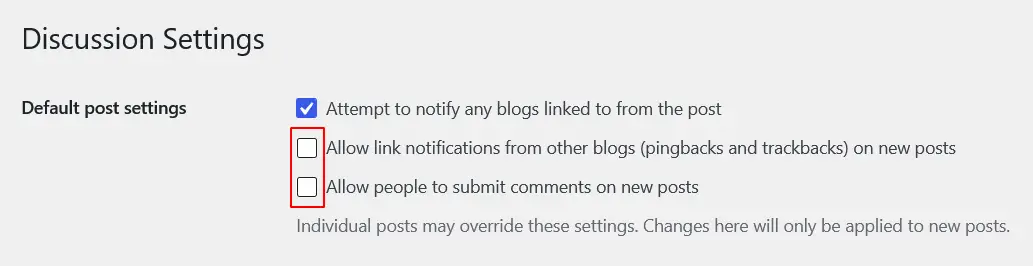
Every new post you publish from this point on will have comments closed by default. Existing posts and pages are untouched, which is where the next step comes in.
Method 2: Bulk-Disable Comments on Existing Posts
This is the part most tutorials either skip or make more complicated than it needs to be. If you’ve got a handful of posts you can edit them one by one, but for anything more than that, bulk editing is faster.
- Go to Posts > All Posts in your dashboard
- If you have more posts than fit on one screen, click Screen Options at the top right and increase the number of items shown per page — you can set this as high as 999, which lets you select everything at once
- Check the box at the top of the list to select all posts on the page, or check individual posts if you only want specific ones
- From the Bulk Actions dropdown, choose Edit, then click Apply
- In the bulk edit panel that appears, find the Comments dropdown and set it to Do not allow
- Click Update to apply the change across every selected post
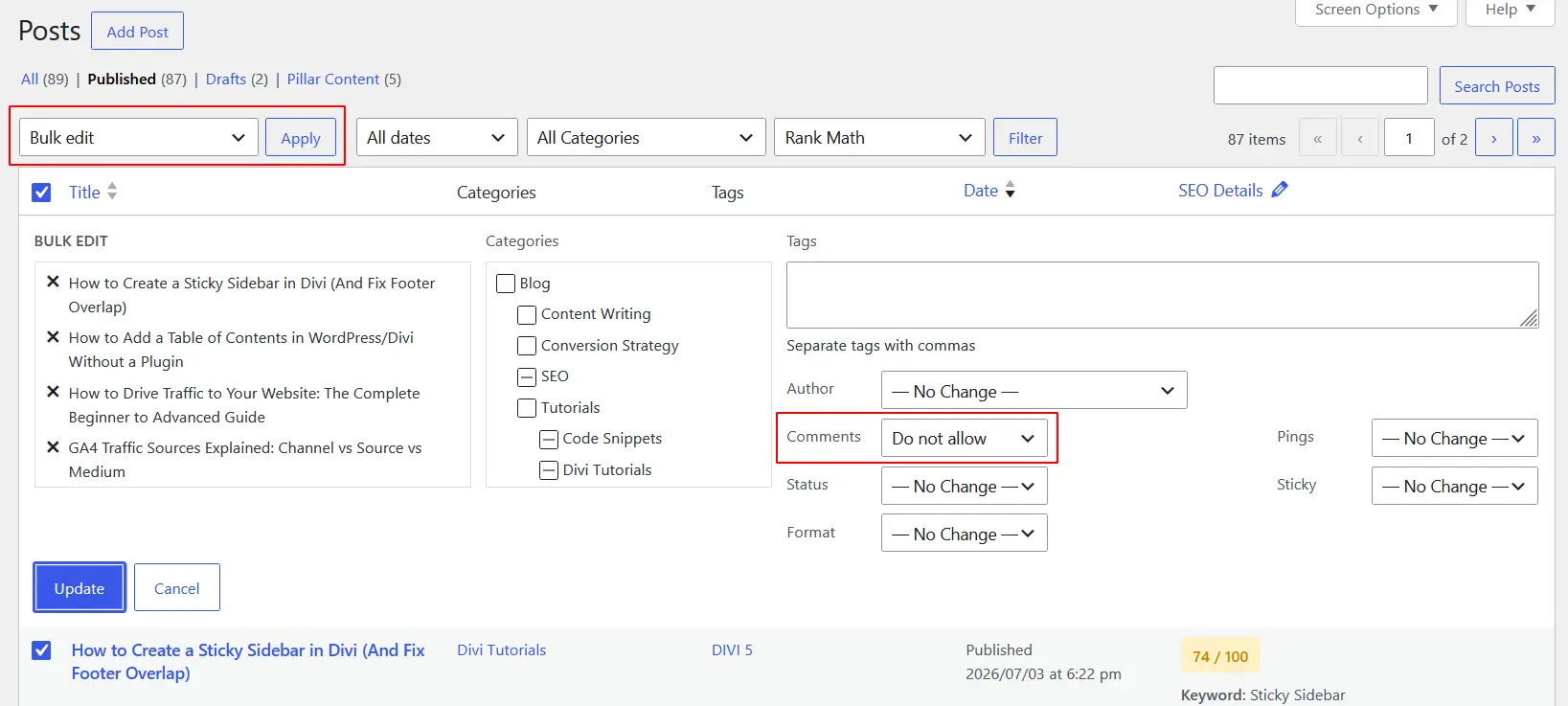
Repeat the same process under Pages > All Pages if you have comments enabled on any pages. This bulk method turns comments off going forward on those posts, but it doesn’t delete comments that are already published and visible. If you want those gone too, go to Comments in your dashboard, select all, and use Bulk Actions > Move to Trash. On a site with a lot of history, you may need to repeat this a few times since WordPress only lists a limited number of comments per page.
Method 3: Clean Up Leftover Comment Template Elements
This is the step that gets missed most often, and it’s specific to sites built with page builders like Divi. Turning off comments in Settings and clearing existing comments handles the WordPress-level data, but it doesn’t always remove comment form markup that a theme or page builder template has hardcoded into the layout.
If you’re still seeing an empty comment form or a “0 Comments” heading on your posts after disabling comments, check these:
- In Divi, open the Theme Builder and check your Post template for a Comments module — if one is present, remove it or disable it from displaying
- Check your theme’s
comments.phpfile (via Appearance > Theme File Editor, or your child theme folder) for hardcoded comment form output that isn’t controlled by the Discussion setting - If you’re using Classic Editor, some legacy themes render a comment form directly in the single-post template regardless of the Discussion setting — this usually needs a template-level fix rather than a settings change
This is also the exact scenario that causes people to think disabling comments “didn’t work,” when really the setting worked fine and it’s the template that’s still displaying leftover markup.
Clear Your Cache After Disabling Comments
If you’re running WP Rocket or any other caching plugin — which most performance-focused WordPress sites are — this step matters more than people expect. Caching plugins store a static version of your page, comment form and all. If you disable comments and don’t clear the cache, visitors and even Googlebot can keep seeing the old cached version with the comment form still showing, sometimes for days.
After you’ve disabled comments and cleaned up any template leftovers, clear both your caching plugin’s cache (WP Rocket > Clear Cache) and, if your host uses server-level caching like LiteSpeed Cache, clear that layer too. Both caches operate independently, so clearing one without the other can leave you troubleshooting a problem that’s already fixed on the backend.
Does Disabling Comments Stop Spam?
Not automatically, and this is the gap that sends people looking for this post in the first place. Disabling comments through Settings or bulk edit stops legitimate comment submissions from being accepted through the standard comment form. It does not necessarily stop every automated spam vector hitting your site.
A few things worth checking if you’re still seeing spam activity after disabling comments:
- Cached pages still showing the form — covered above, and often the actual cause
- XML-RPC left enabled — this older WordPress feature can be used to submit content to your site outside the normal comment form, and it’s frequently exploited by bots regardless of your comment settings
- The REST API comments endpoint — on some setups this remains reachable even after comments are disabled in the UI, and needs to be blocked separately
- Contact form spam being mistaken for comment spam — if your spam is landing in a contact form rather than an actual comment, disabling comments won’t touch it at all since it’s a different system entirely
If you’re managing hundreds or thousands of posts across a multisite installation, plugins like Disable Comments can speed things up, but for most websites WordPress’s built-in tools are enough.
I walked through diagnosing exactly which of these is causing spam on a site where comments were already disabled in my spam comments despite disabled comments post. If you’ve followed every step in this guide and you’re still seeing spam, that’s the next place to look.
Frequently Asked Questions
Does disabling comments delete existing comments?
No. Disabling comments through Settings or bulk edit only stops new comments from being submitted. Existing comments stay visible until you delete them separately through the Comments section in your dashboard.
Will disabling comments affect my SEO?
Generally not in a meaningful way. Comments can occasionally contribute fresh content signals and internal engagement, but on sites where comments are mostly spam or empty threads, removing them tends to help more than it hurts by cleaning up thin, low-quality content on the page.
Can I disable comments on just some posts and keep them on others?
Yes. Use the bulk edit method described above and select only the specific posts you want to change, or edit individual posts one at a time through the Discussion setting in each post’s editor.
I disabled comments, but I still see a comment form on my site. Why?
This is almost always one of two things: a cached version of the page still showing the old form, or a theme/page builder template that hardcodes the comment form outside of WordPress’s normal Discussion setting. Clear your cache first, then check your theme or Divi Theme Builder template for a Comments module.
Do I need a plugin to disable comments in WordPress?
No. Everything in this guide uses WordPress’s built-in Settings and bulk edit tools. A plugin can be a faster option if you’re managing a very large site with thousands of posts, but it isn’t required.
Can I disable comments on custom post types?
Yes. Whether comments are available depends on how the custom post type was registered. Many plugins and themes allow comments on custom post types, while others disable them automatically. If comments are enabled, you can usually turn them off the same way as standard posts.