
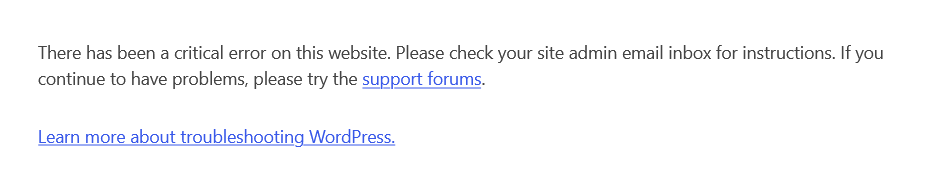
“There has been a critical error on this website” is one of the most common messages WordPress site owners run into, and one of the least informative on its own. It tells you something broke, but not what or why. This guide covers what causes it and the fastest, safest way to get your site back online.

Quick Fix: Most critical errors are caused by plugin conflicts or version mismatches. Disable all plugins via FTP, then reactivate one by one to find the issue.
What the Critical Error Actually Means
This message appears when WordPress hits a fatal PHP error it can’t recover from while building a page. Rather than showing visitors a raw PHP error (which would expose file paths and code details), WordPress catches the failure and displays this generic message instead. If email is configured correctly on your server, WordPress also sends a notification to your site admin email with a special recovery-mode link that can help you log in and troubleshoot even while the front end is broken.
Common Causes of the WordPress Critical Error
- Plugin conflicts — Two plugins trying to modify the same function, hook, or database table at the same time.
- Plugin/core version mismatch — A plugin auto-updates to a version built for a newer WordPress core than the one currently installed, causing incompatible code to run.
- Theme conflicts — A theme update or a theme function clashing with an active plugin.
- PHP memory exhaustion — The site runs out of allocated memory processing a page or plugin function.
- Corrupted core files — A failed or interrupted WordPress update leaving core files incomplete.
- PHP version incompatibility — A plugin or theme using functions not supported by your server’s current PHP version.
Step 1: Check Your Admin Email (Recovery Mode Link)
Before doing anything else, check the inbox tied to your site’s admin email. WordPress often sends a critical error notification containing a direct recovery-mode link. Opening that link lets you access wp-admin in a safe mode where the problematic plugin or theme is temporarily paused, without needing FTP access at all.
If that email never arrived or the link doesn’t resolve the issue, move to manual troubleshooting.
Step 2: Enable Debug Mode to See the Actual Error
If you need to identify the exact issue, you can enable WordPress debug mode to log the real PHP error behind the message.
- Open
wp-config.php - Add or update the following lines:
define('WP_DEBUG', true);

define('WP_DEBUG_LOG', true);

define('WP_DEBUG_DISPLAY', false);
This will log errors to the wp-content/debug.log file without showing them to visitors.
Step 3: Disable All Plugins via FTP
If wp-admin is inaccessible, the fastest way back in is to deactivate every plugin at once through FTP or your host’s file manager:
- Connect to your site via FTP.
- Navigate to
wp-content/. - Rename the
pluginsfolder to something likeplugins-disabled. - Reload the site. WordPress can no longer find any plugin files, so every plugin is treated as inactive.
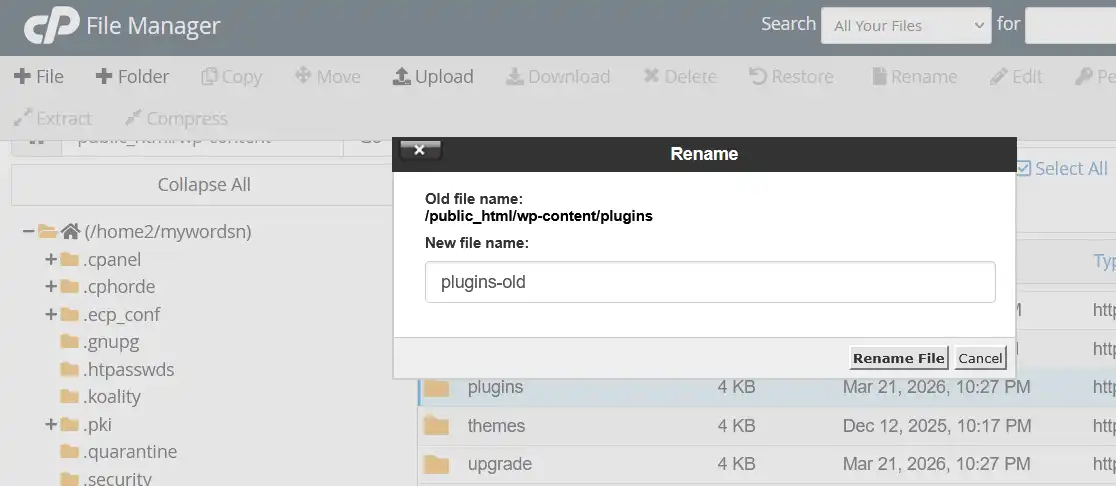
If the error clears, rename the folder back to plugins. All plugin files remain intact; WordPress will just show them as deactivated in the dashboard, so nothing is lost.
Step 4: Identify the Problem Plugin
With admin access restored, reactivate plugins one at a time from the Plugins screen, checking the site after each. When the critical error reappears, you’ve found the plugin causing the conflict. Leave it deactivated and continue reactivating the rest.
Step 5: Check for a Pending Core Update Before Re-enabling the Flagged Plugin
Before touching the plugin you’ve isolated, check whether a WordPress core update is pending. A plugin that recently auto-updated may now be incompatible with an older core — in which case updating core, not the plugin, is the actual fix.
- Take a full backup of your files and database before making further changes.
- Update WordPress core if an update is available.
- Confirm the site loads normally on the updated core.
- Reactivate the plugin you flagged earlier.
- Update that plugin to its latest version now that core is current.
Updating the plugin before core is current risks recreating the same error. Bringing core up to date first, then reactivating and updating the plugin, resolves the underlying mismatch rather than masking it.
Step 6: Rule Out Memory Limits
If disabling plugins doesn’t resolve the error, a memory limit may be the cause. Add the following to wp-config.php, above the line that reads /* That's all, stop editing! */:
define('WP_MEMORY_LIMIT', '256M');
Step 7: Fix WordPress Critical Error by Updating PHP Version
Outdated or overly new PHP versions can also trigger fatal errors, particularly with older plugins. Check your PHP version in your hosting control panel and confirm it matches what your theme and plugins recommend. Most hosts let you switch PHP versions from a dropdown without needing developer involvement.
Step 8: Verify the Fix Works, Not Just That the Error Is Gone
A site that loads without the critical error message isn’t automatically fully fixed. If the plugin involved handles something functional — forms, checkout, redirects, login — test that specific feature directly rather than just confirming the homepage loads.
How to Prevent WordPress Critical Errors
- For plugins that touch core hooks, forms, or checkout logic, consider disabling auto-updates and updating them manually alongside a core check.
- Apply pending core updates promptly instead of letting plugins drift ahead of an outdated core.
- Test major updates on a staging site first if your hosting plan includes one.
- Keep a recent backup on hand at all times so a rollback is always available.
Site stuck on a critical error right now?
If your WordPress site is down or throwing critical errors, I can identify the exact issue and fix it without breaking your site further — with a proper backup and root-cause fix, not just a quick patch.
Frequently Asked Questions
Why does WordPress show a critical error instead of the actual PHP error?
WordPress hides raw PHP errors from visitors by default for security reasons, since they can expose file paths and code details. The generic critical error message replaces that output while still logging the real error and, in many cases, emailing site admins a recovery link.
Is it safe to disable all plugins at once through FTP?
Yes. Renaming the plugins folder only deactivates the plugins, it doesn’t delete any files or settings. Renaming the folder back restores every plugin in the dashboard as inactive, ready to be reactivated individually.
Should I update WordPress core or plugins first when recovering from this error?
Update core first if a core update is pending. A plugin that auto-updated ahead of an outdated core is a common cause of this error, and updating the plugin again before core is current can reproduce the same conflict.
How long does WordPress recovery mode stay active?
Recovery mode remains active until you resolve the underlying error or manually exit it from the admin bar. It’s designed to give you a stable window to troubleshoot without the site fully crashing on every load.