
Redirects are one of those things that work quietly in the background until they do not — and when they break, they can break badly. A redirect loop brings your page down completely, showing visitors the browser’s “ERR_TOO_MANY_REDIRECTS” error. A redirect chain keeps the page technically accessible but silently wastes crawl budget, bleeds link equity, and slows down page load time with every extra hop.
I deal with redirect issues on WordPress sites regularly. They tend to accumulate quietly over time — a site migration here, a URL slug change there, a plugin update that adds its own redirect rules on top of existing ones — until suddenly Google is following a five-hop chain to reach a page that should load in one step, or Googlebot is abandoning a loop and leaving the page unindexed.
This guide covers exactly what redirect loops and chains are, how to find them on your WordPress site, what causes them in the WordPress environment specifically, and how to fix them cleanly.
Redirect Loop vs Redirect Chain — What Is the Difference?
These two terms get used interchangeably sometimes, but they are different problems with different symptoms and different fixes.
A redirect chain is a series of redirects that eventually reaches a final destination — but takes multiple hops to get there instead of one. For example: Page A redirects to Page B, Page B redirects to Page C, Page C redirects to Page D. Page D is the final destination and loads correctly, but getting there required four requests instead of one. The page works, but inefficiently.
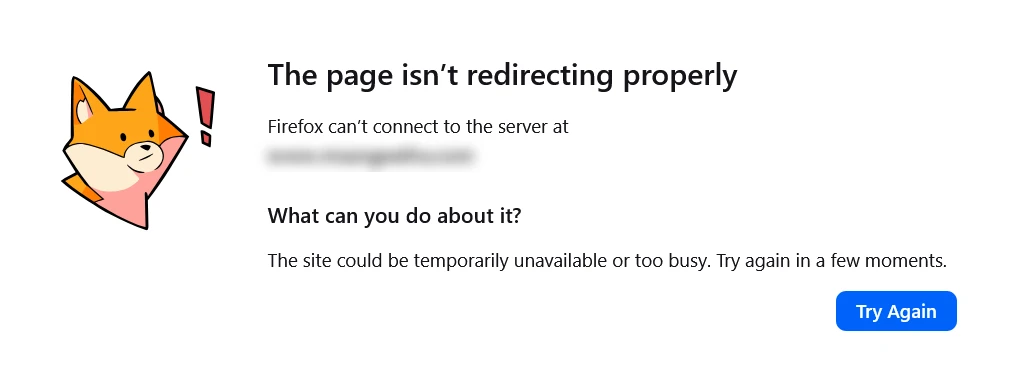
A redirect loop is a chain that never reaches a final destination — it circles back on itself. Page A redirects to Page B, Page B redirects to Page C, Page C redirects back to Page A. Browsers and Googlebot follow redirects up to a point and then give up. Browsers show “ERR_TOO_MANY_REDIRECTS.” Googlebot marks the URL as inaccessible and moves on without indexing it.
Both are problems worth fixing, but a redirect loop is the more urgent one because the page is completely inaccessible — to users and to Google.
Understanding Redirect Status Codes
- 301 – Permanent redirect; preferred for SEO when a page has permanently moved.
- 302 – Temporary redirect; search engines may continue indexing the original URL.
- 307 – Temporary redirect that preserves the request method.
Why Redirect Loops and Chains Matter for SEO
Redirects are a normal and necessary part of managing a website. The issue is not redirects themselves — it is when they accumulate into chains or circle into loops.
Crawl budget waste: Every hop in a redirect chain counts as a separate Googlebot request. A five-hop chain to one page uses five times the crawl budget of a direct URL. On a site where Googlebot is already working within crawl budget constraints, every wasted hop is a page elsewhere on the site that does not get crawled. I cover crawl budget in detail separately — but redirect chains are one of the most common causes of crawl budget inefficiency I find in audits.
Link equity loss: Each redirect hop dilutes the link equity passing from the source to the destination. A direct 301 redirect passes the majority of the original page’s authority to the new URL. A three-hop chain passes progressively less at each step. If an important page with strong backlinks is sitting at the end of a long redirect chain, it is likely ranking below its potential because the link equity from those backlinks is being diluted along the way.
Page speed impact: Every redirect adds an HTTP round trip — additional time for the browser or Googlebot to resolve the next URL before even beginning to load the page. With Core Web Vitals being a ranking factor, redirect chains on important pages can directly contribute to slower LCP scores. See my post on Core Web Vitals for how page speed signals connect to rankings.
Complete inaccessibility for loops: A redirect loop does not just slow things down — it makes the page completely unreachable. Any page stuck in a loop will show as a redirect error in the GSC Coverage Report and will not be indexed until the loop is resolved.
How to Find Redirect Loops and Chains on Your WordPress Site
You need to know what you are dealing with before you can fix it. Here are the tools and methods I use.
GSC Coverage Report
The first place to check is the GSC Coverage Report under Indexing → Pages. Look for “Page with Redirect” in the Not Indexed section — this shows URLs that Google found but that redirect to another destination. A large number here, especially if they include URLs you consider important, warrants investigation.
Redirect errors (loops specifically) will appear in the Error category, not the Not Indexed category, because Google cannot successfully resolve the redirect to any final destination.
URL Inspection Tool in GSC
For any specific URL you suspect has a redirect issue, enter it in the URL Inspection tool. GSC will show you whether the page fetch was successful, what HTTP response code it received, and whether Google followed a redirect. If it shows a redirect error, the URL is in a loop — Google followed redirects until it hit its limit and gave up.
Browser — View Redirect Chain Directly
For a quick check of any single URL, open Chrome DevTools (F12), go to the Network tab, enable “Preserve log,” and enter the URL in the address bar. You will see every HTTP request in the chain — each redirect hop shows as a separate row with its status code (301, 302, etc.) and the location it is redirecting to. This gives you the full chain from source to final destination, or shows you where the loop occurs.
Screaming Frog
For a site-wide audit of all redirect chains, Screaming Frog is the most reliable tool. Crawl your site, then go to Reports → Redirect Chains. This exports every URL on your site that involves a multi-hop redirect, showing the full chain from start to finish and the number of hops. The free version of Screaming Frog crawls up to 500 URLs — sufficient for most small to medium WordPress sites.
Redirect Path Browser Extension
A simpler option for checking individual URLs is the Redirect Path extension for Chrome. Install it, visit any URL, and it shows the full redirect chain in a dropdown — each hop with its status code. Useful for spot-checking specific pages quickly without running a full crawl.
Quick Test
Open: https://httpstatus.io/
Enter the URL and view the full redirect path.
Common Causes of Redirect Loops in WordPress
WordPress is particularly prone to redirect loops because redirects can be managed in multiple places simultaneously — and when those layers conflict, loops form. Here are the most common causes I find on WordPress sites.
WordPress Site URL and Home URL Mismatch
This is the single most common cause of redirect loops on WordPress sites, especially after migrations. In WordPress Settings → General, there are two URL fields: WordPress Address (URL) and Site Address (URL). If these do not match your actual domain configuration — for example, one is set to HTTP and the other to HTTPS, or one has www and the other does not — WordPress generates a redirect loop trying to reconcile the mismatch.
Check these settings first whenever you encounter a site-wide redirect loop. Both fields should show the same URL, using HTTPS, with or without www — matching exactly what your server and SSL certificate are configured for.
You can also check and correct these values directly in your wp-config.php file by adding:
define('WP_HOME', 'https://yourdomain.com');
define('WP_SITEURL', 'https://yourdomain.com');
Values set in wp-config.php override the database settings, which is useful when a loop is locking you out of the WordPress admin entirely.
Conflicting Redirect Rules Across Multiple Layers
On a typical WordPress site, redirects can be set in: the .htaccess file, the Redirection plugin, your SEO plugin (Rank Math, Yoast), your caching plugin, Cloudflare page rules, and at the server or hosting level. When two or more of these layers try to manage the same URL with conflicting rules, a loop forms.
The most common version of this: .htaccess has a rule redirecting non-www to www. Your hosting control panel also has a separate rule doing the same. The Redirection plugin has an additional rule from a previous migration. Three rules all trying to redirect the same URL — and conflicting with each other — create a loop.
The fix is to manage each redirect in exactly one place and remove duplicate rules from all other layers. For WordPress sites, I recommend managing standard URL redirects (301s for deleted or moved pages) in the Redirection plugin, and managing protocol and www/non-www redirects in .htaccess or at the server level — but never in both simultaneously.
HTTPS Redirect Conflicts
If SSL is not configured correctly on the server but WordPress or a plugin is forcing HTTPS, you can get a loop where the server keeps redirecting back to HTTP because it cannot serve HTTPS, while WordPress keeps redirecting back to HTTPS.
Check whether your SSL certificate is actually installed and active on the server before forcing HTTPS in WordPress Settings or in your .htaccess. If you use a plugin like Really Simple SSL, verify the SSL certificate is valid and the hosting is serving HTTPS correctly — then enable the plugin. Enabling Really Simple SSL before the certificate is properly installed is a classic loop trigger.
The Redirection Plugin Pointing a URL Back to Itself
It sounds obvious, but it happens more than you would expect — especially when redirects are set up quickly during a migration or cleanup. A rule where URL A redirects to URL B, and somewhere else URL B redirects back to URL A (possibly under a slightly different format, like with vs without a trailing slash), creates a loop. The Redirection plugin’s redirect list needs to be audited periodically to catch these circular rules.
Caching Plugin Serving a Cached Redirect
WP Rocket and similar caching plugins can sometimes cache a redirect response. If the underlying redirect is later fixed but the cached version still serves the old redirect, the page appears to be looping even though the configuration is correct. Clearing your caching plugin cache — and your hosting’s server-level cache — after fixing any redirect issue is essential to confirm the fix is working correctly.
Cloudflare Redirect Rules Conflicting With .htaccess
If you use Cloudflare, redirect rules set in Cloudflare Page Rules or Redirect Rules can conflict with redirects in your .htaccess or your WordPress plugin. Cloudflare applies its rules before the request even reaches your server — so a Cloudflare redirect rule pointing URL A to URL B, combined with a server-level rule pointing URL B back toward something that loops, creates a chain or loop that is harder to trace because it spans two different systems.
When diagnosing loops on Cloudflare-proxied sites, always check Cloudflare redirect rules alongside your server-level rules. Temporarily setting Cloudflare to “Development Mode” bypasses the CDN and lets you test whether the loop exists at the server level or the Cloudflare level.
Common Causes of Redirect Chains in WordPress
Chains are usually less dramatic than loops — the page still loads — but they accumulate silently and compound over time.
Multiple URL Migrations Without Updating Old Redirects
This is by far the most common cause of long redirect chains. A page at URL A was migrated to URL B two years ago, and a redirect was set up. URL B was later restructured to URL C, and another redirect was added. URL C was then moved to URL D during a recent site restructure. You now have a three-hop chain: A → B → C → D. Every time a URL is changed without updating the previous redirect to point directly to the new final destination, the chain gets one hop longer.
The fix is to update the oldest redirect in the chain to point directly to the current final destination URL, and remove or update the intermediate redirects. In the Redirection plugin, find the redirect for URL A and change the target from URL B to URL D. Done — the chain collapses to one hop.
HTTP to HTTPS + Non-www to www as Separate Redirects
A very common two-hop chain on WordPress sites: a visitor hits http://domain.com, which first redirects to https://domain.com (HTTP to HTTPS redirect), which then redirects to https://www.domain.com (non-www to www redirect). Two hops when one would do the job.
The fix is to combine both into a single redirect rule in .htaccess that handles both the protocol and the subdomain in one step, landing the visitor directly at https://www.domain.com in a single redirect.
Sitemap Submitting Redirect URLs
If your XML sitemap contains URLs that redirect to other URLs, Googlebot has to follow the redirect just to reach the page it should have been sent to directly. This is technically a one-hop chain in the sitemap, but it is an unnecessary one that wastes crawl budget. Your sitemap should only ever contain the final destination URLs — the canonical, 200 OK versions of your pages.
After any URL restructure or migration, regenerate your sitemap and check it manually for any URLs that return a redirect response rather than a 200 OK. In Rank Math, go to Sitemap and click Regenerate Sitemap after resolving redirects.
Internal Links Pointing to Redirected URLs
Every internal link on your site that points to a URL that redirects to another URL is a one-hop chain for both visitors and Googlebot. Over time, as URLs get changed and redirected, internal links accumulate pointing to old URLs rather than the current final destinations. Googlebot follows the link, hits the redirect, follows again to the final destination — two requests for one page.
As part of a regular technical SEO audit, update internal links to point directly to the current final URL rather than relying on redirects to get there. This is particularly important for your most internally-linked pages — pillar posts, service pages, and your homepage.
How to Fix Redirect Loops Step by Step
- Confirm the loop exists. Use Chrome DevTools Network tab or the Redirect Path extension to trace the exact chain. Identify every URL in the loop and the redirect type (301, 302) at each hop.
- Check WordPress Settings → General. Confirm WordPress Address and Site Address match your actual domain exactly, with the correct protocol (HTTPS) and subdomain (www or non-www). Fix any mismatch here first.
- Clear all caches before testing. Clear WP Rocket or your caching plugin, clear your hosting server cache, and clear your browser cache. Test the URL again. Sometimes what appears to be a loop is actually a cached old redirect — clearing cache resolves it without any configuration change.
- Check the Redirection plugin. Go to Tools → Redirection and look for any rules involving the looping URLs. Check for circular rules where URL A ultimately redirects back to itself through the chain.
- Check .htaccess. Open your .htaccess file (via FTP or your hosting file manager) and look for RewriteRule directives involving the looping URLs. Comment out suspected rules one at a time and test after each change.
- Check Cloudflare rules if applicable. Review Page Rules and Redirect Rules in Cloudflare for any rules affecting the looping URL.
- Deactivate plugins one by one if the loop persists. Start with your SEO plugin, then caching plugin, then any security or redirection plugin. If the loop disappears after deactivating a specific plugin, that plugin’s configuration is the source.
- Fix the circular redirect. Once you identify where the loop is created, update the redirect that points back to the beginning of the chain so it points to the correct final destination instead.
How to Fix Redirect Chains Step by Step
- Map the full chain. Use Screaming Frog or Chrome DevTools to trace every URL in the chain from source to final destination. Note the number of hops and every intermediate URL.
- Identify the final destination URL. This is the URL that returns a 200 OK — the page you actually want users and Googlebot to reach.
- Update the first redirect in the chain. In the Redirection plugin, find the redirect for the original URL (the one most likely to be linked to or in your sitemap) and change the target directly to the final destination URL.
- Remove or update intermediate redirects. The intermediate URLs in the chain can be left with their existing redirects pointing to the final destination (so any direct links to them still work), or removed if those URLs are no longer referenced anywhere.
- Update internal links. Find any internal links pointing to the intermediate URLs using the Links report in GSC or Screaming Frog, and update them to point directly to the final destination URL.
- Update your sitemap. Regenerate your XML sitemap and confirm all URLs in it return 200 OK responses, not redirects.
- Validate in GSC. Use the URL Inspection tool to confirm the original URL now resolves directly to the final destination in one hop. Then use Validate Fix in the Coverage Report if the URL was appearing as a redirect error.
Preventing Redirect Issues From Building Up Again
The best redirect management strategy is a preventive one. These habits keep redirect chains and loops from accumulating on sites I manage:
Always update old redirects when a destination URL changes. When you move a page from URL C to URL D, go back and update the redirect from URL A to URL B to URL C — collapse the chain before it grows another hop. The Redirection plugin makes it easy to search for any redirect currently pointing to URL C and update the targets to URL D in one step.
Manage redirects in one place only. Pick one layer — the Redirection plugin, .htaccess, or your server — for standard 301 redirects, and stick to it. Do not set up redirect rules in multiple places. The more layers managing redirects simultaneously, the higher the risk of conflicts.
Check redirects in GSC after every site migration or URL restructure. The Coverage Report will show redirect errors within a few days of any significant redirect change. Catching a loop early — before it affects rankings — takes minutes. Untangling a complex loop weeks later takes much longer.
Audit your redirect list quarterly. In the Redirection plugin, export your full redirect list and review it. Look for chains (A → B when B also has a redirect elsewhere), very old redirects from migrations that may no longer be necessary, and any unusual patterns. A clean, minimal redirect list is easier to maintain than one that has accumulated hundreds of entries over years.
Frequently Asked Questions
What is the difference between a redirect loop and a redirect chain?
A redirect chain is a series of redirects that eventually reaches a final destination, but through multiple hops instead of one — for example, A → B → C → D, where D is the final page. The page loads correctly but inefficiently. A redirect loop is a chain that circles back on itself and never reaches a final destination — for example, A → B → C → A. Browsers show “ERR_TOO_MANY_REDIRECTS” and Googlebot marks the URL as inaccessible. Both harm SEO, but a loop is more urgent because the page is completely unreachable.
How do redirect chains affect SEO?
Redirect chains affect SEO in three main ways. First, each hop in the chain counts as a separate Googlebot request, wasting crawl budget that could be spent on other pages. Second, link equity diminishes slightly at each redirect hop — a page at the end of a long chain may rank below its potential because the authority from backlinks is being diluted. Third, each redirect adds an HTTP round trip to page load time, which can negatively affect Core Web Vitals scores, particularly LCP. A single direct 301 redirect from an old URL to the current page avoids all three of these issues.
What causes the ERR_TOO_MANY_REDIRECTS error in WordPress?
ERR_TOO_MANY_REDIRECTS means the browser followed too many redirects without reaching a final destination — it hit a redirect loop. The most common causes on WordPress are a mismatch between the WordPress Address and Site Address in Settings → General (often HTTP vs HTTPS or www vs non-www), conflicting redirect rules in .htaccess and a redirect plugin simultaneously managing the same URL, an SSL configuration problem where WordPress is forcing HTTPS but the server cannot serve it, and Cloudflare redirect rules conflicting with server-level rules. Start by checking WordPress Settings → General and clearing all caches before investigating deeper.
How many redirect hops is too many?
Google can follow redirect chains, but it stops after a certain number of hops — typically around five to ten. Beyond that, Googlebot abandons the chain and does not index the final destination. For practical SEO purposes, even two or three hops is worth fixing. Every hop beyond one direct redirect is unnecessary. The goal is for every URL to resolve to its final destination in a single redirect, and for your most important pages to be accessible directly with no redirect at all.
Can a WordPress plugin cause a redirect loop?
Yes — and it is one of the most common causes. Redirect plugins, SEO plugins, security plugins, and caching plugins can all create or contribute to redirect loops, especially when multiple plugins manage redirects simultaneously and their rules conflict. Really Simple SSL is a common one — enabling it before the SSL certificate is properly installed creates an HTTPS redirect loop. Redirection plugin rules that conflict with .htaccess rules are another frequent cause. If you suspect a plugin is causing a loop, deactivate plugins one by one starting with any recently updated or installed ones, and test the URL after each deactivation.
How do I check for redirect chains across my whole WordPress site?
The most thorough method is a Screaming Frog crawl — crawl your site and go to Reports → Redirect Chains to export every multi-hop redirect on the site. The free version crawls up to 500 URLs. For spot-checking individual URLs, the Redirect Path browser extension for Chrome shows the full chain with status codes for any URL you visit. In GSC, the Coverage Report shows “Page with Redirect” entries in the Not Indexed section — these are URLs that redirect to another destination and should be updated in your sitemap and internal links to point to the final destination directly.

