
How to Show Last Updated Date in Any WordPress Theme (Without Divi)
WordPress doesn’t show the last updated date by default in most themes. If you want to display when a post was last modified—for SEO, transparency, or content freshness—this guide shows how to do it without a plugin.
I covered a version of this for Divi sites in How to Show Last Updated Date in Divi (With Custom Control, No Plugin), where the display logic hooks straight into Divi’s own date filter. If your site runs a custom theme (or any theme that doesn’t rely on that same filter), you need a different approach — a shortcode you drop directly into your template or post content.
Same core idea, different delivery: a checkbox in the post editor that lets you optionally show a “Last Updated” date, with an option to override it with custom text.
What This Snippet Does
- Adds a “Display Modified Date” checkbox to the Publish box in the post editor
- Registers a
[post_dates]shortcode that outputs the published date, and optionally a modified date, wherever you place it - Supports a custom modified date override via a
custom_modified_datefield - Works with any theme, since it doesn’t depend on a theme-specific date filter
Prerequisites
As with the Divi version, I’d recommend adding this through the free Code Snippets plugin rather than your theme’s functions.php directly, so you can disable it quickly if anything conflicts with your theme.
Step 1: Add the Checkbox to the Post Editor
function add_custom_checkbox() {
    ?>
    <div class="misc-pub-section">
        <label><input type="checkbox" name="display_modified_date" id="display_modified_date" value="1" <?php checked(get_post_meta(get_the_ID(), 'display_modified_date', true), '1'); ?>> Display Modified Date</label>
    </div>
    <?php
}
add_action('post_submitbox_misc_actions', 'add_custom_checkbox');
This is identical to the Divi version — it just adds the checkbox to the Publish box, regardless of theme.
Step 2: Save the Checkbox Value
function save_custom_checkbox_value( $post_id ) {
    if ( 'post' === get_post_type( $post_id ) ) {
        if ( isset( $_POST['display_modified_date'] ) ) {
            update_post_meta( $post_id, 'display_modified_date', '1' );
        } else {
            delete_post_meta( $post_id, 'display_modified_date' );
        }
    }
}
add_action( 'save_post', 'save_custom_checkbox_value' );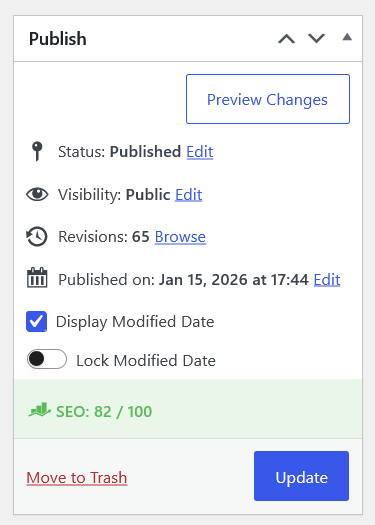
Step 3: Register the Shortcode
This is where it differs from the Divi approach. Instead of filtering the theme’s built-in date output, this registers a [post_dates] shortcode you place manually:
function custom_post_dates_shortcode( $atts ) {
    global $post;

    $atts = shortcode_atts( array(
        'format' => 'M j, Y',
    ), $atts, 'post_dates' );

    $post_id = isset( $atts['post_id'] ) ? intval( $atts['post_id'] ) : get_the_ID();
    $post = get_post( $post_id );

    if ( ! $post ) {
        return '';
    }

    $published_date = get_the_date( $atts['format'], $post );
    $modified_date = get_the_modified_date( $atts['format'], $post );

    $display_modified_date = get_post_meta( $post->ID, 'display_modified_date', true );
    $custom_modified_date = get_post_meta( $post->ID, 'custom_modified_date', true );

    $output = '';

    if ( $display_modified_date && ! empty( $custom_modified_date ) ) {
        $output .= sprintf( __( 'Published on %s', 'twentyten' ), $published_date ) . ' | ';
        $output .= sprintf( __( 'Last updated on %s', 'twentyten' ), $custom_modified_date );
    } elseif ( $display_modified_date ) {
        $output .= sprintf( __( 'Published on %s', 'twentyten' ), $published_date ) . ' | ';
        $output .= sprintf( __( 'Last updated on %s', 'twentyten' ), $modified_date );
    } else {
        $output .= sprintf( __( 'Published on %s', 'twentyten' ), $published_date );
    }

    return $output;
}
add_shortcode( 'post_dates', 'custom_post_dates_shortcode' );
Step 4: Placing the Shortcode
You have two options for where the date actually shows up:
- Inside the post content: just type
[post_dates]anywhere in the Classic Editor Text tab - In a template file: add
<?php echo do_shortcode( '[post_dates]' ); ?>to your theme’ssingle.phpor wherever your post meta usually displays
The shortcode also accepts a custom date format if your theme’s default doesn’t match your style — for example, [post_dates format="F j, Y"] outputs “September 16, 2026” instead of the default “Sep 16, 2026”.
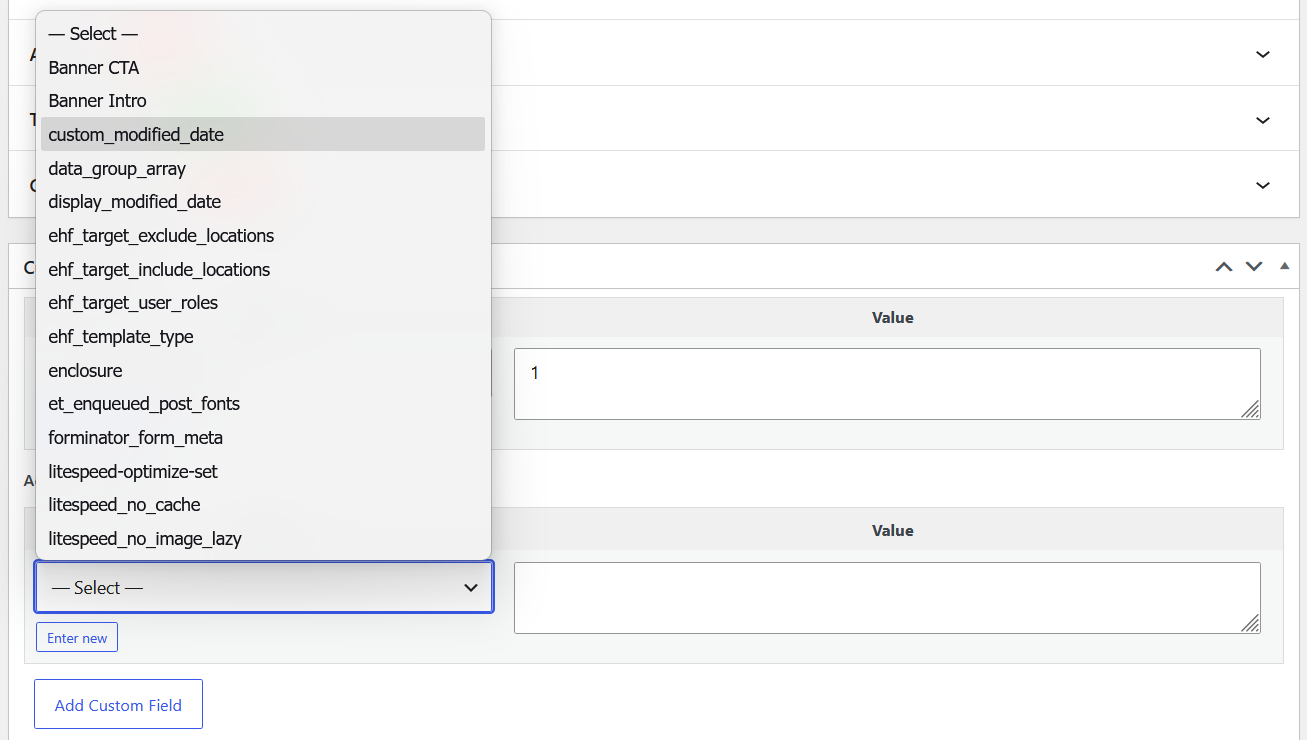
Setting a Custom Modified Date
Same as the Divi version: add a custom_modified_date custom field through the Custom Fields panel if you want to override WordPress’s auto-tracked modified timestamp with your own text.
Want This Set Up Without the Trial and Error?
If you’d rather have this (or a similar content-freshness feature) added to your WordPress site correctly the first time, I can help.
Divi vs. Custom Theme: Which Version Do You Need?
If your theme uses Divi’s blog module for post dates, use the filter-based approach in the Divi tutorial — it updates the date output automatically with no template edits. If you’re on a custom or third-party theme, this shortcode version gives you the same control without depending on a theme-specific filter.
Frequently Asked Questions
Do I need to edit my theme files to use this?
Not necessarily. You can drop [post_dates] directly into the post content in the Classic Editor. Editing a template file is only needed if you want the date to appear automatically on every post without adding the shortcode manually each time.
Can I change the date format?
Yes. Pass a format attribute to the shortcode, like [post_dates format="F j, Y"], using standard PHP date format characters.
Why does the code use the “twentyten” text domain?
That’s just the translation text domain used in this snippet’s sprintf/__() calls. You can swap it for your own theme’s text domain, or remove translation support entirely if you don’t need it.
Will this conflict with the Divi version if I have both installed?
You shouldn’t run both on the same post type unless you rename the functions and shortcode, since both approaches use the same checkbox meta key. Use whichever one matches your active theme.
Have questions about adapting this for your own setup?