
The Divi Blog module gives you a fixed card layout, and that is fine until you want something more editorial: one large featured post on one side and a compact list of recent posts on the other. The Divi 5 Loop Builder lets you design that layout visually, and it updates itself every time you publish.
In this tutorial, I will show you how I rebuilt the “Latest Blogs” section on my homepage with two loops: a featured post with a big image on the left, and a list of posts with a small thumbnail, category and title on the right. You will learn how to use post offset so the featured post never repeats, how to keep the thumbnails and titles tidy with a little CSS, and which mistakes to avoid.
What We Are Building
The finished section has two columns:
- Left column (Loop A): the latest post, with a large featured image, a category label, the title and a short excerpt.
- Right column (Loop B): the next few posts as rows, each with a small thumbnail on the left and the category, title and date on the right.
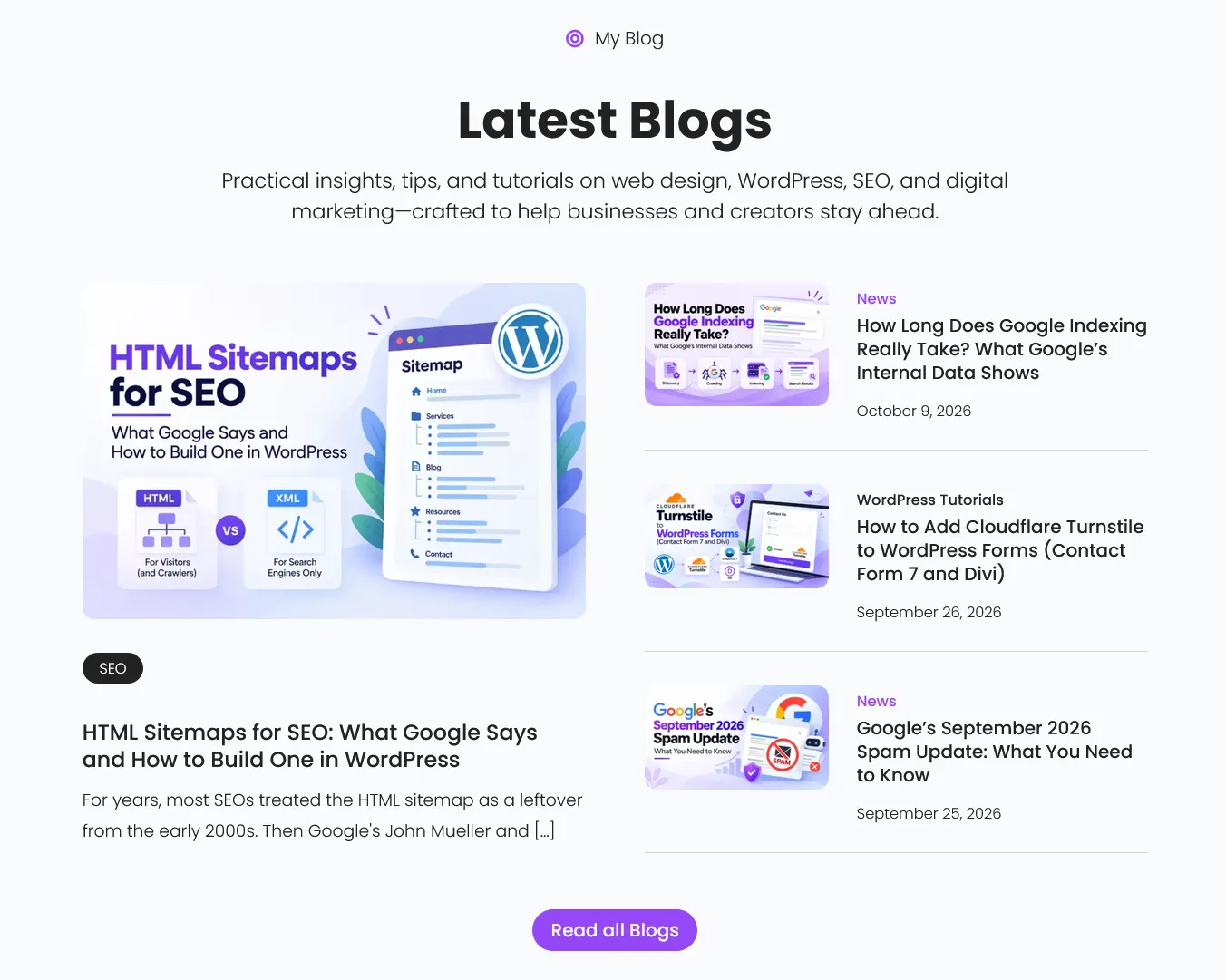
Both loops pull from the same posts, so you never have to update anything by hand. Publish a new post and it becomes the featured post, and the previous one moves down into the list.
Before You Start
- You need Divi 5. The Loop Builder is a Divi 5 feature and is not available in Divi 4.
- Have at least six published posts with featured images, so you can see the layout working.
- Decide your image shape first. My featured images are 16:9 and contain text, so I kept the list thumbnails 16:9 too. Cropping them to squares would cut the text off.
Step 1: Set Up the Section and Columns
- Open the page in the Divi 5 Visual Builder and add a new section.
- Add a heading and intro text for the section (for example, “Latest Blogs”). Keep these outside the loops, otherwise they will repeat for every post.
- Below them, add a row with two columns. I used roughly a 50/50 split.
- Add a “Read all Blogs” button below the row, also outside the loops.
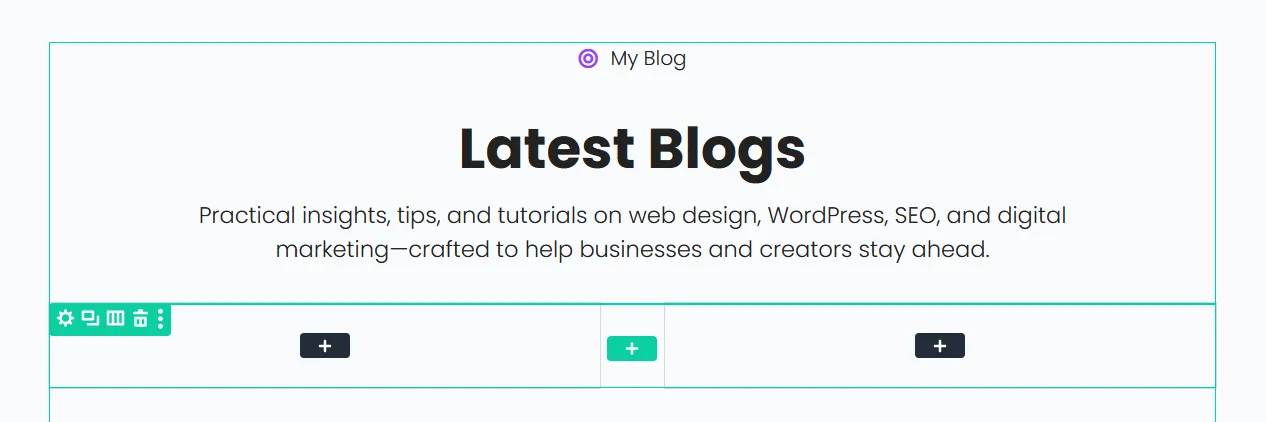
Step 2: Build Loop A (the Featured Post)
In the left column, design the single card that Divi will repeat. Add these modules:
- Image module: set its image to the dynamic content field Loop Featured Image.
- Text module: set the body to Loop Post Terms for the category label.
- Heading module: set the heading to Loop Post Title.
- Text module: set the body to Loop Excerpt and limit the length so the card stays short.
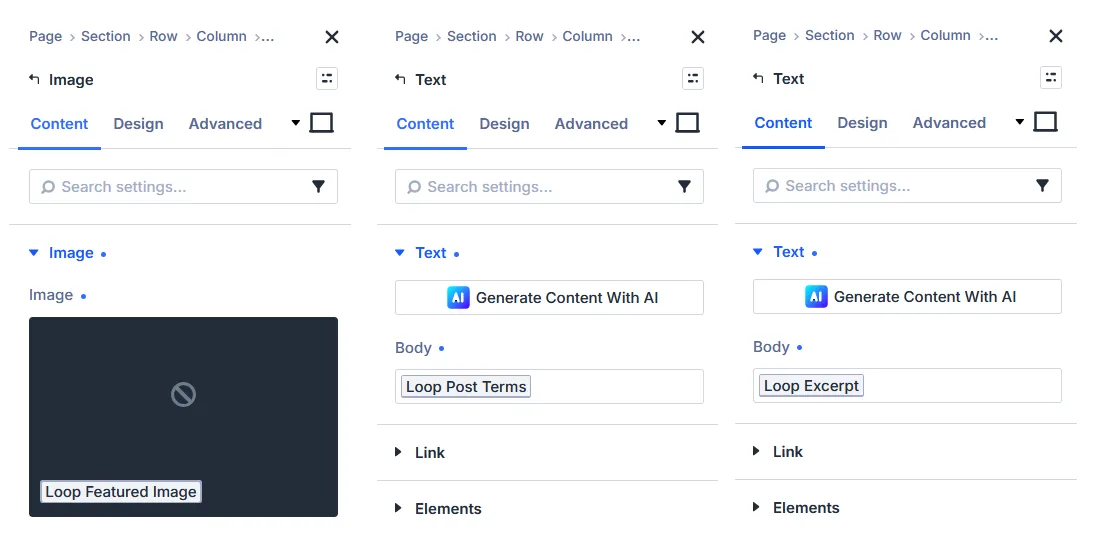
Link the image and the title to the post using the loop link option, so the whole card is clickable.
Now enable the loop on the container that holds these modules (a Group inside the column works well) and set the query:
- Query Type: Posts
- Post Type: Posts
- Order By: Publish date, descending
- Posts Per Page: 1
- Post Offset: 0
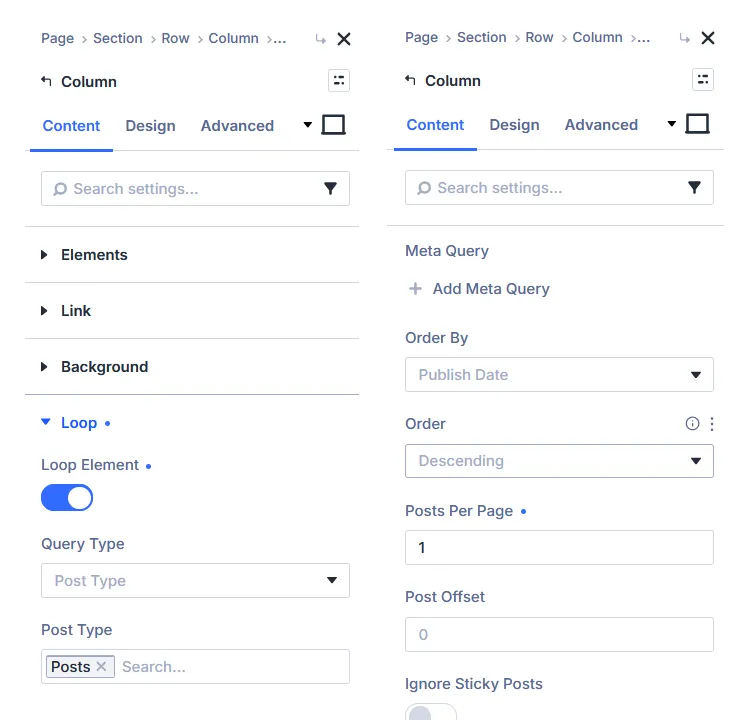
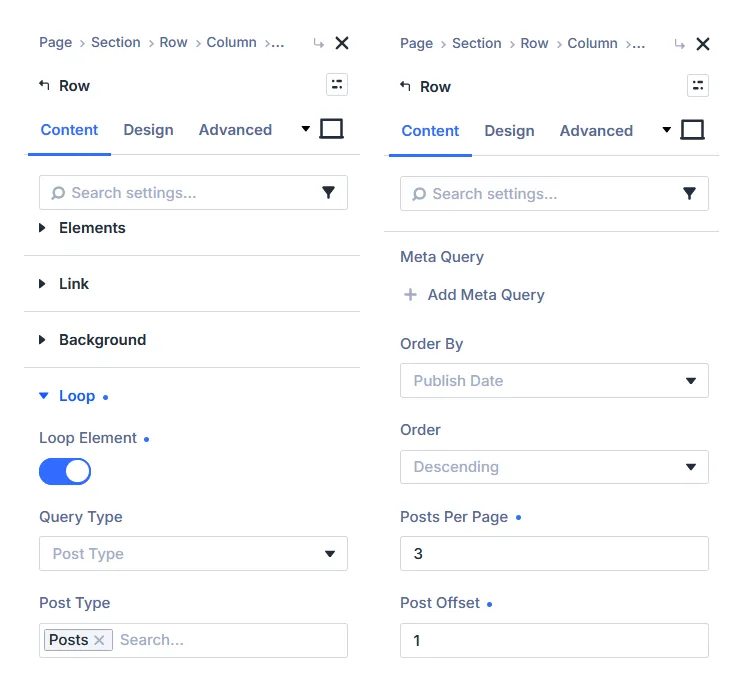
In Divi 5, you turn this on from the Content tab by enabling Loop Element on the container.
Step 3: Build Loop B (the Post List)
In the right column, build one list item:
- Add a Group (or row) that lays its children out side by side.
- On the left, add an Image module set to Loop Featured Image, with a fixed width of about 35% so the thumbnail stays small.
- On the right, add a vertical stack: a Text module with Loop Post Terms, a Heading module with Loop Post Title, and a Text module with the post date (Loop Post Date).
Enable the loop on the list item container, and use the same settings as Loop A with two differences:
- Posts Per Page: 3 to 5, depending on how tall you want the right side to be. I match it to the height of the featured card.
- Post Offset: 1
The offset is the important part. It tells Loop B to skip the first post, which Loop A is already showing. If Loop A shows two posts, set the offset to 2. As a rule, the offset of Loop B should equal the posts per page of Loop A.
Step 4: Style the Thumbnails and Titles
Thumbnails. Use the Image module’s aspect ratio and framing options to give every thumbnail the same crop, so one odd-shaped image does not break the rows. I used 16:9 to match my featured images.
Titles. Long titles make list rows uneven. Add a CSS class such as loop-list-title to the list Heading module, then add this to your custom CSS:
.loop-list-title h2,
.loop-list-title h3,
.loop-list-title h4 {
  display: -webkit-box;
  -webkit-line-clamp: 2;
  -webkit-box-orient: vertical;
  overflow: hidden;
}
This cuts every list title off at two lines. Check the class name on the heading element in your browser’s inspector, since the markup can differ slightly depending on how you built the module.
Dividers and spacing. Add a thin bottom border and some padding to the list item container. That is all it takes to get the clean row separators in the example.
Brand details. Use your brand color for the category text and the title hover state. A small touch like this makes the section look consistent with the rest of the site. If you reuse this section on several pages, save it as a global section. I explain how in creating global sections and rows in Divi.
Step 5: Make It Responsive
- Stack the two columns on tablet and phone, with the featured post first.
- Keep the list items horizontal on mobile. A small thumbnail beside a title still fits comfortably on a phone screen, and it keeps the section short.
- Reduce the title size slightly on phones, and check that the two-line clamp still looks right.
Step 6: Choose the Right Heading Levels
It is easy to forget that the Heading module in a loop outputs a real heading tag for every post. If you leave it as H1 or H2, your homepage ends up with several competing headings. Set the featured title and the list titles to H3 (under your section’s H2) so the page outline stays clean. I cover why this matters in my guide to heading tags for SEO, and in semantic HTML in Divi 5.
Common Mistakes and Fixes
The featured post appears twice
Loop B’s offset is missing or too low. Set it to match the number of posts shown in Loop A.
The category shows twice (or more)
Loop Post Terms outputs every category assigned to a post, so a post filed in two categories shows both. The most reliable fix is to give each post a single category. Also check your dynamic content list for a field that returns only the primary category.
Static text repeats on every item
Anything inside the loop that is not set to a Loop dynamic field will repeat identically for every post. Keep headings and buttons that should appear once outside the loop.
Uneven list rows
Use a fixed aspect ratio on thumbnails and the two-line clamp on titles, as in Step 4.
Two loops on one page show the wrong content
An earlier version of Divi 5 had a reported bug where a second loop on the same page picked up content from the first. Keep Divi 5 updated, and test the page after publishing. If it happens to you, check that each loop has its own query settings.
Frequently Asked Questions
Does Divi 4 have the Loop Builder?
No. The Loop Builder is a Divi 5 feature. In Divi 4 you would use the Blog module or a plugin.
How do I stop the featured post from repeating in the list?
Set the Post Offset of the list loop to the number of posts shown in the featured loop. With one featured post, use an offset of 1.
Can I feature a specific post instead of the latest one?
Yes. In the featured loop, use the option to include specific posts. Remember to exclude that post from the list loop as well, or it will appear twice.
Can I show only certain categories in the list?
Yes. The loop query lets you include or exclude posts with specific categories or tags, so you can build a list for one topic only.
Will two loops slow down my homepage?
Each loop runs a small query. Keep the number of posts per page low, use optimized featured images, and the effect is minor.
Final Thoughts
Once you understand offset, the Divi 5 Loop Builder makes layouts like this simple: one loop for the post you want to highlight, and a second loop for everything else. The section stays up to date without any manual work, and you control every detail of how each post is displayed.
If you would rather have your Divi site built, fixed or maintained for you, take a look at my WordPress website maintenance and support service.