
I built this one out of my own frustration, honestly. Every time I write a title tag and description for a client page, I end up bouncing between two or three separate tools — one to check pixel-width truncation, another to preview the Open Graph card, a third for the Twitter/X preview. None of them live in the same place, and none of them are built around the specific limits I already check in Rank Math for every post I publish.
So I built one tool that does all three in one screen: Meta Tag Generator & Preview Tool. It’s free, there’s no sign-up, and everything runs in your browser — nothing you type gets sent anywhere.
What It Does
You enter your title, description, URL, and (optionally) an image, and the tool shows you three live previews as you type:
- Google SERP preview — see exactly how your title and description will render in search results, with a pixel-width meter so you know the moment you’ve gone past the point where Google truncates. I use the same 580px title / 920px description thresholds I check in Rank Math, so what you see here matches what you’ll see there.
- Open Graph preview — how the page will look when shared on Facebook, LinkedIn, and other platforms that read OG tags.
- Twitter/X card preview — a separate preview since Twitter cards don’t always pull the same way OG tags do, and it’s easy to publish something that looks fine on LinkedIn but breaks on X.
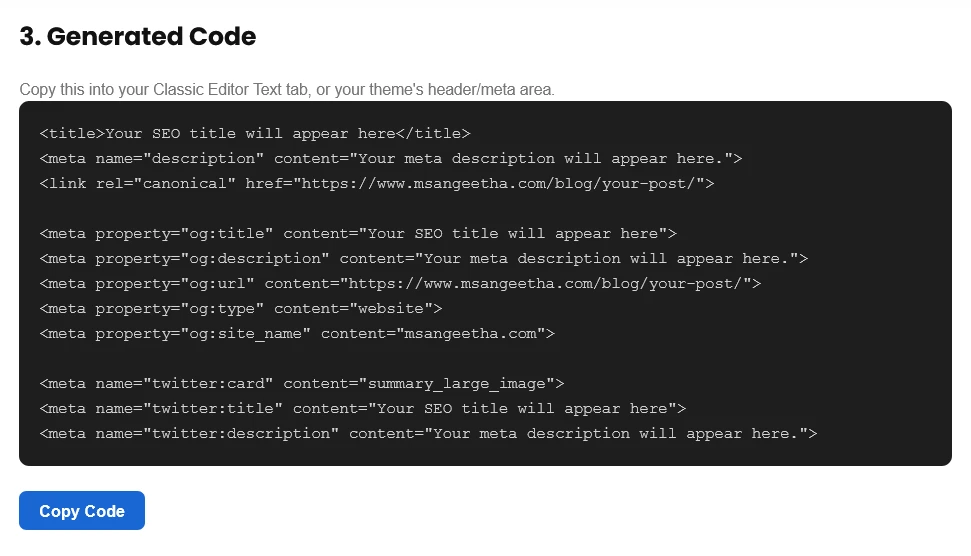
Once everything looks right, the tool generates the clean HTML meta tag code for all three, ready to copy into your theme’s header, a custom fields plugin, or wherever your setup expects it.
Why Pixel Width, Not Character Count
Google doesn’t truncate titles at a fixed character count — it truncates at roughly 600 pixels of rendered width, which means a title full of narrow characters (i, l, t) fits more text than one full of wide characters (W, M, O) at the same character count. A 58-character title can get cut off while a 62-character title survives intact, depending on what letters are in it. Because the previews update instantly as you type, you can adjust wording before publishing instead of discovering later that Google has cut off your title or your social preview looks incomplete.
I go through this in more detail in Meta Tags Explained: A Complete Guide for WordPress if you want the full breakdown of how each tag works. This tool exists so you don’t have to do that math by eye — it just shows you the cutoff live.
Who This Is For
Anyone writing titles and descriptions regularly — bloggers, SEO professionals, developers, agencies managing multiple client sites, or anyone working through the basics of on-page SEO and wanting to get their meta tags right without guessing. It’s also useful as a quick QA step: paste in a live page’s existing tags and see if anything’s already getting cut off.
How to Use It
- Enter your page title and description — the pixel meter updates as you type
- Add your page URL and, for the OG/Twitter tabs, an image URL
- Switch between the SERP, Open Graph, and Twitter tabs to check each preview
- Copy the generated meta tag HTML once everything fits and looks right
Not sure your meta tags are actually working?
I audit title tags, meta descriptions, Open Graph tags, and Twitter cards to improve click-through rates and ensure your pages look right everywhere they’re shared.
Frequently Asked Questions
Is this tool really free?
Yes, no sign-up or account required. It runs entirely in your browser.
Does it store or send my data anywhere?
No. Everything you type stays in your browser session — nothing is saved or transmitted.
Why do my Open Graph and Twitter previews look different?
They’re separate tags with separate rendering rules on each platform. A page can have valid Open Graph tags that display fine on LinkedIn and Facebook while missing the specific Twitter card tags needed for a clean preview on X — checking both separately catches that before you publish.
What’s the actual pixel limit I should stay under?
Roughly 580px for titles and 920px for descriptions is a safe target, though Google’s exact cutoff can shift slightly depending on the device and how it’s rendering results that day. Staying under those limits keeps you safe in nearly every case.
This is one of several free SEO tools I’ve built and use myself — you can browse the full set on the Free SEO Tools page.