
One moment your WordPress site is running fine. The next, it’s gone — replaced by a cold, unhelpful message: 500 Internal Server Error. No explanation. No clue about what broke. Just your site, offline, and visitors bouncing away while you try to figure out where to even start.
I know that feeling well. And the worst part about the 500 internal server error in WordPress isn’t the error itself — it’s that it tells you absolutely nothing. Unlike a 404 error that says “this page doesn’t exist,” a 500 just says “something went wrong on the server.” That’s it. The rest is on you to dig out. It’s one of the more stubborn entries in the long list of common WordPress errors — and one of the few that can lock you out of your own dashboard completely.
In this guide, I’ll walk you through exactly what causes the WordPress 500 internal server error, how to fix it step by step — including when you’re completely locked out of your dashboard — and what to do afterward so it doesn’t blindside you again.
What Is the 500 Internal Server Error in WordPress?
The 500 internal server error is an HTTP status code that means the server ran into an unexpected condition and couldn’t complete your request. It belongs to the 5xx family of errors — which, unlike 4xx errors, are always server-side. The problem isn’t with your browser or your internet connection. It’s happening on the server that hosts your WordPress site.
What makes it particularly frustrating is that the 500 error is a catch-all. The server knows something went wrong but can’t be more specific. It’s the web’s equivalent of a check engine light — alarming, vague, and requiring you to do the actual diagnostic work yourself.
On a WordPress site, it can show up in a few different forms:
- A plain white screen with no message (often called the White Screen of Death)
- A page that simply says “Internal Server Error”
- “HTTP Error 500” or “HTTP 500 – Internal Server Error”
- “The server encountered an internal error or misconfiguration and was unable to complete your request”
- “Is currently unable to handle this request. HTTP ERROR 500”
They all mean the same thing. Something on the server side broke before WordPress could finish serving the page.
Where the error appears also matters. Sometimes it only hits your front end — visitors can’t see your site, but you can still log into /wp-admin. Other times it takes over completely, locking you out of the dashboard too. That second scenario feels more urgent, and it changes how you approach the fix.
Common Causes of the WordPress 500 Internal Server Error
Before jumping into fixes, it helps to know what you’re actually looking for. Here are the most frequent culprits behind the WordPress 500 error — in roughly the order I’d suspect them.
1. A Corrupted or Misconfigured .htaccess File
This is the most common cause of a WordPress 500 internal server error, and the easiest to fix. The .htaccess file sits in your site’s root directory and controls how Apache handles URL requests, redirects, and rewrite rules. A single syntax error — a misplaced character, an invalid directive, a bad permalink rule — can take down your entire site instantly.
It almost always happens right after you’ve changed your permalink structure, installed a new plugin that modifies .htaccess, or migrated your site.
2. Plugin Conflict or a Broken Plugin Update
A plugin that introduces a PHP error — whether from a bad update, a conflict with another plugin, or incompatibility with your current version of WordPress or PHP — is one of the fastest ways to trigger a 500 error. The tricky part is that the dashboard is often inaccessible at this point, so you can’t simply click Deactivate.
3. PHP Memory Limit Exhausted
WordPress runs on PHP, and PHP has a memory limit set by your hosting provider. When a script tries to use more memory than that limit allows, the server kills it mid-execution and throws a 500 error. This is especially common with WooCommerce stores, membership sites, or sites with a lot of heavy plugins running simultaneously.
If the error only shows up in the WordPress admin — for example, when uploading an image or accessing certain dashboard pages — low PHP memory is often the reason.
4. A Faulty Theme or Theme File
A broken theme, a bug introduced via the theme editor, or a theme update that conflicts with your WordPress version or plugins can all produce a 500 internal server error. Edits made directly to functions.php are a particularly common trigger — a single unclosed bracket or missing semicolon will bring the site down.
5. Incorrect File Permissions
WordPress files and folders need specific permission settings to work correctly. Files should typically be set to 644 and directories to 755. If permissions get changed during a migration, a hosting move, or a cPanel tweak, the server may refuse to read or execute essential files — and respond with a 500 error instead.
6. Corrupted WordPress Core Files
WordPress core files in /wp-admin and /wp-includes don’t usually get corrupted on their own, but it can happen — especially after a failed auto-update, a partial file upload, or a security incident. When core files are damaged, WordPress can’t function and the server has nothing valid to return.
7. PHP Version Incompatibility
Shared hosting providers sometimes update PHP versions automatically. If your plugins, theme, or even WordPress itself aren’t compatible with the newly assigned PHP version, a 500 error can appear without you having changed anything at all. This catches a lot of site owners completely off guard.
8. Database Connection Issues
While a failed database connection usually shows its own specific error message (“Error establishing a database connection“), a badly corrupted database or incorrect credentials in wp-config.php can sometimes surface as a 500 error — particularly during high-traffic spikes on shared hosting.
How to Fix the 500 Internal Server Error in WordPress
Now that you know what could be causing it, let’s fix it. Work through these steps in order — they’re arranged from the quickest win to the more involved fixes. Most people find the answer within the first three steps. And before you change anything, if your hosting control panel allows it, take a quick backup. It only takes a minute and gives you a safe fallback if anything goes sideways during troubleshooting.
Step 1: Always Start with Your Error Logs
Before touching anything else, check your error logs. This is the single most important step — and the one most people skip because they don’t know where to look. The 500 error tells you nothing, but your server logs will almost always tell you exactly what broke and on which line.
Here’s where to find them:
- cPanel hosting: Log into cPanel → Metrics → Errors. You’ll see recent server error entries here.
- File Manager or FTP: Look for
error_logfiles in your site’s root directory or inside/wp-content/. Many hosts drop these automatically. - Via WordPress debug logging: Add these three lines to your
wp-config.phpfile (above the “That’s all, stop editing!” line):
define('WP_DEBUG', true);
define('WP_DEBUG_LOG', true);
define('WP_DEBUG_DISPLAY', false);
Once added, errors are written to /wp-content/debug.log — which you can read via FTP or your hosting file manager. The third line (WP_DEBUG_DISPLAY false) keeps those error details out of your front end, which matters for security.
When you scan the logs, look for words like fatal, memory exhausted, permission denied, syntax error, or call to undefined function. Those phrases will point you directly to the root cause — often naming the specific plugin file, theme file, or WordPress core file responsible.
Make this your first move every time. Working through fixes blindly takes hours. Reading your logs often takes minutes.
Step 2: Fix the .htaccess File
Since a corrupted .htaccess is the most common cause of the WordPress 500 internal server error, this is the first fix to try — and it’s quick.
- Connect to your site via FTP (FileZilla is free and widely used) or open File Manager in cPanel.
- Navigate to your site’s root directory — usually named
public_html. - Find the
.htaccessfile. Note: it may be hidden. In FileZilla, go to Server → Force showing hidden files. In cPanel File Manager, enable “Show Hidden Files” in Settings. - Rename it to
.htaccess_old. Don’t delete it — just disable it temporarily. - Reload your website. If the site loads, the
.htaccessfile was the problem. - Log into your WordPress dashboard, go to Settings → Permalinks, and click Save Changes without changing anything. WordPress will generate a clean, fresh
.htaccessfile automatically.
If the site doesn’t load after renaming .htaccess, the file wasn’t the cause — move on to the next step.
Step 3: Increase the PHP Memory Limit
If your error log mentions “Allowed memory size exhausted” or the error appears specifically in the WordPress admin (uploading media, accessing certain pages), a PHP memory limit increase is likely the fix.
Add this line to your wp-config.php file, just above the “That’s all, stop editing!” comment:
define('WP_MEMORY_LIMIT', '256M');If you have access to your php.ini file, you can also set it there:
memory_limit = 256MOr via .htaccess:
php_value memory_limit 256MA note here: some hosting providers enforce a server-level memory limit that overrides anything you set in WordPress. If you’ve bumped the limit and the error persists, contact your host directly and ask them to increase the PHP memory allocation for your account. This is a routine request on shared hosting plans.
Step 4: Deactivate All Plugins
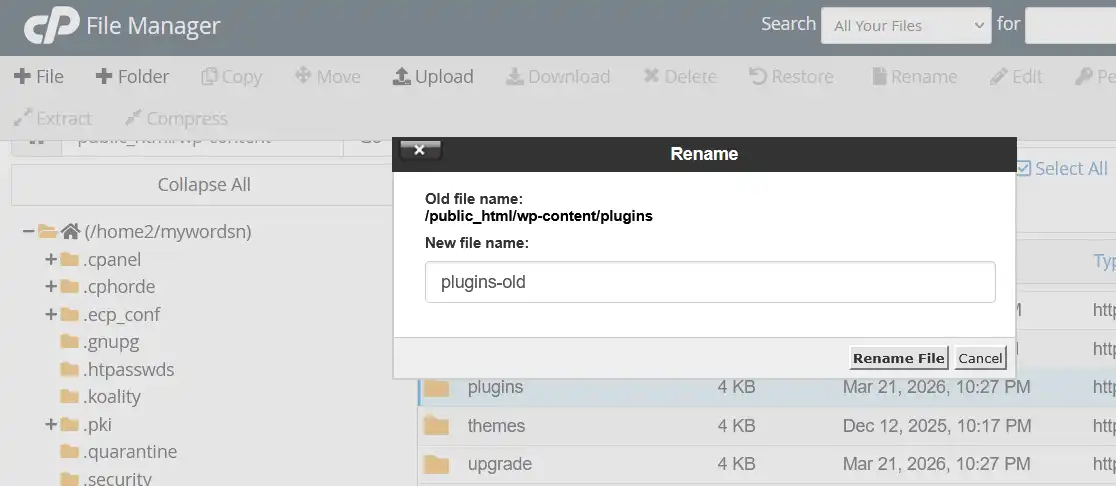
If the memory limit wasn’t the issue, the next most likely cause is a plugin. Here’s where it gets slightly complicated — if you’re locked out of your WordPress dashboard, you can’t deactivate plugins the normal way. You’ll need to do it via FTP or File Manager instead.
If you can access your dashboard:
- Go to Plugins → Installed Plugins.
- Select all plugins using the checkbox at the top.
- Choose “Deactivate” from the Bulk Actions dropdown and click Apply.
- Reload your site. If it comes back, a plugin was the culprit.
- Re-activate plugins one by one, refreshing the site after each, until the error reappears. The last plugin you activated is the problem.
If you’re locked out of the dashboard:
- Connect via FTP or File Manager.
- Navigate to
/wp-content/. - Rename the
pluginsfolder to something likeplugins_disabled. This deactivates every plugin at once. - Reload your site. If it loads, a plugin was responsible.
- Rename the folder back to
plugins. Now go inside it and rename individual plugin folders one at a time — for example, renamewoocommercetowoocommerce_disabled— until you find the one causing the error.
Once you’ve identified the problematic plugin, you have a few options: delete and reinstall it, check for an update, or reach out to the plugin developer. If it’s a plugin you installed or updated just before the error appeared, that’s almost certainly your answer.
Step 5: Switch to a Default WordPress Theme
If deactivating plugins didn’t resolve the 500 internal server error, the theme is the next place to look — especially if the error appeared after a theme update or after editing theme files directly.
Via the dashboard (if accessible): Go to Appearance → Themes and activate a default WordPress theme like Twenty Twenty-Four or Twenty Twenty-Five.
Via FTP (if locked out):
- Navigate to
/wp-content/themes/. - Rename your active theme’s folder — for example, rename
yourthemetoyourtheme_old. - WordPress will automatically fall back to a default theme.
- Reload your site.
If the site loads with the default theme active, the problem lives in your original theme — likely in functions.php, a template file, or a theme-specific plugin it depends on. If you made recent edits directly in the theme editor, those are the first thing to review.
Step 6: Check and Fix File Permissions
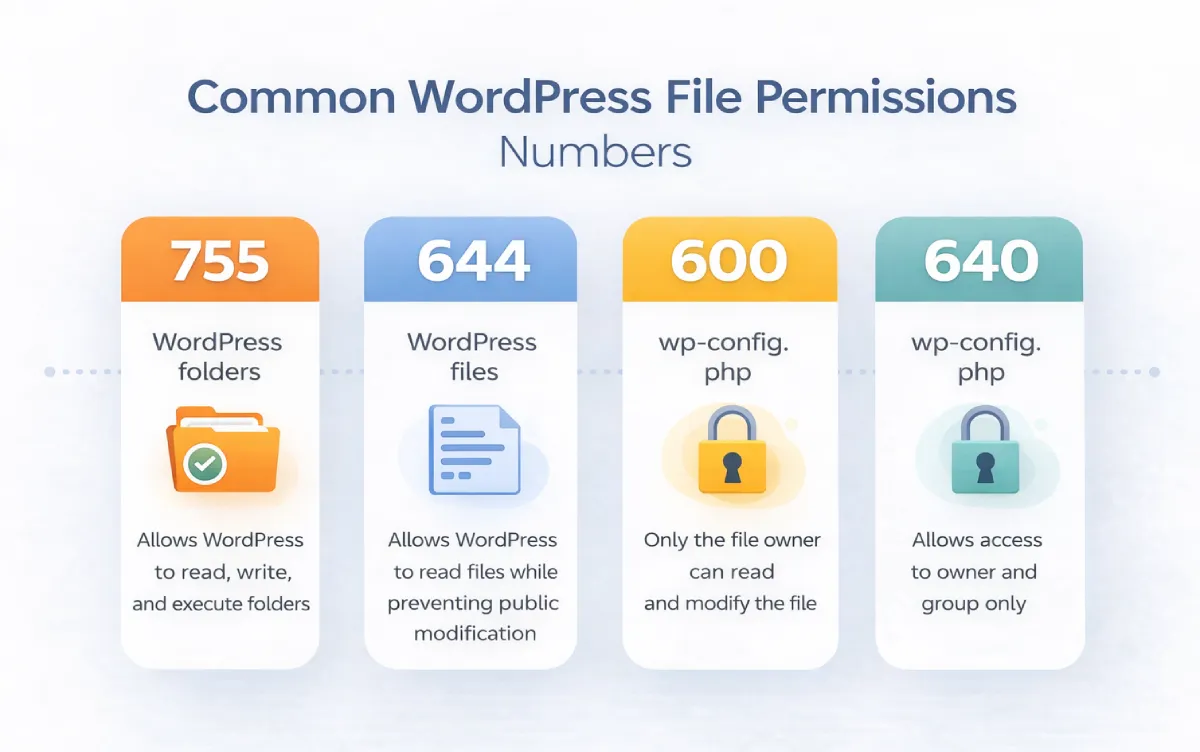
Incorrect file permissions are a less obvious cause, but they come up often after site migrations, hosting changes, or certain server-level configurations. The correct WordPress permission settings are:
- Files:
644 - Directories/Folders:
755 wp-config.php:640or600for extra security
You can check and change permissions via your hosting File Manager (right-click a file → Change Permissions) or via FTP in FileZilla (right-click → File Permissions).
If you have SSH access, you can set correct permissions across your entire WordPress installation in one go:
find /path/to/your/wordpress -type f -exec chmod 644 {} \;
find /path/to/your/wordpress -type d -exec chmod 755 {} \;
Replace /path/to/your/wordpress with your actual site path, which is usually something like /home/username/public_html.
Step 7: Re-upload WordPress Core Files
If you’ve worked through every step above and the 500 error is still there, corrupted core files may be the issue. This is less common but worth checking — particularly on older sites or if a WordPress auto-update failed partway through.
- Download the latest version of WordPress from wordpress.org and extract the ZIP file on your computer.
- Connect to your site via FTP.
- Upload the
wp-adminandwp-includesfolders from the fresh download, replacing the existing ones on your server. When prompted, choose to overwrite existing files. - Do not touch
wp-config.php, thewp-contentfolder, or any other files outside these two folders. Your content, uploads, plugins, and themes all live inwp-contentand should not be replaced.
This effectively reinstalls WordPress core without affecting any of your site’s content or settings.
Step 8: Check Your PHP Version
If your hosting provider automatically updated your PHP version, it may have broken compatibility with one or more plugins or your theme. This is worth checking — especially if the error appeared with no obvious trigger.
To check your current PHP version in WordPress, go to Tools → Site Health → Info → Server. You’ll see the PHP version listed there — assuming you can still access the dashboard.
From cPanel, you can usually manage PHP versions under “Select PHP Version” or “MultiPHP Manager.” If a recent PHP update is the cause, switching back to a slightly older, stable version (like PHP 8.1 or 8.2 if you’re on 8.3) can quickly resolve the error while you update your plugins and theme for compatibility.
Step 9: Contact Your Hosting Provider
If you’ve worked through every step above — checked the logs, tried the .htaccess fix, ruled out plugins, theme, file permissions, core files, and PHP version — and the 500 error persists, the issue may be on the server side rather than within WordPress itself.
This is when you contact your hosting provider. Some things genuinely require access to the server itself — things like resource limits, server-level configuration errors, or infrastructure issues your host needs to resolve directly. A good hosting support team will be able to pull server logs you can’t access yourself and pinpoint the problem quickly.
When you contact them, share what you’ve already tried, the relevant error log entries you found, and the approximate time the error first appeared. That context cuts the back-and-forth considerably.
The SEO Impact of a WordPress 500 Error: What You Actually Need to Know
If your site is running a business, ranking for competitive keywords, or generating leads through organic search — this section matters to you.
The honest answer on SEO impact is this: a brief 500 error lasting a few minutes is very unlikely to affect your rankings at all. Google’s crawlers are built to expect some level of imperfection on the web. When Googlebot hits a 500, it backs off and retries later. A short, isolated incident rarely leaves a lasting mark.
But the equation changes fast once you’re looking at hours rather than minutes:
- Under 30 minutes: Minimal risk in most cases. Once the error is resolved, monitor your crawl stats in Google Search Console.
- A few hours: Googlebot may slow its crawl rate for your site. Some pages could temporarily drop from the index. Fix it promptly and recovery usually happens within a few days.
- Multi-day outage: This is where real damage accumulates. Documented cases show that outages lasting two days or more can produce significant drops in organic traffic — with recovery being slow and requiring deliberate effort, not just fixing the error.
- Recurring 500 errors — intermittent but frequent: Arguably the worst pattern. Google interprets repeated unreliability as a site health signal. Crawl budget shrinks, indexing suffers, and visibility erodes without a single clear moment to point to.
Once you’ve fixed the error, go to Google Search Console → Pages → check for any URLs marked with server errors. Submit an updated sitemap to prompt Googlebot to re-crawl affected pages. That proactive step speeds up recovery.
Create a Custom 500 Error Page for WordPress
This doesn’t come up in most WordPress troubleshooting guides, but it’s worth doing once your site is stable — because the default 500 error page is cold, technical, and does nothing to hold your visitor’s trust through a bad moment.
A custom error page lets you keep your branding intact even when something breaks. It reassures visitors that the problem is temporary and on your end. It gives them somewhere useful to go — a link to your homepage, or a note to try again in a few minutes. And critically, it avoids exposing server paths or stack traces that could be a security risk.
The simplest approach is to create a static 500.html file — plain HTML, no PHP, no database dependencies — and reference it in your .htaccess:
ErrorDocument 500 /500.htmlKeep the HTML file minimal and self-contained. Something like:
<!DOCTYPE html>
<html lang="en">
<head>
<meta charset="UTF-8">
<title>Something went wrong</title>
</head>
<body>
<h1>We'll be right back</h1>
<p>Something went wrong on our end. Our team is already on it. Please try again in a few minutes.</p>
<p>In the meantime, <a href="/">head back to our homepage</a></p>
</body>
</html>
The key reason this needs to be a static HTML file: if your server is struggling badly enough to throw a 500, it may not be able to execute PHP at all. A static file can still be served even when WordPress itself is broken.
How to Prevent the WordPress 500 Internal Server Error
The most effective fixes are the ones you set up before the error ever appears. Here’s what I actually do — and recommend — to keep 500 errors from sneaking up on a WordPress site.
Set Up Uptime Monitoring
This is non-negotiable. Without monitoring, you find out your site is down when a client messages you, or hours after it happened. With monitoring, you get an alert within a minute of the error appearing — and you can fix it before most visitors ever see it.
Free tools like UptimeRobot check your site every five minutes and send email or SMS alerts when it goes down. Paid options like Better Uptime or WP Umbrella offer one-minute checks, WordPress-specific error tracking, and PHP error monitoring that can catch warnings before they become fatal errors.
Use a Staging Site Before Updating
The majority of WordPress 500 errors follow an update — a plugin, a theme, or WordPress core. Testing updates on a staging copy of your site before pushing to production catches these conflicts before they affect real visitors. Plugins like WP Staging or your hosting provider’s built-in staging tool make this straightforward.
Keep Backups Running Automatically
Backups don’t prevent 500 errors, but they dramatically reduce the damage when one does hit. If you have a clean backup from yesterday, you can restore your site in minutes rather than spending an hour debugging. Use a plugin like UpdraftPlus, BlogVault, or Jetpack Backup, and make sure backups are stored somewhere outside your main server — cloud storage, not just your hosting account.
Keep WordPress, Themes, and Plugins Updated
Outdated plugins are a common source of PHP errors, security vulnerabilities, and compatibility issues that lead to 500 errors. Staying current reduces risk — but update with the staging workflow above so you’re not pushing untested changes straight to production.
Limit and Audit Your Plugins
Every plugin you add is another dependency, another possible point of conflict, another thing to maintain. Keep only the plugins your site actually needs, remove any you haven’t used in months, and stick to plugins with strong update histories and active developer support. Fewer plugins means fewer potential causes when something goes wrong.
Check Your PHP Memory and Execution Limits
If you’re running a WooCommerce store, a membership site, or a content-heavy WordPress installation, make sure your PHP memory limit isn’t still set to a low default. A limit of at least 256MB is a reasonable baseline for most WordPress sites; resource-intensive setups may need more. Review this under Tools → Site Health → Info → Server.
Enable Error Logging Permanently
Run with WP_DEBUG_LOG enabled in production so errors are always being recorded — but keep WP_DEBUG_DISPLAY set to false so nothing leaks to your front end. This means when something does go wrong, you already have a log file waiting rather than starting from scratch.
Quick Reference: WordPress 500 Error by Symptom
- Error appeared right after installing or updating a plugin → Deactivate all plugins via FTP; re-activate one by one to find the conflict
- Error appeared after editing a theme file → Rename your theme folder via FTP to force WordPress to load a default theme
- Blank white screen in WordPress admin only → PHP memory limit; add
define('WP_MEMORY_LIMIT', '256M')to wp-config.php - Error appeared after changing permalink structure → Rename .htaccess; regenerate via Settings → Permalinks
- Error appeared after your host updated PHP → Roll back PHP version in cPanel; update plugins and theme for compatibility
- Intermittent 500 errors during high traffic → Server resource exhaustion on shared hosting; upgrade plan or switch hosts
- Error on specific pages only → Theme template file or page-specific plugin conflict; check error logs for the exact URL
- Error appeared after site migration → File permission mismatch; reset to 644/755 and check wp-config.php database credentials
- Nothing fixed it after all steps above → Contact your hosting support with your error log entries; the issue may be server-side
Fix It Once, Prevent It for Good
The WordPress 500 internal server error is intimidating precisely because it says so little. But once you know the order to work through it — error logs first, then .htaccess, memory limit, plugins, theme, file permissions, core files, PHP version — it almost always resolves faster than it feels like it will in that initial moment of panic.
The bigger investment is building a setup where you find out about a 500 error before your visitors do, where you have a recent backup to fall back on, and where a custom error page holds the trust of anyone who does hit that broken page while you fix it. Those aren’t complex things to put in place, and they change the entire experience of running a WordPress site.
Still getting the 500 internal server error on your WordPress site?
If you’ve worked through every step here and the error is still showing up, it may need a closer look from someone who can dig into your specific setup.

