
Here’s something most WordPress site owners don’t realise until they dig into their Google Search Console data: their site probably has dozens — sometimes hundreds — of duplicate content issues right now, and they didn’t create a single one of them intentionally.
WordPress does it automatically.
Every time you publish a post, WordPress creates multiple pages that contain the same or very similar content — category archives, tag archives, author archives, date archives, and paginated versions of each. Without deliberate configuration, Google indexes all of them as separate pages competing with your original content.
Add in the www vs non-www URL variations, HTTP vs HTTPS inconsistencies, and image attachment pages that most site owners don’t even know exist — and a typical WordPress site that’s been running for a year without attention can easily have hundreds of duplicate URL pairs sitting in Google’s index.
This doesn’t mean your site is broken or that you’ve done something wrong. It means WordPress’s default settings weren’t designed with modern SEO in mind, and a bit of deliberate configuration fixes most of it in under an hour.
This guide is part of the Technical SEO: The Complete Guide series. It covers every source of duplicate content WordPress generates, how to find what’s affecting your specific site, and exactly how to fix each one using Rank Math — in priority order so you can focus on what actually moves the needle first.
If you want to fix most WordPress duplicate content issues quickly:
- Set tag archives → noindex
- Set author archives → noindex
- Set date archives → noindex
- Enable attachment URL redirect
- Ensure HTTPS + single domain version
- Review category pages individually
What Is Duplicate Content — And What It Isn’t
Before fixing anything, it’s worth being clear about what duplicate content actually means in an SEO context — because it’s frequently misunderstood.
Duplicate content means the same content (or substantially similar content) is accessible at more than one URL. It doesn’t have to be word-for-word identical. If two URLs serve content that Google considers equivalent — same text, same structure, same topic with minor variations — that’s duplicate content from Google’s perspective.
Critically: duplicate content is not a penalty. Google has been clear about this for years. There is no automatic “duplicate content penalty” that tanks your rankings. What actually happens is more subtle and more damaging over time:
- Google can’t decide which version to rank. When the same content is accessible at multiple URLs, Google has to choose which one to show in search results. It often guesses wrong — ranking an archive page instead of your actual post, for example — which means the page you want to rank isn’t getting the visibility it deserves.
- Link equity gets split. If other websites link to your content, those links might point to different URL variations. Instead of all that link authority consolidating on one URL and making it stronger, it gets diluted across multiple versions.
- Crawl budget gets wasted. Google only crawls a limited number of pages on your site in any given period. Spending crawl budget on dozens of archive pages that contain content Google has already seen means your new content gets crawled and indexed more slowly.
The result isn’t a penalty — it’s a quiet, persistent drag on your rankings and indexing efficiency.
The Big Difference: Duplicate Content You Created vs Duplicate Content WordPress Created
There are two categories of duplicate content on WordPress sites, and they require different responses.
- WordPress-generated duplicate content — archives, pagination, URL variations — is entirely technical in nature. You didn’t write duplicate content. WordPress’s architecture created multiple URLs that serve the same content. This is fixed through technical configuration: canonical tags, noindex settings, and 301 redirects. This is the main focus of this guide.
- Intentional or accidental content duplication — two posts on your site covering the same topic in nearly identical ways, or content copied from another site — is a content strategy problem, not a technical one. The fix involves consolidating content, rewriting, or removing posts. This is closely related to keyword cannibalization, which I cover in depth in the single page website SEO guide and will cover separately in a dedicated post.
This guide focuses primarily on WordPress-generated duplicate content — because that’s what affects virtually every WordPress site by default.
How to Find Duplicate Content on Your WordPress Site
Before fixing anything, you need to know what you’re actually dealing with on your specific site. Start here.
Google Search Console — Your Most Important Tool
Go to Google Search Console → Pages (in the left sidebar under Indexing). Look specifically for these warnings:
“Duplicate without user-selected canonical” — Google found multiple URLs with the same content and none of them have a canonical tag telling it which one is the original. Google is having to guess. This is the most common duplicate content warning on WordPress sites and usually indicates archive pages that aren’t configured correctly.
“Duplicate, Google chose different canonical than user” — You’ve set a canonical tag on a page, but Google disagrees with your choice and is indexing a different URL instead. This often happens when your canonical tag points to a URL that Google considers weaker than another version — for example, your canonical points to an HTTP URL but Google sees the HTTPS version as stronger.
“Alternate page with proper canonical tag” — Your canonical tag is set and Google is respecting it. These pages are technically fine — they’re duplicates that are being handled correctly. You don’t need to action these, but it’s worth reviewing whether those pages should be noindexed instead if they have no standalone value.
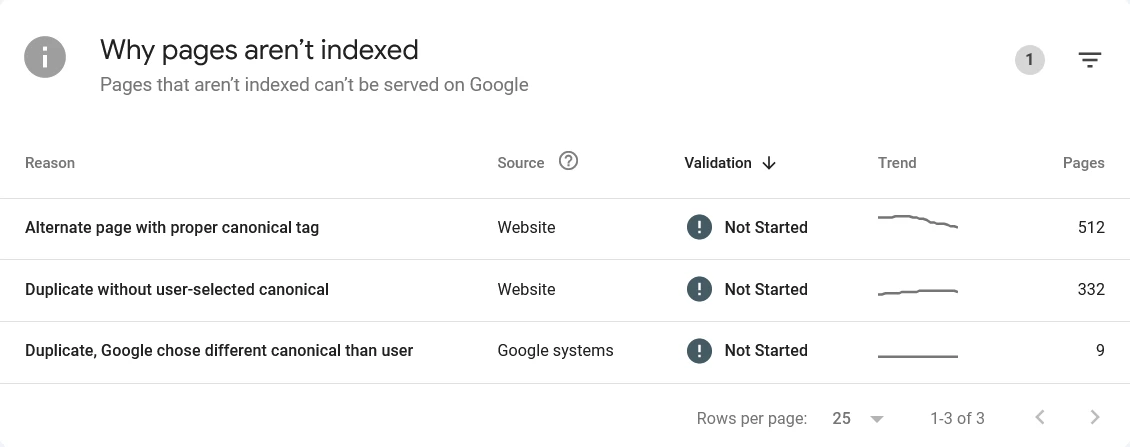
Click on each warning type to see the specific URLs affected. Export the list — this is your duplicate content inventory from Google’s perspective.
A Quick Manual Check
Go to Google and search: site:yourdomain.com
Look at how many pages Google has indexed. Then look at what’s appearing — are there category pages, tag pages, author pages, or date-based archive pages showing up? If Google is indexing these archive pages, you almost certainly have duplicate content issues to address.
Also try searching: site:yourdomain.com “exact phrase from one of your post titles”
If more than one URL appears showing the same post title, those are live duplicates already indexed by Google.
Check for URL Variations
Try accessing your site in four different ways in your browser:
- http://yourdomain.com
- https://yourdomain.com
- http://www.yourdomain.com
- https://www.yourdomain.com
All four should redirect to exactly one version — your canonical domain. If any of them load separately without redirecting, you have URL variation duplicate content that needs fixing.
The Sources of Duplicate Content in WordPress — And How to Fix Each One
1. Category Archives
Every category you create in WordPress gets its own archive page at a URL like yourdomain.com/category/seo/. This page lists all posts in that category, usually showing either the full post content or an excerpt.
If your category archive shows full post content, Google sees the complete text of each post on both the individual post URL and the category archive URL — that’s a direct duplicate. Even with excerpts, if multiple category archives share the same posts, there’s significant overlap.
Should you noindex category pages?
This is where most guides oversimplify. The common advice is “noindex all archives” — but that’s not always right for categories specifically.
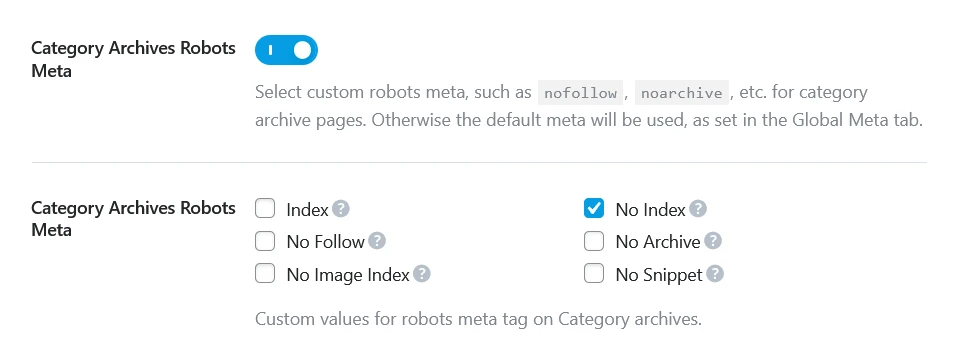
Category pages can rank in their own right for broad topic queries. A well-configured category page with a unique description, a logical set of posts, and proper internal linking is a legitimate content page that can bring in search traffic. Many established blogs get significant traffic from category page rankings.
The right approach:
- Keep category pages indexed if they have a unique description, contain enough posts to be substantive, and could realistically rank for a broad topic keyword
- Noindex category pages if they have no unique description, contain only 1-2 posts, or are so similar to other categories that they add no unique value
- Always show excerpts, not full content on category archives — go to Settings → Reading in WordPress and set “For each article in a feed, include” to Summary
In Rank Math, go to Rank Math → Titles & Meta → Categories. Here you can set the default robots setting for all category archives. For individual categories you want to handle differently, go to Posts → Categories → edit the specific category and set its robots setting there.
2. Tag Archives
Tags are the most common source of thin, duplicate content on WordPress blogs. Every tag you assign to a post creates a tag archive page at yourdomain.com/tag/your-tag/. If you tag posts liberally — with 5, 8, or 10 tags per post — you can easily generate dozens of tag archive pages, most of which contain only a handful of posts each and offer no unique value.
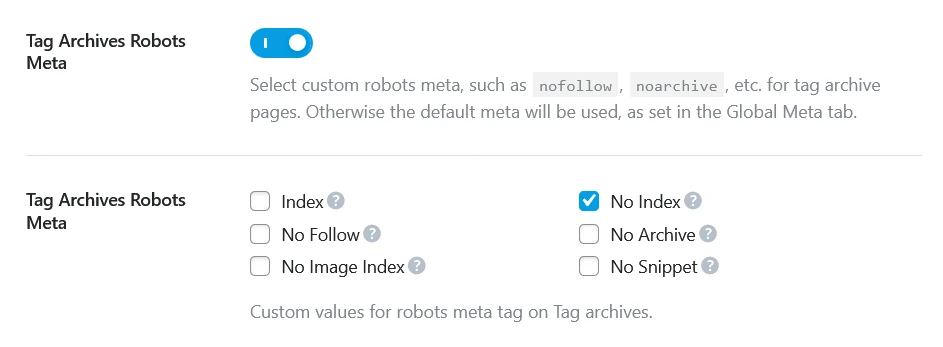
Unlike category pages, tag archives rarely rank for valuable search queries and almost never justify being indexed. The recommendation here is more straightforward: noindex tag archives in the vast majority of cases.
In Rank Math, go to Rank Math → Titles & Meta → Tags and set the robots to noindex, follow. This tells Google not to index tag archive pages but to still follow links on them — meaning Google can still discover your posts through tag pages without indexing the tag pages themselves.
Also take this opportunity to audit your existing tags. If you have hundreds of tags, many with only one or two posts, consider removing the ones that serve no navigational purpose. Tags should help users find related content — if a tag only has one post, it’s not helping anyone.
3. Author Archives
WordPress automatically creates an author archive page at yourdomain.com/author/your-name/ listing all posts by that author. On a single-author blog — which most personal blogs and freelancer sites are — this archive is essentially a duplicate of your homepage, showing the same posts in a slightly different layout.
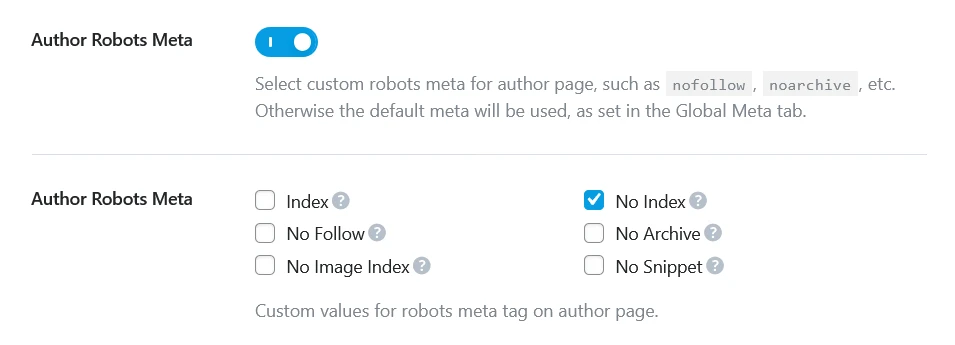
For single-author sites, noindex the author archive entirely.
In Rank Math, go to Rank Math → Titles & Meta → Authors and set robots to noindex, follow.
For multi-author sites, author archives can have value — particularly if individual authors have distinct expertise and an audience that follows their work specifically. In those cases, keep author archives indexed but make sure each author page has a substantive bio, a profile image, and enough posts to be genuinely useful.
4. Date-Based Archives
WordPress generates date-based archive pages automatically — yearly archives at /2024/, monthly at /2024/03/, and daily at /2024/03/15/. These pages group posts by publication date rather than topic.
Date archives almost never provide value to users or search engines. A visitor searching for information doesn’t care what month a post was published — they care about the topic. And from Google’s perspective, date archives are just another set of pages showing content that’s already indexed elsewhere.
Noindex all date archives.
In Rank Math, go to Rank Math → Titles & Meta → Date Archives and set robots to noindex, follow. If you don’t see a Date Archives option, check that the date archive is enabled in your theme or WordPress settings — many modern themes disable them by default.

5. Paginated Archive Pages
When an archive page (category, tag, or the blog homepage) has more posts than fit on one page, WordPress creates paginated versions — yoursit.com/category/seo/page/2/, /page/3/, and so on. These paginated pages contain largely the same layout and structure as page 1, with different post excerpts.
WordPress handles pagination canonicals automatically since version 4.1 — each paginated page has a canonical pointing back to the first page. In most cases, this is handled correctly without any action on your part.
However, it’s worth checking in Search Console whether paginated pages are appearing as duplicate warnings. If they are, verify that the canonical tags are correctly set on those pages. In Rank Math, pagination canonicals are managed automatically — you don’t need to configure anything unless you’re seeing specific warnings.
6. www vs non-www URL Versions
Your site should be accessible at only one canonical domain format — either https://yourdomain.com or https://www.yourdomain.com, not both. If both versions load without redirecting to a single canonical version, Google may index both as separate sites with duplicate content.
How to fix it:
First, decide which version is your canonical domain. For most modern sites, the non-www version (yourdomain.com) is preferred, but the important thing is consistency — pick one and stick with it.
In your hosting control panel, add a server-level 301 redirect from the non-preferred version to the preferred one. In cPanel, this is done through the Redirects tool or by adding a redirect rule to .htaccess:
For redirecting www to non-www:
RewriteEngine On
RewriteCond %{HTTP_HOST} ^www\.yourdomain\.com [NC]
RewriteRule ^(.*)$ https://yourdomain.com/$1 [L,R=301]
Also go to Settings → General in WordPress and confirm both WordPress Address and Site Address show your canonical domain format consistently.
7. HTTP vs HTTPS URL Versions
If your site has an SSL certificate (which it should — all modern sites should run on HTTPS), the HTTP version of your URLs should redirect to HTTPS. If both http://yourdomain.com and https://yourdomain.com are accessible without redirecting, you have another set of URL variations creating duplicate content.
How to fix it:
Most hosting providers configure this automatically when you install an SSL certificate, but it’s worth verifying. Visit http://yourdomain.com — it should automatically redirect to https://yourdomain.com. If it doesn’t, contact your hosting provider or add the redirect manually.
In WordPress, go to Settings → General and confirm both addresses start with https://. If they show http://, update them to https:// — but be aware this can cause a redirect loop if your SSL isn’t fully configured. The Really Simple SSL plugin handles this migration safely if you’re unsure.
8. Image Attachment Pages
This is one of the most overlooked sources of duplicate content on WordPress sites, and it affects nearly every WordPress blog that uses images.
When you upload an image to WordPress and attach it to a post, WordPress creates a dedicated attachment page for that image at a URL like yourdomain.com/?attachment_id=123 or yourdomain.com/post-name/image-filename/. This page contains the image and very little else — sometimes just the image title and a link back to the parent post.
These attachment pages are almost always thin, low-value pages that serve no useful purpose to visitors or search engines. But there can be hundreds of them on a site that’s published content for more than a few months.
How to fix it in Rank Math:
Go to Rank Math → Titles & Meta → Media. You’ll see an option that says “Redirect Attachment URLs to the post they belong to” — enable this. It 301-redirects all image attachment URLs directly to the parent post, which consolidates any link equity those attachment pages may have accumulated and removes them from Google’s index over time.

If you’re on Rank Math Pro, this is handled automatically. On the free version, enabling this redirect is one of the highest-impact single settings changes you can make for duplicate content on a post-heavy site.
9. Search Results Pages
WordPress’s built-in search functionality creates URLs like yourdomain.com/?s=search+term for every search query performed on your site. If these URLs are crawlable, Google can index them — and search results pages are textbook thin, low-value content that Google doesn’t want in its index.
How to fix it:
In Rank Math, go to Rank Math → Titles & Meta → Homepage and look for search page settings. Alternatively, add the following to your robots.txt file to prevent Google from crawling search result URLs:
Disallow: /?s=
Disallow: /search/
Note: blocking search pages in robots.txt prevents crawling, not indexing. For full protection, also add a noindex meta tag to search result pages. Rank Math handles this in its Search page settings.
10. Your Own Content That Covers the Same Topic
This is distinct from WordPress-generated duplicate content — this is content you’ve written yourself that overlaps significantly with another post on your site.
Two posts targeting the same keyword, a newer post and an older post covering the same topic, or a pillar post and a cluster post that have started to overlap in focus — all of these create a form of content-level duplication that can cause Google to rank neither post effectively. This is cannibalisation, and it’s one of the trickier duplicate content issues because the fix requires a content decision, not just a technical setting.
Signs you have content cannibalisation:
- Two posts on your site are competing for the same keyword in Search Console
- A post’s rankings are unstable — fluctuating between position 5 and position 40 over time
- Google is alternating which of your two posts it shows for a given query
- You’ve written about a topic twice from slightly different angles but the content is substantially similar
The fix options:
Consolidate — merge the two posts into one stronger, more comprehensive post. Redirect the URL of the weaker post to the stronger one with a 301 redirect. This is the right approach when both posts cover the same ground and neither has significantly more authority than the other.
Differentiate — if the two posts genuinely serve different intents (one is informational, one is commercial; one targets beginners, one targets advanced users), strengthen that differentiation. Make each post’s unique angle unmistakably clear in its title, introduction, and content. Add a canonical tag or internal link from the weaker to the stronger if the overlap is significant.
Delete and redirect — if one post is thin, outdated, or simply not worth updating, delete it and 301-redirect its URL to the relevant stronger post or to a category page.
Configuring Rank Math for Duplicate Content — Step by Step
Most WordPress-generated duplicate content can be addressed in a single 10-minute session in Rank Math’s Titles & Meta settings. Here’s the complete configuration:
Step 1 — Author Archives:
Rank Math → Titles & Meta → Authors → Robots Meta → set to noindex, follow
Step 2 — Date Archives:
Rank Math → Titles & Meta → Date Archives → Robots Meta → set to noindex, follow
Step 3 — Tag Archives:
Rank Math → Titles & Meta → Tags → Robots Meta → set to noindex, follow
Step 4 — Search Pages:
Rank Math → Titles & Meta → Search Pages → Robots Meta → set to noindex, follow
Step 5 — Image Attachments:
Rank Math → Titles & Meta → Media → enable “Redirect Attachment URLs to the post they belong to”
Step 6 — Category Archives:
Rank Math → Titles & Meta → Categories → review individually based on the criteria above. Noindex thin or low-value categories, keep substantive ones indexed.
Step 7 — Verify canonical tags on individual posts:
In the WordPress editor, open Rank Math settings for each post → Advanced tab → confirm the canonical URL is set correctly (it should match the post’s published URL exactly, including https:// and with or without trailing slash consistently).
After making these changes, go to Google Search Console → Settings → Crawl Stats and request a recrawl of your sitemap. This signals to Google that your configuration has changed and prompts it to recrawl and update its index.
How Long Does It Take for Google to Fix Duplicate Content Issues?
After you’ve made the fixes, Google needs time to recrawl the affected URLs and update its index. This is not instant.
- For noindex changes — pages you’ve set to noindex will typically be removed from Google’s index within 2-6 weeks, depending on how frequently Google crawls your site. Requesting indexing in Search Console for the affected pages speeds this up.
- For canonical tag changes — Google reconsiders canonicals when it recrawls the page. If the canonical tag is now consistent and correct, Google typically updates its canonical choice within 2-4 weeks.
- For 301 redirects — these are processed relatively quickly. Most redirects are followed within 1-2 weeks and the redirected URLs drop from the index as the destination URLs consolidate their authority.
Monitor your Google Search Console Coverage report weekly for 4-6 weeks after making fixes. The “Duplicate without user-selected canonical” count should trend steadily downward as Google processes your changes.
A Note on Category Pages: The Nuanced Answer
I mentioned earlier that the blanket “noindex all archives” advice is an oversimplification for category pages specifically. This is worth expanding on because it has real SEO implications.
Category pages are topical hubs. A well-structured category page for a distinct topic — with a unique introductory paragraph, a logical set of posts organised around that topic, and proper internal linking — functions similarly to a pillar page. It can rank for broad topic queries that individual posts might not target directly.
For your site specifically — if you have a well-defined WordPress Troubleshooting category, a Technical SEO category, and a Website Basics category, each with enough posts and a unique category description — those category pages have genuine ranking potential and should stay indexed.
The ones to noindex are categories that:
- Have fewer than 5-6 posts
- Overlap significantly with another category in topic
- Have no unique description or introductory text
- Were created as a tagging convenience rather than a deliberate content structure decision
Go through your categories individually and make a conscious decision about each one rather than applying a blanket noindex rule.
Preventing Duplicate Content Going Forward
Fixing existing duplicate content is one part of the job. Preventing new issues from accumulating is the other.
- Be deliberate with tags. Before adding a tag to a post, ask yourself: does this tag have enough posts to justify an archive page, and would a visitor use this tag to find related content? If the answer to either is no, don’t add the tag.
- Write unique category descriptions. Every time you create a new category, write a paragraph describing what content belongs there and why a visitor would find it useful. This takes two minutes and transforms a thin archive page into a substantive content page.
- Check Search Console regularly. Make reviewing the Pages → Coverage report part of your monthly SEO maintenance. Catching new duplicate warnings early means less cleanup later.
- Use canonical tags on syndicated content. If you republish your content on other platforms (Medium, LinkedIn Articles, guest posts), add a canonical tag pointing back to your original post. This tells Google your site is the original source.
- Avoid similar post titles targeting the same keyword. Before writing a new post, check your existing content for overlap. A quick site:yourdomain.com search for the keyword topic in Google takes 30 seconds and can prevent cannibalisation before it starts.
Frequently Asked Questions
Does duplicate content cause a Google penalty?
No — Google has confirmed there is no automatic duplicate content penalty. What duplicate content does cause is diluted rankings, split link equity, and wasted crawl budget — all of which have a negative effect on your SEO performance over time, but through a different mechanism than a manual or algorithmic penalty. Fix it because it makes your site structure cleaner and your content more rankable, not because you’re afraid of being penalised.
How much duplicate content is too much?
There’s no specific threshold. The impact depends on how significant the duplication is — a site where 70% of indexed pages are thin archive duplicates of real content will suffer more than a site where 10% are. The more directly your duplicate pages compete with your actual content pages for the same queries, the more harmful the effect.
Will fixing duplicate content improve my rankings?
It can, particularly if duplicate content has been causing Google to rank the wrong version of your pages, splitting link equity, or wasting crawl budget on thin archive pages. The improvement is often gradual rather than immediate — as Google recrawls and reindexes your site with the corrected signals, rankings for your actual content pages should stabilise or improve over 4-8 weeks.
Should I use noindex or canonical tags to fix duplicate content?
Both are legitimate tools but they serve different purposes. Use noindex when the page has no value to search engines and you don’t want it indexed at all — author archives, date archives, search pages, thin tag pages. Use canonical tags when the page has some value but you want to consolidate ranking signals on a primary version — for example, paginated pages pointing their canonical to page 1, or a post accessible at multiple URL formats pointing to the canonical URL. Canonical tags don’t remove a page from the index — they just tell Google which version to prefer.
Do I need a plugin to fix WordPress duplicate content?
For most fixes, yes — Rank Math or Yoast SEO handles the vast majority of WordPress duplicate content fixes through their Titles & Meta settings. Without an SEO plugin, implementing noindex meta tags and canonical configurations would require custom PHP code. Since you should have an SEO plugin installed regardless for meta titles, descriptions, and schema markup, using it for duplicate content configuration is the most practical approach.
What’s the difference between duplicate content and keyword cannibalization?
Duplicate content is a technical issue — the same or very similar content accessible at multiple URLs. Keyword cannibalization is a content strategy issue — two or more pages on your site targeting the same keyword and competing against each other in search results. They sometimes overlap (a post and its archive page both appearing for the same query is both duplicate content and cannibalization), but they require different fixes. Duplicate content is fixed technically; cannibalization is fixed by consolidating or differentiating content.
Clean Site Structure Starts With Controlling What Google Indexes
Duplicate content in WordPress is almost entirely a default configuration problem — not something you caused through bad content decisions. The good news is that the fixes are straightforward, mostly handled through Rank Math settings, and don’t require touching a line of code.
The priority order matters: fix your URL canonicalization (www, HTTPS) first, then configure archive noindex settings, then redirect image attachment pages, then audit your categories. Each step makes your site’s structure cleaner and makes it easier for Google to find, index, and rank the content that actually matters.
Check your Search Console Coverage report monthly after making these changes and watch the duplicate warnings trend downward. A site with a clean index and consistent canonical signals is a site that Google can understand — and a site Google can understand is a site Google can rank.
Related reading: Canonical Tags: The Complete Guide for SEO, GEO, and the Age of AI Search | Technical SEO Audit Checklist for WordPress | What Is Crawl Budget? How to Optimise It for Faster Indexing

