
A WordPress 403 Forbidden error is one of those errors that sounds serious but is almost always fixable without a developer. The problem is that it can come from several completely different places — your file permissions, your .htaccess file, a security plugin, your host’s firewall, or even your own IP address being blocked.
Most guides throw a long list of fixes at you without helping you figure out which one actually applies to your situation. This guide is different. We start by diagnosing where the 403 is coming from, then fix it at the source — so you are not guessing your way through ten steps when the answer is one.
If you are on Hostinger with LiteSpeed, some of these fixes are specific to your stack and you will not find them in most WordPress troubleshooting guides.
What a 403 Forbidden Error Actually Means
A 403 is not a broken page. The server found what you asked for — it just refused to hand it over. This is intentional behaviour from the server, which is what makes it different from a 404 (page not found) or a 500 (server crashed).
The server is saying: I know this file exists. I understood your request. I am choosing not to give it to you.
That decision could be coming from WordPress itself, from a plugin, from your .htaccess file, from a server-level firewall, or from your host’s security rules. Before you fix anything, you need to know which layer is making that decision.
Common Signs of a 403 Forbidden Error
- “403 Forbidden” message on every page
- Access denied when opening wp-admin
- Images or CSS files fail to load
- 403 appears only when saving posts
- WordPress login page suddenly blocked
- Site works for others but not for you
Narrow Down the Cause Before You Touch Anything
Answer these questions first. They will cut your troubleshooting time in half.
Is the error happening everywhere, or only in specific places?
- Site-wide 403 — your homepage and every page returns 403. Most likely: wrong file permissions, a bad
.htaccessrule, or a server-level block. - Only wp-admin or the login page — most likely: a security plugin blocking your IP, hotlink protection misconfiguration, or a firewall rule targeting the admin area.
- Only on specific pages or posts — most likely: a plugin conflict or a bad redirect rule in
.htaccess. - Only images or CSS files returning 403 — most likely: hotlink protection is enabled and misconfigured.
- Only when you try to save or publish a post — most likely: ModSecurity or your host’s WAF is blocking the POST request.
Is it happening for everyone, or just you?
Go to downforeveryoneorjustme.com and enter your URL. If the site is accessible to others but not you, your IP address is likely blocked. Try switching to your phone’s mobile data and accessing the site — if it loads, your current IP is the issue, not your WordPress setup.
Did anything change just before the error appeared?
Think back: Did you install or update a plugin? Edit your .htaccess file? Enable a security setting? Change file permissions? Migrate the site? The answer is usually somewhere in what changed in the last 24 hours.
Quick Reference: 403 Causes and Fixes
| Symptom | Most Likely Cause | Fix |
|---|---|---|
| Entire site returns 403 | Wrong file permissions or corrupt .htaccess | Fix permissions, regenerate .htaccess |
| Only wp-admin is blocked | Security plugin blocked your IP | Rename plugins folder via FTP, deactivate culprit |
| Only images and CSS return 403 | Hotlink protection misconfigured | Check and update hotlink protection in hPanel |
| 403 only when saving or publishing | ModSecurity blocking POST request | Contact host to whitelist rule, or use workaround |
| 403 for you but site loads for others | Your IP is blocked | Unblock IP in security plugin or contact host |
| 403 after site migration | Wrong .htaccess rules from old server | Regenerate .htaccess, check file ownership |
| 403 only when using VPN | GEO-IP block or IP reputation block | Disable VPN or whitelist your IP with host |
How to Fix the 403 Forbidden Error in WordPress
Fix 1: Check and Correct File Permissions
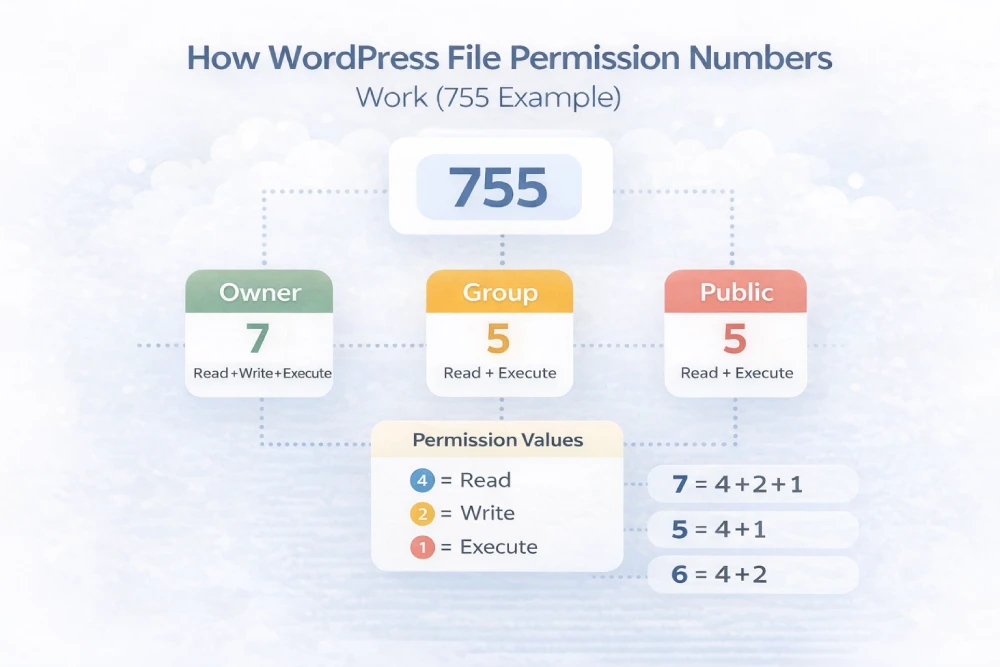
Wrong file permissions are one of the most common causes of a site-wide 403. Every file and folder on your server has a permission setting that controls who can read, write, or execute it. If those settings are too restrictive, your server blocks access — even to the site owner.
WordPress needs:
- Folders: 755
- Files: 644
wp-config.php: 440 or 400 (read-only — for security)
If any of those are set to something else — especially 777 (which some bad tutorials suggest) or overly restrictive values like 600 or 400 on regular files — your server may refuse to serve them.
How to Fix on Hostinger
- Log in to hPanel → File Manager
- Navigate to
public_html - Right-click each of these folders and set permissions to 755:
wp-admin,wp-content,wp-includes - Check “Apply to subdirectories” when setting folder permissions
- Select all files in
public_html, right-click, and set to 644 - Check “Apply to files only” so it does not change folder permissions
If you prefer FTP, connect with FileZilla, navigate to public_html, and right-click each item to set permissions the same way.
Never set folders to 777. It removes security restrictions entirely and can trigger automatic blocks from your host’s WAF. Modern hosting stacks like Hostinger’s LiteSpeed setup will flag 777 permissions as suspicious and may block the account.
Fix 2: Reset the .htaccess File
Your .htaccess file sits in your root directory and controls a lot of how your server handles requests. A single bad line in this file can block your entire site. This happens after a plugin adds a faulty rule, after a manual edit that introduced a syntax error, or sometimes after a WordPress update.
How to Reset It
- Open Hostinger’s File Manager and navigate to
public_html - Find
.htaccess(enable “Show Hidden Files” if you cannot see it) - Rename it to
.htaccess_old— do not delete it yet, you may need to refer back to it - Open your site in a new browser tab. If the 403 is gone, the
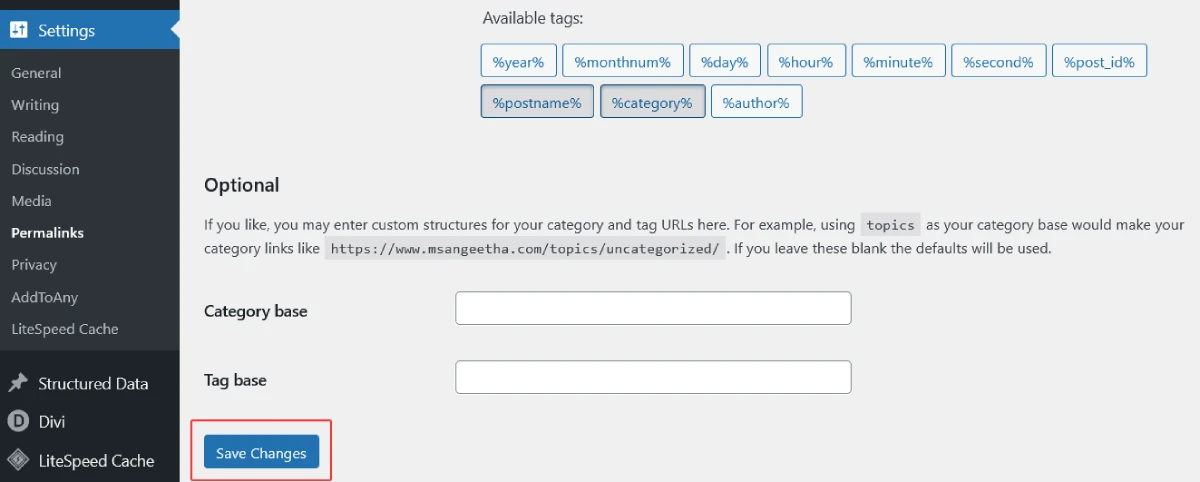
.htaccessfile was the cause - Now regenerate a clean one: go to Settings → Permalinks in your WordPress dashboard and click Save Changes
WordPress will write a fresh, correct .htaccess file automatically. If the 403 comes back after regenerating, something else is writing bad rules into the file — usually a security plugin. Check that next.
On NGINX hosting, .htaccess does not exist because rewrite rules are handled in the server configuration instead.
The Default WordPress .htaccess Content
If you need to create the file manually, this is what a standard WordPress .htaccess should contain:
# BEGIN WordPress
<IfModule mod_rewrite.c>
RewriteEngine On
RewriteBase /
RewriteRule ^index\.php$ - [L]
RewriteCond %{REQUEST_FILENAME} !-f
RewriteCond %{REQUEST_FILENAME} !-d
RewriteRule . /index.php [L]
</IfModule>
# END WordPress
Nothing else should be between those two comment tags unless added by WordPress itself or a trusted plugin.
Fix 3: Deactivate Plugins
Security plugins, firewall plugins, and redirect plugins are the most common plugin causes of 403 errors. They can block your own IP, flag a legitimate request as malicious, or write bad rules into .htaccess.
If you can still access your WordPress dashboard:
- Go to Plugins → Installed Plugins
- Select all plugins and bulk deactivate them
- Test the site
- If the 403 is gone, reactivate plugins one at a time, testing after each one, until the error returns — that is your culprit
If you cannot access the dashboard at all:
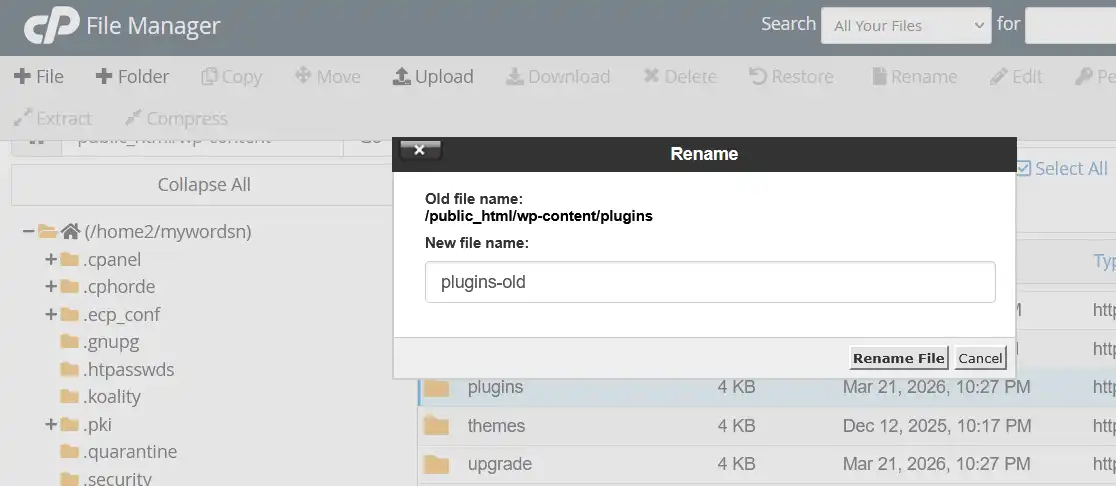
- Connect via File Manager or FTP
- Navigate to
public_html/wp-content/ - Rename the
pluginsfolder toplugins_disabled - Try accessing your site or wp-admin again
- If it works, rename the folder back to
plugins, then go into the folder and rename individual plugin folders one at a time to find the problem plugin
Fix 4: Check if Your Own IP Is Blocked
This is one of the most overlooked causes — and the most embarrassing when you find it. Security plugins like Wordfence, iThemes Security, and All In One WP Security automatically block IP addresses after a certain number of failed login attempts. If you mistyped your password several times, the plugin may have quietly blocked you.
To confirm: try accessing your site from your phone using mobile data (not your home WiFi). If it loads fine on mobile data, your IP address is blocked on your current network.
How to Unblock Your IP
If you can reach the dashboard from another device or network:
- Wordfence: go to Wordfence → Firewall → Blocking and check the blocked IPs list
- iThemes Security: go to Security → Logs and find your IP in the lockouts
- All In One WP Security: go to WP Security → User Login → Logged In Users
If you cannot reach the dashboard at all, contact Hostinger support and ask them to check whether your IP is blocked at the server level. They can whitelist it directly from their end.
A Note on VPNs
If you are using a VPN, that is also a common cause. Some hosts and security plugins block known VPN IP ranges and data centre IP addresses because they are frequently used in brute force attacks. Disabling your VPN and testing on your regular connection is always worth trying before anything else.
Fix 5: Fix Hotlink Protection Blocking Your Own Assets
Hotlink protection is a server feature that stops other websites from embedding your images directly, which would steal your bandwidth. It works by checking where the request is coming from — if the request for an image does not originate from your own domain, the server blocks it with a 403.
The problem is that when hotlink protection is misconfigured, it can accidentally block your own site from loading its own images and CSS. You will know this is the cause when:
- Your page HTML loads fine, but images are missing or broken
- CSS styles are not loading, making your page look unstyled
- Opening the browser console (F12 → Console) shows 403 errors for image or CSS file URLs
How to Check on Hostinger
- Log in to hPanel
- Go to Hosting → Manage → Hotlink Protection
- Check whether hotlink protection is enabled
- If it is, make sure your own domain — both with and without www — is in the allowed domains list
- For example:
yourdomain.comandwww.yourdomain.com - If you are unsure, disable hotlink protection temporarily, clear your cache, and reload the page
If your page loads correctly after disabling it, hotlink protection was the cause. Re-enable it and add your domain to the allowed list correctly before turning it back on.
Fix 6: Fix ModSecurity Blocking a Specific Action
ModSecurity is a Web Application Firewall (WAF) that runs at the server level on most managed hosting, including Hostinger. It scans incoming requests for patterns that match known attack signatures. When it finds a match, it blocks the request with a 403 — before the request even reaches WordPress.
This is why you can sometimes get a 403 specifically when you try to save a post, upload a file, or update a plugin — but the rest of the site works fine. The content of that specific request (perhaps a code snippet you pasted, or a URL in your post content) matched a ModSecurity rule.
How to Identify a ModSecurity Block on Hostinger
- Log in to hPanel → Files → Error Logs (or look in
public_html/logs/if the error log is stored there) - Look for entries containing
ModSecurityorAccess denied with code 403 - Note the rule ID — it will look something like
[id "949110"] - Contact Hostinger support with that rule ID and the URL where the error occurred, and ask them to whitelist that specific rule for your site
Do not disable ModSecurity entirely — it is there to protect your site. Whitelisting a specific rule for your domain is the right fix.
Workaround While You Wait
If you need to save content immediately and the block is triggered by specific content in your post (like a code snippet), try these:
- Wrap code examples in
<pre>tags instead of pasting them raw into the editor - Use screenshots of code instead of inline code
- Save the post in smaller sections rather than all at once
These are workarounds, not fixes. The rule itself should be whitelisted properly.
Fix 7: Read the Server Error Log to Find the Exact Cause
If you have worked through the fixes above and the 403 is still there, stop guessing and read the error log. Your server logs the reason for every 403 it returns — you just need to know where to look.
How to Access Error Logs on Hostinger
- Log in to hPanel → Hosting → Manage
- Scroll to Files and look for Error Logs
- Alternatively, open File Manager and check for a
logsfolder inside or alongsidepublic_html - Open the most recent error log file
- Go back to your site, trigger the 403 error, then refresh the log
- Look at the newest entry at the bottom
The log will tell you exactly why the 403 happened. Common entries look like:
[client 123.45.67.89] client denied by server configuration: /home/user/public_html/wp-content/uploads/This means a server rule is specifically blocking access to that path — check your .htaccess for a Deny from all line in that directory.
[client 123.45.67.89] Permission denied: /home/user/public_html/wp-admin/This means the file permissions on wp-admin are too restrictive — go back to Fix 1.
ModSecurity: Access denied with code 403 [id "949110"]This is a ModSecurity block — go back to Fix 6 and contact your host with the rule ID.
Fix 8: Check for a Missing index.php File
This one is less common but worth knowing. WordPress needs an index.php file in the root directory — it is the entry point for every page request. If this file is missing, renamed, or has wrong permissions, the server tries to show a directory listing instead. Because directory listing is disabled by default (and should be, for security), the server returns a 403 instead.
Check whether index.php exists in public_html using File Manager. If it is missing, you can restore it from a backup, or download a fresh copy from wordpress.org and upload just that file.
Fix 9: Check LiteSpeed Connection Limits
This one is specific to LiteSpeed servers like those on Hostinger, and it causes a 403 error that is particularly confusing because it comes and goes.
LiteSpeed has a per-client connection throttling feature. If your IP makes too many requests in a short window — for example, if a crawl, a backup plugin, or a page speed test hammers your server — LiteSpeed flags it as bot-like behaviour and temporarily blocks that IP with a 403.
Symptoms of this specific issue:
- The 403 appears when running automated tools (GTmetrix, Screaming Frog, UpdraftPlus backups)
- It resolves on its own after 10–15 minutes
- Your entire home network gets blocked, not just one device
If this is happening regularly, contact Hostinger support and ask them to review the LiteSpeed connection limits for your account. For large crawls or backups, schedule them during off-peak hours or use Hostinger’s built-in backup tool instead of a plugin.
Fix 10: Check for File Ownership Issues After a Migration
If you recently migrated your site to Hostinger, a 403 error can appear because the files were uploaded with the wrong owner. On shared hosting, every file needs to be owned by your hosting account user. If files were transferred with a different ownership (this happens with some migration methods), your server cannot read them.
This is not something you can fix from the File Manager. Contact Hostinger support and tell them you migrated a site and are seeing 403 errors — ask them to check file ownership on your account. They can fix this from the server side in a few minutes.
What to Do If You Are Locked Out Completely
If you cannot reach your site or your wp-admin at all, here is the order to work through:
- Try from a different network (phone mobile data). If it loads, your IP is blocked — contact your host
- Log in to hPanel and access File Manager — this works regardless of your site’s 403 status
- In File Manager: rename
.htaccessto.htaccess_oldand renamepluginstoplugins_disabled - Try accessing your site again
- If it loads, the cause is either a plugin or
.htaccess— work backwards from there - If it still does not load, check file permissions and contact Hostinger support with the error log entries
Step-by-Step Fix Guide: How to Access Your WordPress Site When Locked Out
Does a 403 Error Affect SEO?
Yes. If Googlebot hits a 403, it treats the page as blocked — similar to a noindex or robots.txt block. If the error persists, Google may drop the page from the index entirely. If the 403 is on your homepage or main category pages, you could see a significant traffic drop within days.
Once you fix the 403, you can ask Google to recrawl the affected pages using Google Search Console. Go to URL Inspection → Request Indexing for each important page that was affected.
Related Reads
Frequently Asked Questions
What is a 403 Forbidden error in WordPress?
It means your server understood your request but refused access. The file or page exists — the server is just blocking it, usually because of wrong file permissions, a security rule, a bad .htaccess directive, or a firewall block.
What is the difference between a 403 and a 404 error?
A 404 means the page does not exist. A 403 means it exists but you are not allowed to access it. A 404 is a missing resource; a 403 is a blocked one.
Can a plugin cause a 403 Forbidden error?
Yes. Security plugins, firewall plugins, and redirect plugins are the most common plugin causes. They can block IP addresses, write bad rules to .htaccess, or flag legitimate requests as malicious. Renaming the plugins folder via File Manager and testing is the quickest way to confirm.
Why am I getting a 403 only when I try to save a post?
This is almost always ModSecurity blocking a POST request. The content of your post — particularly code snippets, script-like text, or certain URL patterns — matched a WAF rule. Contact your host with the rule ID from your error log and ask them to whitelist it for your domain.
Why is my site returning 403 only for images?
Hotlink protection is the most likely cause. It blocks image requests that do not originate from your own domain. If it is misconfigured, it blocks your own site’s image loading. Check your hotlink protection settings in hPanel and make sure your domain is in the allowed list.
Will Google deindex my site if it sees a 403?
If the 403 persists for several days on important pages, yes — Google will eventually drop those pages from the index. Fix the error as quickly as possible, then use Google Search Console to request recrawling of any affected URLs.
Can Cloudflare cause a 403 Forbidden error?
Yes. Cloudflare can return a 403 if its firewall rules, bot protection, WAF settings, or country blocking rules detect suspicious traffic. Temporarily disabling Cloudflare proxy mode or checking Firewall Events can help confirm whether Cloudflare is the source.
Still Getting the Error?
If you have worked through every fix above and the 403 is still there, the answer is in your server error log. Read it carefully — it will tell you the exact file, the exact rule, or the exact IP that is being blocked. That one line will point you to the fix faster than any guide can.
If you cannot access the logs yourself, contact Hostinger support with the URL that is returning 403, the time it started, and any changes you made around that time. They can check the server logs directly and identify the cause in minutes.
For more WordPress troubleshooting, see the Common WordPress Errors and Troubleshooting Guide — it covers the most frequent errors site owners hit, in one place.

