
Publishing a video on your WordPress site and expecting Google to understand it automatically is one of the most common video SEO mistakes I see. Google can detect that a video player exists on a page, but without structured data telling it what the video is about, who made it, how long it runs, and what thumbnail to use — it has no reliable basis for generating a rich result or surfacing the video in the Videos tab.
VideoObject schema markup is what closes that gap. It is a block of JSON-LD code that sits in your page’s HTML and describes the video in a format Google can read directly, without having to guess from the surrounding text or attempt to process the video file itself.
I add VideoObject schema to every page with a video on sites I manage, and I built a free schema markup generator tool specifically because getting the formatting right — particularly the duration and date fields — is where most implementations fall apart. This guide covers every field you need, both methods for adding schema in WordPress (manual and via Rank Math), the mistakes that cause Google to reject your schema silently, and how to verify it is working.
What Is VideoObject Schema Markup?
VideoObject is a schema.org type that describes a video in structured data format. When you add VideoObject JSON-LD to a page, you are giving Google a direct, machine-readable description of the video — its title, description, duration, thumbnail, upload date, and the URL where the video file or embed lives.
Without this, Google has to infer everything about your video from the surrounding page content and from whatever it can extract during rendering. This works inconsistently — especially for self-hosted videos, where Google has no prior knowledge of the video at all. For YouTube embeds, Google already knows the video exists (it is indexed via YouTube), but VideoObject schema on the embedding page is still what makes your specific page eligible for video rich results in search.
The result of correct VideoObject implementation is eligibility for video rich results — search results that show your video with a thumbnail, title, duration badge, and sometimes a timestamp carousel of key moments. These key moments can be generated automatically by Google or provided through additional structured data such as SeekToAction markup. These rich results consistently generate higher click-through rates than plain text results for the same query.
Video schema helps Google understand the video, while a video sitemap helps Google discover it. For best results, use both together. I cover the full video SEO picture — including how video sitemaps work alongside schema — in my video SEO guide.
Required and Recommended VideoObject Fields
Google provides official guidance on Video structured data and eligibility requirements. Google requires certain fields for video rich result eligibility, while other fields are strongly recommended to improve video understanding and indexing. While the fields below cover the essentials, always review Google’s latest recommendations if you are implementing video schema at scale.
Required fields
name — The title of the video. This should match or be very close to the video’s actual title as it appears on the page. Do not use a generic title — make it specific and descriptive.
description — A detailed description of what the video covers. This is not the same as your page meta description — it should specifically describe the video content. Write at least two to three sentences covering the main topics the video addresses.
thumbnailUrl — The full URL of the video thumbnail image. This is one of the most critical fields — Google will not generate a video rich result without a valid, accessible thumbnail. The thumbnail must be at least 1200px wide, in a 16:9 ratio for best results, and hosted at a URL that returns a 200 OK response. JPG, PNG, and WebP are all supported.
uploadDate — The date the video was first published, in ISO 8601 format: YYYY-MM-DD. For example, 2026-06-07. This must be the original publish date, not the date the page was updated.
Strongly recommended fields
duration — The length of the video in ISO 8601 duration format. This is where most implementations get it wrong. The format is PT followed by hours (H), minutes (M), and seconds (S). A 5 minute 30 second video is PT5M30S. A 1 hour 10 minute video is PT1H10M. Not 5:30, not 330 seconds — PT5M30S. An incorrectly formatted duration causes Google to reject the entire schema block silently.
contentUrl — The direct URL to the video file itself. For self-hosted videos (MP4, WebM files on your server), this is the full URL to the video file: https://yourdomain.com/wp-content/uploads/video.mp4. This field is essential for self-hosted videos — without it, Google has no way to access the video content directly.
embedUrl — The URL used to embed the video. For YouTube videos, this is the embed URL in the format https://www.youtube.com/embed/VIDEO_ID — not the standard watch URL (https://www.youtube.com/watch?v=VIDEO_ID). For self-hosted videos using a video player, this is the player embed URL if one exists. You can include both contentUrl and embedUrl in the same schema block.
thumbnail — In addition to thumbnailUrl, you can include a full ImageObject for the thumbnail. Not required but adds richer data.
keywords — A comma-separated list of topics the video covers. Maps to the tags you would use on YouTube.
The Full VideoObject JSON-LD Template
Here is a complete, correctly formatted VideoObject JSON-LD block you can use as a template. Replace the placeholder values with your actual video data.
For a self-hosted video:
<script type="application/ld+json">
{
  "@context": "https://schema.org",
  "@type": "VideoObject",
  "name": "Your Video Title Here",
  "description": "A detailed description of what this video covers. Write at least two sentences describing the main topics and what viewers will learn.",
  "thumbnailUrl": "https://yourdomain.com/wp-content/uploads/your-thumbnail.jpg",
  "uploadDate": "2026-06-07",
  "duration": "PT5M30S",
  "contentUrl": "https://yourdomain.com/wp-content/uploads/your-video.mp4",
  "publisher": {
    "@type": "Organization",
    "name": "Your Site Name",
    "logo": {
      "@type": "ImageObject",
      "url": "https://yourdomain.com/logo.png"
    }
  }
}
</script>
For a YouTube embed:
<script type="application/ld+json">
{
  "@context": "https://schema.org",
  "@type": "VideoObject",
  "name": "Your Video Title Here",
  "description": "A detailed description of what this video covers.",
  "thumbnailUrl": "https://i.ytimg.com/vi/YOUR_VIDEO_ID/maxresdefault.jpg",
  "uploadDate": "2026-06-07",
  "duration": "PT5M30S",
  "embedUrl": "https://www.youtube.com/embed/YOUR_VIDEO_ID",
  "publisher": {
    "@type": "Organization",
    "name": "Your Site Name",
    "logo": {
      "@type": "ImageObject",
      "url": "https://yourdomain.com/logo.png"
    }
  }
}
</script>
For YouTube videos, the thumbnail URL follows a predictable pattern — replace YOUR_VIDEO_ID with the actual video ID from the YouTube URL. The maxresdefault.jpg version gives you the highest resolution thumbnail available.
If you do not want to write the JSON-LD manually, use my free schema markup generator — it handles the formatting and outputs clean, ready-to-paste JSON-LD.
Method 1 — Adding VideoObject Schema Manually in WordPress (Classic Editor)
This is the method I use for self-hosted videos on WordPress sites using the Classic Editor, and it is more reliable than plugin automation for non-YouTube video content.
Step 1: Open the post or page in the Classic Editor.
Step 2: Switch from the Visual tab to the Text tab. This shows you the raw HTML of the post.
Step 3: Scroll to the bottom of the post content and paste your completed VideoObject JSON-LD script block directly into the HTML. Placing it at the end of the content area works correctly — it does not need to be in the page head to be valid. Googlebot reads the full page source and will find JSON-LD wherever it is placed in the HTML.
Step 4: Switch back to the Visual tab and confirm the JSON-LD block is not rendering as visible text in the post. If it is visible, you are in the Visual tab — switch to Text and paste there instead.
Step 5: Save or update the post.
Step 6: Do View Page Source (Ctrl+U in the browser) after saving and search for “VideoObject” in the raw HTML. If it appears in the source, the schema is in the page HTML correctly. If it does not appear in the raw source, the schema may have been stripped by a sanitisation process — check whether your theme or a plugin is filtering custom script tags from post content.
Important for Classic Editor users: Some WordPress configurations strip <script> tags from post content for security reasons. If your JSON-LD is being removed, add it via the Rank Math schema section instead (covered in Method 2), or add it through a Custom HTML widget in the Divi builder rather than directly in the editor content area.
Method 2 — Adding Video Schema Using Rank Math
Rank Math has built-in VideoObject schema support, which works well for YouTube embeds. For self-hosted videos, the automation is less reliable — I will explain the difference below.
For YouTube embeds — Rank Math auto-detection
When you embed a YouTube video in a post and Rank Math’s schema module is active, Rank Math can auto-detect the YouTube embed and generate VideoObject schema automatically. To check whether it is doing this:
- Open the post in the Classic Editor
- Scroll to the Rank Math meta box below the editor
- Click on the Schema tab
- Check whether a VideoObject schema entry is listed
If Rank Math has auto-detected the YouTube video, you will see a VideoObject entry with the video details populated. Review the fields — particularly the description and duration — and fill in anything that is empty or incorrect. Auto-detection does not always pull a description, and duration may be missing if Rank Math could not retrieve it from the YouTube API.
For self-hosted videos or when auto-detection does not work
If Rank Math has not auto-detected the video, or if you are working with a self-hosted video, you can add VideoObject schema manually through Rank Math:
- In the Rank Math meta box, go to the Schema tab
- Click “Add Schema”
- Select “Video” from the schema type list
- Fill in all the fields — name, description, thumbnail URL, upload date, duration, content URL or embed URL
- Save the post
The limitation with Rank Math’s video schema UI for self-hosted videos is that the duration field needs to be entered in ISO 8601 format and Rank Math does not always validate the input. Always verify the output by checking the page source or the Rich Results Test after saving.
Checking for duplicate schema
This is a critical point that most guides miss entirely. If you add VideoObject schema manually via the post content (Method 1) and Rank Math also generates VideoObject schema automatically, your page will have two VideoObject blocks. Google may accept this, but conflicting fields between the two blocks — different names, different thumbnails, different durations — can cause Google to reject both or use the wrong data.
Always check the page source after implementation and search for “VideoObject” — if it appears more than once, you have a duplicate. Either disable Rank Math’s automatic video schema generation for that post, or remove the manually added block and manage everything through Rank Math.
WordPress-Specific Issues That Break VideoObject Schema
These are the issues I see most consistently when auditing video schema implementations on WordPress sites.
WP Rocket caching serving schema-less pages to Googlebot
This is the most common silent failure. You add VideoObject schema to a post, save it, and test it in the Rich Results Test — it validates correctly. But when you check the URL Inspection tool in GSC, the video section does not appear in the indexing data.
What happened: WP Rocket or your caching plugin had already cached the page before you added the schema. Googlebot is being served the cached version — the one without the schema. The live page has the schema; the cached version does not.
The fix: clear WP Rocket cache specifically for that post after adding schema, and also clear your hosting server-level cache. Then do View Page Source on the live URL and confirm the VideoObject JSON-LD is present in the raw HTML. Only after confirming it is in the source should you test with the Rich Results Test or submit the URL in GSC.
Incorrect duration format
ISO 8601 duration format is strict. PT5M30S works. P0Y0M0DT5M30S also works but is unnecessarily verbose. 5:30, 330, 5m30s — none of these work. Google will reject the schema silently if the duration is in the wrong format, and the Rich Results Test will show a warning or error on the duration field.
Common mistakes: forgetting the PT prefix entirely, using a colon-separated time format, mixing up hours and minutes (PT1M is one minute, PT1H is one hour), and including decimal seconds (PT5M30.5S is not valid).
Thumbnail URL returning a 404 or redirecting
If the thumbnailUrl in your schema points to an image that no longer exists, has been moved, or redirects to another URL, Google cannot load the thumbnail and will not generate a video rich result. This is more common than it sounds — WordPress image URLs can change after a media library reorganisation or after migrating to a new domain.
After adding schema, paste the thumbnailUrl directly into a browser tab and confirm it loads correctly. It should return the image directly with a 200 OK response, not redirect through another URL.
Schema added via JavaScript only
Some themes and plugins inject schema markup via JavaScript after the page loads, rather than including it in the static HTML. Googlebot does execute JavaScript during rendering, but not always reliably — and there is often a delay between the initial HTML fetch and the JavaScript execution. Schema that exists only in the JavaScript-rendered version of a page is less reliable than schema present in the initial HTML response.
Always verify schema is present in View Page Source (not browser Inspect) — the Inspect panel shows the rendered DOM including JavaScript modifications, while View Page Source shows the raw HTML as Googlebot sees it in the initial fetch.
Video placed in a Divi module that is not in the main content area
If you use Divi and the video is in a sidebar module, footer row, or inside a collapsed tab module, Googlebot may not register it as the primary content of the page. Google generally expects the video to be in the main content area — visible and prominent, not tucked into a secondary section. This affects both whether Google generates rich results and whether it considers your page eligible for inclusion in the Videos tab.
How to Verify Your Video Schema Is Working
Rich Results Test: Go to search.google.com/test/rich-results and enter your page URL. This tool fetches the live page and validates any structured data it finds. If your VideoObject schema is correct, it will show a green “Video” result with the fields Google found. Errors and warnings are listed with specific field names so you know exactly what to fix.
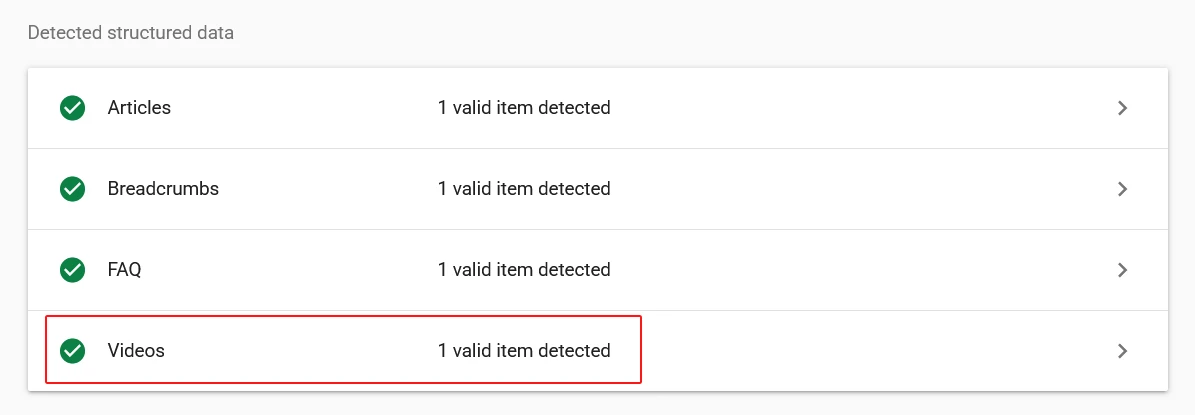
View Page Source: Ctrl+U in the browser on the live page. Search for “VideoObject” in the source. If it appears, the schema is in the HTML. If it does not, the schema is either being stripped, is added only via JavaScript, or the cached version is being served without it.
GSC URL Inspection: Enter the page URL in the URL Inspection tool and scroll to the Enhancements section in the inspection results. If Google has successfully identified and indexed the video, a “Video” entry will appear here with the thumbnail and title Google extracted. This is the most authoritative confirmation — it means Google has actually processed and accepted your schema, not just that the code is present on the page.
GSC Video Indexing Report: Under Indexing → Videos in GSC, you can see all pages with videos that Google has detected across your site, along with any errors — missing thumbnails, duration format issues, or videos detected outside the main content area. This gives you a site-wide view rather than page-by-page checking. I cover this report in detail in my video SEO guide.
Frequently Asked Questions
Do I need video schema markup if I embed YouTube videos on my site?
Yes — even for YouTube embeds. YouTube videos are already indexed by Google via YouTube, but without VideoObject schema on your embedding page, your specific page is not eligible for video rich results in search. Google needs the schema on your page to associate the video with your content and generate a rich result that links to your page rather than to YouTube directly. The schema also gives Google the thumbnail, description, and duration it needs to display the rich result correctly.
What is the correct format for video duration in VideoObject schema?
ISO 8601 duration format — PT followed by hours (H), minutes (M), and seconds (S). A 5 minute 30 second video is PT5M30S. A 1 hour 10 minute video is PT1H10M. A 90 second video is PT1M30S or PT90S — both are valid. The most common mistake is using colon-separated time formats like 5:30 or 1:10:00 — these are not valid and will cause Google to reject or ignore the duration field. Always validate using the Rich Results Test after adding schema to confirm the duration is being read correctly.
Can I use Rank Math to add video schema, or is manual JSON-LD better?
Both work, but with different strengths. Rank Math’s automatic video schema works well for YouTube embeds — it can auto-detect the embed and populate most fields. For self-hosted videos, manual JSON-LD via the Classic Editor or a Custom HTML block is often more reliable because you control every field precisely. The most important thing either way is to check for duplicate schema — if Rank Math is generating VideoObject schema automatically and you also add it manually, you will have two VideoObject blocks on the page, which can cause Google to reject or misread the data.
Why is my video not showing in the Rich Results Test even though I added schema?
The most common cause on WordPress sites is the caching plugin serving a cached version of the page that does not contain the schema. Add the schema, then clear WP Rocket cache (or your caching plugin) on that specific post, clear your hosting server-level cache, and then test. Also do View Page Source and confirm the VideoObject JSON-LD appears in the raw HTML source — if it does not, the schema may be getting stripped by a security filter or injected only via JavaScript rather than static HTML.
Does video schema markup guarantee video rich results in Google Search?
No — schema markup makes your page eligible for rich results, but Google decides whether to display them. Factors that influence whether rich results actually appear include the quality and relevance of the video content, whether the thumbnail meets Google’s size requirements (minimum 1200px wide), whether the page itself ranks well for the target query, and whether Google considers the video the primary content of the page. A page where the video is buried below a lot of text or in a secondary content area is less likely to generate a rich result than a page where the video is prominently placed above the fold.
What is the difference between contentUrl and embedUrl in VideoObject schema?
contentUrl is the direct URL to the video file itself — for example, the MP4 file on your server. It allows Google to access the raw video file directly. embedUrl is the URL used to embed the video in a player — for YouTube, this is the https://www.youtube.com/embed/VIDEO_ID format. For self-hosted videos, include contentUrl. For YouTube embeds, include embedUrl using the embed URL format, not the standard watch URL. You can include both in the same schema block if applicable — this gives Google the most complete picture of how to access the video.

