
I had a client reach out last year, frustrated that none of their embedded YouTube videos were appearing in Google search results. They had eight videos across their service pages — good production quality, relevant topics, properly embedded. Not one of them was showing up in Google Video Search or as a rich result.
After a full audit, I found not one problem — I found five. Some were technical, some were structural, and one was a setting they had accidentally changed months earlier without realizing it.
This is more common than most people think. Google does not automatically index every video on every website. There are specific requirements, and if any one of them is missing, your video simply won’t show up — no matter how good it is.
In this post, I’ll walk through every reason I’ve seen YouTube videos not showing in Google search, how to diagnose each one, and the exact fix for each. This applies to embedded YouTube videos on your own website — not videos on YouTube’s platform itself, which has its own separate indexing system.
Quick Summary
- Google does not automatically index embedded YouTube videos on your website.
- Your video page must meet specific technical and content requirements for Google to index it.
- A video sitemap, VideoObject schema, and a dedicated watch page are the three most important fixes.
- You can check indexing status in Google Search Console under the Video Pages report.
- AI search engines like Google AI Overviews, Bing Copilot, and Perplexity also rely on proper video structured data.
How Google Indexes Embedded Videos — And Why It Often Fails
When you embed a YouTube video on your website, two separate indexing systems are involved. YouTube indexes the video on its own platform — that’s automatic and you don’t control it. Google separately decides whether to index that embedded video as part of your website’s content and show it in Google search results.
These are two completely different things. A video can rank well on YouTube search but not appear anywhere in Google search results for your domain. The reason is that Google needs specific signals from your website to understand that the video exists, what it’s about, and whether it deserves to be shown as a video result.
When those signals are missing — or broken — Google either ignores the video entirely or fails to associate it with your page.
How to Check if Google Is Indexing Your Videos
Before troubleshooting, confirm whether the problem actually exists. Open Google Search Console and follow these steps:
- Select your website property
- Click Search Results in the left sidebar
- Click Search type at the top and switch to Video
- Check the impressions and clicks — if they are zero or very low, your videos likely aren’t being indexed
- Also check Video pages in the left sidebar under Indexing — this shows exactly which video pages Google has found and whether they are indexed or not
If the Video pages report shows videos as “Crawled — currently not indexed” or simply doesn’t show your pages at all, the issues below are likely the cause.
Common Signs Google Is Not Indexing Your Videos
- Your pages appear in normal search but not Video search
- No video thumbnail appears in search results
- Google Search Console shows “Video not indexed”
- Your video pages get zero impressions in the Video report
- Videos appear on YouTube but not for your domain
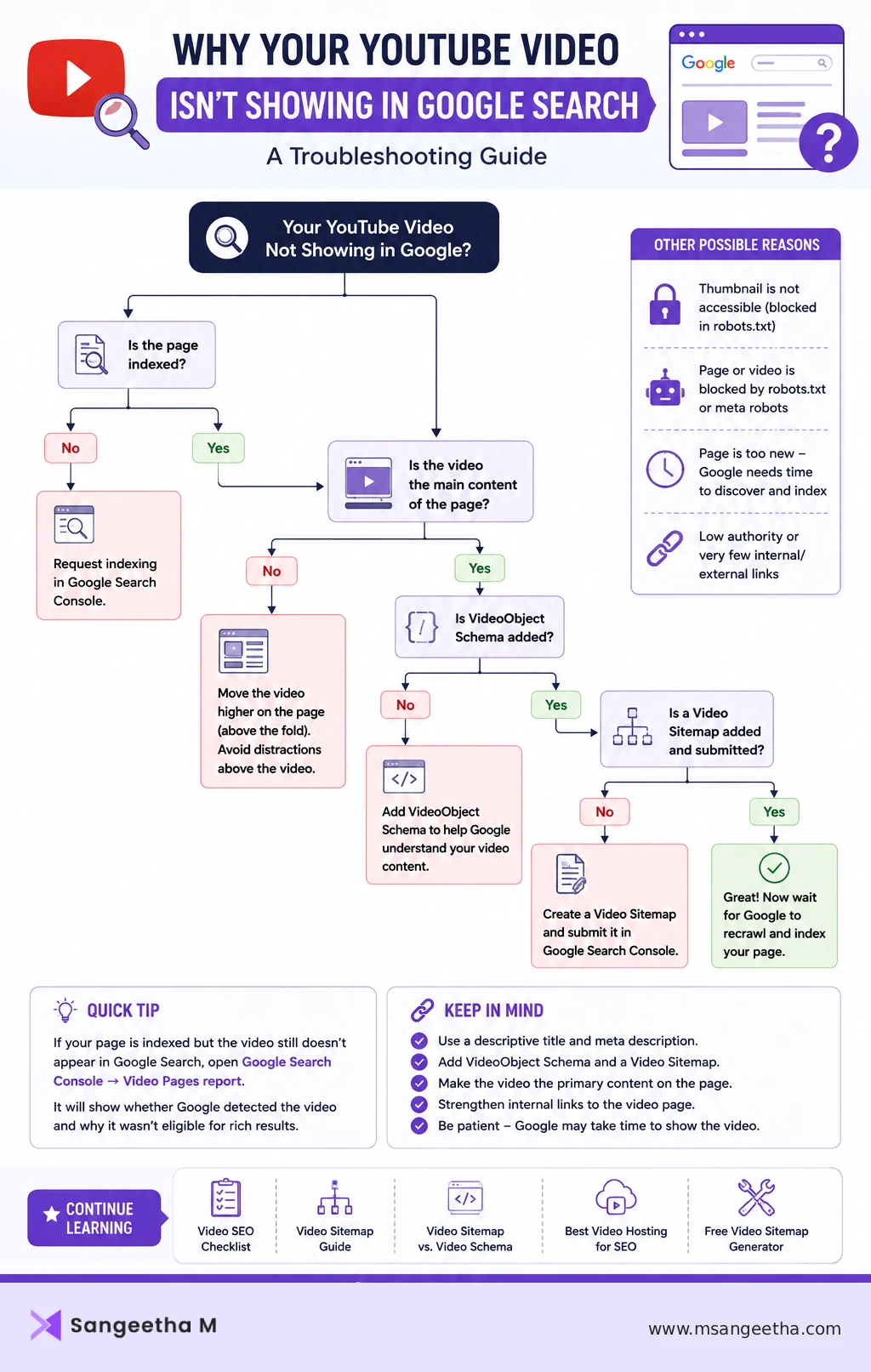
9 Reasons Your YouTube Videos Are Not Showing in Google Search
1. Your Video Does Not Have a Dedicated Watch Page
This is the most common reason I see, and it’s the one Google quietly changed in November 2023 that many site owners still don’t know about.
Google now requires that a video be the primary content of a page in order to index it as a video result. If your video is embedded halfway down a long blog post, surrounded by thousands of words of text and other content, Google may not treat it as a video page at all — it’ll just see it as a regular article.
If multiple videos exist on the same page, Google may choose only one as the primary indexed video — or ignore all of them if it cannot determine which one matters most.
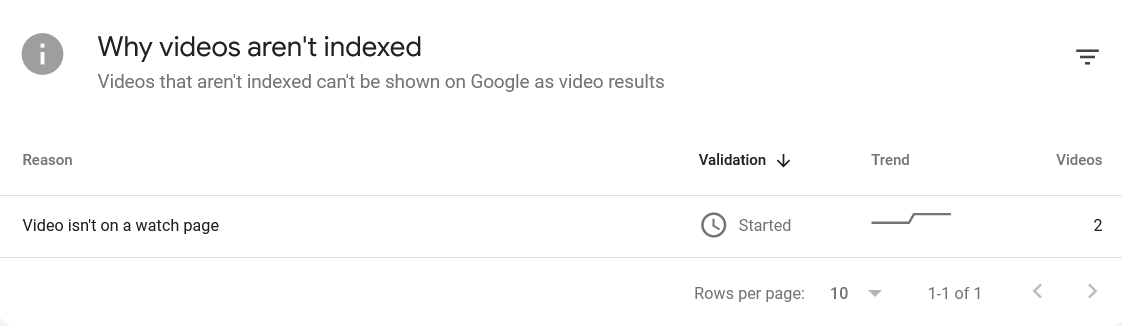
The fix is to create a dedicated page for each important video. The page should have a clear title related to the video, a short description, and the video as the main visible element. You can still embed the video on your blog post as well — but the dedicated watch page is what Google needs to index it as a video.
A dedicated watch page should not be a nearly empty page with only an embedded video. Google still expects supporting context and useful content around the video.
2. No Video Sitemap
Google can struggle to discover embedded videos on your site, especially when they’re loaded via JavaScript (which YouTube embeds are). A video sitemap XML file gives Google a direct list of your video pages along with the video metadata — title, description, thumbnail URL, player URL, and publication date.
Without a video sitemap, Google has to find your videos on its own during regular crawls. For newer sites or sites with weak internal linking, this often means videos never get discovered at all.
This is the fix I most commonly implement first because it’s quick and the results are usually visible within two to four weeks in GSC.
I’ve written a detailed guide on how to create a video sitemap XML file, including a free tool to generate one without needing a premium plugin.
3. Missing VideoObject Schema Markup
A video sitemap helps Google discover your video pages. VideoObject schema markup helps Google understand what the video is about once it gets there. You need both.
VideoObject is a type of structured data you add directly to your page in JSON-LD format. It tells Google — and AI search engines like Google AI Overviews, Bing Copilot, and Perplexity — the video title, description, thumbnail, upload date, duration, and embed URL in a machine-readable format.
Without VideoObject schema, Google has to guess at this information from your page content. Sometimes it gets it right. Often it doesn’t — and a video without clear metadata is far less likely to be shown as a rich result in search.
Here’s what a basic VideoObject schema looks like for an embedded YouTube video:
<script type="application/ld+json">
{
  "@context": "https://schema.org",
  "@type": "VideoObject",
  "name": "Your Video Title Here",
  "description": "A short description of the video content.",
  "thumbnailUrl": "https://img.youtube.com/vi/YOUR_VIDEO_ID/maxresdefault.jpg",
  "uploadDate": "2026-01-15T00:00:00+00:00",
  "duration": "PT4M30S",
  "embedUrl": "https://www.youtube.com/embed/YOUR_VIDEO_ID",
  "url": "https://www.yourwebsite.com/your-video-page/"
}
</script>
You can generate this code for free using my Free Schema Markup Generator — select Video as the schema type, fill in the details, and copy the JSON-LD code directly into your page.
4. The Video Thumbnail Is Blocked or Inaccessible
Google requires a publicly accessible thumbnail image to display your video as a rich result. For YouTube embeds, the thumbnail URL is straightforward:
https://img.youtube.com/vi/YOUR_VIDEO_ID/maxresdefault.jpgHowever, if you’re using a custom thumbnail and that image is blocked by your robots.txt file, protected behind authentication, or hosted on a server that doesn’t allow Googlebot access — Google cannot display the video as a rich result.
Check your thumbnail URL directly in a browser’s incognito mode. If it loads fine there, it’s publicly accessible. Then check your robots.txt file to confirm the image directory isn’t blocked.
5. The Page Is Set to Noindex
This sounds obvious but I’ve seen it more times than I’d like to admit. If the page containing your video has a noindex tag — either in the page’s meta robots tag or in your SEO plugin settings — Google will not index the page or the video on it.
Check your page source for this tag:
<meta name="robots" content="noindex">Also check your SEO plugin (RankMath, Yoast, or AIOSEO) to confirm the page’s visibility is set to public and indexable. I’ve seen cases where a page was accidentally set to noindex during a draft revision and never switched back.
6. Video Resources Are Blocked in robots.txt
Even if your page is indexable, Google may still fail to process your video if important resources are blocked in your robots.txt file. This includes JavaScript files that render the video player, image directories containing thumbnails, or the video file itself if it’s self-hosted.
Go to yourwebsite.com/robots.txt and look for any Disallow rules that might block:
- /wp-content/uploads/ (common on WordPress — blocks thumbnails)
- /js/ or any JavaScript directory
- Specific video file extensions (.mp4, .webm)
You can also use Google Search Console’s URL Inspection tool and click Test Live URL to see exactly what Googlebot can and cannot access on any given page.
7. The Video Loads via JavaScript That Google Can’t Render
Standard YouTube embed code uses an iframe, which Google can typically render without problems. However, if you’re using a custom video plugin, a page builder like Divi or Elementor with heavy JavaScript, or a lazy loading setup that defers video loading until user interaction — Google may never actually see the video player at all.
This is especially common with video popup lightboxes, accordions, tabs, and delayed iframe loading plugins.
Google renders pages similarly to a browser, but it doesn’t interact with the page the way a user would. If your video only loads after a button click, a scroll trigger, or a user interaction event, Google’s crawler will likely miss it entirely.
The fix here is to ensure the video iframe or player is present in the page’s HTML at load time, even if it lazy loads visually. A video sitemap is especially important in these cases because it gives Google the video metadata directly, regardless of whether it can render the player.
8. It’s Too Soon — Google Hasn’t Crawled It Yet
For newer websites, smaller sites, or pages with few internal links pointing to them, Google’s crawl frequency can be slow. A page published today might not be crawled for days or even weeks.
To speed this up:
- Submit the page URL directly in Google Search Console using URL Inspection → Request Indexing
- Submit your video sitemap in GSC under Sitemaps
- Add at least one internal link to the video page from an existing high-traffic page on your site
Internal links are particularly important for video pages. An orphan page — one with no internal links pointing to it — signals to Google that the content isn’t important, and it will be crawled infrequently if at all.
9. The Page or Video Content Quality Is Too Low
Even when everything is technically correct, Google still evaluates the quality of the page and the relevance of the video to the user’s query before deciding to show it as a video result.
Google’s video indexing guidelines specifically state that the video should be the main focus of the page and that the surrounding content should support it. A page with only a video and no title, no description, no supporting text is unlikely to rank — even if it’s technically indexed.
What helps here:
- A clear, keyword-relevant page title and H1
- A written description of the video content (at least 100-150 words)
- A transcript or key timestamps if the video is long
- Internal links from related pages on your site
- VideoObject schema with accurate, complete metadata
What About AI Search Engines?
It’s worth mentioning that the same issues affect how your videos appear in AI-powered search results. Google AI Overviews, Bing Copilot, and Perplexity all rely on structured data and indexing signals to surface video content in their responses.
VideoObject schema is particularly important here. AI systems use structured data to extract machine-readable facts from your pages. Without it, even if your video is indexed, AI search engines may not know what the video is about or choose to include it in AI-generated answers.
Adding VideoObject schema to your video pages is one of the best investments you can make for both traditional search visibility and AI search visibility in 2026.
The Complete Fix Checklist
If your YouTube videos are not showing in Google search results, work through this checklist in order:
- Check GSC Video Pages report — confirm the problem exists
- Create a dedicated watch page for each important video
- Create and submit a video sitemap XML file
- Add VideoObject schema markup to each video page
- Confirm the thumbnail URL is publicly accessible
- Check the page is not set to noindex
- Check robots.txt is not blocking video resources
- Confirm the video iframe loads at page load time, not via a user interaction
- Add internal links from other pages on your site to the video page
- Request indexing in Google Search Console
🎬 Free Video Sitemap Generator
Creating a video sitemap is one of the fastest fixes on this list. I built a free tool that generates a properly formatted video sitemap XML file for YouTube, Vimeo, and self-hosted videos — no plugin or paid subscription needed. Download it and submit to Google Search Console in under five minutes.
How Long Does It Take After Fixing?
After implementing these fixes — particularly the video sitemap and VideoObject schema — you can expect to see changes in Google Search Console within two to four weeks. Video pages typically start appearing in the Video Pages report first, then gradually move to indexed status.
For the client I mentioned at the start of this post, four out of six video pages were indexed within two weeks of submitting the video sitemap. The remaining two took another three weeks — those were the pages with less supporting text content, which needed additional work.
The key is not to implement one fix and wait — implement all the fixes at once and then monitor GSC weekly.
Frequently Asked Questions
Why are my YouTube videos not showing in Google search?
The most common reasons are a missing video sitemap, no VideoObject schema markup, the video not being the main content of a dedicated page, or the page being set to noindex. Work through all nine reasons in this guide to diagnose which one applies to your site.
Does embedding a YouTube video on my site help SEO?
It can, but only if the embedding is done correctly. The video needs a dedicated page, a video sitemap entry, and VideoObject schema markup. Without these, the embedded video is unlikely to appear in Google Video Search results for your domain.
How do I check if Google has indexed my videos?
Go to Google Search Console, click Indexing in the left sidebar, then Video pages. This shows which video pages Google has found, whether they are indexed, and any errors or reasons they may have been excluded.
Do I need a video sitemap if I’m using RankMath or Yoast?
RankMath and Yoast both require a paid plan to generate a video sitemap automatically. On the free versions, no video sitemap is generated. You can create one manually using a free video sitemap generator tool and submit it separately in Google Search Console.
How long does it take for Google to index a video?
After submitting a video sitemap, most sites see changes in the Video Pages report within two to four weeks. You can speed this up by requesting indexing for the video page directly in Google Search Console and adding internal links from other pages on your site.
Can Google index embedded YouTube videos?
Yes. Google can index embedded YouTube videos on your website, but only if the page meets Google’s video indexing requirements. In most cases, you need a dedicated watch page, VideoObject schema markup, and a video sitemap for reliable indexing.
Does VideoObject schema help videos rank in Google?
Yes. VideoObject schema gives Google machine-readable metadata about your video — title, description, thumbnail, duration, and upload date. This increases the likelihood of Google showing your video as a rich result with a thumbnail in search, which significantly improves click-through rates.
Will fixing video indexing also help with Google AI Overviews?
Yes. Google AI Overviews, Bing Copilot, and Perplexity all use structured data to understand and surface video content. Adding VideoObject schema is one of the most effective steps you can take for AI search visibility in 2026.
Can I have the same video on multiple pages?
Yes, you can embed the same video on multiple pages. However, you should have one primary dedicated watch page for each video that serves as the canonical page in your video sitemap. Multiple embeds across different pages are fine — they don’t cause duplicate content issues for video.
Fix the Fundamentals First
Most cases of YouTube videos not showing in Google search come down to the same handful of missing fundamentals — no dedicated watch page, no video sitemap, no VideoObject schema. These are not complicated fixes. Each one takes less than an hour to implement, and together they give Google every signal it needs to find, understand, and display your video content.
Start with the GSC Video Pages report to confirm what Google currently sees. Then work through the checklist above. If you’re on WordPress and don’t have a video sitemap yet, the free generator tool I mentioned earlier is the fastest way to create one without a premium plugin.
If you’re working on broader technical SEO improvements alongside video indexing, the two go hand in hand — many of the same issues that affect video indexing also affect regular page indexing. A thorough XML sitemap and proper internal linking structure support both.

