
“Unassigned” Looks Like a Bug. Most of the Time, It Is Not.
If you have spent any time in your GA4 Traffic Acquisition report, you have probably seen a row labeled “Unassigned” sitting alongside Organic Search, Direct, and Referral. The first reaction most people have is to assume something is broken. A chunk of sessions that GA4 simply could not figure out feels like a tracking failure.
I get this question regularly from people reviewing their own GA4 data for the first time: what exactly is Unassigned traffic, and is it something to fix? The honest answer is more nuanced than most quick explanations suggest. Some Unassigned traffic is completely normal and resolves on its own. Some of it points to a genuine configuration issue worth investigating. Knowing which situation you are in is the actual skill here.
This post builds on the foundations I covered in my GA4 for beginners guide. If you have not set up GA4 yet or are still getting comfortable with the basic reports, start there first.
What Unassigned Traffic Actually Means
GA4 organizes traffic into what it calls the Default Channel Group — categories like Organic Search, Direct, Referral, Paid Search, Organic Social, and Email. Every session gets sorted into one of these groups based on a fixed set of rules that examine the session’s source, medium, and a few other signals. The Default Channel Group follows Google’s predefined rules. You cannot edit those rules directly, although you can create Custom Channel Groups in GA4.
Unassigned is what happens when a session does not match any of those rules. It is not its own channel in the way Organic Search or Direct are. It is the leftover bucket for traffic GA4 could not confidently classify using its existing channel definitions.
This is an important distinction from “Direct” traffic, which I covered separately in my posts on what direct traffic in GA4 actually means and how to reduce misattributed direct traffic. Direct traffic usually means GA4 has no referrer information at all. Unassigned traffic usually means GA4 has some signal but that signal does not fit any of its predefined channel rules.
Common Causes of Unassigned Traffic
There is rarely a single cause. In my experience the most frequent reasons fall into a few buckets:
1. Non-standard or incomplete UTM parameters
If you tag a campaign URL with a custom utm_medium value that GA4 does not recognize as belonging to one of its default channels, the session lands in Unassigned. A common example is using something like utm_medium=pdf for links inside a downloadable guide, or inconsistent casing like “Newsletter” instead of “newsletter” — GA4 treats these as different values entirely.
2. Missing the session_start event
GA4 attribution relies heavily on the session_start event firing correctly at the beginning of a session. If your GA4 configuration tag fires after an event tag, or if a plugin conflict delays it, the session can be recorded without the attribution data GA4 needs, and it falls into Unassigned. You can verify this using GA4 DebugView or Google Tag Manager Preview Mode.
3. Recent data still processing
GA4 reporting and attribution data may take up to 24–48 hours to fully process. If you are looking at today’s or yesterday’s data, a noticeably higher Unassigned percentage is often just a processing artifact rather than a real issue. Always exclude the most recent day or two before drawing conclusions about your Unassigned numbers.
4. Traffic sources GA4 simply has no rule for
Some genuinely new or unusual traffic sources do not map cleanly to any of GA4’s fixed channel definitions. AI chatbot referrals and certain dark social traffic (links shared in private messaging apps or closed communities) are good current examples — the traffic is real, but GA4’s rule set has not caught up with categorizing it precisely.
5. Bot and crawler traffic
GA4 automatically filters out traffic from well-known bots and crawlers using an industry-standard list. However, less common automated traffic that is not on that list can still register sessions without standard human browsing signals, which sometimes results in Unassigned classification.
6. Cross-domain or redirect issues
If a visitor moves between domains or subdomains without proper cross-domain tracking configured, or if a redirect strips tracking parameters along the way, GA4 can lose the attribution chain and the session ends up Unassigned.
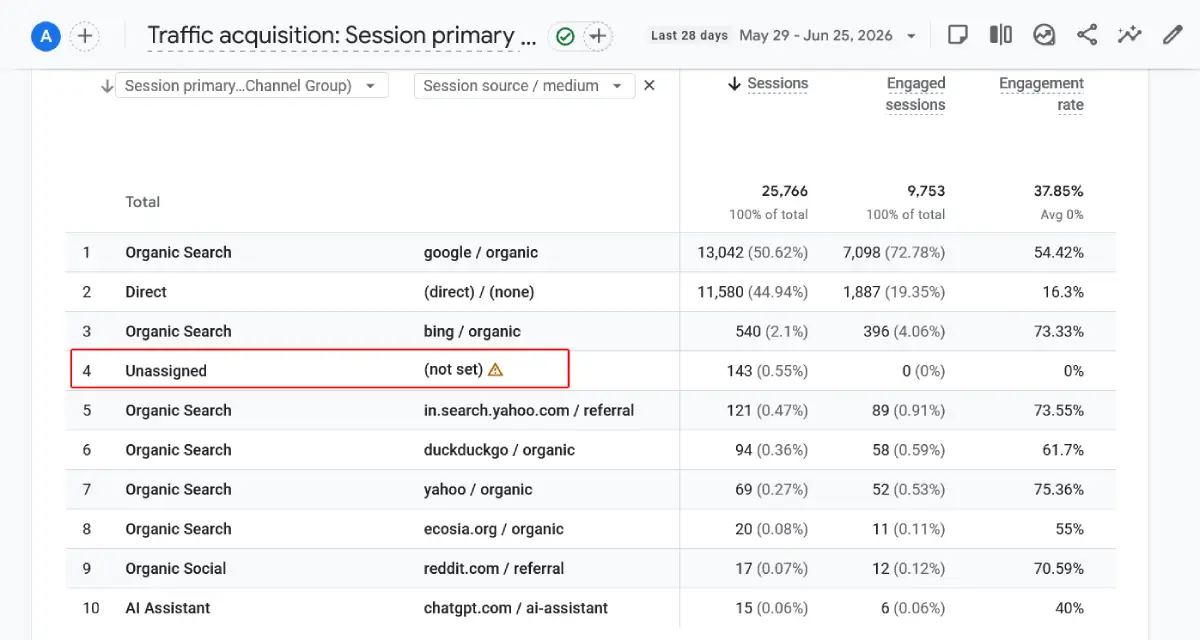
How to Find What Is Causing Your Unassigned Traffic
Rather than guessing, GA4 gives you a direct way to investigate:
- Go to Reports → Acquisition → Traffic Acquisition
- Look at the Session default channel group column and locate the Unassigned row
- Click the plus icon above the table and add the Session source/medium dimension as a secondary dimension
- Use the search box above the table and type “Unassigned” to filter the table down to just those rows
- Review the source/medium values that appear — this tells you exactly which traffic is landing in the Unassigned bucket
This single step resolves most of the mystery. If you see a recognizable source/medium pattern — for example, a recurring custom UTM tag from a newsletter tool — you now know exactly where to start fixing the tagging.
When Unassigned Traffic Is Nothing to Worry About
A small amount of Unassigned traffic is completely normal on almost every GA4 property. It is rarely possible, and not necessary, to get the number to zero. A few situations where you should not be concerned:
- Unassigned traffic appears mostly in the last 24-48 hours and shrinks once the data fully processes
- The volume is low — a small single-digit percentage of total sessions
- It is concentrated around a recent campaign you just launched with new UTM tagging that has not been fully standardized yet
- It correlates with a known low-volume source, like an internal tool or a partner referral that simply is not common enough to have its own GA4 channel rule
When It Is Worth Investigating Further
There is no universal hard threshold, but as a working guideline I get concerned when Unassigned traffic is consistently one of the top channel groups by session volume, or when it represents more than roughly 15-20% of total traffic over a sustained period. At that level, you are losing meaningful visibility into how people are actually finding your content, which makes it harder to know which of your marketing efforts are working.
It is also worth investigating immediately if Unassigned traffic suddenly spikes after a site change — a new plugin, a migration, a Google Tag Manager update, or a caching configuration change. A sudden spike tied to a specific change usually points to a tracking implementation issue rather than a normal attribution gap, and it is much easier to fix when you catch it close to the change that caused it.
If your overall organic traffic also seems to be dropping around the same time, it is worth widening your investigation beyond GA4 alone. Check whether the issue is isolated to analytics tracking or whether it reflects an actual decline in visibility — my post on why your website is not getting traffic walks through how to tell the difference.
Practical Steps to Reduce Unassigned Traffic
You will not eliminate Unassigned traffic entirely, but these steps reliably reduce it on most WordPress sites:
- Standardize your UTM parameters — always use lowercase, consistent values for utm_source and utm_medium, and stick to GA4’s recognized medium values where possible (organic, cpc, referral, email, social, affiliate)
- Use Google’s Campaign URL Builder — rather than hand-typing UTM tags, use a consistent tool so formatting stays uniform across your team
- Verify your GA4 tag fires correctly and early — confirm through Google Tag Manager‘s preview mode or GA4 DebugView that the configuration tag fires before any event tags, not after
- Avoid mixing manual UTMs with Google Ads auto-tagging — Google Ads already passes attribution data automatically through gclid; adding manual UTM tags on top of that can conflict and confuse attribution
- Set up a Custom Channel Group for recurring, recognizable traffic sources that do not fit GA4’s defaults — for example, if you regularly get traffic from a specific partner site or platform that consistently lands in Unassigned, a custom rule can reclassify it correctly going forward
- Check cross-domain tracking settings if you operate multiple related domains or subdomains, to make sure attribution data is not lost when visitors move between them
One thing I always recommend alongside fixing UTM hygiene: make sure Google Search Console is linked to your GA4 property. It will not reduce Unassigned traffic directly, but it gives you a second, independent view of your organic search performance that is unaffected by UTM tagging issues, which makes it easier to sanity-check whether your overall traffic picture still makes sense even while you are cleaning up attribution gaps.
Unassigned vs (Not Set): Knowing the Difference
These two terms get confused constantly, but they describe different problems. “Unassigned” is a channel-grouping issue — GA4 has some source/medium data, but that data does not match any defined channel rule. “(Not set)” usually means a specific dimension, like page title, content group, or source/medium itself, was never populated at all because the relevant data was never sent to GA4 in the first place.
If you are troubleshooting and see “(not set)” specifically in your source/medium column, that points toward a tagging or implementation gap rather than a channel-rule mismatch — the fix usually involves checking your GA4 or Google Tag Manager setup directly rather than adjusting UTM conventions.
Frequently Asked Questions
Is Unassigned traffic in GA4 a sign that something is broken?
Not necessarily. A small, consistent amount of Unassigned traffic is normal for almost every GA4 property and does not indicate a broken setup. It becomes a concern primarily when it represents a large share of total traffic or spikes suddenly after a site change.
Can I completely eliminate Unassigned traffic?
No, not entirely. Some traffic sources will always fall outside GA4’s predefined channel rules, and some attribution loss is inevitable due to browser privacy restrictions, ad blockers, and cross-domain limitations. The realistic goal is minimizing it, not eliminating it.
Why does Unassigned traffic look higher when I check today’s data?
Attribution data can take 24 to 48 hours to fully process in GA4. Checking very recent data, especially the current or previous day, often shows an inflated Unassigned percentage that resolves once processing completes. Always exclude the last day or two when analyzing this metric.
Does Unassigned traffic affect my SEO or rankings?
No. Unassigned traffic is a GA4 reporting and attribution issue, not a ranking signal. It affects your ability to understand where your traffic is coming from, but it has no direct relationship with how Google ranks your pages in search results.
Should I create a Custom Channel Group for my Unassigned traffic?
It depends on volume and pattern. If you notice a specific, recurring source/medium combination consistently landing in Unassigned and it represents a meaningful traffic source for your site, a Custom Channel Group is a reasonable fix. For occasional, low-volume, or one-off Unassigned sessions, it is usually not worth the setup effort.
What is the difference between Unassigned and Direct traffic in GA4?
Direct traffic generally means GA4 has no referrer or source information at all for that session. Unassigned means GA4 does have some source or medium signal, but that signal does not match any of its predefined channel grouping rules. They represent different attribution gaps with different underlying causes.
Why is Unassigned traffic increasing in GA4?
A sudden increase usually indicates one of three things: recently launched campaigns with incorrect UTM parameters, tracking changes such as Google Tag Manager updates or plugin conflicts, or recent data that has not finished processing. Reviewing the Session source/medium values is usually the fastest way to identify the cause.