
Understanding Channel vs Source vs Medium in GA4
When people first open the GA4 Traffic Acquisition report, they usually look at the channel column, see “Organic Search” or “Referral,” and assume that is the full picture. It is not. GA4 actually tracks traffic at three different levels of detail — channel, source, and medium — and understanding the difference between them is what makes the report genuinely useful instead of just a list of vague labels.
This post builds directly on my GA4 for beginners guide, where I introduced the Acquisition reports at a high level. Here I am going deeper into how GA4 actually classifies traffic, what each term means, and how to read the report the way it was designed to be read rather than just glancing at the top-line numbers.
If you have also run into the “Unassigned” row in this same report, I have a dedicated post explaining what GA4 Unassigned traffic means and when to worry about it — that is a related but separate concept from what I am covering here.
Channel vs Source vs Medium
These three terms describe the same visit at different levels of granularity. Once this clicks, the whole report becomes much easier to read.
Source
The source is where the traffic technically came from — usually a domain name or a specific platform identifier. If someone clicks through from Google’s search results, the source is “google.” If they click a link on Facebook, the source is “facebook.” If they type your URL directly or come from a source GA4 cannot detect, the source shows as “(direct).”
Medium
The medium describes the method or trigger of that visit, not the destination it came from. Common medium values include “organic” (unpaid search results), “cpc” (paid click, usually from ads), “referral” (a link on another website), “email,” and “social.” Medium is almost always paired with source — the combination “google / organic” tells you far more than either value alone.
Channel
A channel is a broader grouping that GA4 builds by applying a set of rules to combinations of source and medium. “Organic Search” as a channel includes traffic from google/organic, bing/organic, yahoo/organic, and any other search engine GA4 recognizes with an “organic” medium. Channels exist so you do not have to look at dozens of individual source/medium combinations every time you want a quick overview.
| Term | What it tells you | Example |
|---|---|---|
| Channel | Broad traffic category | Organic Search |
| Source | Where traffic came from | |
| Medium | How traffic arrived | organic |
Suppose someone searches Google for “WordPress SEO Guide”, clicks your blog, and reads the article.
Source: google
Medium: organic
Channel: Organic Search
In the standard Traffic Acquisition report, GA4 shows channel by default under the column “Session default channel group.” You can switch this to show source/medium instead, which I will cover in the customization section below.
GA4’s Default Channel Groups Explained
GA4 ships with a fixed set of predefined channels, sometimes called Default Channel Groups. These rules are set by Google and you cannot edit them directly, though you can build Custom Channel Groups alongside them. The main default channels you will see are:
- Organic Search — visits where the medium is “organic,” coming from a recognized search engine
- Paid Search — visits from search engines where the medium indicates a paid click, such as “cpc” or “ppc”
- Direct — visits with no detectable source or medium, typically from typed URLs, bookmarks, or apps that strip referrer data
- Referral — visits from a link on another website, where the medium is “referral”
- Organic Social — unpaid visits from recognized social platforms
- Paid Social — paid advertising visits from social platforms
- Email — visits where the medium is “email”
- Affiliates — visits tagged with an affiliate medium
- Display — visits from display advertising campaigns
- Cross-network — traffic from campaigns that run across multiple platforms simultaneously, such as Performance Max campaigns spanning Search, YouTube, Display, and Gmail at once; this channel did not exist in Universal Analytics
- Unassigned — traffic that does not match any of the rules above; see my dedicated post on GA4 Unassigned traffic for the full explanation
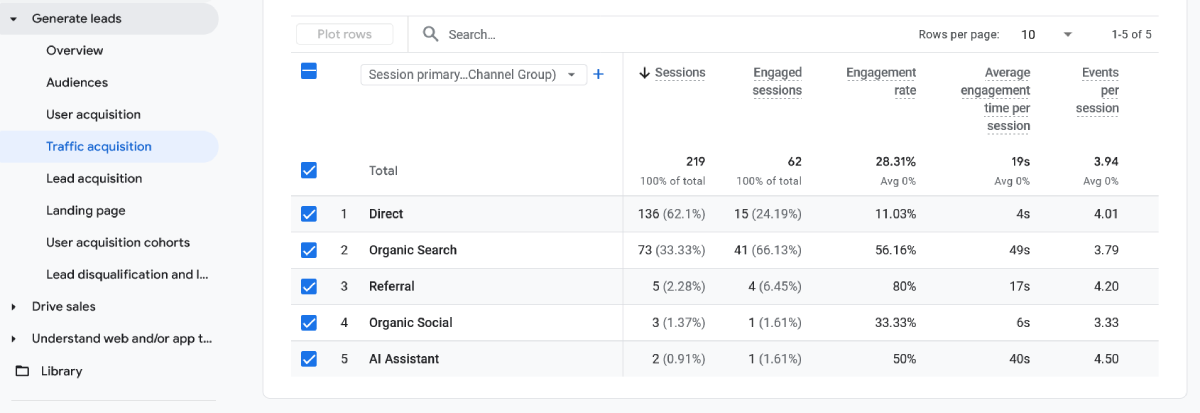
You do not need to memorize every rule behind each channel. What matters is knowing that each channel is really just a label applied to specific source/medium combinations, and you can always drill down to see exactly which source/medium values are feeding any given channel.
Traffic Acquisition vs User Acquisition: They Are Not the Same Report
GA4 has two separate acquisition reports, and mixing them up leads to a lot of confused analysis. Both live under Reports → Acquisition in the left navigation.
User Acquisition reports on the first traffic source that ever brought a user to your site. Once a visitor’s first-touch channel is recorded, GA4 keeps attributing that user to it in this report, even if they return through a completely different channel later. This report answers the question: “Which channels are bringing me new visitors in the first place?”
Traffic Acquisition reports on the most recent session-level source, regardless of whether the user is new or returning. This report answers a different question: “Across all visits, where is my traffic actually coming from right now?”
For most WordPress blog owners focused on content performance, Traffic Acquisition is the more frequently useful report day to day, since it reflects your current traffic mix rather than only first-touch history. User Acquisition becomes more valuable when you specifically want to evaluate which channels are effective at bringing brand-new people to your site, separate from repeat visits.
Likewise, dimensions beginning with Session describe the current visit, while dimensions beginning with First user describe how the visitor originally discovered your website.
How to Read the Traffic Acquisition Report
Go to Reports → Acquisition → Traffic Acquisition. By default, the table is organized by Session default channel group, with metrics like Sessions, Engaged Sessions, Engagement Rate, Average Engagement Time, and Event Count alongside each row.
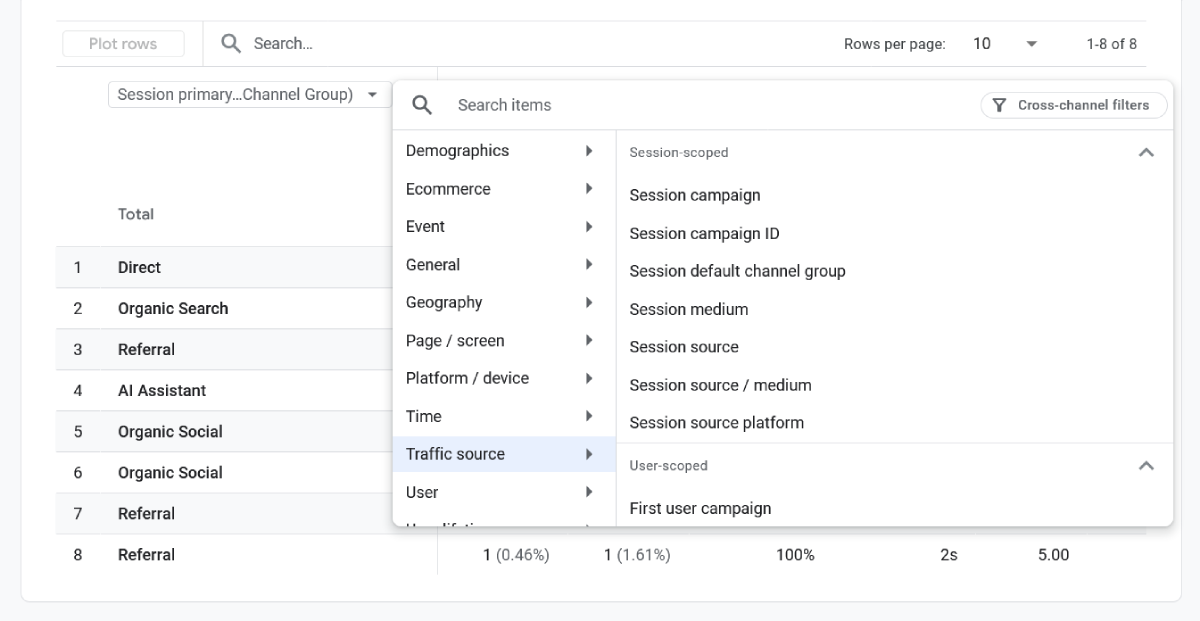
To see the underlying source/medium detail behind any channel, click on the channel name in the table or change the primary dimension. Here is how to switch it:
- Click the pencil/edit icon in the top right of the report
- Open the Dimensions panel
- Change the dimension from “Session default channel group” to “Session source/medium”
- Click Apply
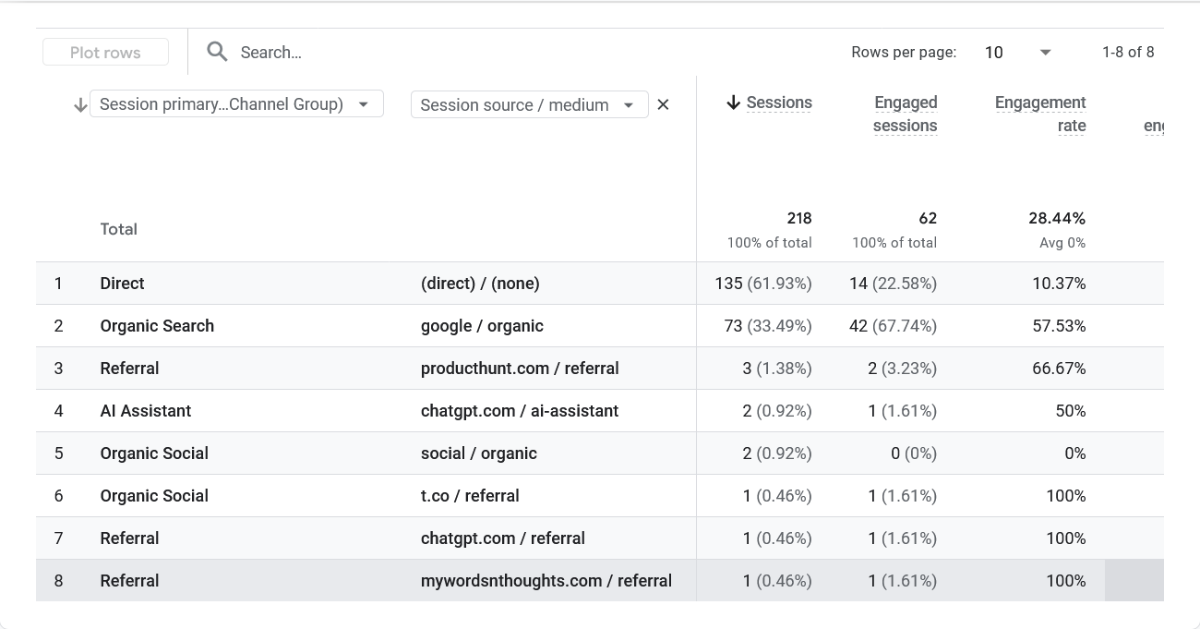
This view is more granular and, in my experience, more useful once you are past the beginner stage. Instead of seeing just “Organic Search,” you will see specific rows like “google / organic” and “bing / organic” broken out separately, which lets you compare exactly how much traffic each individual search engine is sending you.
Linking Traffic Sources to Search Performance
If you have linked Google Search Console to your GA4 property — which I walk through in my GSC setup guide — you get an additional layer of detail specifically for your organic search channel. The Search Console collection in GA4 Reports shows the actual queries driving your organic sessions, which the standard Traffic Acquisition report cannot show on its own due to privacy restrictions on keyword data.
Combining the two gives you a complete picture: Traffic Acquisition tells you how much organic traffic you are getting and how engaged that traffic is, while the Search Console Queries report tells you which specific search terms are responsible. This combination is something I rely on heavily for keyword research and content planning decisions.
How UTM Parameters Control Channel Assignment
If you are running campaigns — a newsletter, a guest post, a social media push — tagging your links with UTM parameters is what allows GA4 to classify that traffic accurately instead of lumping it into Direct or Unassigned. If you’re using Google Ads with auto-tagging enabled, GA4 automatically captures campaign information using the GCLID parameter, so manual UTM tagging is generally unnecessary for those campaigns.
The two parameters that matter most for channel assignment are utm_source and utm_medium. For example, a link tagged with utm_source=newsletter&utm_medium=email will be classified under the Email channel. A link tagged with utm_source=instagram&utm_medium=social will fall under Organic Social.
One genuine improvement GA4 has over Universal Analytics: UTM parameter matching in GA4 is case-insensitive, so “Email” and “email” are treated the same way. That said, I still recommend standardizing on lowercase across your team for consistency and to avoid confusion when reviewing reports, even though GA4 itself will not split the data because of casing differences.
Use Google’s Campaign URL Builder, or a consistent internal naming convention, every time you create a trackable link. Inconsistent or missing UTM tagging is the single biggest cause of traffic landing in the wrong channel or in Unassigned.
What to Actually Look for in This Report
Beyond just identifying where traffic comes from, here is how I use the Traffic Acquisition report in practice:
Comparing engagement quality across channels — a channel with high sessions but low engagement rate or short average engagement time often signals a mismatch between what drove the click and what the landing page delivers. This is common with referral traffic from low-relevance sites or poorly targeted social posts.
Spotting underperforming channels worth investigating — if a channel that should be working well (organic search, for example) is delivering disappointing engagement, that is a signal worth digging into. My post on why your website is not getting traffic covers the broader diagnostic process if organic specifically looks weak.
Tracking channel mix over time — comparing this month to last month, or year over year, shows whether your traffic is becoming more or less diversified. A site overly dependent on a single channel, even a strong one like organic search, carries more risk than one with a healthier mix.
Validating campaign tagging — after launching any tagged campaign, checking the Traffic Acquisition report a day or two later confirms whether your UTM parameters are working as intended, before you have invested significant time into a campaign with broken tracking.
Common mistakes when reading GA4 traffic sources
- Assuming Channel, Source, and Medium are the same thing
- Looking only at Sessions instead of Engagement
- Ignoring Source/Medium details
- Using inconsistent UTM parameters
- Confusing Traffic Acquisition with User Acquisition
A Quick Reference: Source/Medium to Channel Mapping
Here are some common combinations and the channel they typically map to, which helps when you are reading the source/medium view and want to know how GA4 would categorize it:
- google / organic → Organic Search
- google / cpc → Paid Search
- (direct) / (none) → Direct
- facebook.com / referral → Referral (unless recognized as a social platform, in which case Organic Social)
- instagram / social → Organic Social
- newsletter / email → Email
- partner-site.com / referral → Referral
- (not set) or unrecognized values → Unassigned
Frequently Asked Questions
What is the difference between channel, source, and medium in GA4?
Source is where the traffic technically originated, such as a domain name or platform. Medium describes the method of arrival, such as organic, referral, or email. Channel is a broader grouping GA4 creates by applying rules to combinations of source and medium, giving you a simplified, high-level view.
Should I use User Acquisition or Traffic Acquisition for my reports?
Use Traffic Acquisition for an ongoing view of where your overall sessions are coming from right now. Use User Acquisition specifically when you want to evaluate which channels are most effective at bringing brand-new visitors to your site for the first time.
Why is my UTM-tagged traffic not showing up in the channel I expected?
Check the exact utm_source and utm_medium values you used against GA4’s channel rules. A non-standard medium value, like utm_medium=blog instead of a recognized value, will not map to the channel you intended and may land in Unassigned instead.
Is GA4 UTM tagging case-sensitive?
No. GA4 treats UTM parameter values as case-insensitive for channel assignment purposes, unlike some older analytics setups. It is still good practice to standardize on lowercase across your team for consistency in reporting.
What is the Cross-network channel in GA4?
Cross-network is a channel that did not exist in Universal Analytics. It captures traffic from campaigns that run across multiple advertising platforms simultaneously, such as Google’s Performance Max campaigns, which can serve ads across Search, YouTube, Display, and Gmail at the same time.
Can I create my own custom channels in GA4?
Yes. GA4 allows you to build Custom Channel Groups alongside the default ones. This is useful when you have a recurring, recognizable traffic source that does not fit neatly into any default channel and you want it broken out separately in your reports.