
If you have ever opened Google Search Console, checked a URL, and stared at a status message wondering what it actually means — you are not alone. I troubleshoot indexing issues regularly for WordPress sites, and the single most common source of confusion I see is misreading GSC status messages and then taking the wrong action.
The status labels in GSC are precise. Each one tells you something specific about where your page sits in Google’s crawl-index pipeline. Treating them all the same — and responding with a blanket “request indexing” — is why so many pages stay stuck.
This guide breaks down every indexing status you will encounter in Google Search Console, what it actually means technically, and what you should do (and what you should not do) in each case.
How Google Search Console Indexing Status Works
Before we get into the individual statuses, it helps to understand the pipeline Google uses to get a page into search results. There are three distinct stages, and a page can get stuck at any one of them.
Stage 1 — Discovery: Google finds out a URL exists, usually via your XML sitemap or a link from another page it already crawled. The URL goes into a crawl queue. Google has not visited it yet.
Stage 2 — Crawling: Googlebot actually visits the URL, downloads the HTML, and renders the page (including JavaScript). This is where Google sees your actual content.
Stage 3 — Indexing: Google evaluates the crawled content and decides whether to add it to the index. This is where quality, duplicate, and relevance decisions happen.
GSC indexing statuses map directly to where in this pipeline something went wrong — or is still waiting. Understanding which stage the problem belongs to tells you exactly where to focus your troubleshooting.
The URL Inspection tool in GSC is your main diagnostic tool here. For any page you are concerned about, enter the URL and GSC will show you the current status along with discovery, crawl, and indexing details. I use this regularly when managing technical SEO audits for WordPress sites.
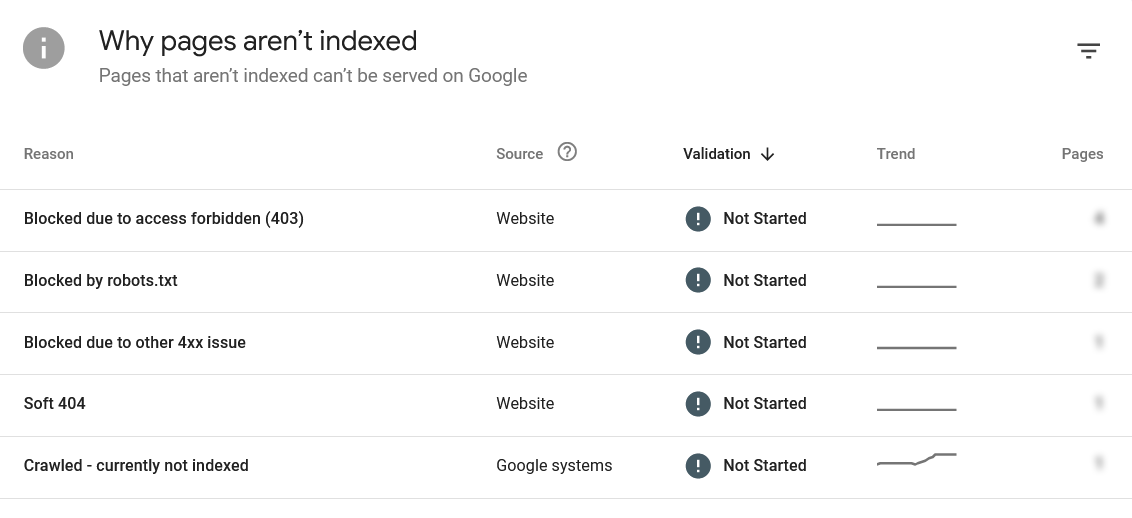
The Complete List of GSC Indexing Statuses
| Status | Meaning | Priority |
|---|---|---|
| Discovered – Currently Not Indexed | Found but not crawled | Medium |
| Crawled – Currently Not Indexed | Crawled but rejected | High |
| Blocked by Noindex | Intentionally excluded | Depends |
| Duplicate Without User Selected Canonical | Canonical issue | High |
| Submitted and Indexed | Healthy | None |
Discovered — Currently Not Indexed
This is one of the most misunderstood statuses in GSC, and also one of the most common.
What it means: Google knows this URL exists — it found it via your sitemap or another page — but it has not crawled it yet. The page is sitting in the crawl queue, waiting. All the crawl fields (Last crawl, Crawled as, Page fetch, Indexing allowed) will show N/A because Googlebot has not actually visited the page.
Why it happens: Google prioritizes its crawl budget. Pages on sites with lower crawl authority, pages with no strong inbound links from already-indexed content, and pages on sites with slow response times all get deprioritized in the queue. It is not a penalty — it is a queue management decision.
There is an important detail most guides miss: if you see “Referring page: None detected” alongside this status, it means Google has not found any HTML link pointing to this page from any other crawled page. Your sitemap submitted the URL, but no live page on your site — as seen by Googlebot — is linking to it. This is often a classic orphan page situation, even if you added links in your CMS. A caching layer may have served Googlebot a stale version of those linking pages, making the new links invisible to the crawler.
What to do:
- First, confirm the page has genuine internal links pointing to it from already-indexed posts. Do this by checking View Page Source (Ctrl+U, not browser Inspect) on those linking pages and searching for the target URL. If it is not in the raw HTML, Googlebot cannot see the link.
- Clear your caching plugin (WP Rocket, W3 Total Cache, LiteSpeed Cache) on the linking pages — not just the stuck page itself. Then also ask your host to clear any server-level cache for those same URLs, as hosting cache and plugin cache are independent layers.
- Resubmit the linking pages in GSC, not the stuck page. Repeated submission of a page with no referring links is unlikely to help. Let Googlebot follow links to it naturally.
- Do not spam the Request Indexing button on the stuck URL. Google sees the repeated submissions and it rarely accelerates crawling when the referring page problem is unresolved.
I diagnosed this exact issue recently — a post published alongside another on the same day, both in the same category with the same setup. One indexed the next day. The other sat at “Discovered — currently not indexed” for weeks with “Referring page: None detected,” despite internal links being added. In this case, the root cause appeared to be WP Rocket serving a cached version of the linking pages to Googlebot, making the newly added links invisible to the crawler. The fix was clearing both the plugin cache and the server-level hosting cache on the linking pages before resubmitting them in GSC.
Crawled — Currently Not Indexed
This is a fundamentally different situation from “Discovered — currently not indexed,” and the distinction matters enormously for how you respond.
What it means: Googlebot visited your page, successfully downloaded and rendered the content, but decided not to add it to the index. The crawl section in GSC will show an actual date, a user agent (typically Googlebot smartphone), and a successful page fetch. The problem is not the crawl — it is Google’s quality or relevance assessment of what it found.
Why it happens: The most common reasons include thin or low-quality content, content that is too similar to other pages already indexed on your site, pages that Google considers redundant given existing content in the same niche, or rendering issues where JavaScript-dependent content appeared sparse after execution.
What to do:
- Use “View Crawled Page” in GSC URL Inspection to see what Google actually rendered. If the page looks thin, broken, or image-heavy with little text, that is your issue.
- Run a keyword cannibalization check. If you have multiple pages on the same site targeting the same keyword, Google may choose to index one and skip the others.
- Assess content depth honestly. A page with 400 words on a topic your own site has covered in 2,000 words elsewhere will often get skipped.
- Check if lazy-loaded images are rendering correctly. If main content is delivered via JavaScript and Googlebot is not executing it properly, the page may appear thinner than it actually is.
- Do not request indexing repeatedly on a crawled-but-not-indexed page without making substantive changes first. Google already knows what the page contains — resubmitting without improvement will not change the decision.
Indexed — Not Submitted in Sitemap
What it means: Google found and indexed this page on its own, without it being in your XML sitemap. This is usually fine — it means Google discovered it through links and found it valuable enough to index. Common on category pages, tag archives, or paginated URLs.
What to do: If this is a page you want indexed, add it to your sitemap so Google can track it properly. If it is a page you do not want indexed — tag archives, search result pages, admin-adjacent pages — add a noindex tag and review your robots.txt configuration.
Submitted and Indexed
What it means: The page is in your sitemap and Google has indexed it. This is the status you want for all important pages. Being indexed does not automatically mean a page will rank. A page can be indexed but receive zero impressions if Google does not consider it relevant for any meaningful search queries.
What to do: Nothing urgent — but check the Performance report periodically to make sure indexed pages are generating impressions and clicks for their target keywords. An indexed page with zero impressions after 60 days may need a content or keyword targeting review.
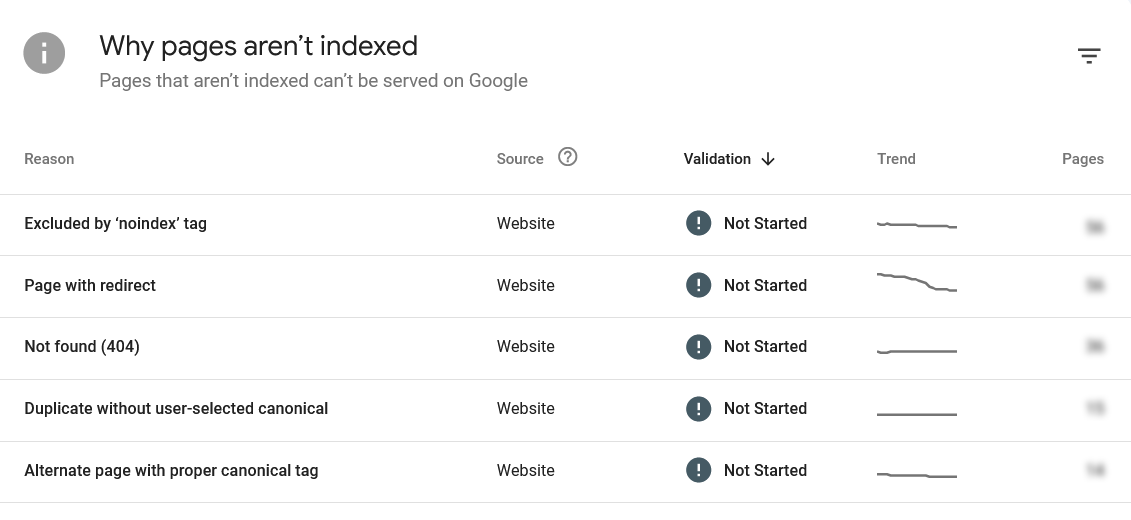
Duplicate Without User-Selected Canonical
What it means: Google found multiple URLs with the same or very similar content and decided to index a different version than the one you submitted — without you explicitly declaring which version was canonical. Google made its own choice.
Why it happens: Common culprits on WordPress sites include trailing slash vs. no trailing slash URLs, HTTP vs. HTTPS versions, www vs. non-www variations, or paginated versions of posts being treated as duplicates of the main post.
What to do: Add explicit canonical tags to tell Google which version you want indexed. Do not leave this to Google’s judgment — its choice may not match your intention. Also check your duplicate content settings in your SEO plugin.
Duplicate — Google Chose Different Canonical Than User
What it means: You set a canonical tag, but Google disagreed with your choice and indexed a different URL instead. This is Google saying: I see what you declared as canonical, but I think this other URL is the better version.
Why it happens: Google ignores canonical tags when it disagrees about content equivalence. This often means your canonical-declared page has thinner content, slower load time, fewer internal links, or lower authority compared to the version Google preferred.
What to do: Do not just re-submit the URL. Google has actively overridden your canonical — you need to understand why. Check whether the Google-preferred URL has more inbound links, faster load time, or more comprehensive content than your declared canonical. The fix usually involves improving your preferred page, not just re-asserting the canonical tag.
Page with Redirect
What it means: The URL you submitted or inspected redirects to another URL. Google follows the redirect and indexes the destination instead.
What to do: If this is intentional — you moved content and set up a 301 redirect — update your sitemap to point directly to the final destination URL. Submitting redirect URLs wastes crawl budget and creates unnecessary chain hops for Googlebot. If the redirect is unexpected, trace the redirect chain and confirm it is pointing where you intended.
Not Found (404)
What it means: Googlebot visited the URL and received a 404 response — the page does not exist at that address.
What to do: If the page was deleted intentionally and has no replacement, a 404 is correct — Google will eventually drop it from the index. If the page should exist, check whether it was accidentally deleted or the URL changed without a redirect. Set up a proper 301 redirect from the old URL to the new one. I cover the full process in my guide to diagnosing and fixing WordPress 404 errors.
Blocked by robots.txt
What it means: Your robots.txt file has a Disallow rule preventing Googlebot from crawling this URL. Google can see the URL exists but cannot visit it.
What to do: If the block is intentional — wp-admin, private areas, internal search results — leave it. If it is blocking content you want indexed, check your robots.txt for overly broad Disallow rules. This is a common mistake after plugin or theme updates that regenerate robots.txt automatically. Your technical SEO audit should always include a manual robots.txt review to catch these accidental blocks.
Blocked by noindex Tag
What it means: The page has a noindex directive in its meta robots tag or HTTP header, explicitly telling Google not to index it.
What to do: If intentional, no action needed. If unexpected — which happens more often than you would think, especially after migrating between SEO plugins — check your SEO plugin settings in Rank Math, Yoast, or AIOSEO to confirm the noindex is not being applied site-wide or category-wide by accident. Also check your theme settings, as some themes add noindex to specific page templates.
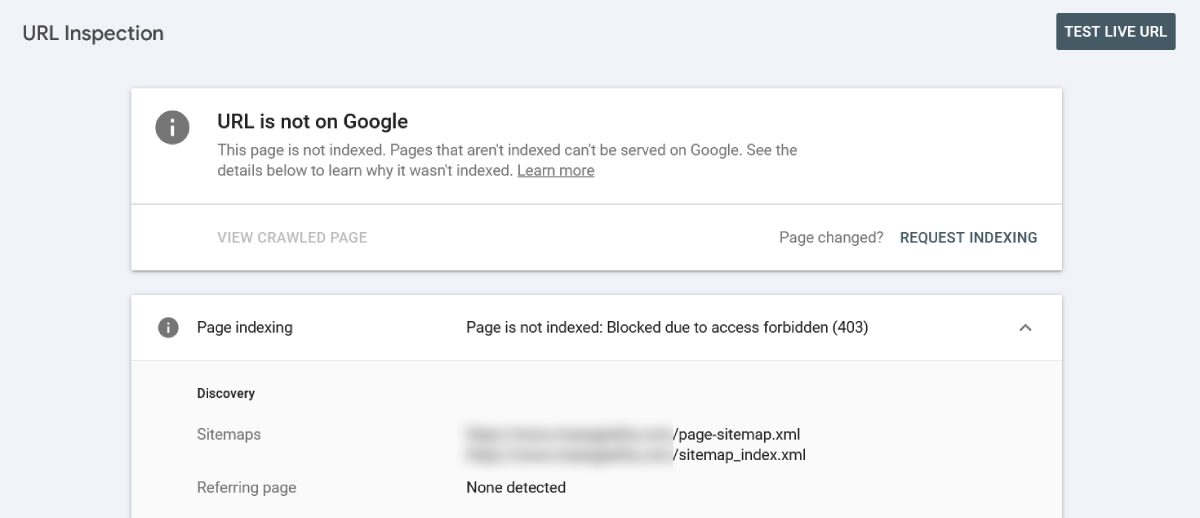
Blocked Due to Access Forbidden (403)
What it means: Googlebot visited the URL but the server returned a 403 response — access denied. The page is live and viewable to human visitors, but something on the server is blocking Googlebot specifically.
Why it happens: This is almost always a server-level or security configuration issue, not a content problem. Common causes include a WAF (Web Application Firewall) or hosting firewall rule blocking Googlebot’s user agent, a security plugin rate-limiting or flagging crawler activity, or server-side access restrictions on specific URL path patterns. One pattern I have seen firsthand: URLs that contain certain words in the slug — “403,” “forbidden,” “hack,” “attack” — can sometimes trigger WAF pattern-matching rules that interpret the request as a security probe and block it with a 403 response, even though the page is perfectly public.
What to do:
- Check your hosting control panel for WAF or firewall rules and whitelist Googlebot’s IP ranges or user agent string.
- If you use a security plugin, check whether its bot-blocking or rate-limiting settings are too aggressive.
- Check Cloudflare (if active) for rules blocking non-browser user agents on specific URL paths.
- Use GSC’s “Test Live URL” feature and examine the exact HTTP response headers to identify where the block originates — server, CDN, or plugin level.
- Renaming the URL slug is not a reliable fix if the underlying server configuration is the problem. The new URL may trigger the same block, or the old issue may resurface on a different page.
Server Error (5xx)
What it means: Googlebot visited the URL but the server returned a 500-level error — the server crashed, timed out, or was unavailable at the time of the crawl.
What to do: Check your server error logs for the time of the crawl to understand what caused the failure. Common causes include PHP memory limit exhaustion, slow database queries, or resource spikes when Googlebot hits resource-intensive pages. If you are seeing this frequently, your hosting environment may need attention. Ensure your caching is working correctly so Googlebot is served cached pages rather than triggering full PHP execution on every visit.
How to Read the URL Inspection Panel Correctly
When you inspect a URL in GSC, the panel gives you more than just the status label. Here is what each field actually tells you and how to interpret it:
Sitemaps: Which sitemap(s) referenced this URL. “Temporary processing error” here is a GSC-side glitch, not a problem with your sitemap — it typically resolves within a day or two on its own.
Referring page: The last page Googlebot followed a link from to reach this URL. “None detected” alongside a “Discovered” status is a red flag. It means Googlebot found the URL only via sitemap, not via a real HTML link from another crawled page — making it low priority in the crawl queue. This is one of the most actionable signals in the entire inspection panel.
Last crawl: The date Googlebot last visited. N/A means it has never been crawled. A date weeks or months old on a recently updated page suggests low crawl frequency — worth reviewing whether your crawl budget is being spent efficiently elsewhere on the site.
Crawled as: Whether Googlebot visited as desktop or smartphone. Googlebot smartphone is standard and correct since Google uses mobile-first indexing.
Page fetch: Whether the page was successfully downloaded. “Failed” with a specific error code (403, 404, 5xx) tells you exactly where in the process the breakdown occurred and maps directly to the statuses covered above.
Indexing allowed? Whether the page is blocked by robots.txt or noindex. If this shows “No” on a page you want indexed, that is your immediate priority fix — nothing else matters until this is resolved.
The Most Common Mistake I See With GSC Indexing Issues
By far the most common mistake is treating all non-indexed pages the same and responding by clicking “Request Indexing” repeatedly. This wastes your daily GSC submission quota and does not address the actual problem for most statuses.
The correct approach is to read the status, identify which stage of the pipeline the page is stuck at, and address the root cause for that specific stage:
- Stuck at discovery → fix the referring page and internal link visibility problem
- Stuck after crawling → fix the content quality or duplication issue
- Blocked before crawling → fix the robots.txt, noindex, or server configuration issue
Request Indexing is most useful after you have made a substantive change that addresses the actual reason the page was not indexed. It signals to Google that the page has changed and is worth re-evaluating — not a way to force indexing of a page with unresolved underlying issues.
What About the “Page Changed?” Button?
Next to “Request Indexing” in the URL Inspection panel, you will sometimes see a “Page changed?” prompt. This appears when GSC detects that the page content has been updated since the last crawl. Clicking “Request Indexing” here is appropriate and effective — you are telling Google that the content is now different and worth re-evaluating. This is meaningfully different from requesting indexing on a page that has not changed since it was last crawled and still rejected.
Frequently Asked Questions
If you are looking for a quick answer to a specific indexing problem, these FAQs cover the most common Google Search Console questions.
What is the difference between “Discovered — currently not indexed” and “Crawled — currently not indexed” in GSC?
“Discovered — currently not indexed” means Google found your URL but has not visited it yet — all crawl fields will show N/A. “Crawled — currently not indexed” means Google actually visited and rendered the page but decided not to add it to the index. These are two completely different problems. The first is a crawl priority issue, usually linked to weak internal links or caching problems hiding those links from Googlebot. The second is a content quality or duplication issue that requires improving the page itself before resubmitting.
Why does GSC show “Referring page: None detected” even though I added internal links?
This almost always means your caching layer served Googlebot a stale version of the linking pages — the version that existed before you added the new links. Even if the links are visible in your browser, Googlebot may have crawled those pages from cache and never seen the updated version with the new links. The fix is to clear both your caching plugin and your server-level hosting cache on those specific linking pages, verify the links appear in View Page Source (not browser Inspect), and then resubmit the linking pages in GSC.
How many times should I click “Request Indexing” in GSC?
Once, after making a substantive change to the page or after resolving the underlying issue identified in the URL Inspection panel. Clicking it repeatedly on a page with unresolved issues wastes your daily submission quota and does not change Google’s assessment of the page. Request Indexing works best as a signal that something has meaningfully changed — not as a way to force Google’s hand.
Can a page be indexed but still not rank in Google Search?
Yes, and this is an important distinction. Indexed means Google has added the page to its database. Ranking means Google considers the page relevant and authoritative enough to surface for specific queries. A page can be fully indexed and generating zero impressions if it is not competitive for any search query, targets the wrong keywords, or has been outranked by stronger pages on the same topic. Check the Performance report in GSC to see whether an indexed page is generating impressions at all.
What does “Blocked due to access forbidden (403)” mean in GSC?
It means Googlebot visited the URL but the server returned a 403 access denied response. The page is live for human visitors, but something — a WAF rule, security plugin, hosting firewall, or CDN configuration — is blocking Googlebot’s user agent specifically. It is a server configuration issue, not a content issue. Identify where the block originates (server, CDN, or plugin level) using the HTTP response headers in GSC’s Test Live URL feature, then whitelist Googlebot at that layer.
Does Google index all pages submitted via sitemap?
No. A sitemap tells Google which URLs exist — it is a discovery mechanism, not an indexing guarantee. Google will crawl and evaluate submitted URLs based on its own crawl budget and quality assessment. Pages that lack inbound internal links, contain thin content, or duplicate existing indexed pages may be discovered via sitemap but deprioritized in the crawl queue or rejected at the indexing stage even after being crawled.
Fix the Cause, Not the Symptom
GSC indexing statuses are not vague — each one is a specific diagnosis. The more precisely you read them, the faster you can identify and fix the actual problem rather than chasing the wrong solution.
The statuses that trip people up most — particularly “Discovered — currently not indexed” versus “Crawled — currently not indexed” — behave very differently and require completely different responses. Conflating them is the most expensive mistake you can make when a page is not ranking.
Once you are comfortable reading individual URL statuses, the next step is learning to use the broader GSC Coverage report to identify patterns across your whole site — not just one page at a time. I will cover that in the next post in this series.
If you are troubleshooting a specific page right now and want to share what GSC is showing you, drop it in the comments — I am happy to take a look.

